Publish Shopify metafields — picked from your store, or created from SKU.io
Your Shopify theme shows the details shoppers look for, such as material, capacity or care instructions, from metafields. Until now, listings published from SKU.io arrived with those metafields empty, so someone filled them in by hand in Shopify. SKU.io now reads the metafields defined in your store, lets you pick which product data fills each one, and sends them with every listing you publish. If a metafield doesn't exist yet, you can create it from SKU.io.
✨ What this means for you:
- Pick, don't type. SKU.io lists the metafields your store already has, with their name, key, owner (product or variant) and type. You choose from the list, so there's no key to remember.
- Create one from SKU.io. Click Create metafield, enter a name, owner and type, and it's created in Shopify, ready to map.
- Map once. Fill a metafield from a product attribute, a fixed value or another field, for the whole store, a listing profile or a listing template. You can still give one product its own value.
- Checked before it's sent. Each value is checked against the metafield's type, allowed values and limits, so a bad value is flagged on the draft, not refused by Shopify.
- Blank never erases. A blank value is never sent, so it can't clear what's already in Shopify.
Your store's metafields, in SKU.io
Open your Shopify store under Apps & Integrations, then Settings → Listing Metafields. Each metafield defined in the store has a row, with what it's Mapped from. The list refreshes from Shopify every night, and Refresh metafields brings in one you've just added.
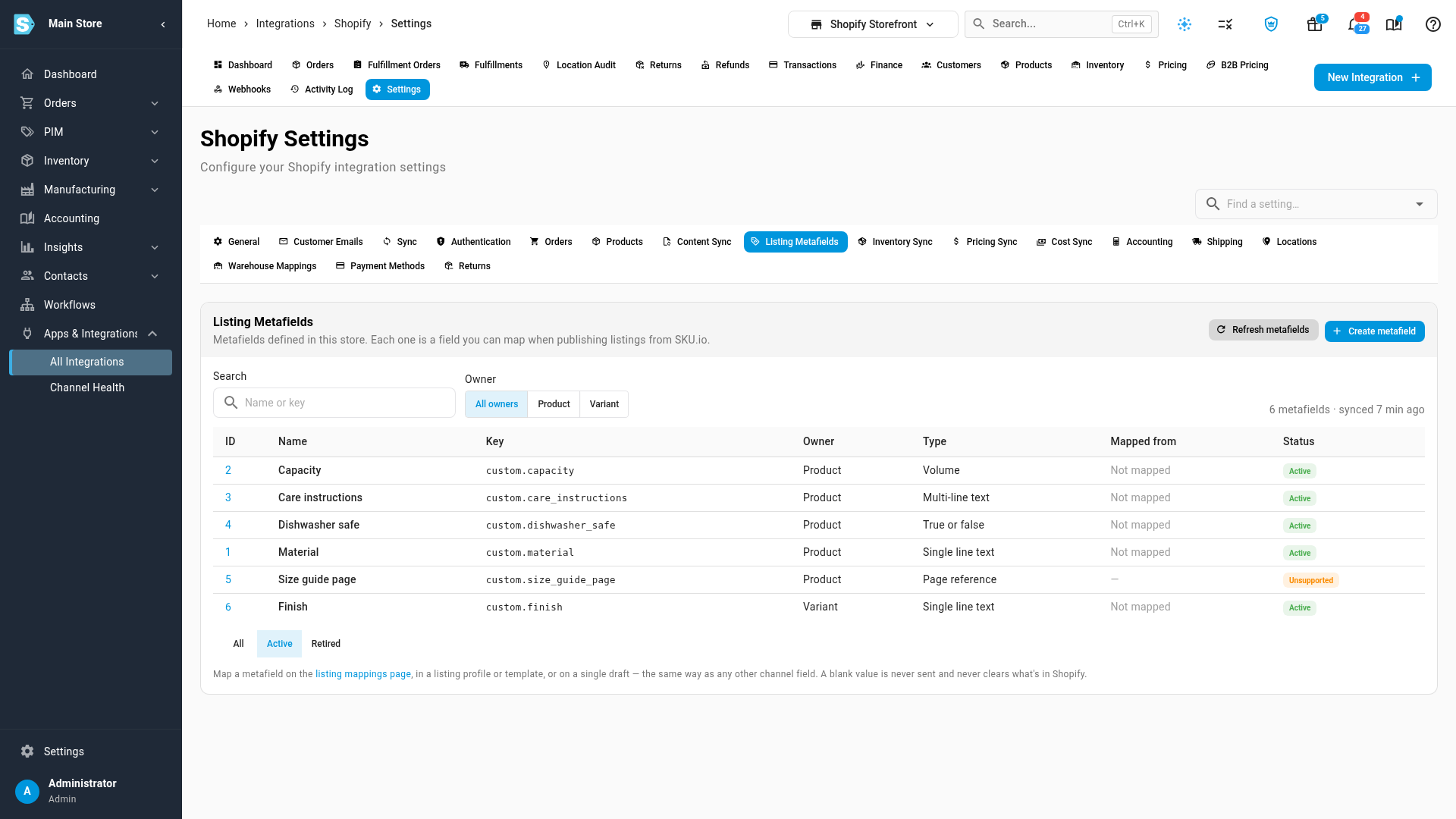
In the publish dialog, the Jump to row takes you straight to the Shopify metafields section, and the filter box finds a metafield by its key, such as custom.material.
Where to find it
- Your store's metafields: Apps & Integrations → your Shopify store → Settings → Listing Metafields, with Create metafield and Refresh metafields.
- Mappings: the listing mappings page link below the list, or a listing profile or template.
- One product's values: the Shopify metafields section of the product's listing draft.
Full guide: Send product data to Shopify metafields