PayPal payments — get paid on a sales order without leaving SKU.io
When a wholesale or phone customer wants to pay by PayPal, the payment usually happens somewhere else. You send a PayPal invoice or request, wait, then open the order and type the payment in by hand. The PayPal fee never makes it onto the order, so the payment looks bigger than what actually reached your account. PayPal payments brings it into SKU.io. Connect your PayPal Business account, send the customer a pay link from the sales order, and when they pay, SKU.io records the payment on the order, with PayPal's fee, without you typing anything.
✨ What this means for you:
- No more keying in payments: the moment your customer pays, the payment appears on the order and the order's balance updates.
- The real fee, on every payment: PayPal's fee is recorded next to each payment, so you can see what actually reached your account.
- Deposits and part payments: ask for the full amount due or a smaller amount, and send the link by email or copy it into your own message.
- Refunds from the order: refund all or part of a PayPal payment from SKU.io, with a review step before any money moves.
- Nothing slips through: import your PayPal transactions to see which ones are matched to orders and which still need a look.
Send a pay link from the order
On a sales order's Payments tab, click Add Payment and choose PayPal Pay Link. The amount starts at what the customer still owes; enter less to ask for a deposit. Choose Email to customer and SKU.io sends the link using your own email template. You can preview the email and add CC recipients. Or choose Copy link and paste it wherever you talk to your customer.
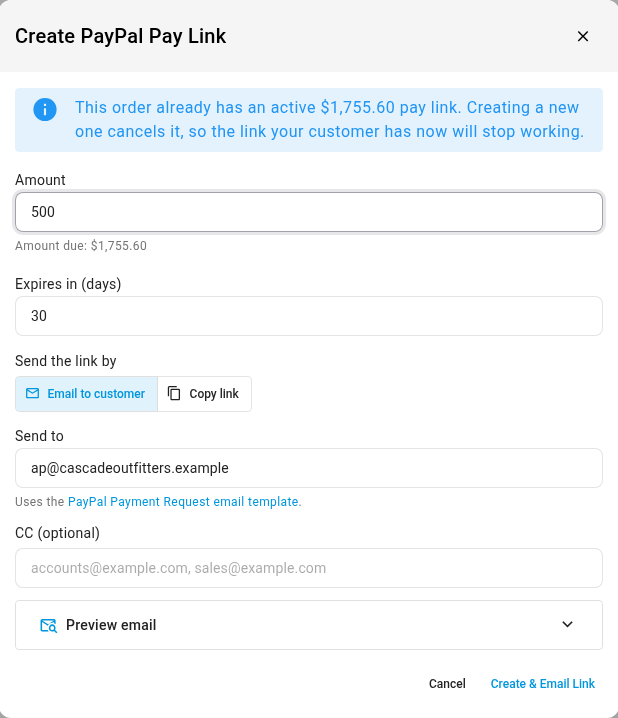
Your customer pays on a SKU.io pay page with their PayPal account. The page shows your store, the order and the amount.
Paid, with the fee, on the order
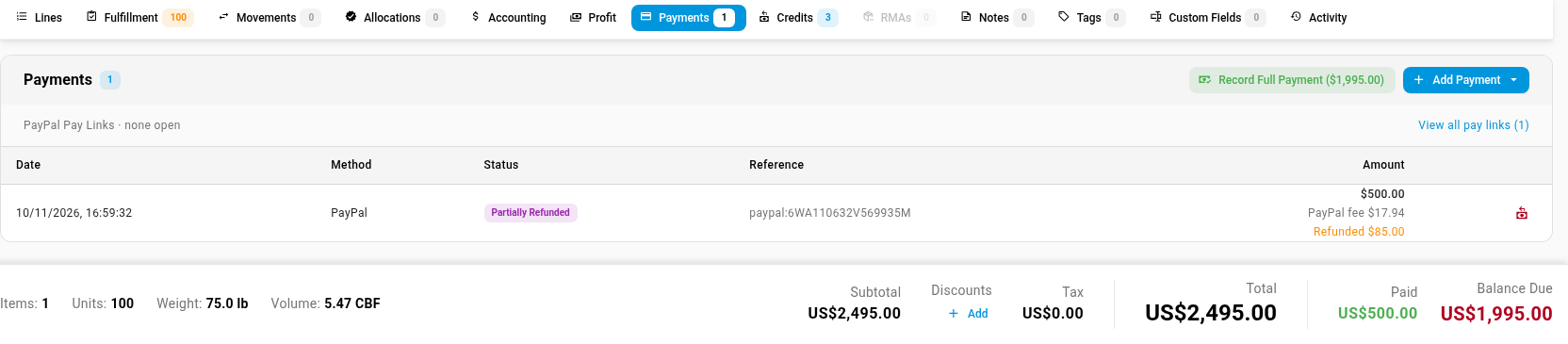
When the customer pays, the payment appears on the order's Payments tab with PayPal's fee underneath it, and the order's Paid and Balance Due totals update straight away.
Refund with confidence
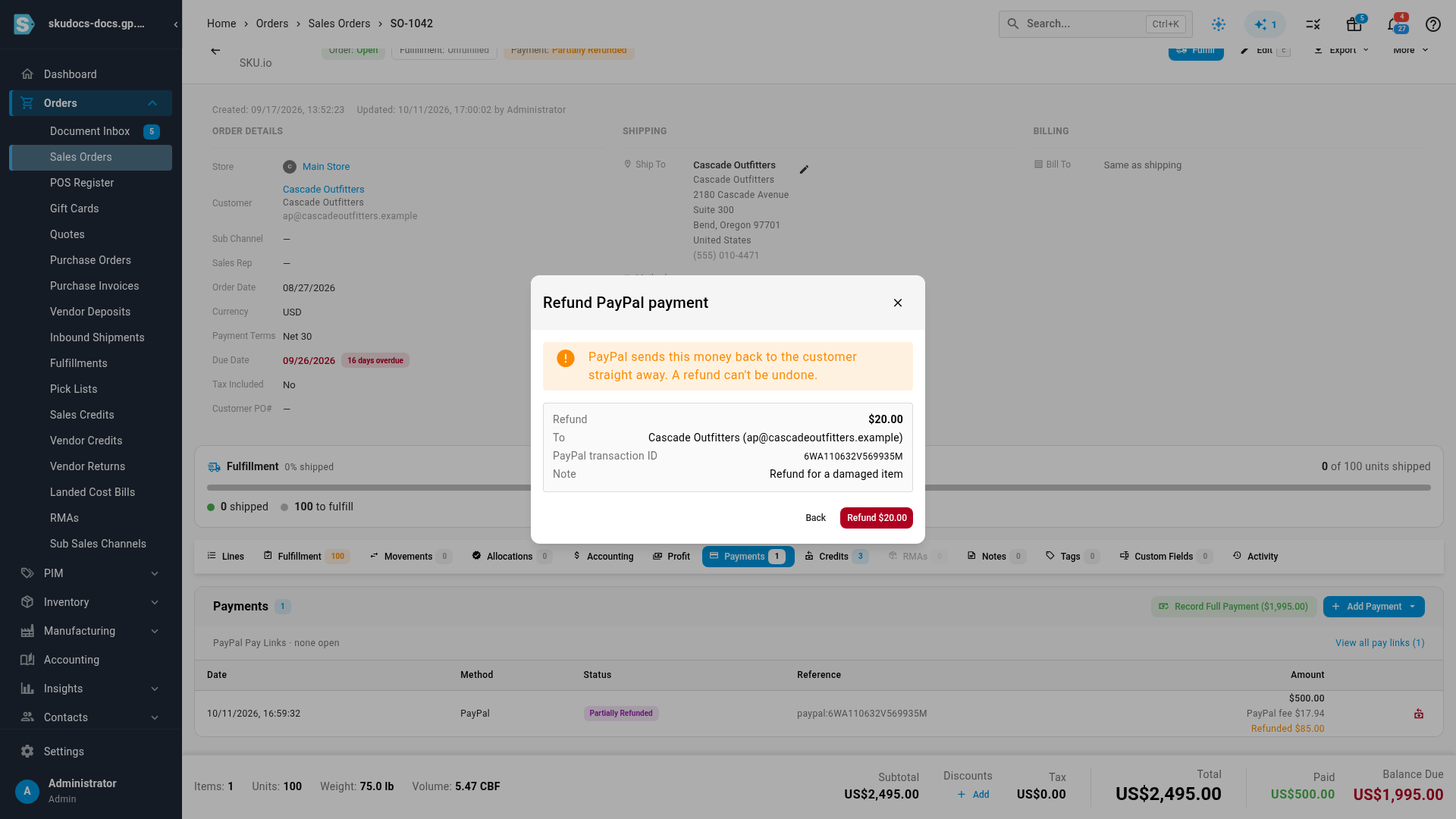
Refund all or part of a PayPal payment from the order. Before anything is sent, Refund PayPal payment shows the amount, who it goes to and the PayPal transaction. PayPal returns the money to the customer straight away, and SKU.io records the refund and its store credit on the order.
Every PayPal transaction, matched
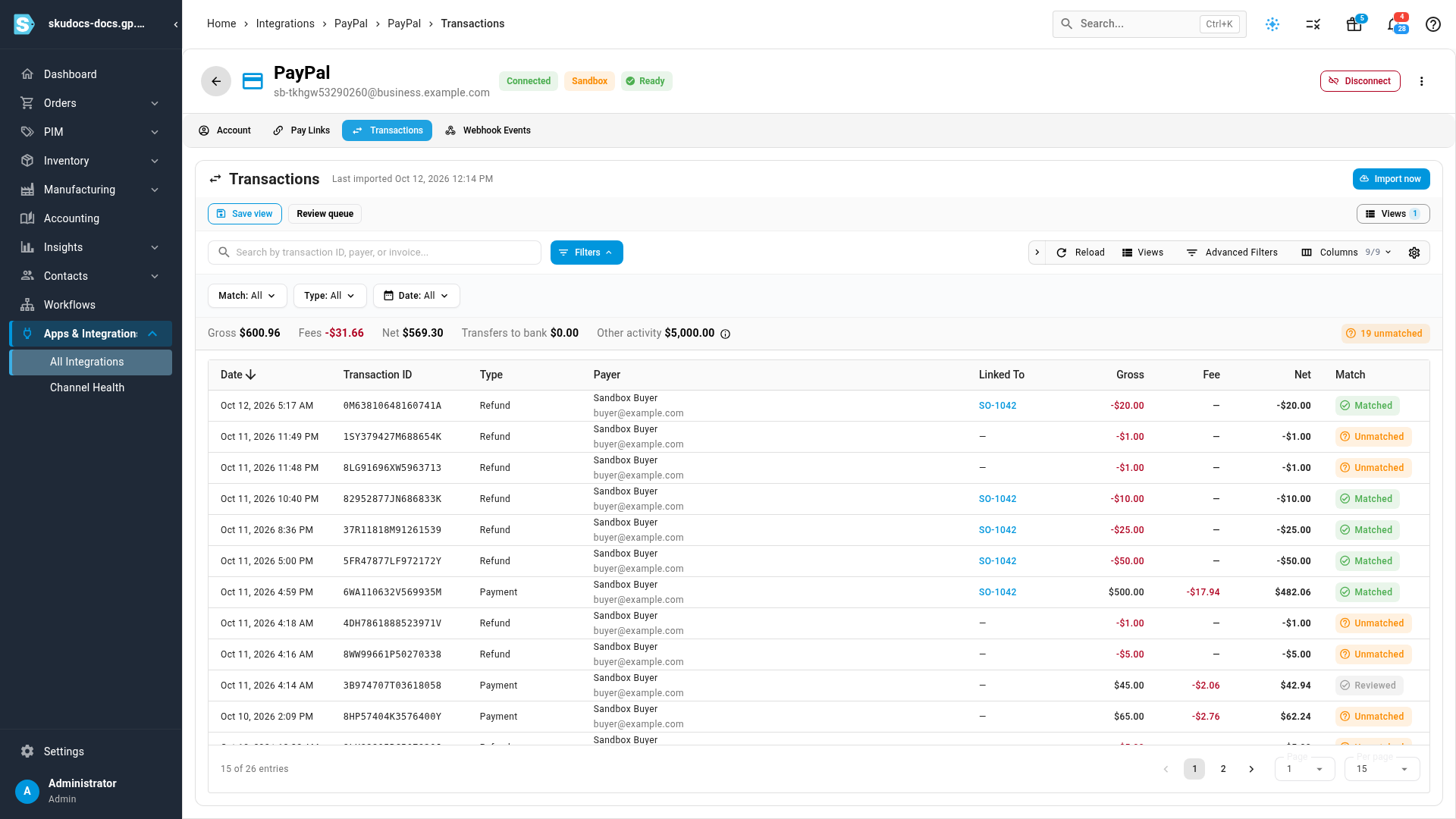
The Transactions tab imports your PayPal account's activity and matches each payment and refund to its order. Totals for gross, fees, net and transfers to your bank sit above the list, and anything unmatched is counted and easy to filter, so you can see when a payment came in outside SKU.io or didn't reach its order.
Where to find it
- Connect PayPal: Apps & Integrations → All Integrations → PayPal. You connect with the API keys from your PayPal app at developer.paypal.com. Connect with PayPal, where you sign in to PayPal instead of pasting keys, is coming soon, and accounts you connect now can switch over without losing their pay links or payment history.
- Get paid: any sales order → Payments tab → Add Payment → PayPal Pay Link.
- Refund: the refund button on a PayPal payment in the order's Payments tab.
- Review transactions: your PayPal account → Transactions tab.
- Full guide: PayPal. It has six step-by-step guides, each with a short video.