SQL reports — answer any question with a query, safely
The report builder covers most questions in a few clicks. But sometimes you need to rank products against each other, compare one period with another, or combine data in a way the builder can't express. Until now, those reports meant waiting on someone to build them for you. SQL reports let the people on your team who know SQL write the report themselves, as a query, right inside SKU.io. The query runs read-only against your own data, and the result is a normal saved report you can share, schedule and export.
✨ What this means for you:
- Answer questions the builder can't, such as rankings, running totals, percent-of-total and side-by-side comparisons.
- Browse every available table and column while you write, so you don't need to know the data model by heart.
- Your query is checked as you type. Problems are flagged before you run it, and you see roughly how much data it will scan.
- Save SQL reports and share, schedule, export and favourite them just like reports made in the builder.
- SQL reports are read-only. They can't change your data, and they can only read tables that are available to them.
- Only admins, and the roles an admin chooses, can write SQL. Teammates you share a report with can run it without editing the query.
Write a query, see the results
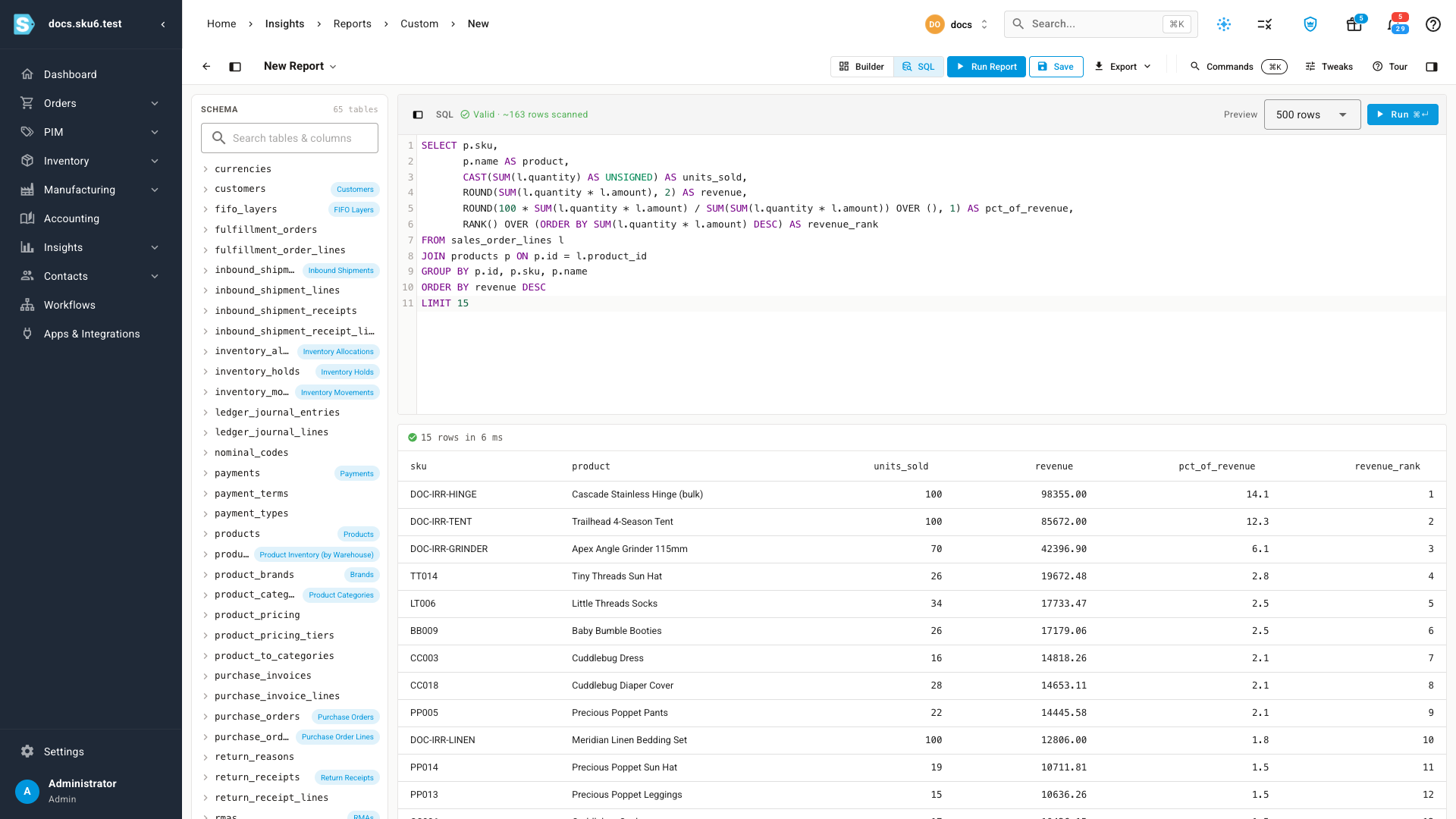
Choose New SQL Report and SKU.io opens a workspace with three parts. The Schema panel on the left lists every table you can query, and expands each one to show its columns. You can search it by table or column name. The editor in the middle highlights your SQL and suggests table and column names as you type. The results grid underneath shows your rows and how long the query took.
As you write, the editor checks your query. A green Valid tick shows when it's ready to run, along with roughly how many rows it will scan. Pick how many rows to preview, from 10 up to 5,000, then click Run or press ⌘↵ (Ctrl↵ on Windows).
Safe by design
SQL reports can look at your data but never change it. Only SELECT queries run, and only against the tables listed in the Schema panel. Anything else is caught before it reaches your data, with a plain explanation of what's wrong, and Run stays disabled until you fix it.
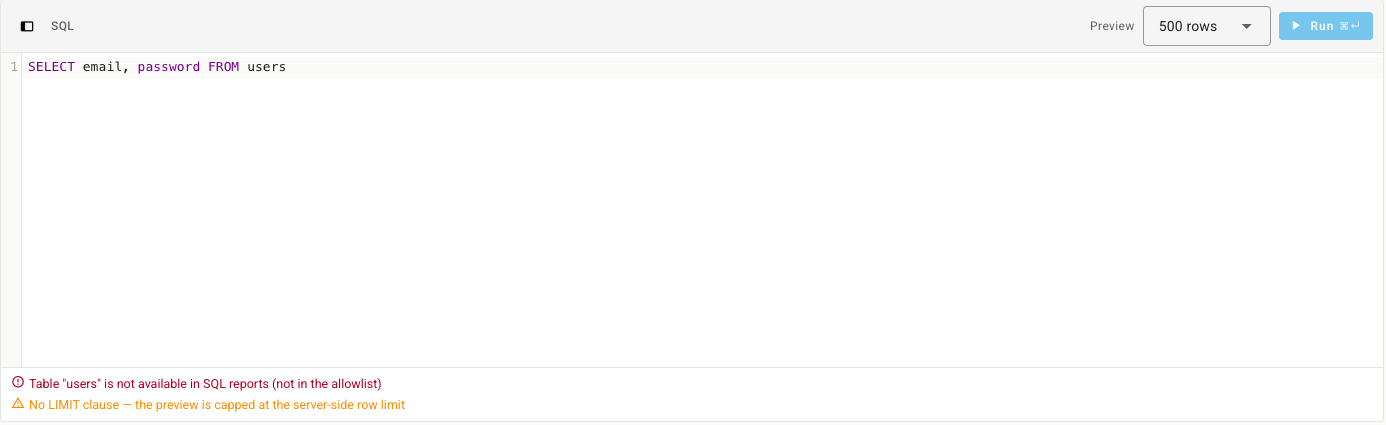
There are a few more safeguards:
- Time limits. A preview that runs too long is stopped and doesn't slow anything else down. Narrow it down with a
WHEREclause or aLIMIT, or export it instead, because exports get a longer time limit. - Big queries run in the background. If a query will scan a very large amount of data, SKU.io runs it as a background job. You can watch it in the job tray and download the CSV there when it's ready.
- Every run is logged. SKU.io records each SQL run: who ran it, when, how long it took and how many rows it returned.
Save, share and schedule
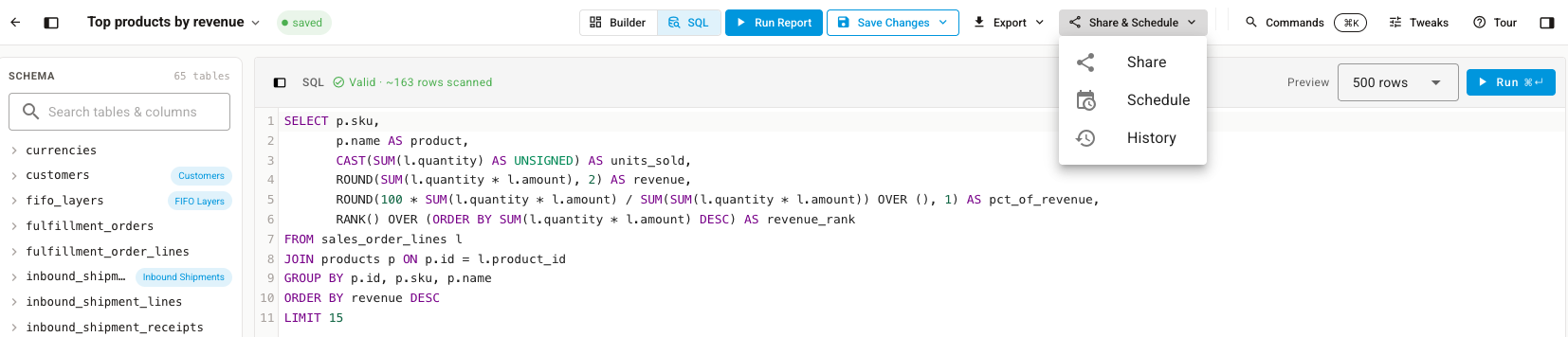
Save a SQL report with a name and it works like any other custom report. Use Export to download the results. Open Share & Schedule to share the report with teammates, run it on a schedule, or look back through its history. A teammate you share it with can run the report and see the query, but only people who are allowed to write SQL can change it.
SQL reports appear on the Custom Reports list next to your other reports, marked with a teal SQL badge. To show only SQL reports, set the Domain filter to SQL.

Who can use it
Admins can write SQL reports straight away. Writing SQL is a separate permission, and it is not part of Full Access. To let other people use it, an admin has to turn it on for their role in Settings → Roles.
Where to find it
Go to Insights → Reports → Custom and click New SQL Report. You can also switch an open report between Builder and SQL with the toggle at the top of the report.