Send product data to Shopify metafields
Metafields are extra fields on a Shopify product, such as its material, capacity or care instructions. Your theme reads them to show details on the product page. When you publish a listing from SKU.io, it can fill those metafields for you. Map each one once, and every product you publish to the store gets it.
Before you begin
- Your Shopify store is connected. See Connect a Shopify store.
- The metafields exist in Shopify, under Settings → Custom data. You can also create one from SKU.io (see Create a metafield from SKU.io).
- To create metafields or change mappings, you need permission to edit integrations.
Find your store's metafields
- In the sidebar, open Apps & Integrations and choose your Shopify store.
- Open Settings, then the Listing Metafields tab.
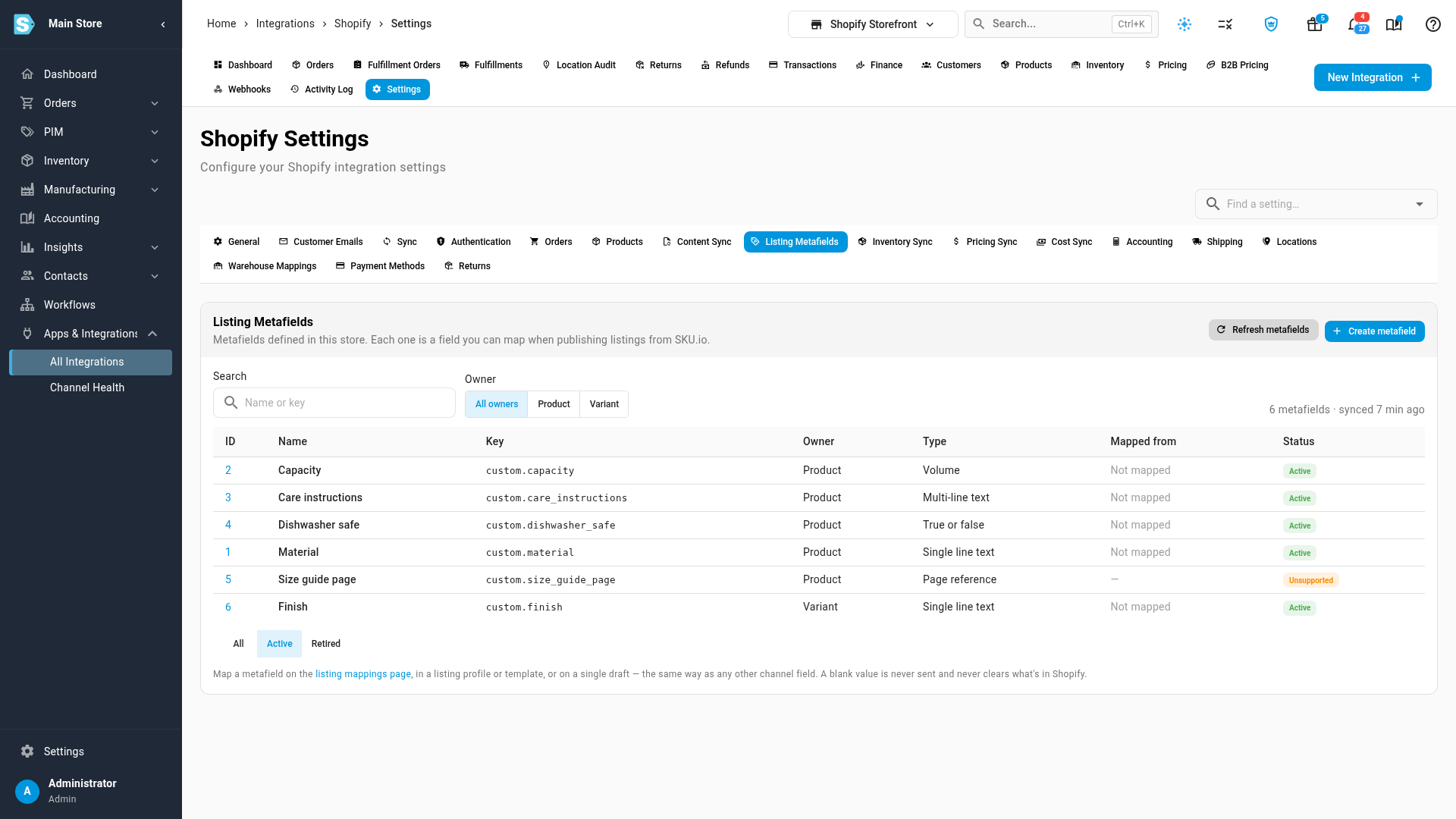
Each metafield defined in your store has a row.
| Column | What it shows |
|---|---|
| Name and Key | The metafield's name in Shopify and its key, such as custom.material. |
| Owner | Product for a metafield on the whole product, Variant for one on each variant. |
| Type | The kind of value Shopify accepts, such as single line text, volume or true or false. |
| Mapped from | Where the value comes from for every listing on the store, or Not mapped. Click it to open the mapping. |
| Status | Active; Retired when the metafield was deleted in Shopify; or Unsupported for a type SKU.io can't send yet, such as a page reference. |
The list is refreshed from Shopify every night. Click Refresh metafields to bring in one you've just added in Shopify.
Map a metafield for every listing
To fill a metafield on every product you publish to the store, map it once on the listing mappings page.
- On the Listing Metafields tab, click listing mappings page below the list.
- Click Add mapping.
- In the field box, type the metafield's name, such as Material, and choose it. Metafields are labelled Shopify metafield — every category.
- Choose where its value comes from, such as Product attribute, then choose the attribute.
- Click Save.
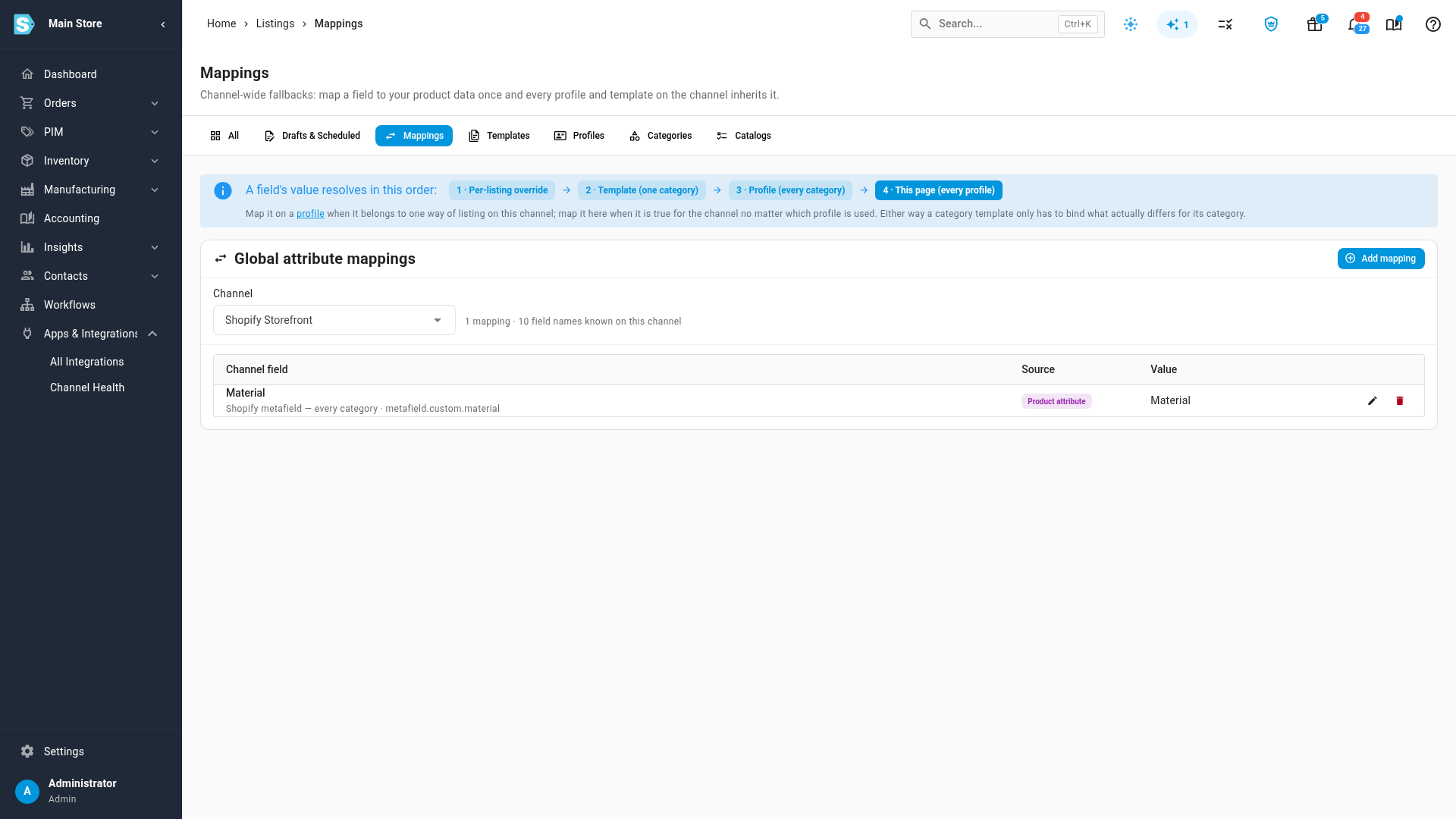
You can map a metafield the same way in a listing profile or a listing template. A template's value wins over a profile's, and a profile's wins over the channel-wide mapping.
Give one product its own value
On a single product's draft, you can override any metafield.
-
Open the product's draft for the store. See Work with listing drafts.
-
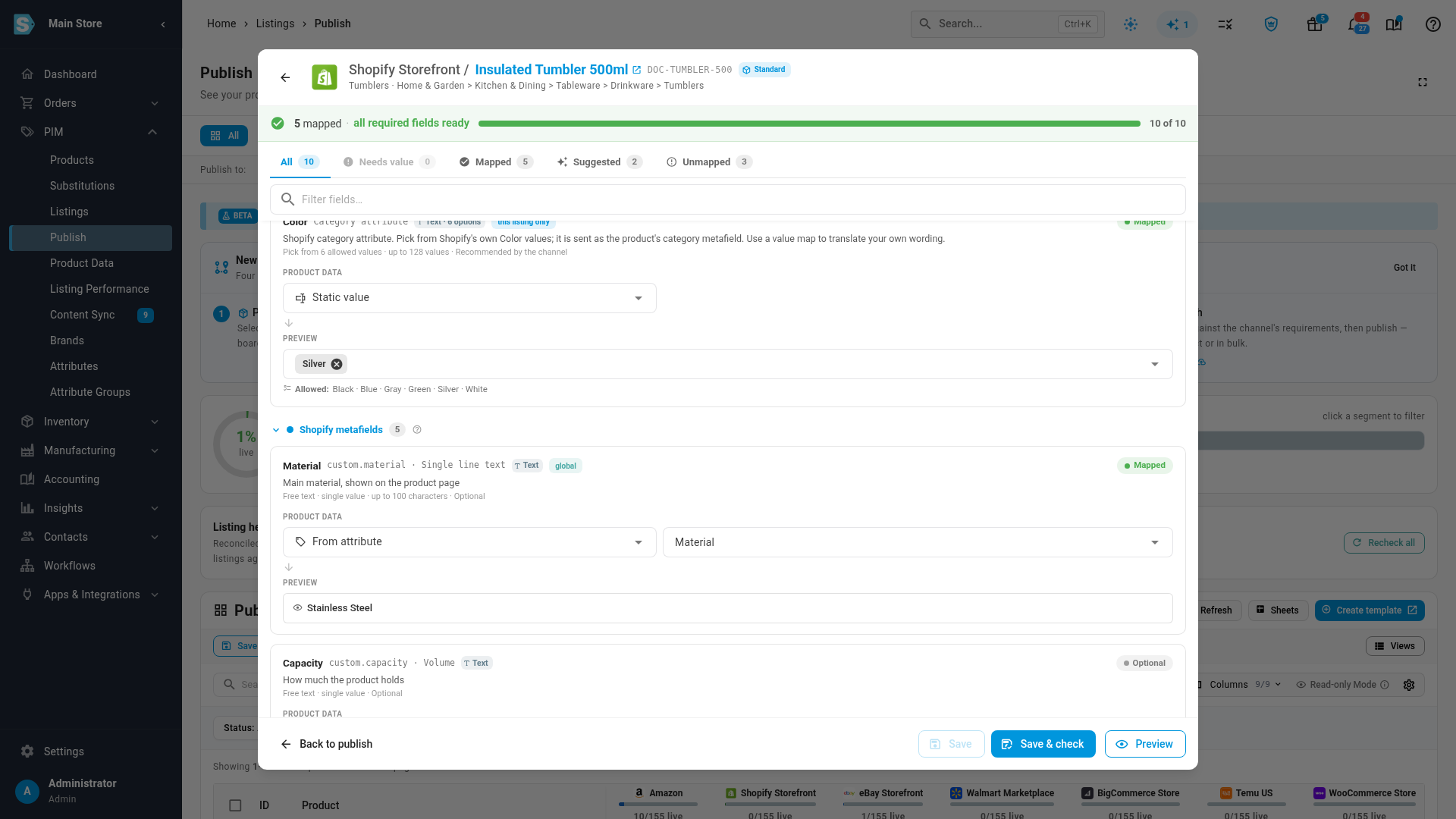
Click Customise this product's values for this channel.
-
Scroll to the Shopify metafields section. Each row shows the metafield's key and type.
-
On the metafield's row, choose a source:
- Static value — type the value for this product only.
- From attribute — choose one of the product's attributes.
-
Click Save & check.
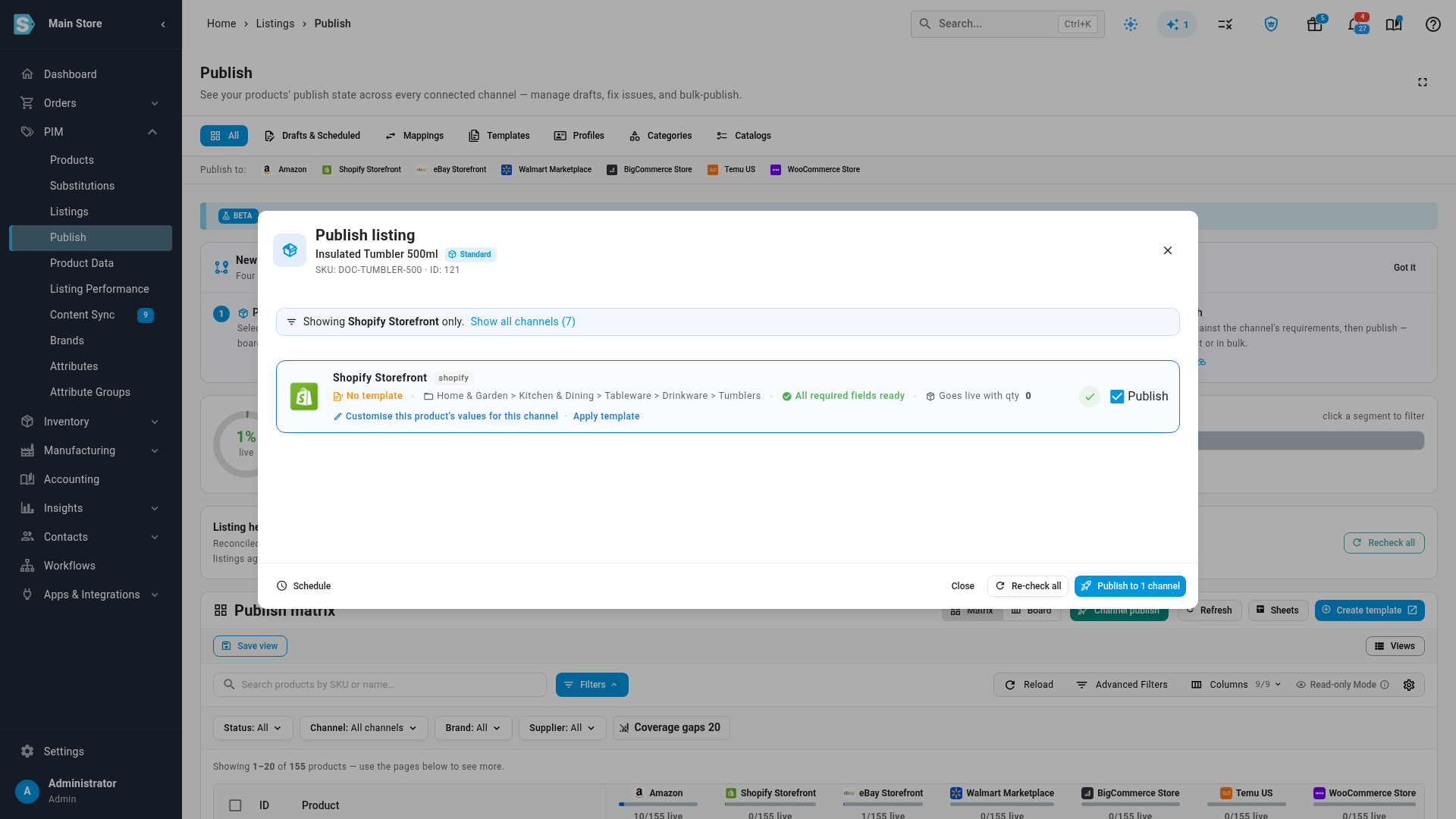
SKU.io checks each value against the metafield's definition: its type, its allowed values and its limits. A value that won't fit is flagged on its row, so you can fix it before you publish. When every value passes, the store's row on the publish screen shows All required fields ready.
What gets sent
When you publish or update the listing, the metafields go to Shopify with the product.
| Situation | What happens |
|---|---|
| A value is blank | Nothing is sent. A blank value never clears what's already in Shopify. |
| A measurement, such as 500 ml or 0.35 kg | Sent in Shopify's own format, with its unit. |
| A list metafield | Each value is checked against the list's limits before it's sent. |
| A Variant metafield | Sent to each variant of the product. |
| An Unsupported or Retired metafield | Can't be mapped, and nothing is sent. |
| A category attribute, such as Color | Sent as Shopify's own category value. A value your store doesn't have yet is skipped, and the draft shows Published — some values were not sent, listing each one. |
Create a metafield from SKU.io
If the metafield doesn't exist in Shopify yet, you can create it without leaving SKU.io.
- On the Listing Metafields tab, click Create metafield.
- Enter a Name, choose the Owner (product or variant), and check the Key. The Namespace is
customunless you change it. - Choose its Type. For a text field, you can add Allowed values.
- Click Create.
The metafield is created in Shopify and appears in the list, ready to map.
Next steps
- Set up listing profiles — map metafields once for a whole channel.
- Build a listing template — set metafield values for one Shopify category.
- Map channel fields to products — the other direction: fill SKU.io products from Shopify metafields.