Automatic SKU numbering — the next SKU, without the spreadsheet
Plenty of brands build SKUs the same way: a code for the kind of product, maybe the year, then the next number in that group's run. DW-26-1250 is the next drinkware product, AC-0418 the next accessory. Until now someone had to keep those counters in a spreadsheet, look up the next number every time, and hope nobody else took it first. SKU numbering keeps the counters in SKU.io. A new product saved without a SKU gets the next number from its rule.
✨ What this means for you:
- One rule per group. Number by product type, by primary category, or with an Everything else rule for the rest.
- Your format. Build the pattern from your own code, the year (
{YY}or{YYYY}), the month ({MM}) and a zero-padded counter ({####}). - Carry on from your sheet. Set Next number to where your spreadsheet left off, and reset the counter every January if your SKUs carry the year.
- No clashes. SKUs already in use, including a product's previous SKUs, are skipped. A SKU you type yourself always wins.
- Works everywhere you add products. The Add Product dialog, the product import and the API all use the same rules.
Set up your rules
Go to Settings → Products → SKU numbering and click Add rule. Choose what the rule applies to, type the pattern and the next number, and check the preview of the next three SKUs before you save. The list shows each rule's Next SKU and how many SKUs it has given out.
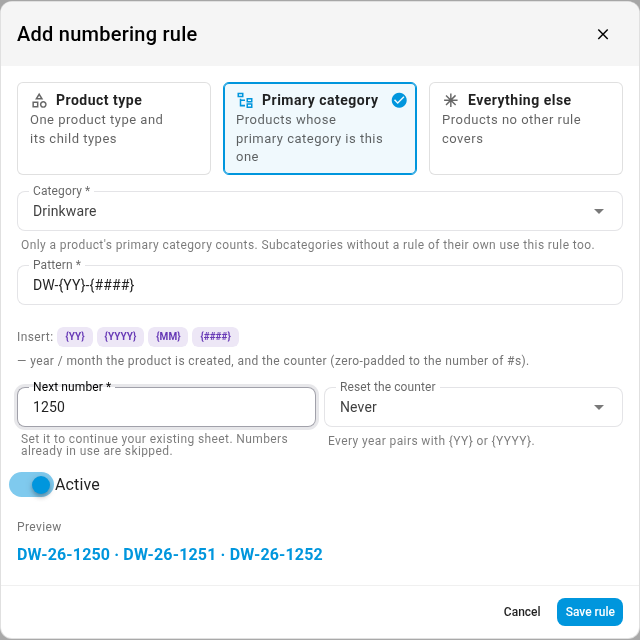
When a product could match more than one rule, the most specific one wins: its product type's rule, then its primary category's, then Everything else. A child type or subcategory without its own rule uses its parent's. Secondary categories never count.
Add a product without typing a SKU
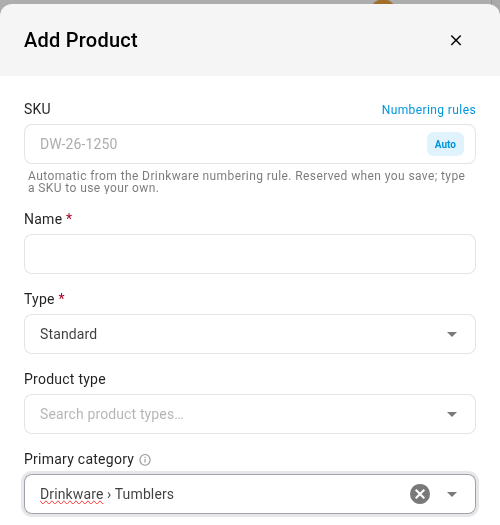
Open Add Product and pick the product type or primary category, and the SKU field shows the next number from the matching rule, with an Auto chip. Type the name and save, and the product takes that SKU. In the product import, leave the sku column empty on new rows, and the review step tells you which rule will number each one.
Where to find it
Settings → Products → SKU numbering. The Numbering rules link above the SKU field in Add Product goes there too.
Full guide: Set up automatic SKU numbering