Split one purchase order across warehouses and delivery dates
One factory order often doesn't go to one place. Part of a production run goes to your East Coast 3PL, part to the West Coast, and the rest lands a month later. Until now that meant raising a purchase order per warehouse, which triples the supplier payments, the landed costs and the matching, or raising one and guessing the shipments before the supplier had shipped anything. Now you can split a purchase order's lines by warehouse and delivery date, right on the order. Nothing is shipped or created when you split. The order simply records where each line's units go and when they're due, and every shipment the supplier actually sends is matched to it.
✨ What this means for you:
- One purchase order, one supplier bill and one set of landed costs for a factory run, however many warehouses it goes to.
- Your supplier sees each warehouse's address, quantities and deliver-by date on the PDF and in the supplier portal.
- Shipments fill themselves in with what's due at the warehouse they're going to. A short shipment leaves the rest open, and an early one counts toward the next date.
- Each warehouse's incoming stock shows only its own share, so planning and availability stay right.
- It stays out of the way: a purchase order that isn't split looks exactly as it did before.
Split the lines where you write the order
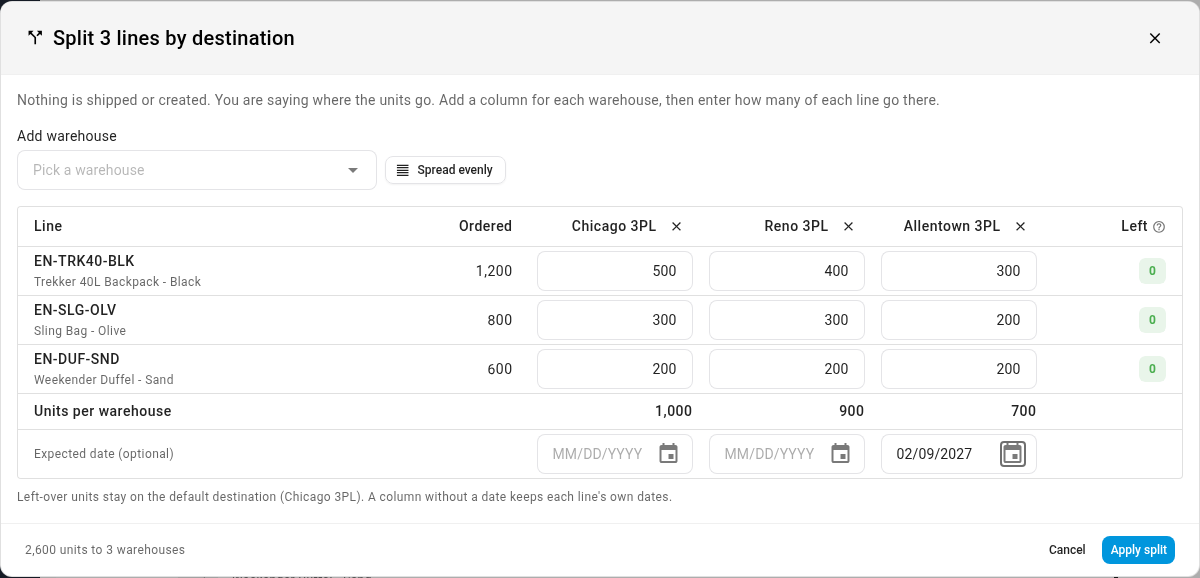
Open a line's ⋮ menu and choose Split by destination… or Split by delivery date…. To split several lines at once, tick them and click Split selected by destination…, or use Split lines by destination… in the Lines toolbar's More actions menu. Add a column for each warehouse, enter how many of each line go there, or click Spread evenly, and optionally give each warehouse an expected date. Anything you don't assign stays on the order's own destination.
See the split at a glance
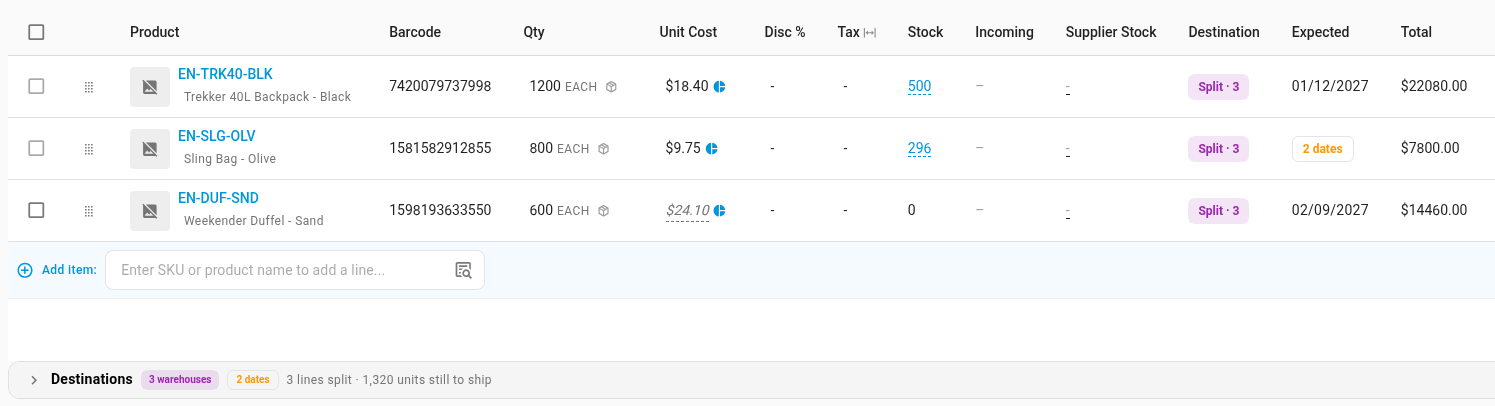
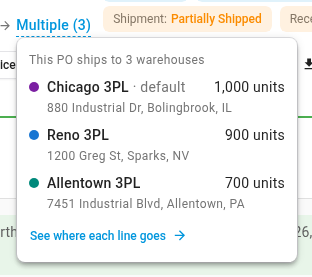
Split lines read Split · 3 in the Destination column, and a line arriving on more than one date reads 2 dates. A slim Destinations bar under the lines sums it up, and the order's Ship To reads Multiple (3) instead of naming one warehouse. Hover it to see each warehouse's address and units.
Follow each warehouse's share to the door
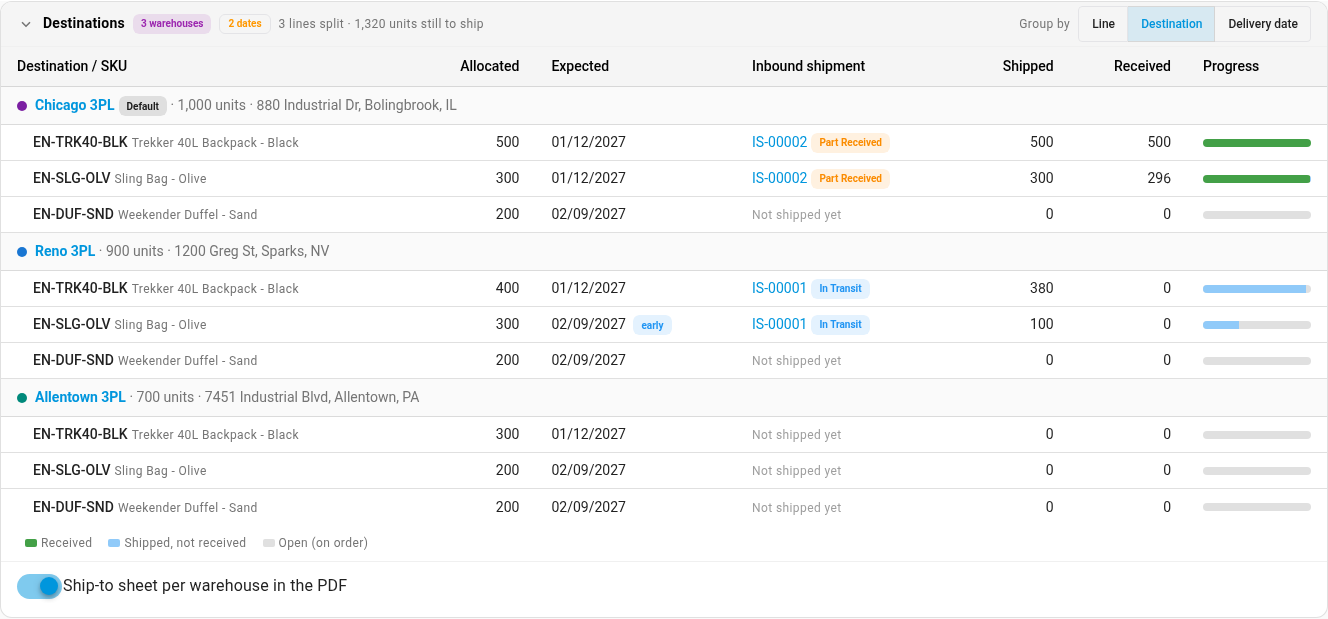
Open the Destinations bar and group by line, warehouse or delivery date. Each warehouse shows its units, expected dates, the shipments booked against it, and how much has shipped and been received, with early and late arrivals marked. Turn on Ship-to sheet per warehouse in the PDF to add a page for each warehouse that can travel with its goods.
When your supplier adds a shipment in the supplier portal, they pick the warehouse first, and the quantities fill in with what's still due there. When you receive, the quantities fill in with what that warehouse or shipment is still due.
Where to find it
Open a purchase order's Lines tab and use a line's ⋮ menu, the Split selected by destination… bulk action, or More actions → Split lines by destination….
Full guide: Split one PO across warehouses