Supplier portal: suppliers answer purchase orders and add shipments themselves
Once a purchase order goes out, the answer usually comes back in an email: some lines are fine, one is short, one ships late, and someone has to retype it all. With the supplier portal, your supplier signs in, answers the order line by line, and adds each shipment with its tracking. You see the answer next to what you ordered, and nothing on the order changes until you approve it.
✨ What this means for you:
- Suppliers accept, propose or reject each line, with a reason, in one place.
- You approve or counter their changes and re-send the order in one click.
- Partial shipments and tracking arrive on the purchase order, ready to receive against.
- Packing lists and commercial invoices are attached to the shipment they belong to.
- Messages about an order stay with the order, and your supplier is emailed when they miss one.
Suppliers answer line by line
Your supplier sees the purchase orders you have sent them. They can accept an order as sent, or propose a different quantity, unit cost or ship date on any line. They can reject a line or the whole order, and say why.
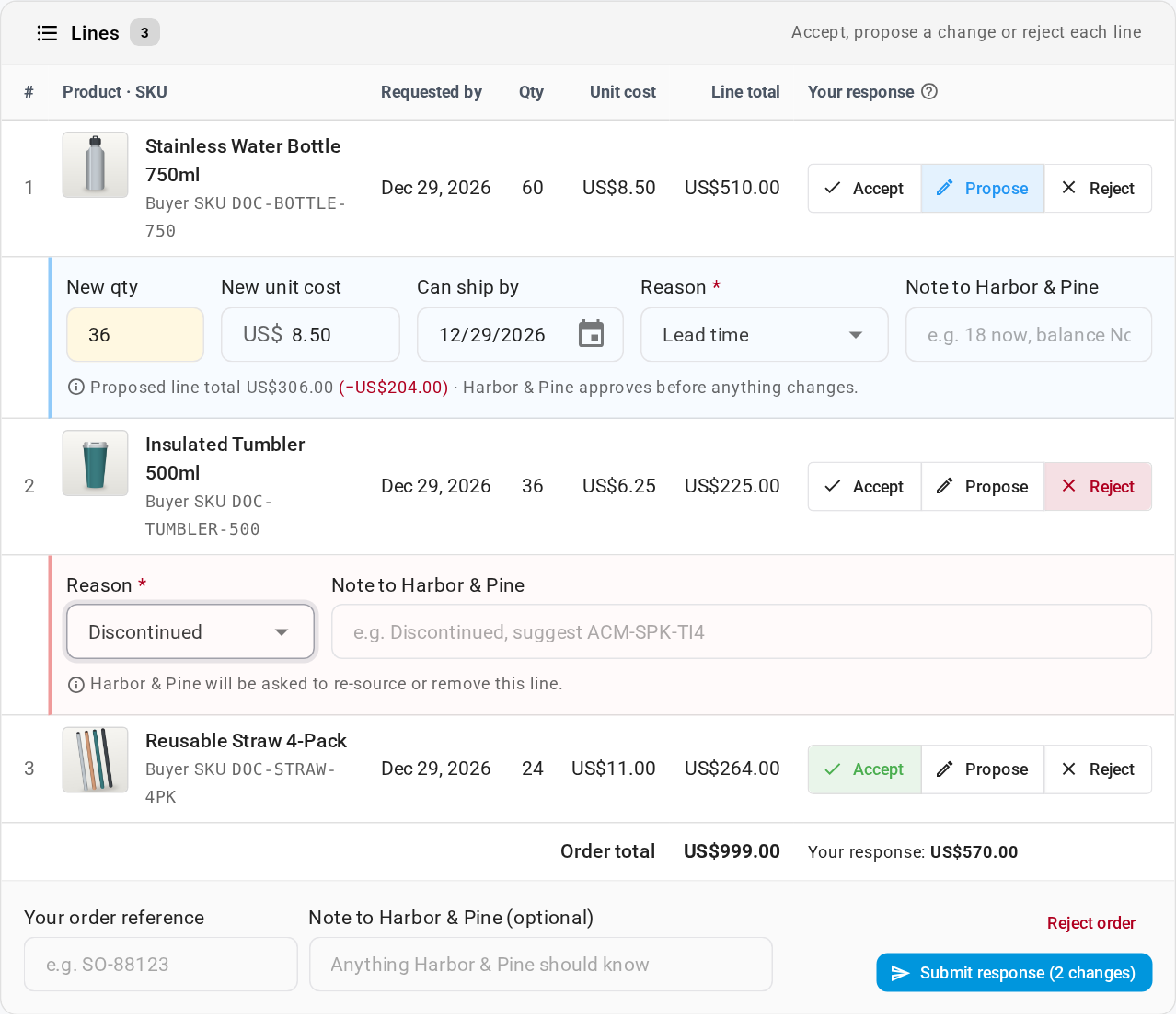
They can also accept straight from the purchase order email without signing in.
You decide what changes
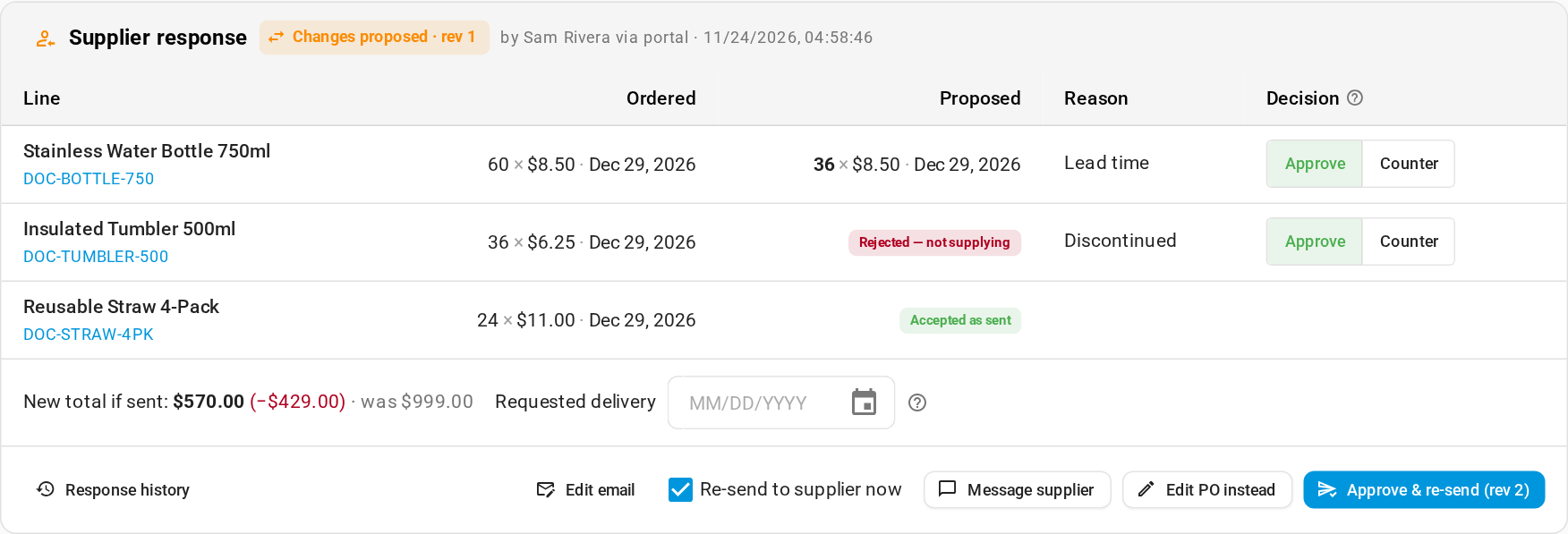
The purchase order shows what you ordered beside what the supplier proposed. Approve each line, or counter with your own numbers, then re-send the order as its next revision. The supplier confirms that revision on the portal.
Shipments with tracking, in parts if needed
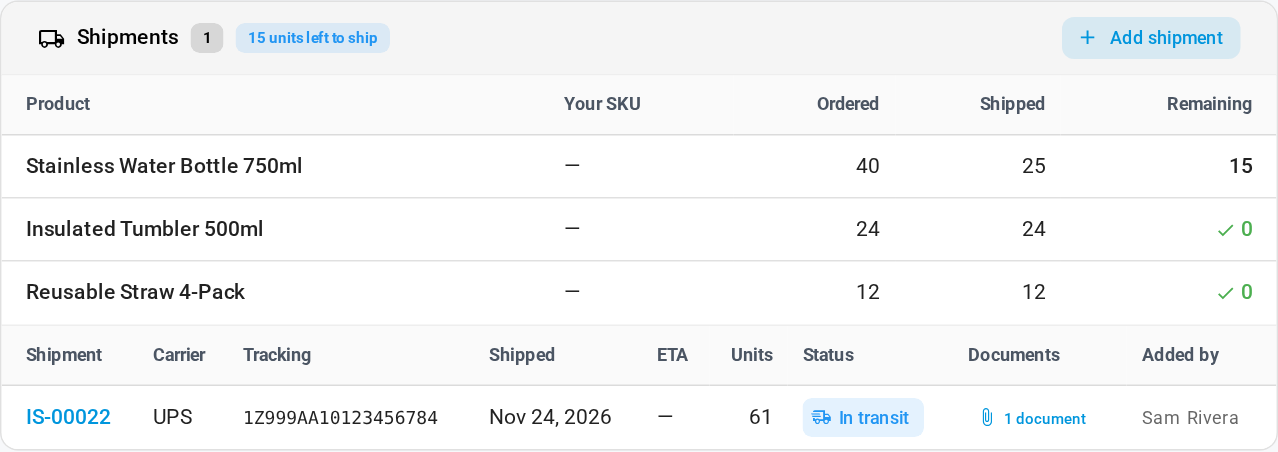
Suppliers add a shipment when goods leave, with a carrier, tracking numbers and the quantity of each line in it. An order shipped in parts stays open for the rest. Each shipment to your warehouse becomes an in-transit inbound shipment on the purchase order, so you can receive against it. Suppliers with many orders can upload tracking from a file.
Shipping documents on each shipment
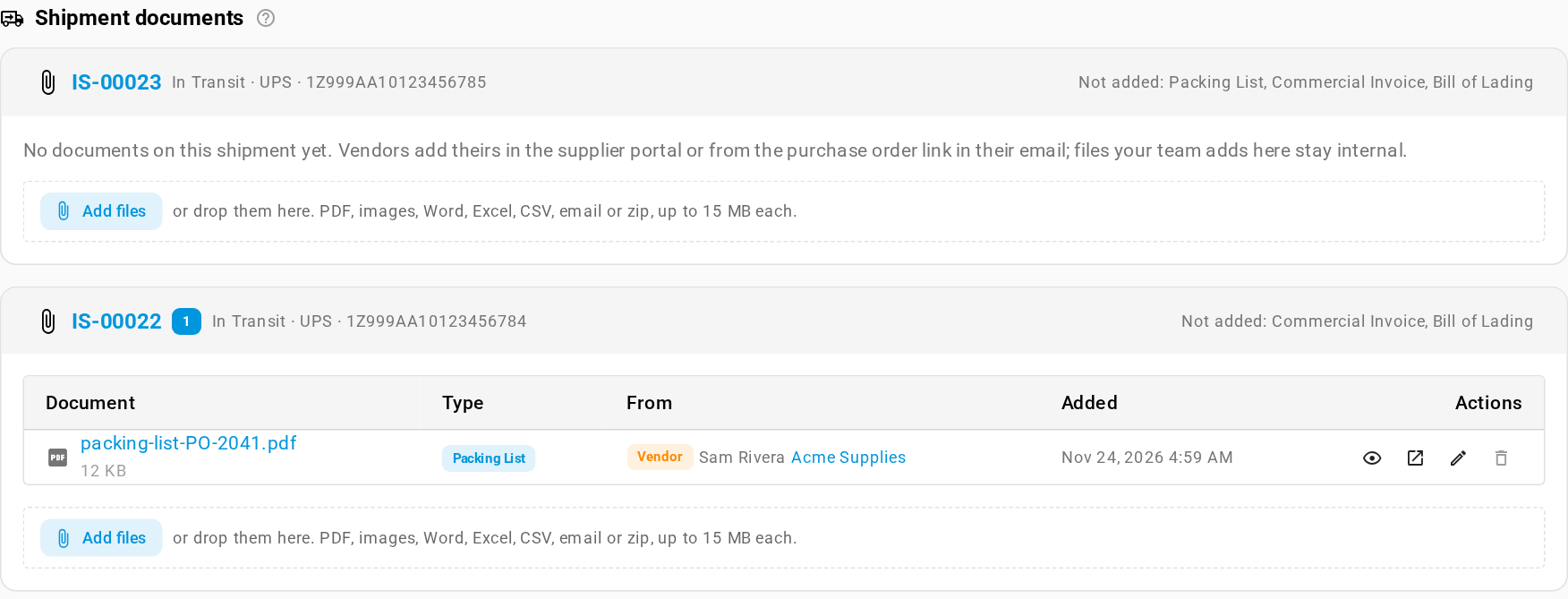
Suppliers attach the packing list, commercial invoice, bill of lading or certificates to the shipment itself, when they add it or later. They can also do it for each package from the link in your purchase order email, without signing in. The inbound shipment and the purchase order each have a Documents tab. The order groups the files by shipment and names the usual documents nobody has added: packing list, commercial invoice and bill of lading. You get an alert for each upload, and files your own team adds stay internal.
Messages, and the whole story of an order
When you write in Supplier Messages on an order, portal users who haven't read it after 5 minutes are emailed, with a button to reply. Each person gets at most one email per order every 30 minutes. You choose the wording, and each person can turn these emails off. The order's Timeline tab lists messages, sends, responses, shipments, documents and changes together.
Set it up per supplier
Turn the portal on for one supplier at a time and invite their team. You choose how long they have to answer an order and to ship a dropship order, and whether they can also submit invoices, keep their stock up to date, propose catalog changes and see their scorecard.
Where to find it
Open a supplier under Purchasing → Suppliers and go to Portal. The defaults for every supplier are under Settings → Purchasing → Supplier Portal.
Full guides: Supplier portal · Collect shipping documents from suppliers · Message a supplier on the supplier portal