Bulk edit lots — fix lot numbers and dates, and move stock between lots
A lot number typed wrong at receiving, a supplier who corrects the expiry dates on a shipment, a split case that belongs back with its main lot: until now each of these meant an adjustment out and an adjustment in, and the lot's history broke in the middle. Bulk lot editing lets you fix lots directly from Inventory → Lots. Rename a lot or correct its dates, move on-hand units into another lot of the same product, or do hundreds at once from a CSV that's previewed row by row before anything changes. Quantities, costs and everything already shipped stay exactly as they were.
✨ What this means for you:
- Fix a lot number or its dates in seconds, across every warehouse that holds the lot, with the old values kept in the lot's history.
- Move units between lots without adjustments: they keep their cost, their place in FIFO order and their bins, so your stock value doesn't move.
- Recalls still find the stock. Lot genealogy follows a move from the old lot to the new one.
- Change many lots from one file, with a preview that shows exactly what each row will do, or why it can't, before you apply it.
Rename a lot or correct its dates
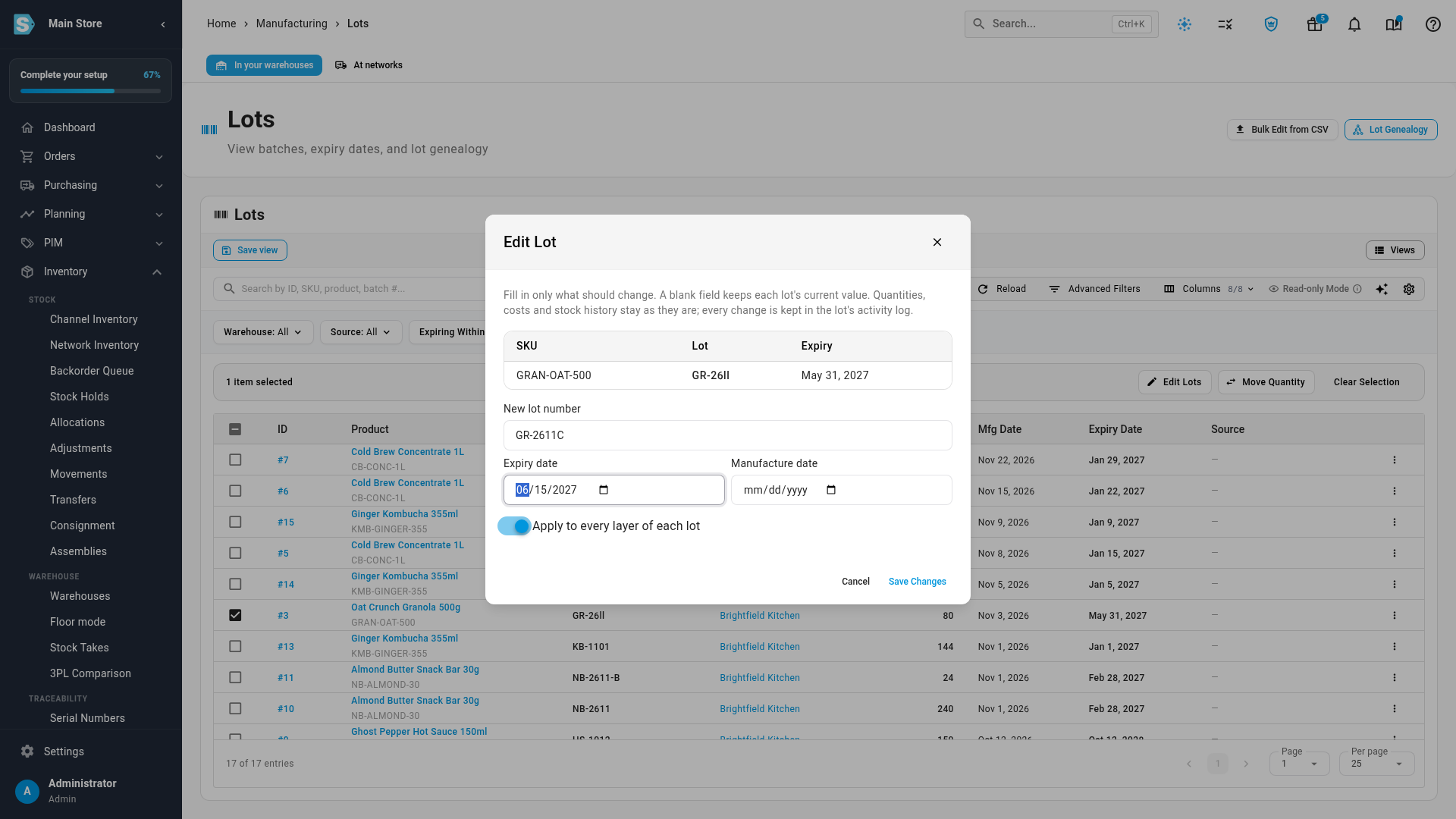
Tick the lots on Inventory → Lots and click Edit Lots. Fill in only what should change: a new lot number, a corrected expiry date, or a manufacture date. By default the change applies to every row of each lot, so a lot never ends up half renamed. SKU.io won't rename a lot that's on an open recall, or let a manufacture date fall after the expiry date.
Move stock between lots
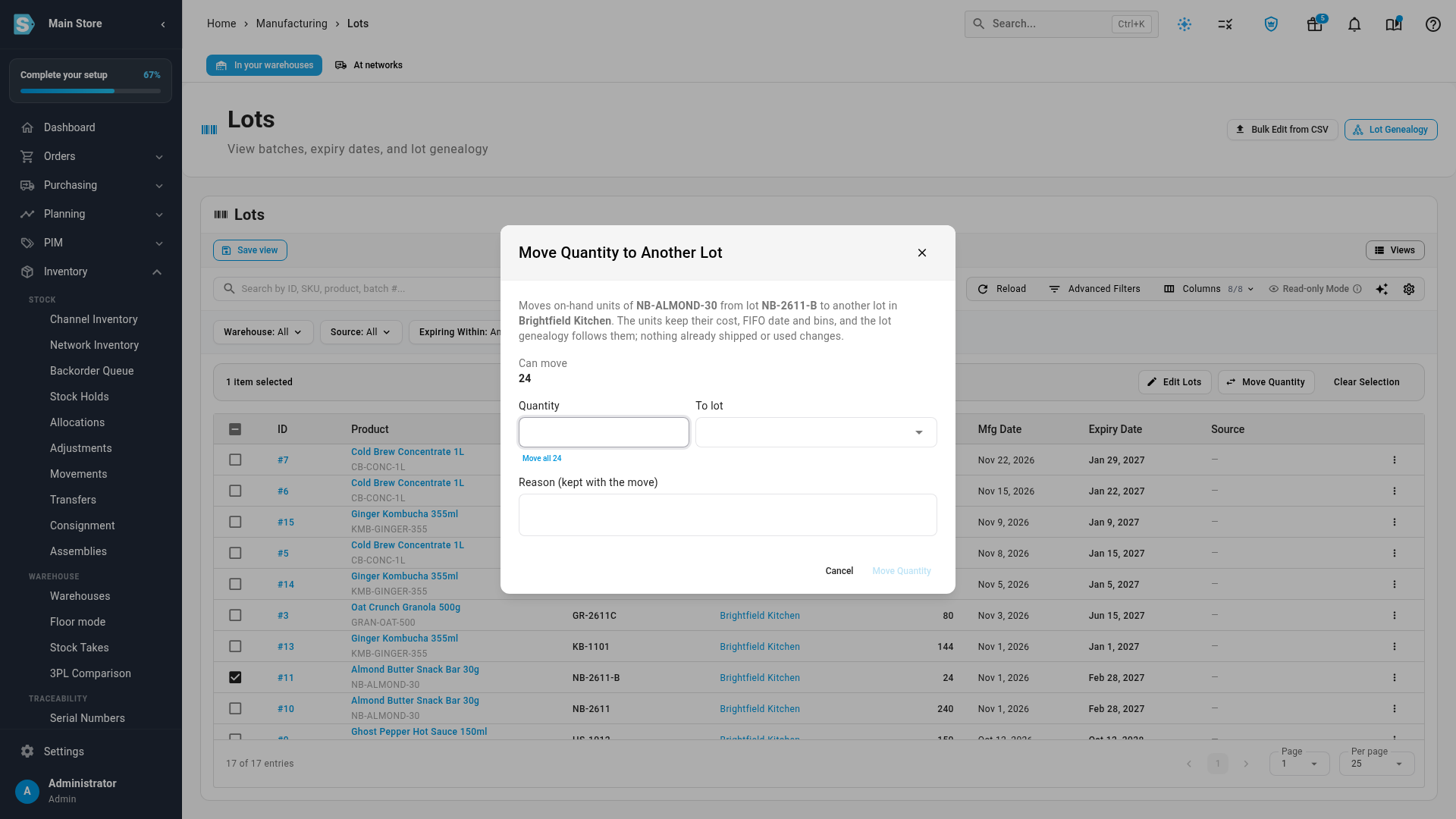
Tick the lot the units come from and click Move Quantity. The dialog shows how many units can move (quarantined units stay put) and lists the product's other lots with their expiry dates and stock in that warehouse. Pick one, or type a new lot number. The units arrive as a new row of the destination lot at the same cost, and a forward trace from the old lot leads straight to them.
Change many lots from a CSV
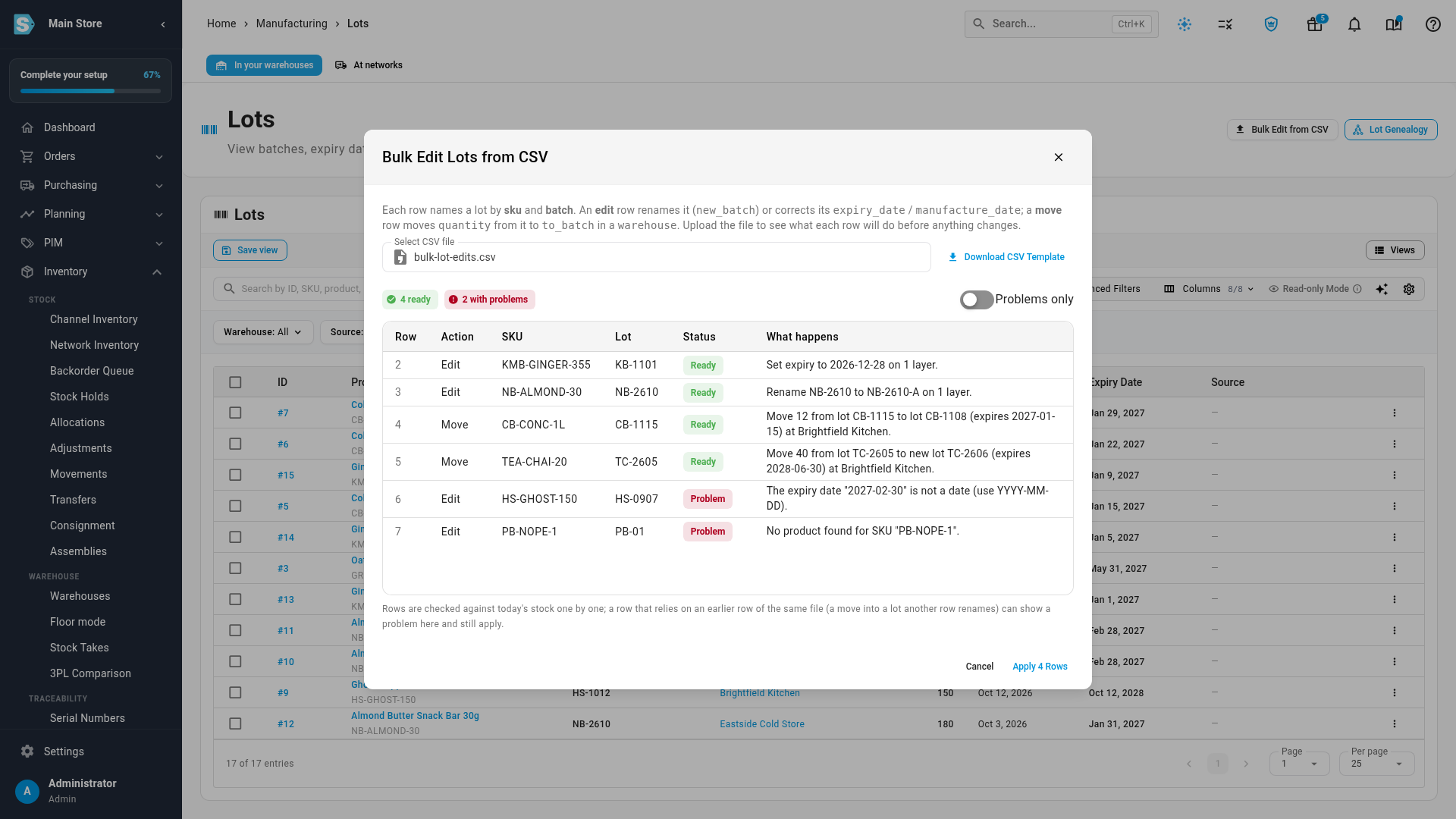
Click Bulk Edit from CSV, download the template, and fill in one row per change: an edit row
renames a lot or corrects its dates, and a move row moves a quantity to another lot. Choose the
file and SKU.io checks every row without changing anything. Ready rows say exactly what will happen,
and problem rows say why, like an impossible date or an unknown SKU. Click Apply and the ready
rows run in the background, with any row that didn't apply listed in the job tray.
Where to find it
Go to Inventory → Lots. Tick rows to edit or move lots, or click Bulk Edit from CSV in the page header. You need the Inventory Adjust permission.
Full guides: Edit and move lots and Bulk edit lots from a CSV.