Order as this dealer: place a portal order for your customer, at their prices
Plenty of wholesale orders still arrive by phone or email. Until now, your team either keyed a sales order in the back office, where the customer's portal-only prices, quantity breaks and catalog don't apply, or asked the customer to log in and do it themselves. Order as this dealer opens the customer's own Customer Portal as one of their buyers, in a staff order session. You see exactly their catalog, prices, stock and delivery addresses, build the cart, and place the order for them. Every such order says who placed it.
✨ What this means for you:
- The customer's price, every time. The order uses their catalog, price tier and quantity breaks, the same as if they'd placed it.
- Credited and recorded. The order is credited to your sales rep, and its activity says you placed it on the customer's behalf.
- The customer stays in the loop. The buyer sees the order in their portal and gets their usual confirmation email.
- Or leave it for them. Exit without checking out, and the cart waits for the buyer to review and place.
- The customer's rules still apply. Credit limits, credit holds and approval policies work as they do for the buyer.
Start from the customer
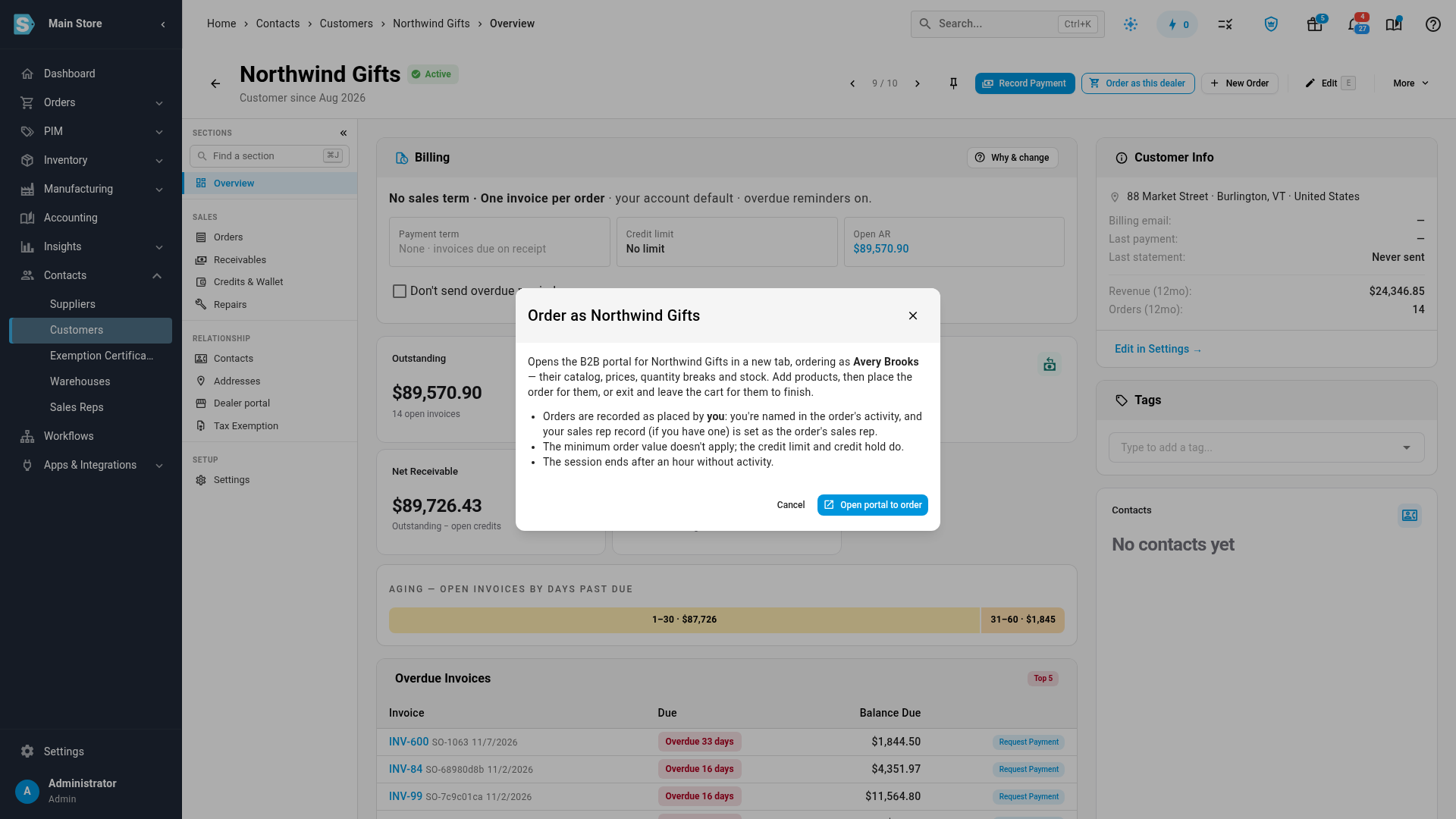
Open the customer under Contacts → Customers and click Order as this dealer. The dialog names the buyer you'll order as, and says the order is recorded as placed by you.
Order in their portal
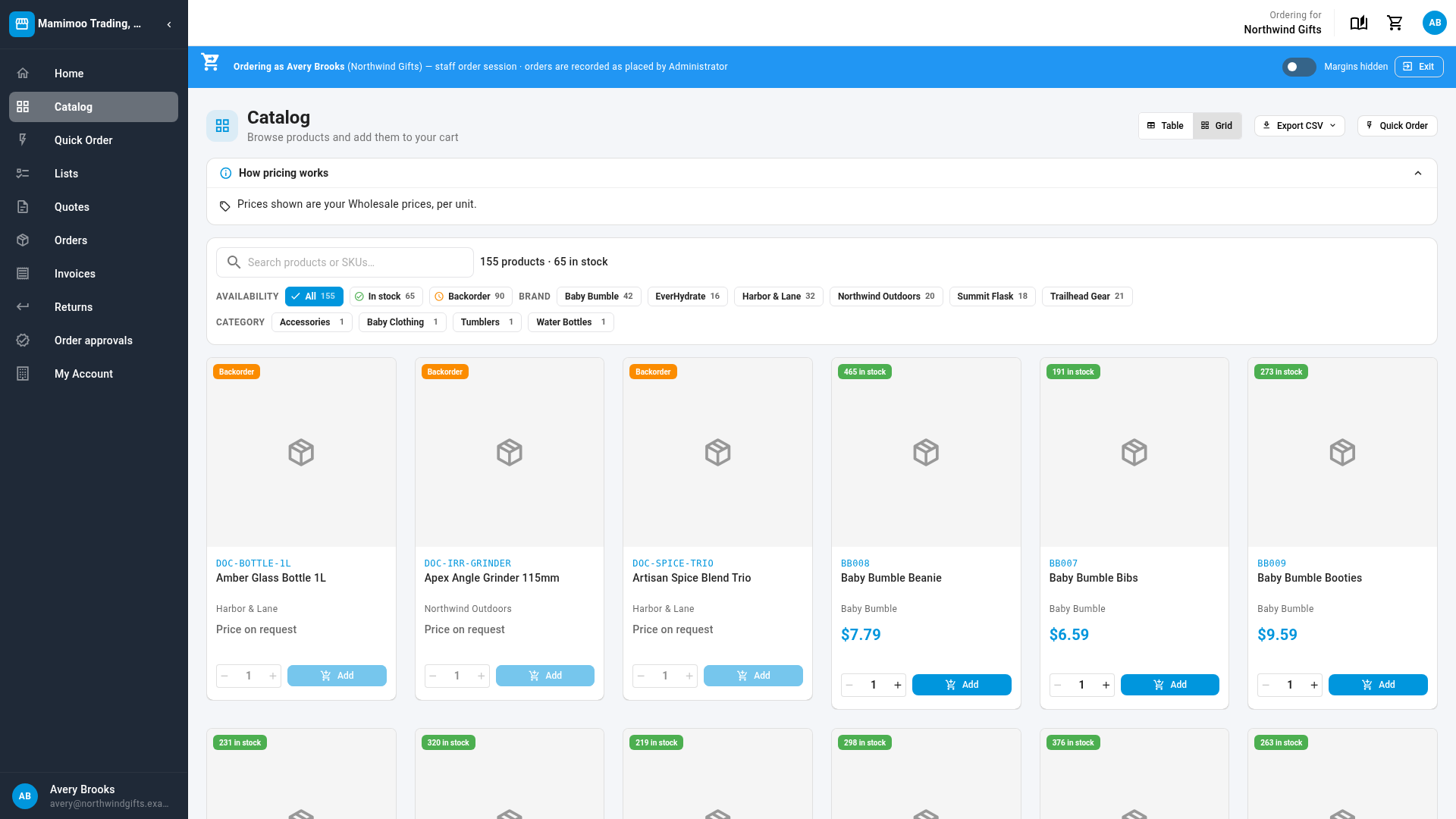
The portal opens in a new tab under a blue staff order session banner. Add products from the catalog, paste a list on Quick Order, or reorder, then check out. The button reads Place order for the customer.
The read-only View portal as stays exactly as it was, under its orange banner.
Quick Order keeps SKUs with spaces
Pasting into Quick Order now splits each line on a comma or a tab only. A SKU with spaces in it, such as M 21590, 2, is kept whole instead of being split in two. This applies to buyers too.
Where to find it
Open a customer under Contacts → Customers and click Order as this dealer. It's there for customers who are active on the Customer Portal, for staff who can manage the portal and create sales orders.
Full guide: Place a portal order for a customer