ShipRush — print labels in ShipRush, get tracking and costs back in SKU.io
If your warehouse prints its labels in ShipRush, every order used to mean typing it into ShipRush by hand, then copying the tracking number back so your sales channel could tell the customer it shipped. Label costs stayed in ShipRush, and nothing stopped the warehouse from shipping an order you'd already cancelled. The ShipRush integration connects the two. SKU.io keeps an order feed that ShipRush picks up on its own schedule, your team rate-shops and prints in ShipRush as usual, and each label comes straight back to SKU.io as a shipment.
✨ What this means for you:
- No more re-keying orders. Fulfillment orders from the warehouses you route to ShipRush appear there the next time ShipRush checks the feed, with the address, items, weights in pounds and the requested shipping method.
- Tracking flows back on its own. Print a label and SKU.io records the shipment, one tracking number per parcel, deducts the stock and sends the tracking to your sales channel.
- Label costs where they belong. Each label's cost is saved on its fulfillment, so it shows in fulfillment costs and shipping reports.
- Cancellations reach the warehouse. Cancel a fulfillment order in SKU.io and ShipRush sees it as cancelled on its next check. If a label gets printed anyway, the shipment is flagged so you can void it.
- Set up in minutes, with nothing to copy out of ShipRush. SKU.io creates the feed address, username and password, and a setup checklist tells you what's left.
Connect once, route your warehouses
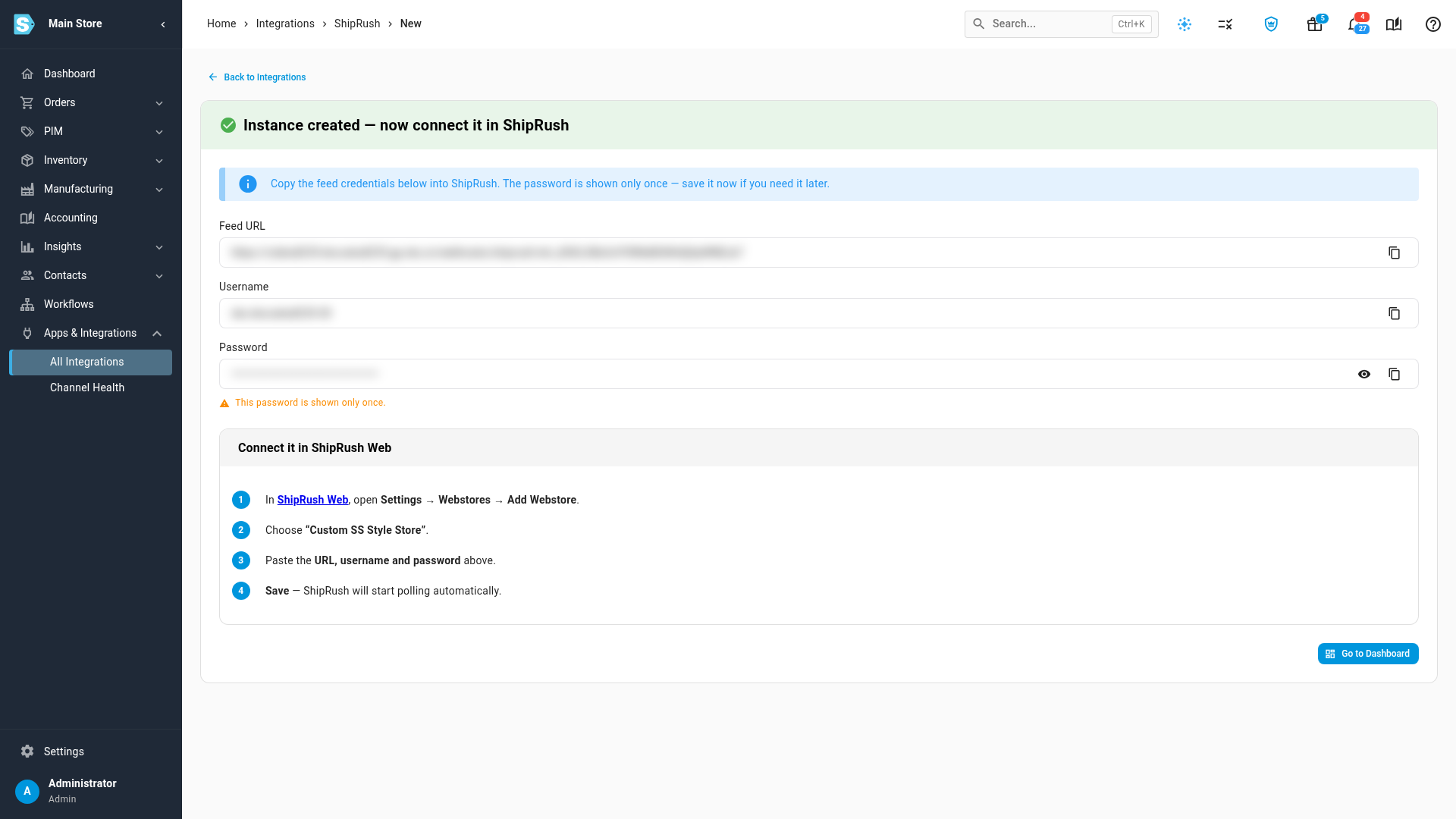
Choose ShipRush under Apps & Integrations, name the connection and click Create Instance. SKU.io generates a feed URL, username and password, which you paste into ShipRush Web as a Custom SS Style Store. Then turn on Route to ShipRush for each warehouse that prints its labels in ShipRush. Fulfillment orders from that warehouse go into the feed. The warehouse and its stock don't change.
See the feed at a glance
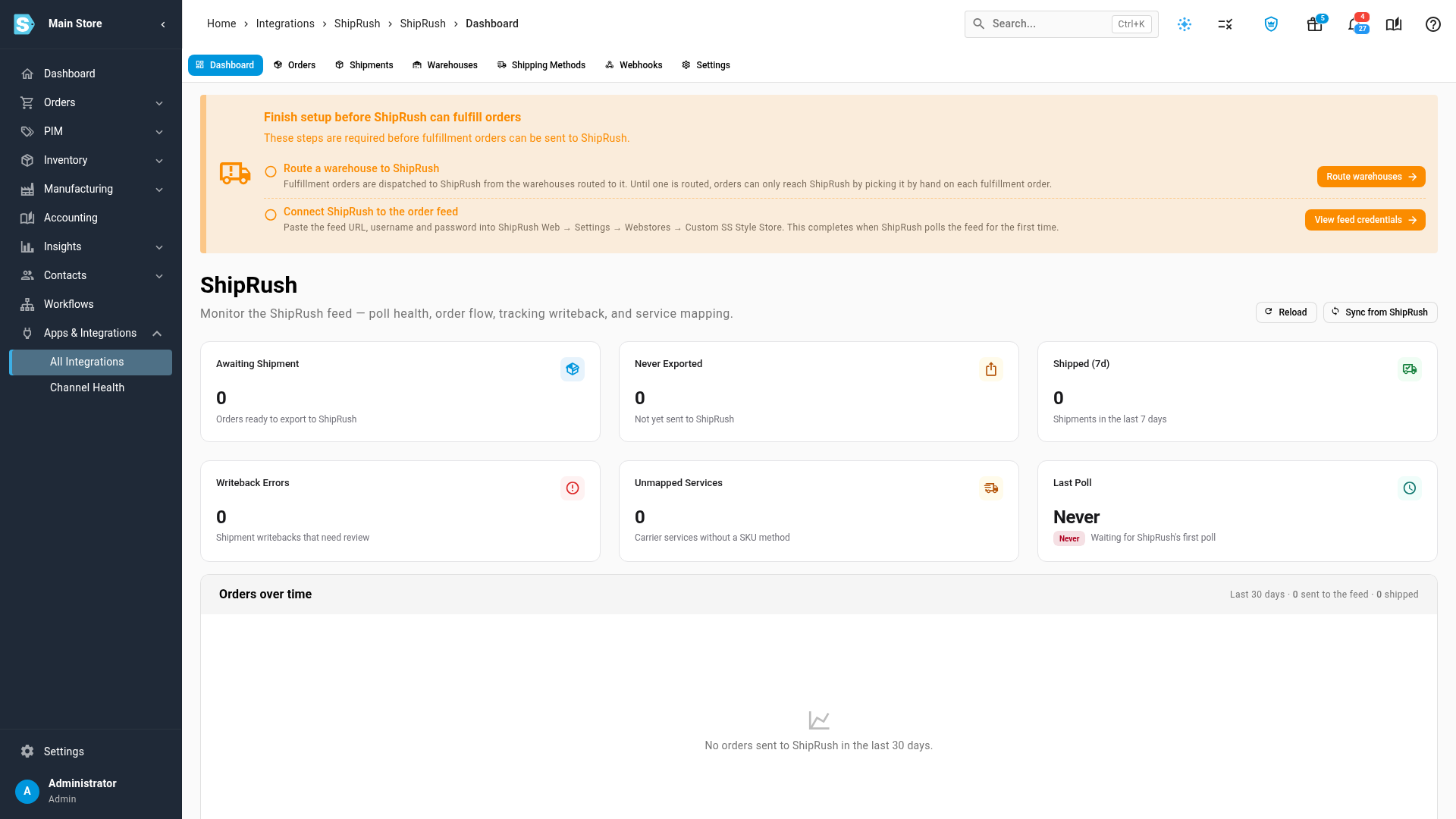
Because ShipRush checks the feed itself, the dashboard shows when it last did, alongside the orders awaiting shipment, orders ShipRush hasn't picked up yet, shipments in the last seven days, writeback errors and any carrier services that still need a shipping method. Until everything is in place, a banner lists the steps still to do.
Where to find it
Go to Apps & Integrations → All Integrations and choose ShipRush under Shipping & Fulfillment. After you connect, its tabs cover Orders, Shipments, Warehouses, Shipping Methods, Webhooks and Settings.
Full guide: Connect ShipRush