Shipping labels sized from your products
Carriers price a parcel on its size as well as its weight, so the box you rate is the box you pay for. Shipping labels sized from your products gives every order in a label batch, and every Buy label, a real box: the product's own shipping size for one unit, its case size for a full case, and a rule you choose for orders with more than one unit. You set that rule once in your Shipping Labels settings. Whenever SKU.io works a box out for you, it marks it and asks you to confirm before you buy, so carriers quote the true dimensional weight and there's no surprise adjustment weeks later.
✨ What this means for you:
- Rates reflect the real box: one unit ships in the product's own shipping size, and a full case uses the product's case size.
- One setting, Box size when an order has more than one unit, covers label batches, Buy label and Ship with Walmart labels on 3PL orders.
- A box SKU.io worked out is marked Assumed, and you confirm it before buying, one order at a time or all at once.
- An order SKU.io can't size waits under Needs attention as Box size needed. You can save the size to the product and retry in one step.
- No label is rated on a stand-in box: every order has a real size, or it waits for one.
One rule for orders with more than one unit
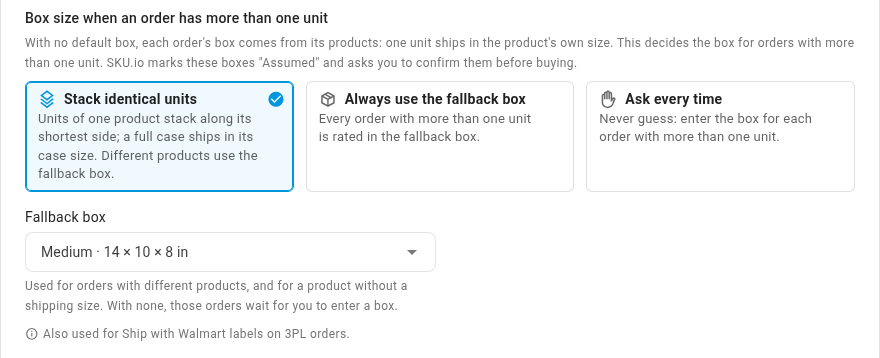
The new Box size when an order has more than one unit setting lives in your Shipping Labels settings, under Settings → Fulfillment → Shipping Labels → Packages. Choose how SKU.io sizes an order with several units:
- Stack identical units (the default): units of one product stack along their shortest side, and a full case ships in its case size. Orders with different products use the fallback box.
- Always use the fallback box: every order with more than one unit is rated in the fallback box.
- Ask every time: SKU.io never guesses, and you enter the box for each such order.
The Fallback box is one of your saved package presets. Ship with Walmart labels for 3PL orders use the same rule, so you set it once.
See where every box came from
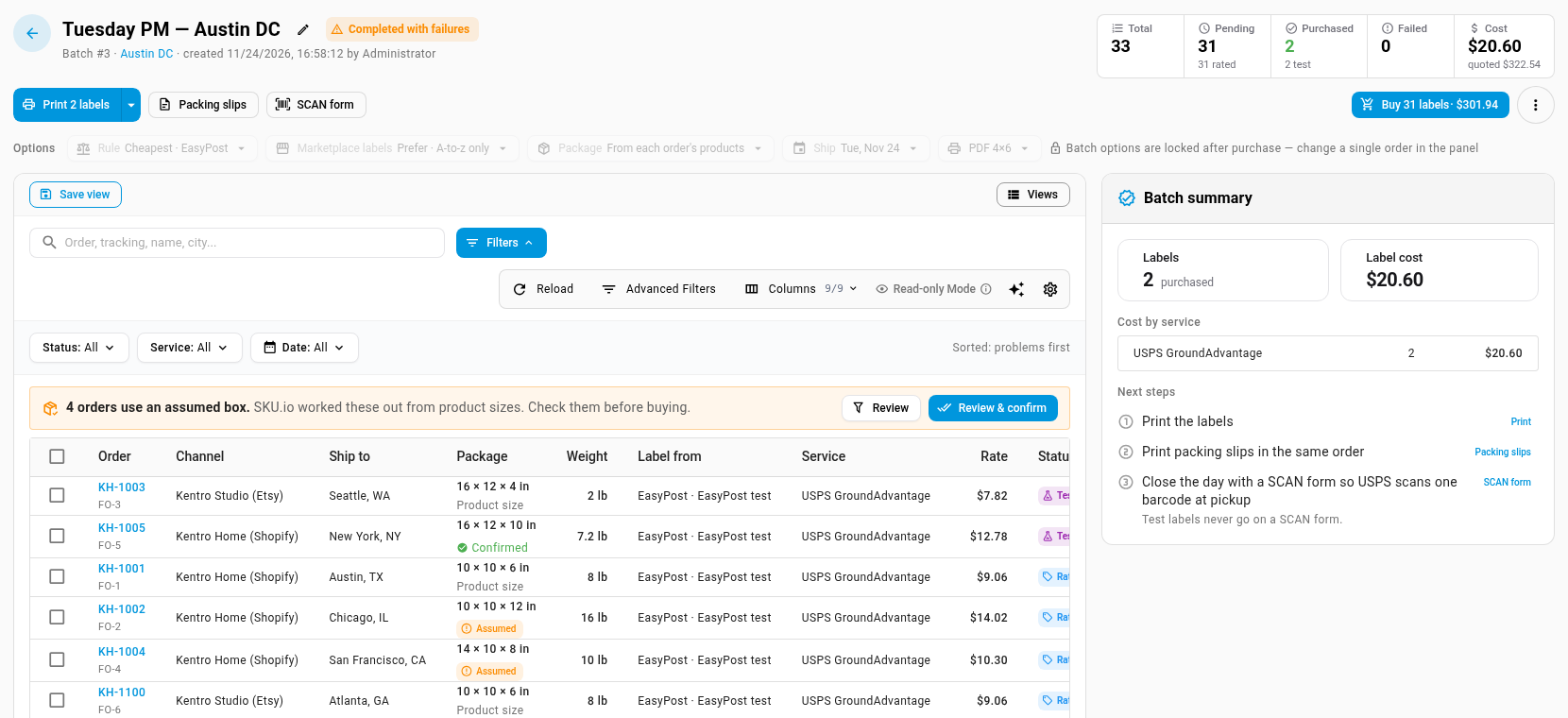
Each row of a label batch shows its box and where it came from: Product size, an amber Assumed chip when SKU.io stacked units or used the fallback box, or Confirmed once you've checked it. A banner counts the orders with an assumed box, with Review and Review & confirm next to it.
Confirm, or fix what's missing
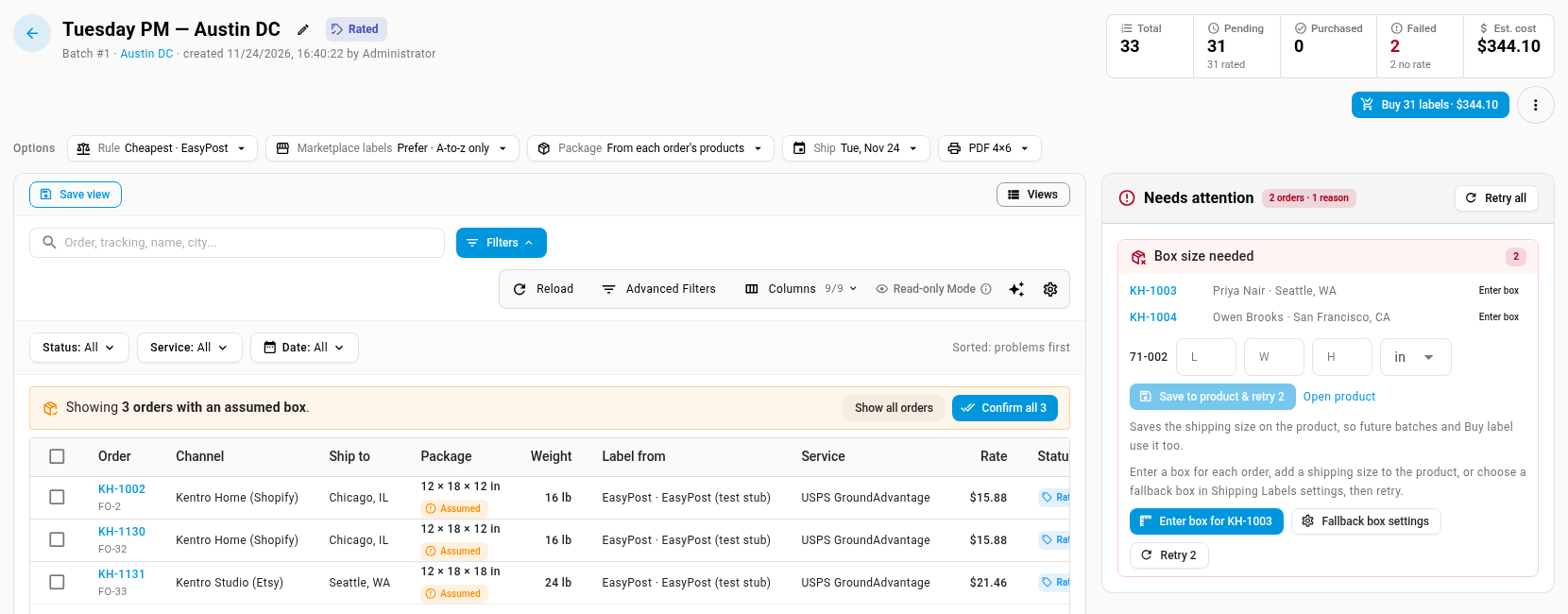
Review narrows the batch to the assumed boxes, and Confirm all accepts them in one click. Orders SKU.io couldn't size wait under Needs attention → Box size needed: enter the box for one order, or save a shipping size to the product and retry every order that uses it. That product size is then used for future batches and Buy label too. In the Buy label dialog on a single order, an assumed box shows how it was worked out, and the button reads Confirm box & buy.
Where to find it
Set the rule in Settings → Fulfillment → Shipping Labels → Packages. Boxes appear on every label batch under Orders → Fulfillments → Label Batches, and in Buy label on any fulfillment order.
Full guide: Buy shipping labels in a batch