Routing and shipping rules: split orders by product, pick the service by state, weight or value
If some of your catalog ships from your own warehouse and the rest from a 3PL, a mixed order used to mean a manual split, every day. Routing workflows could move a whole order, but they couldn't see what was on each line, so they couldn't send part of it somewhere else. Shipping rules had a similar blind spot: they could match the shipping method and the destination country, but not "Alaska and Hawaii ship 2nd Day" or "anything over 20 lb goes by air". Routing and shipping rules close both gaps. A new Route Lines by Rule workflow step sends each line to the warehouse its product type, brand, tags or attributes belong in, and Shopify shipping rules can now test the state, postcode, order weight and order value.
✨ What this means for you:
- Mixed orders split themselves. Lines that match a rule ship from its warehouse, everything else from your default, as one fulfillment per warehouse.
- Rules that know your products. Test a line's product type (including its parent types), brand, tags, custom attributes, SKU, quantity or unit weight.
- Nothing half-moves. If a warehouse can't cover a line from stock, nothing on the order moves, unless you allow backorders.
- Try it first. Execute step and Dry run report where each line would go without moving anything.
- Shipping rules by state, postcode, weight and value. Send Alaska and Hawaii, a postcode range, heavy orders or big orders to the service you choose.
- Easier to read conditions. Workflow condition fields now show the field's name, such as Product Type, instead of the raw expression.
Write a rule for each kind of product
Add Route Lines by Rule after the Order Ready to Route trigger. Each rule has a name, the conditions a line must meet and the warehouse it ships from. Rules are checked top to bottom, and the first rule a line matches decides its warehouse. Everything else ships from catches the lines no rule matches; leave it empty to keep them where they are.
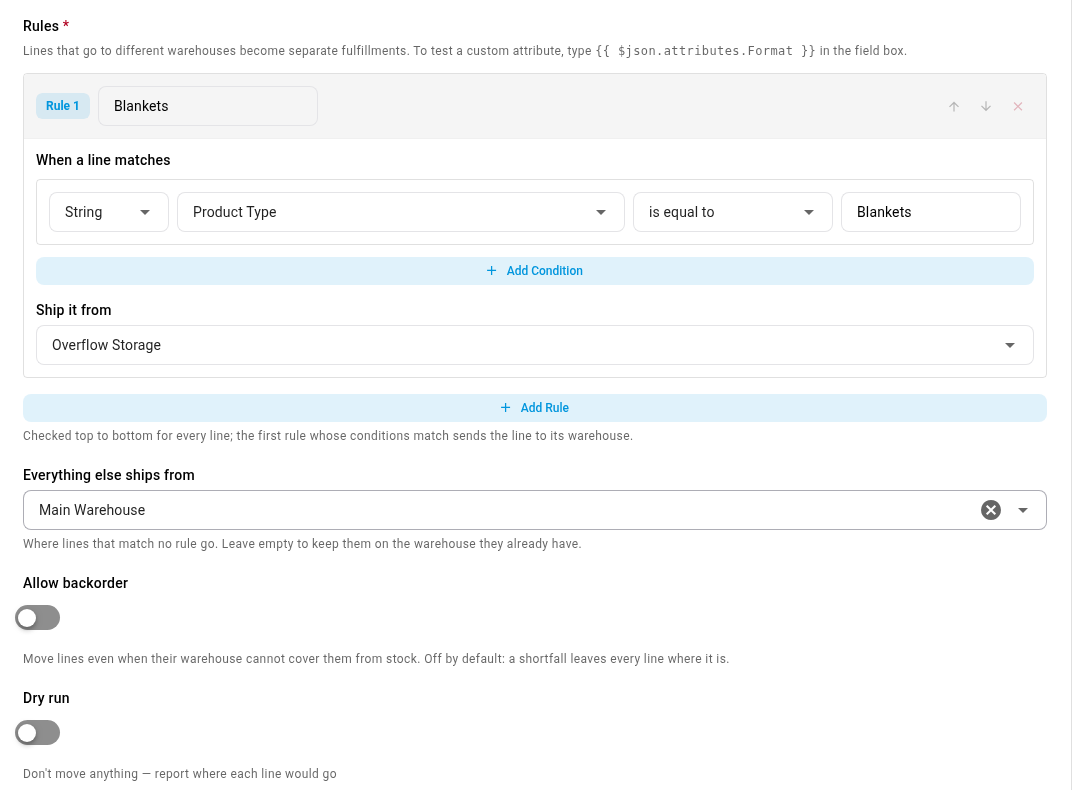
One fulfillment per warehouse
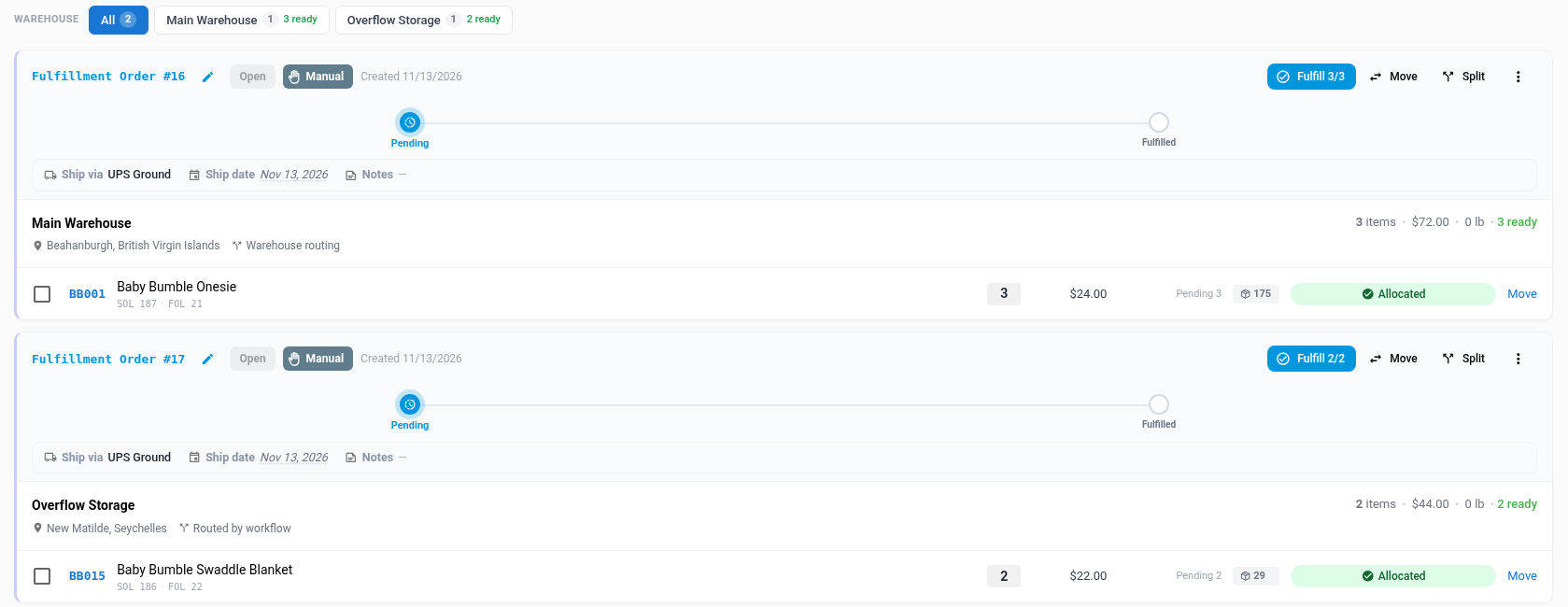
When an order is ready to dispatch, the workflow checks every line. A mixed order becomes one fulfillment order per warehouse, and each line it moved says Routed by workflow. It never moves a line that's already shipped or with a 3PL, and if someone picked a line's warehouse by hand, that choice sticks.
Shipping rules by state, postcode, weight and value
On your Shopify connection's Settings → Shipping tab, a shipping-method rule now has an And the order (optional) section: State / province is one of, Postcode matches (with * and ? patterns), Order weight and Order value, each over and up to a number. Every condition you fill in must hold. For "this OR that", add a second rule with the same shipping method. Test a combination shows which rule an order would hit before any order arrives.
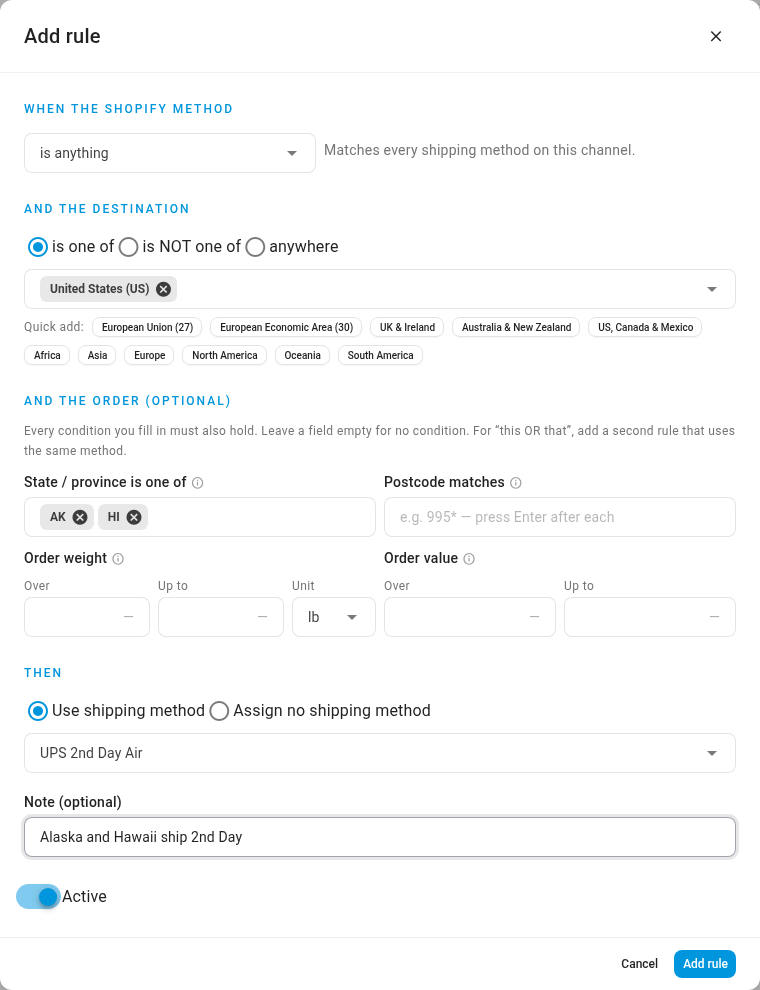
A rule with a weight condition doesn't match an order whose weight isn't known, such as one with a product that has no weight set.
Where to find it
For line routing, go to Workflows → New Workflow, choose the Order Ready to Route trigger, then add Route Lines by Rule. For shipping rules, go to Apps & Integrations, open your Shopify connection, then Settings → Shipping.
Full guides: Send product types to different warehouses · Map Shopify shipping methods