Store locator: a Where to buy page built from your wholesale customers
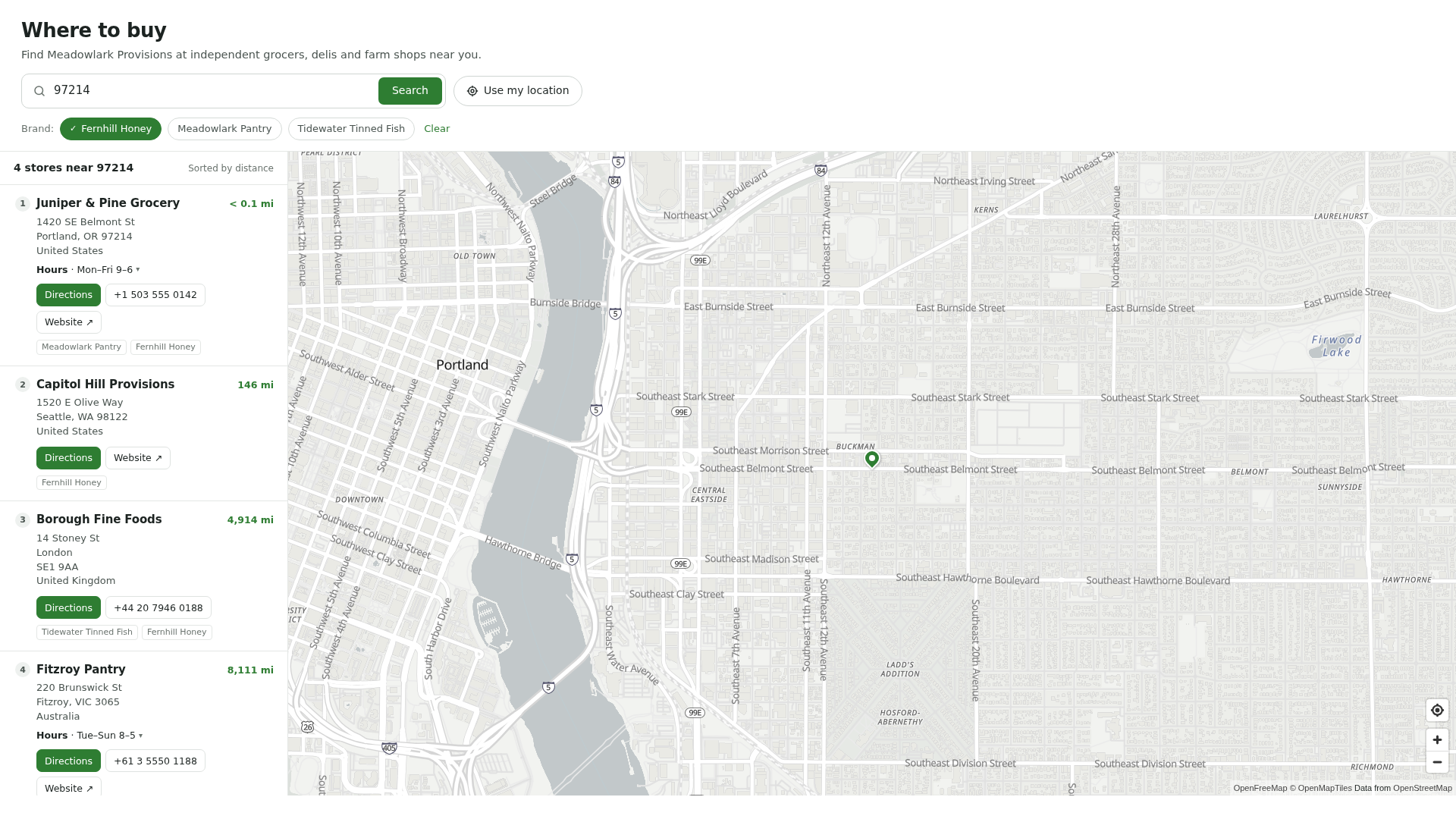
Shoppers who find your brand online often want to buy it in a shop near them. Answering that usually means a stockist list somebody keeps by hand. It goes out of date as soon as a store stops ordering or a new one opens. Store locator builds the list from the customers you already sell to. Choose which wholesale customers appear, and SKU.io puts them on a public Where to buy page with a search box and a map. You can link to the page or embed it on your own website.
✨ What this means for you:
- Your stockist list comes from your customer records, so a new store is one click away from being listed.
- Each store's brands come from what it actually bought from you, so shoppers looking for one line only see the shops that carry it.
- Nothing is public until you publish. Only the customers you list appear, and only the details you choose to show.
- Shoppers search by postcode or city, anywhere in the world, and see the nearest stores first with a map beside them.
- One script puts the locator on your own site and resizes it to fit. List your domains to stop other sites embedding it.
Choose your stores
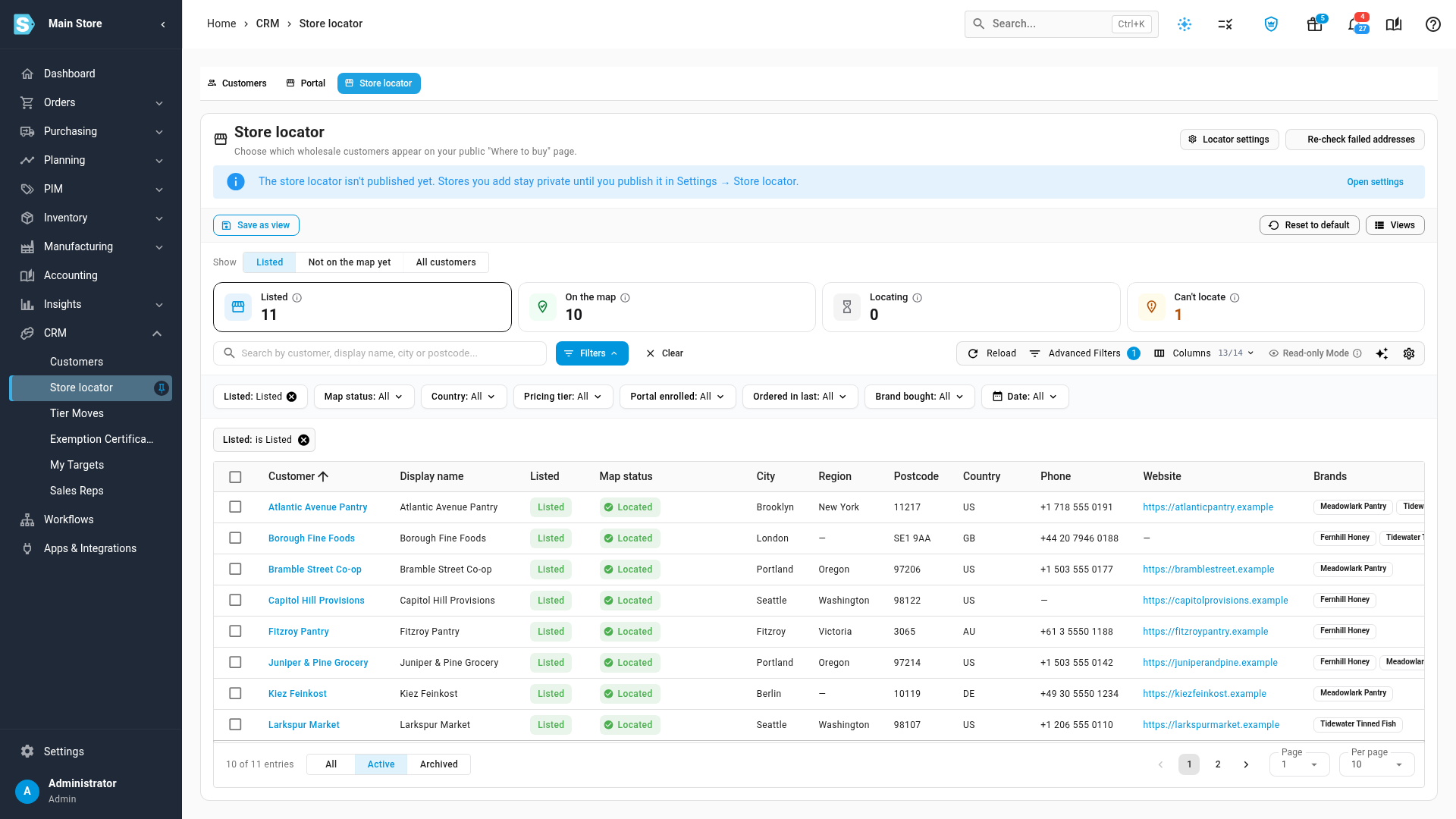
Open CRM → Store locator. The cards count your listed stores and any that can't be placed on the map yet. Switch to All customers, tick the stores that should appear, and click Add to store locator. Each one is listed at its shipping address, and SKU.io finds it on the map.
Show what shoppers need
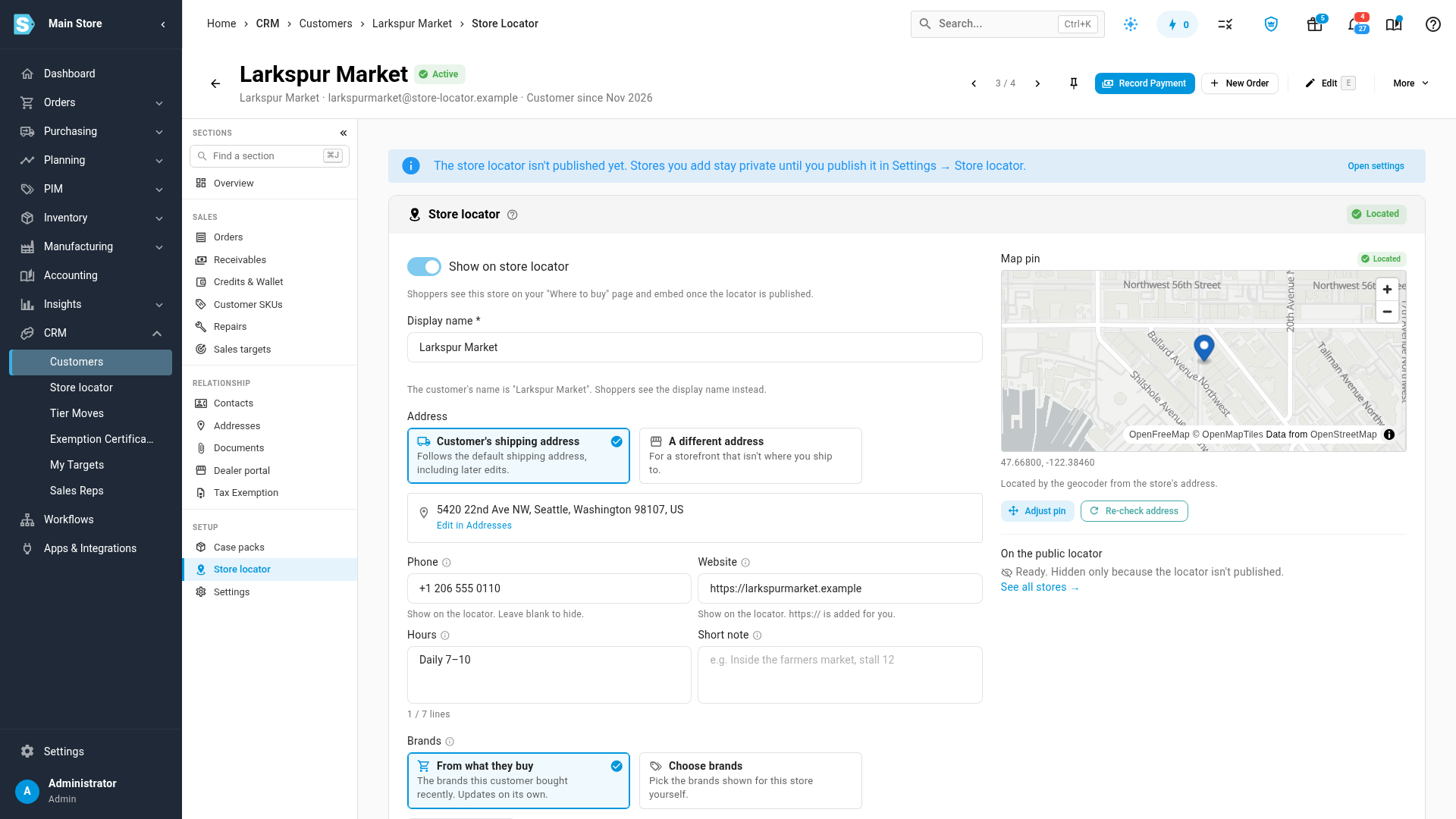
Every customer has a Store locator section. It sets the name, phone, website and opening hours shoppers see. These are public copies, so your internal customer record stays as it is. You can list the store at a different address from the one you ship to. If an address has no street line, like a market stall, it stays off the map until you place its pin by hand.
Publish and embed
Under Locator settings, set the page title, intro text, colours and brand filter, preview the page, then turn on Publish store locator. Your locator gets its own web address. To add it to your website, copy the embed script and paste it where the locator should go. To keep other sites from embedding it, list the domains it may appear on.
Where to find it
Go to CRM → Store locator to choose your stores, then open Locator settings to publish. Every account starts with the locator unpublished and no stores listed.
Full guide: Set up a store locator