Supplier tracking from the PO link: your suppliers send you their own carrier tracking
When a supplier ships on their own UPS or FedEx account, the tracking number usually arrives by email or over the phone, and someone on your team types it into SKU.io. Until they do, a stock order shows nothing in transit and a dropship customer's order sits unfulfilled on your sales channel. When a supplier splits an order across several boxes, you have to work out from the email which items went in which box. Supplier tracking from the PO link lets the supplier do it themselves. The same purchase order link they already use to confirm the order now has a Shipped with your own carrier? card. They choose the carrier, enter a tracking number for each package and say what's inside, and the shipment lands on your purchase order.
✨ What this means for you:
- No more retyping tracking numbers. The supplier enters the carrier, service, ship date and tracking number, and SKU.io records the shipment for you.
- Works for stock and dropship orders. A stock order gets an in-transit inbound shipment you receive against. A dropship order is shipped to your customer, and the tracking goes on to your sales channel.
- Split shipments and multiple boxes. Each package has its own tracking number and its own items. Anything the supplier leaves at 0 stays open on the order and can get its tracking later, from the same link.
- No login for your supplier. The link in your purchase order email is all they need, and it opens that one order only.
- No duplicates. Sending a tracking number that's already on the order does nothing more, and quantities can't exceed what's left to ship.
Your supplier fills in one card
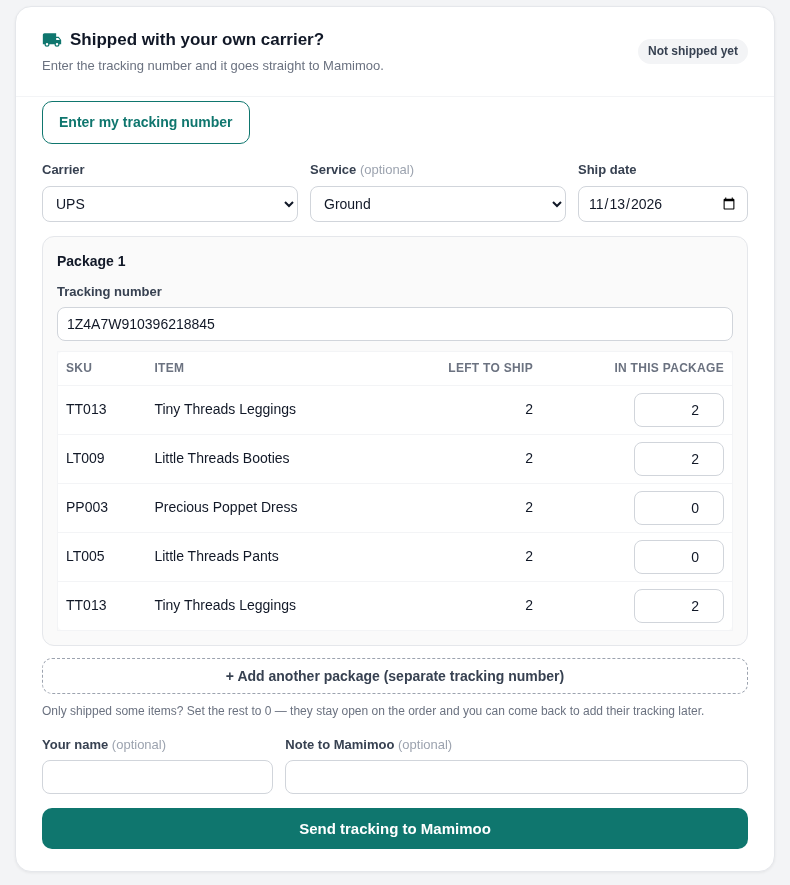
On a stock order, the card appears once the supplier accepts the order. After accepting, they can click Add tracking now straight from the confirmation page. They choose the Carrier from your store's carriers (or Other carrier… to type one), optionally pick a Service, and check the Ship date. Under Package 1 they enter the Tracking number and set how many of each item is in the box. If the order went out in more than one box, + Add another package adds a package with its own tracking number. Then Send tracking to your store.
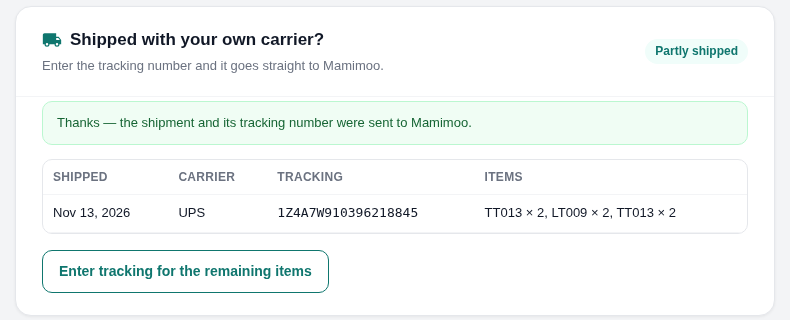
The card then lists the shipment with its carrier, tracking number and items, and reads Partly shipped or Shipped. The supplier can come back to the same link later and click Enter tracking for the remaining items.
Dropship orders: tracking goes straight to your customer
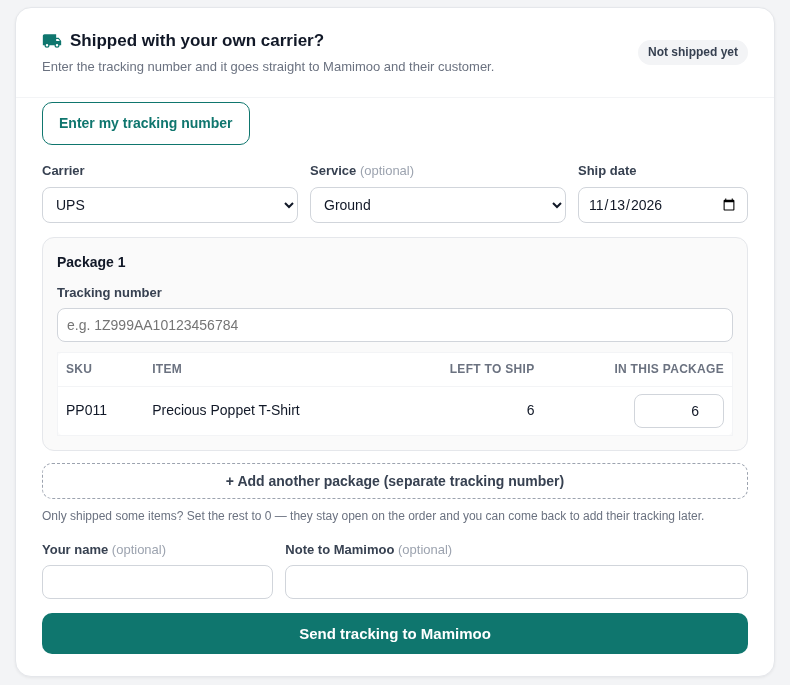
On a dropship order there's no accept step: the card is there from the start, and the carrier and service you asked for on the purchase order are already chosen. When the supplier sends the tracking, the order ships to your customer exactly as if you'd clicked Ship yourself, and the tracking goes on to your sales channel.
What you see in SKU.io
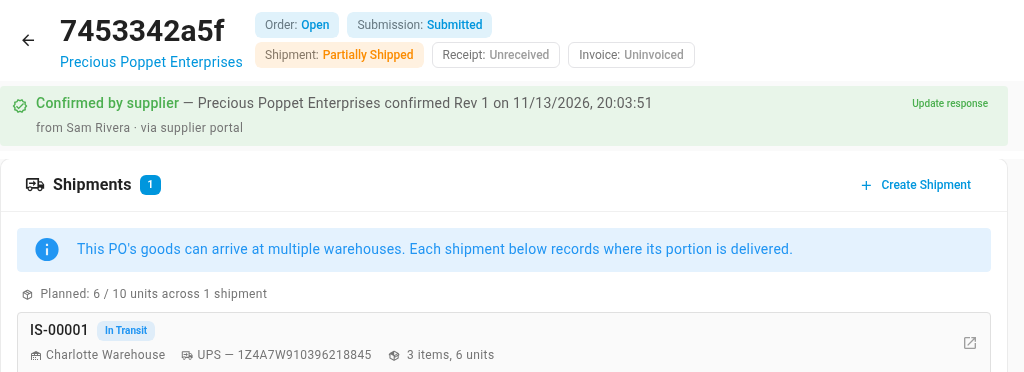
On a stock order, each package becomes an In Transit inbound shipment carrying the tracking number, carrier, service, ship date and items. It shows on the purchase order's Shipments tab and in Inbound Shipments, and the order's shipment status changes to Partially Shipped or Shipped To Warehouse. When the stock arrives, you receive against that shipment. On both stock and dropship orders, the supplier's update also arrives as an unread message on the order's Communication tab, listing each package and what's still to ship.
Where to find it
There's nothing to switch on. Send a purchase order to your supplier as usual (Orders → Purchase Orders, open the order, Submit), and the link in the email includes the tracking card. Supplier shipments show on the purchase order's Shipments and Communication tabs, and in Orders → Inbound Shipments.
Full guide: Let suppliers add tracking from the PO link