International labels in label batches — customs declarations built from your products
Until now, a label batch could only buy domestic labels. Every order going to Canada, the UK or Australia had to be pulled out of the batch and shipped one at a time, with its customs form typed in by hand. International labels in label batches end that. A batch now rates and buys labels for orders to other countries alongside your domestic ones. SKU.io builds each customs declaration from your products' HTS codes and countries of origin, and the order's line prices. When something is missing, you fill it in once per product, for every order at once.
✨ What this means for you:
- One batch for the whole day. Domestic and international orders are rated, bought and printed together.
- Customs filled in once per product. A product in ten orders is one row. Its HTS code and country of origin can be saved on the product, so the next batch doesn't ask again.
- Your product type defaults count. A product with no HTS code of its own uses its product type's duty defaults.
- No surprises at the border. See each order's declared value before you buy, and sort by it to spot an order close to a country's duty-free limit.
Orders missing customs wait under Needs attention
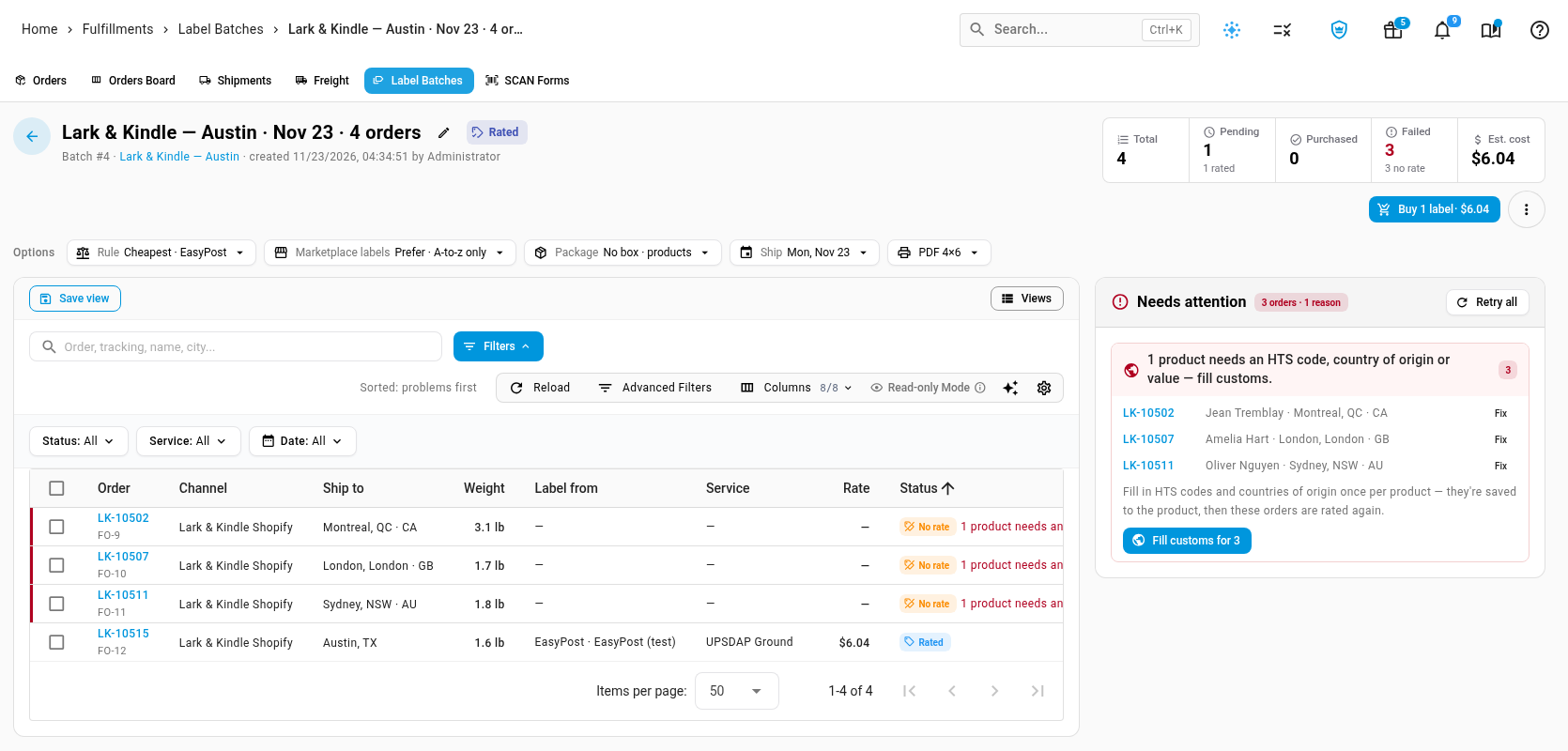
Create a batch as usual. Domestic orders are rated straight away. An international order whose products are missing an HTS code, a country of origin or a value waits under Needs attention, with a Fill customs button.
Fill customs once per product
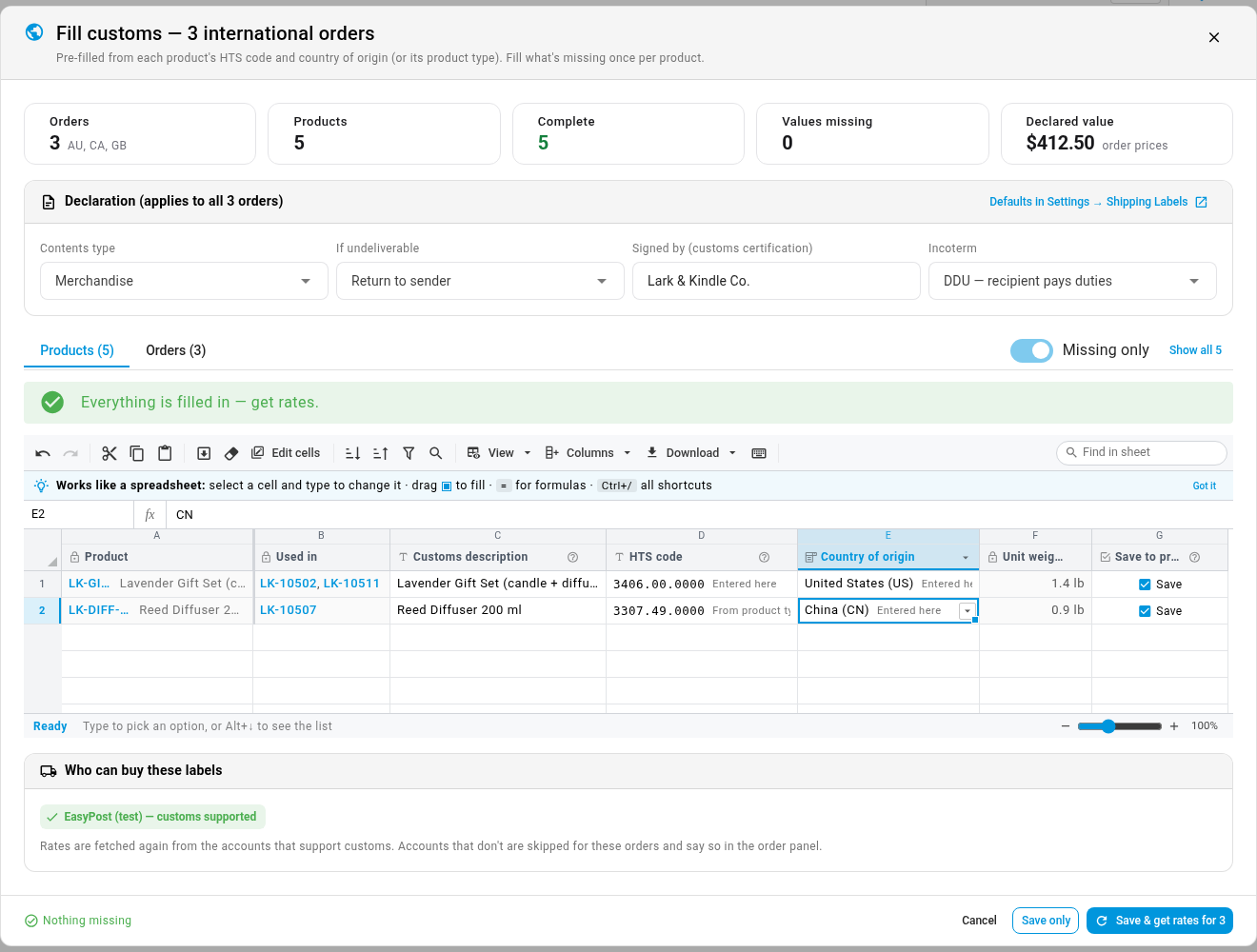
Fill customs opens one dialog for every international order in the group. A strip at the top counts the orders, products, missing values and the declared value. The Declaration card sets the contents type, what happens to an undeliverable parcel, who signs, and the incoterm (DDU or DDP), starting from your defaults.
The Products tab lists each product once, with Missing only on so you see just what needs filling. A caption under each value says where it came from: the product, its product type, or what you entered. Leave Save to product ticked and the values are saved on the product.
The Orders tab shows each order's customs value in the order's currency, and lets you change the contents type or the undeliverable choice for one order. When a US export needs an AES ITN, you enter it here.
Click Save & get rates, and the international orders are rated again, ready to buy with the rest of the batch.
Which label accounts send customs
EasyPost, Shippo, ShipStation, Starshipit, Shippit, Shiptheory and ShipRush all send customs declarations. Amazon Buy Shipping and Ship with Walmart labels stay domestic only, and the dialog says which of your accounts can buy each label. A single order's Buy label dialog uses the same customs too, and offers Fill customs when a value is missing.
Where to find it
Go to Orders → Fulfillments → Label Batches, or tick orders on the Orders tab and click Create label batch. Set your customs defaults in Settings → Fulfillment → Shipping Labels → International customs.
Full guide: Ship international orders in a label batch