Paperless picking — scan-to-pick lists on any handheld
Picking from paper means printing lists, ticking boxes and keying in what was short at the end of the shift. Pick lists in SKU.io already put the picks in walking order, but on a handheld the screen still asked for too many taps. You had to pick orders one by one, tap into a box before every scan, confirm each item, and type out why you skipped something. Paperless picking rebuilds the pick screen around the scanner. Build a list from a whole saved view in a couple of taps, scan the bin and then the item, and the pick confirms itself and moves on. Picking runs on whatever handheld your team already uses, start to finish.
✨ What this means for you:
- Build a pick list from a saved view. Select every order in a Fulfillment Orders view, including the ones on later pages, and turn them into a pick list, on a computer or a handheld.
- Scan, don't tap. The scanner's input goes straight to the pick. Each scan counts one unit, and the last one confirms the pick and brings up the next.
- Mistakes are caught on the spot. A wrong bin, a wrong item or one too many gets an error tone, a buzz and a red card, and nothing is counted.
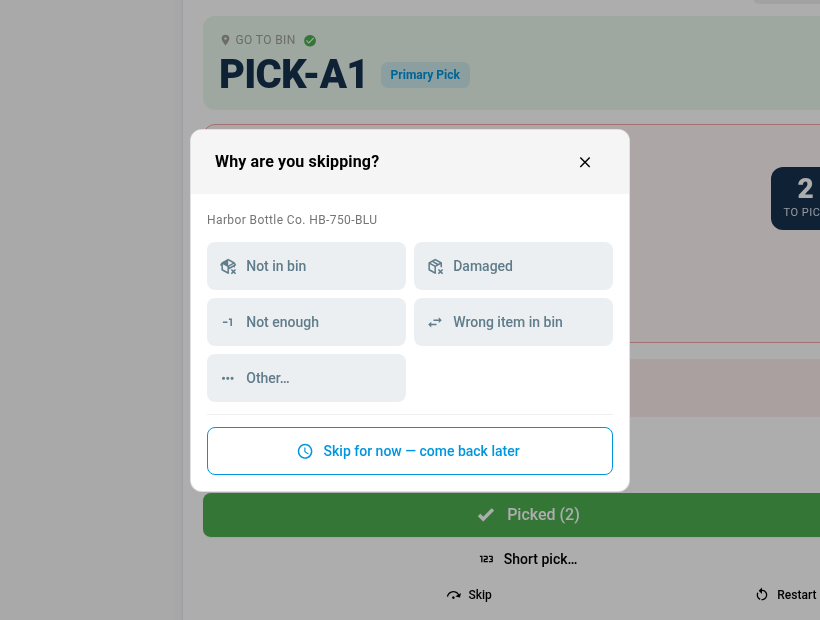
- Skip with a reason, no keyboard. Choose Not in bin, Damaged, Not enough, Wrong item in bin or Skip for now. The reason is saved on the finished list.
- Built for one hand. A slim progress header, full product names that wrap instead of being cut off, and product photos, including a size or colour that falls back to its main product's photo.
- Show the code your team reads. Choose the SKU or the product name as the pick screen's headline, or show a brand's manufacturer part number (MPN) when its boxes are labelled with the maker's code.
Build a pick list from a saved view
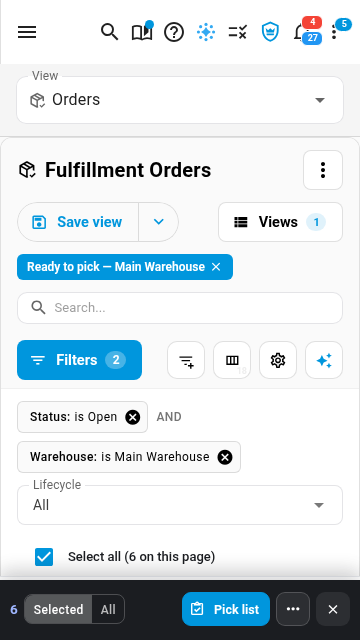
Most warehouses already keep a view of the orders they pick, such as every open order at one warehouse. Open it on Orders → Fulfillments, tick the box at the top, choose All to take every order in the view, and tap Pick list. On a handheld the orders show as cards, and the actions sit on a bar at the bottom of the screen. If the view spans several warehouses, SKU.io makes one pick list for each.
You can also start from Orders → Pick Lists → New Pick List and choose From a saved view.
Scan to pick
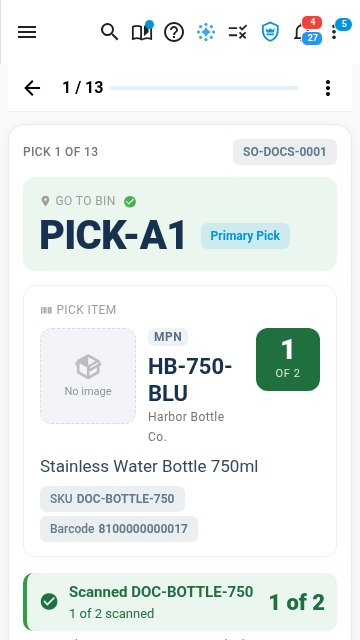
Walk to the bin and scan it, and the bin turns green. Then scan the item once for each unit: the count shows 1 of 2, then 2 of 2, and the pick confirms itself. There's nothing to tap and no box to click into first, and the on-screen keyboard never opens. A damaged label? Type code lets you enter it by hand, and Camera scans with the device's camera on a phone without a scanner.
Skip a pick, with a reason
When something can't be picked, Skip opens a sheet of reasons at the bottom of the screen. Not enough asks how many you found and records a short pick. Skip for now sends the pick to the end of the list and brings you back to it when the rest are done. Only Other… asks you to type.
Set up the pick screen for your team
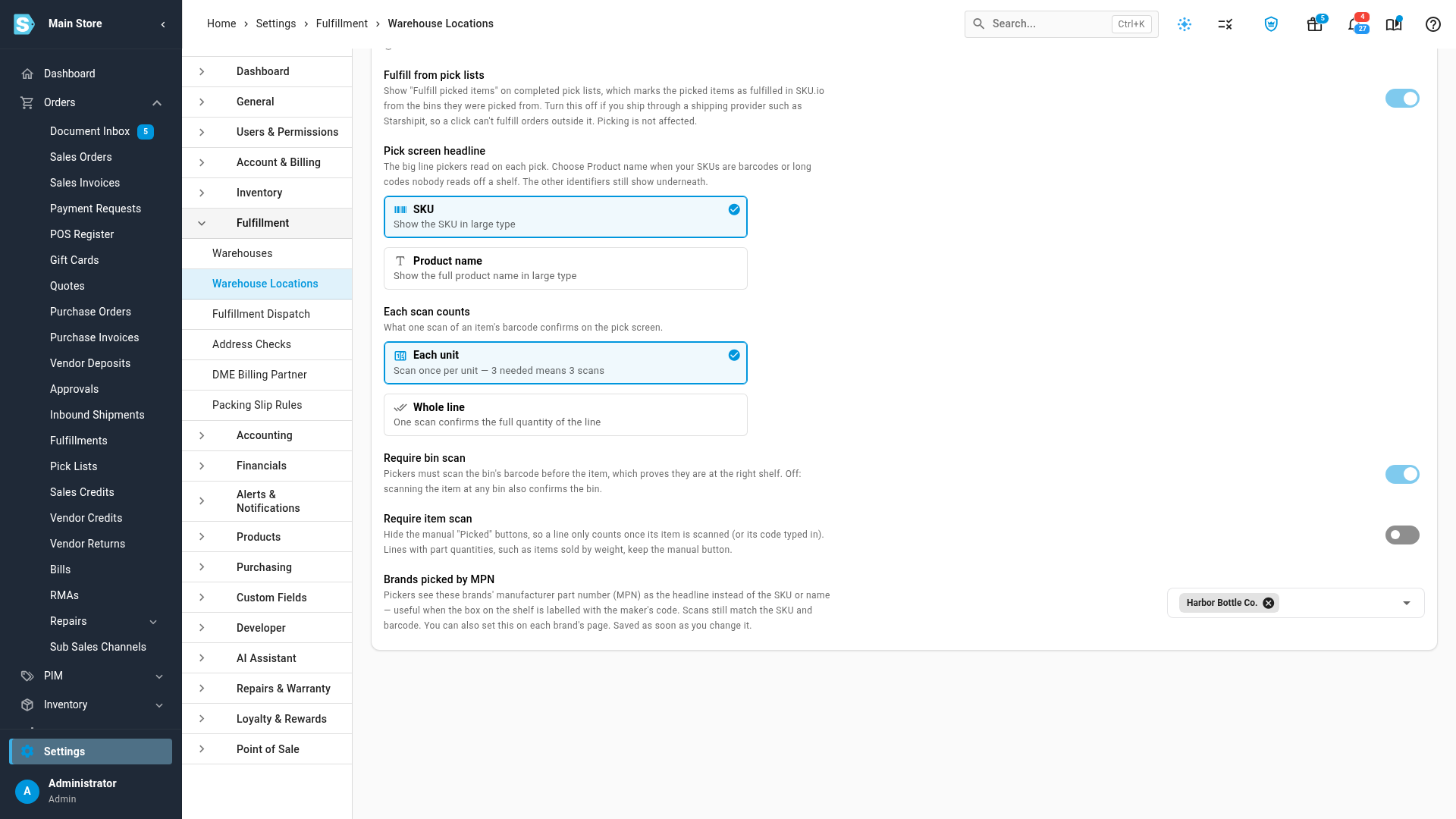
Under Settings → Fulfillment → Warehouse Locations, choose how picking works for everyone in your account:
- Pick screen headline: the SKU (the default), or the product name when your SKUs are barcodes nobody reads off a shelf.
- Each scan counts: one unit per scan, or one scan for the whole line.
- Require bin scan and Require item scan: make pickers prove they're at the right shelf, or hide the Picked button so a pick only counts once its item is scanned.
- Brands picked by MPN: brands whose headline is the manufacturer part number. You can also set this on a brand's page under PIM → Brands.
Where to find it
- Build a pick list: Orders → Fulfillments, then select your orders and tap Pick list. Or use Orders → Pick Lists → New Pick List.
- Work a pick list: Orders → Pick Lists, then open the list.
- Set up the pick screen: Settings → Fulfillment → Warehouse Locations.
Full guide: Create & work a pick list