Open-to-buy planning — a buying budget for every category, every month of the season
Seasonal buyers plan months ahead and manage month by month, and the budget usually lives in a spreadsheet nobody else can see. It goes stale the moment a purchase order lands. Open-to-buy planning brings that budget into SKU.io. Create a season, plan what each category or brand should sell, mark down and hold at month end, and SKU.io works out how much you still need to buy. Purchase orders count against the budget as they're placed. Once the season starts, plan sits beside actual so you can see a category drifting before it's over budget.
✨ What this means for you:
- A season plan by Category or Brand, one column per month, with the open-to-buy worked out for you: planned sales + markdowns + ending stock − starting stock − on order.
- Seed planned sales from your demand forecast or last year's sales instead of typing them.
- Ending stock you can type, or set as stock-to-sales or weeks of supply.
- Remaining to buy for each row, coloured green, amber or red, with an optional Cash cap.
- Enforce on buys, an optional guardrail that holds back demand plans and purchase orders that would take a category over budget, with logged overrides.
- Plan vs Actual once the season starts.
Seed a season in a few clicks
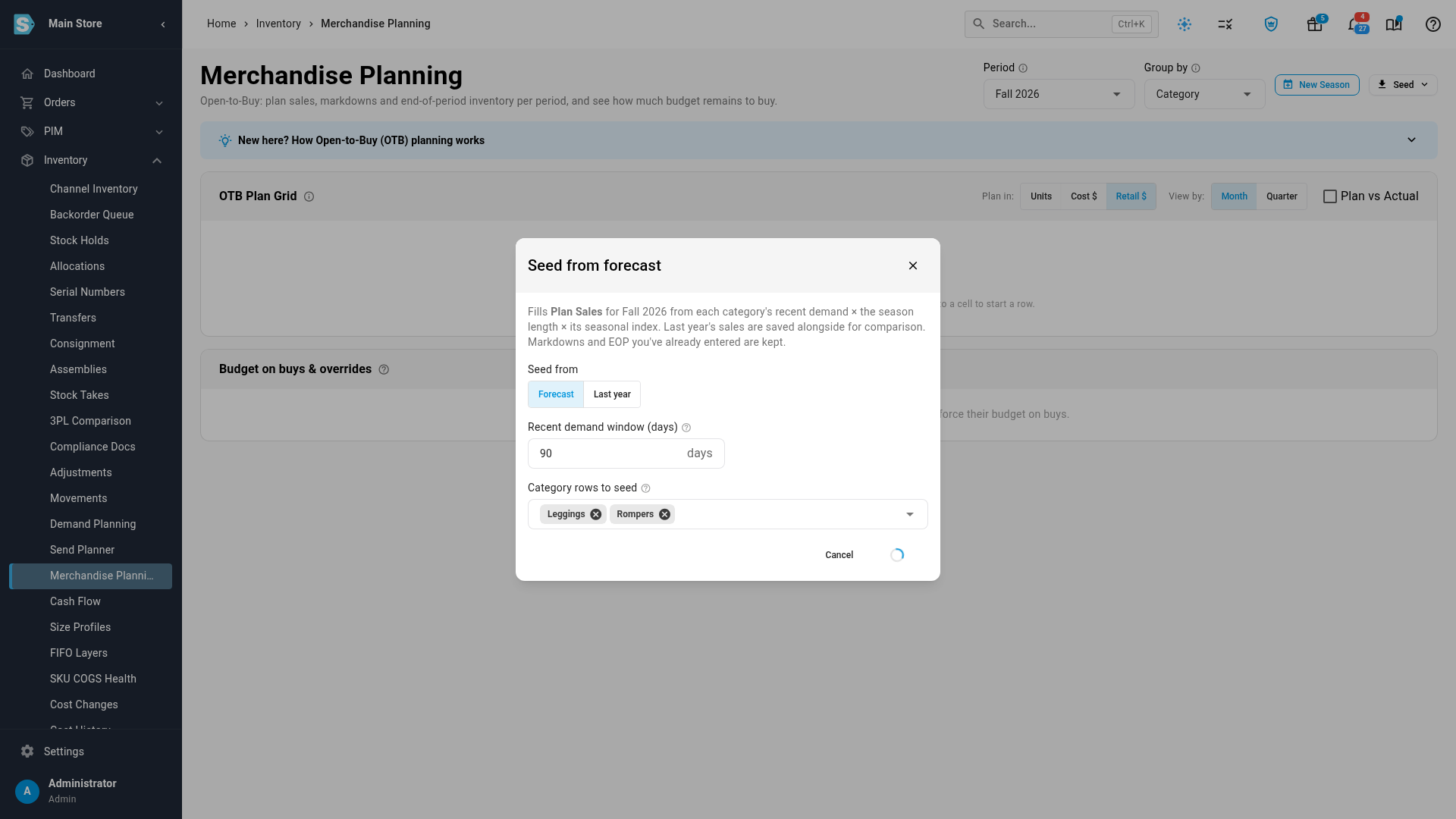
Go to Inventory → Merchandise Planning, click New Season, and pick the season and year. Its months become the grid's columns. Click Seed and choose Seed from forecast or Seed from last year, then pick the categories to plan. Plan Sales fills in for every month. Add planned Markdowns, set ending stock in the EOP Inv row, and every change saves as you leave the cell.
Know what's left to buy
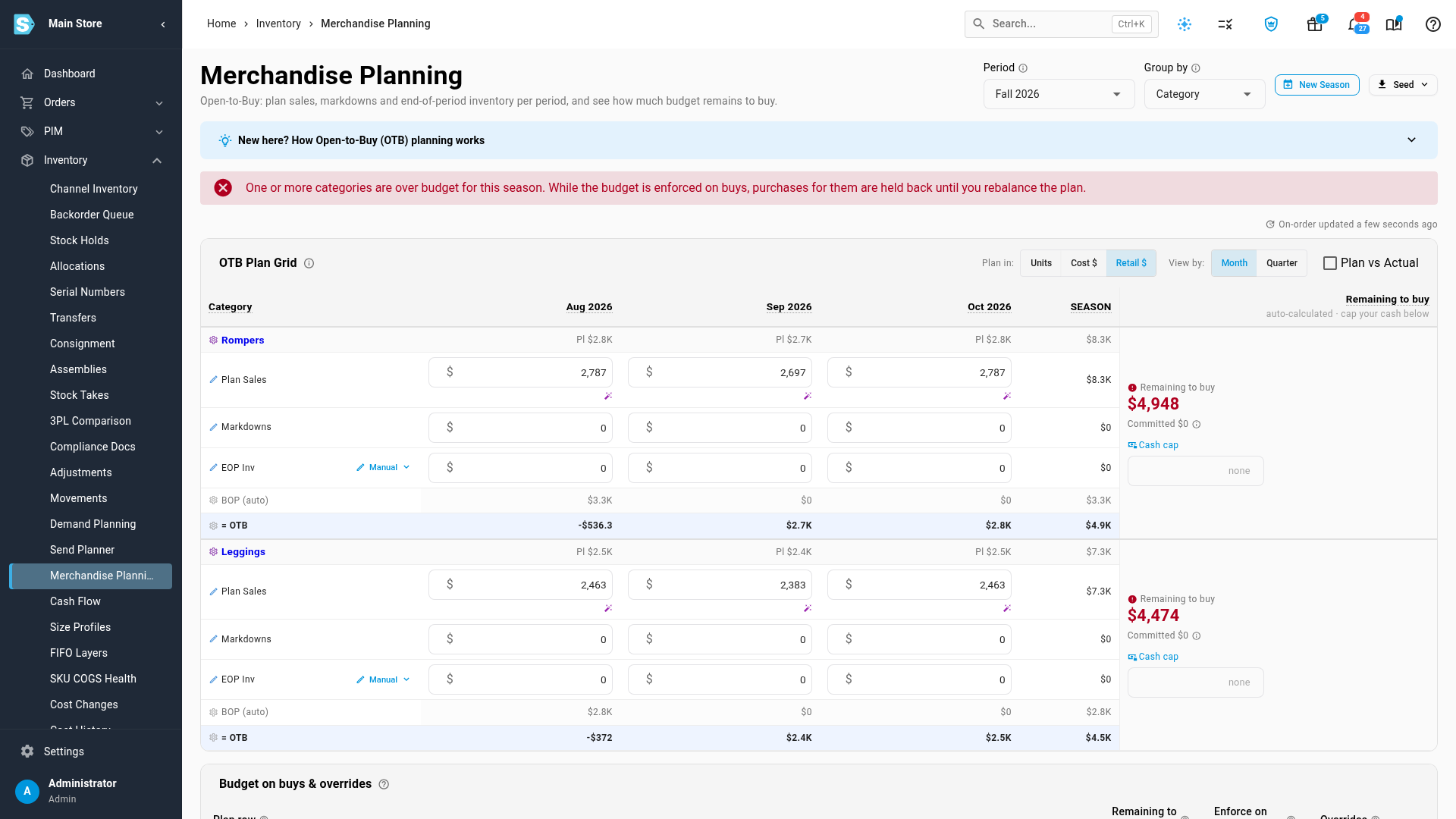
Each row ends in Remaining to buy: what you can still spend on that category this season. Purchase orders due in the season count as On-Order and come off the budget automatically. Green means room to buy, amber means 10% or less is left, and red means over budget. Over-budget rows are always shown, never hidden. If cash is tight, type a Cash cap and the budget becomes the smaller of the plan and the cap. Plan in switches the whole grid between Units, Cost $ and Retail $.
Hold purchasing to the budget
Turn on Enforce on buys under Budget on buys & overrides, and the plan starts guarding purchasing. A demand plan or purchase order that would take a category over its remaining budget is held back, across every supplier for that category, not just one order. When one product must go through anyway, add an override with the quantity to Keep up to and a Reason. Every override, and every removal, is logged.
Track plan vs actual through the season
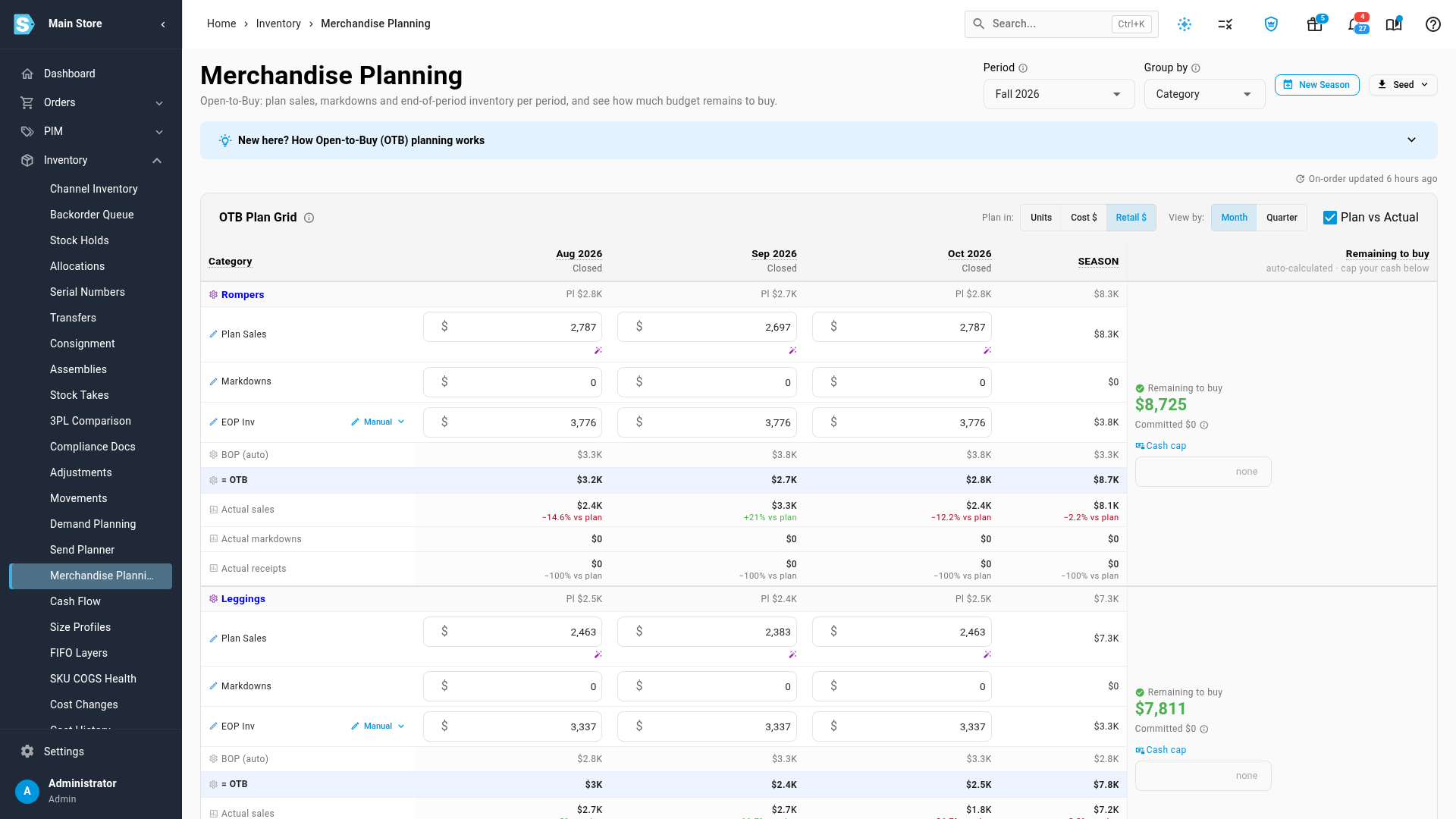
Tick Plan vs Actual and each month shows actual sales, markdowns and receipts beside the plan, with the difference as a percentage. Months that have closed are marked, and months that haven't started stay empty. If a row turns red, rebalance it: lower planned sales or ending stock, or move budget from another month.
Where to find it
- Build a plan: Inventory → Merchandise Planning → New Season, then Seed.
- Hold purchases to it: Inventory → Merchandise Planning → Budget on buys & overrides → Enforce on buys.
- Compare with actuals: tick Plan vs Actual on the grid.
Full guide: Build an open-to-buy plan. See also Track plan vs actual and How open-to-buy works.