Email templates, rebuilt around an AI assistant
The emails SKU.io sends for you, such as order confirmations, shipping updates and purchase orders, are often the first thing a customer or supplier sees from your business. Until now, changing one meant hand-editing HTML in a small text box and hoping it looked right in an inbox. Email templates has been rebuilt around an AI assistant: describe the change in plain English, watch a live preview update with a real order, and save when you're happy. The assistant edits the words and the design together, and one change can be applied to every email that needs it.
✨ What this means for you:
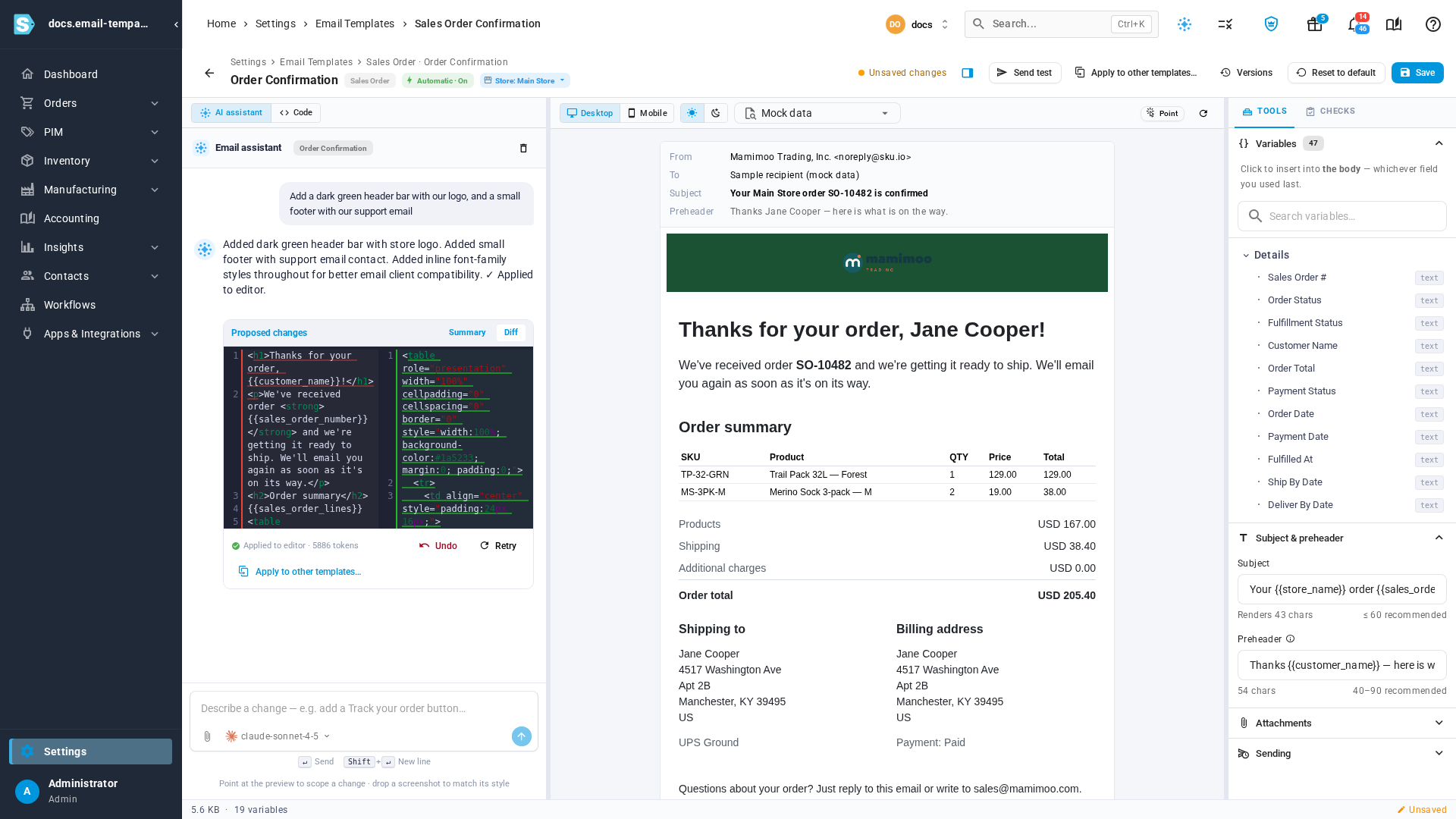
- Describe it, don't code it. Ask for "a dark green header with our logo and a footer with our support email", and the assistant writes it, checks it and shows you exactly what changed.
- One look across every email. Make a change once, then apply it to your other templates. Review each result before anything is saved.
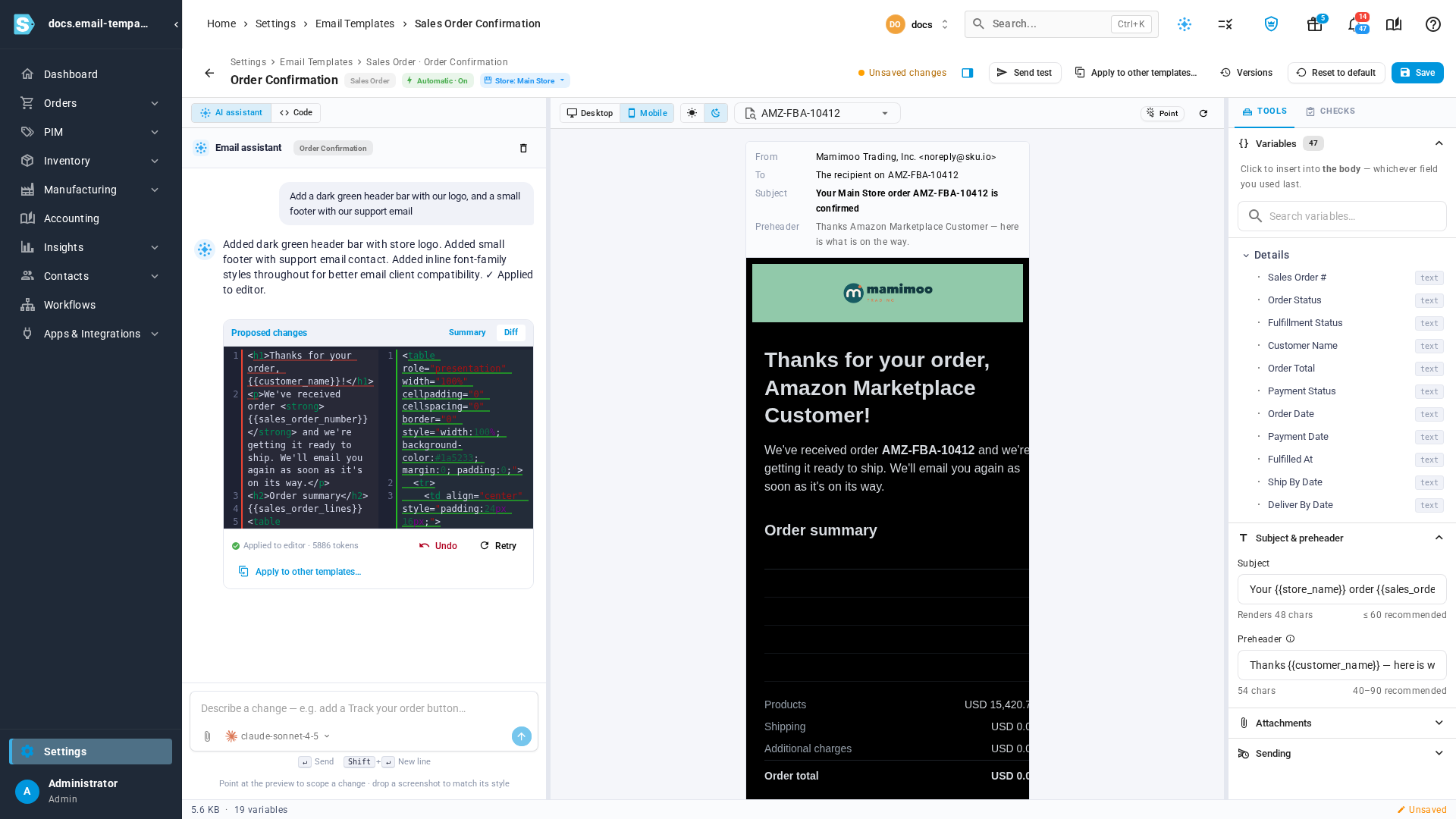
- See what your customers will see. The preview uses a real recent order, on desktop or mobile, in light or dark mode.
- Catch problems before they send. A Checks tab flags long subjects and broken links, Send test emails you a copy, and Versions keeps every saved change so you can go back.
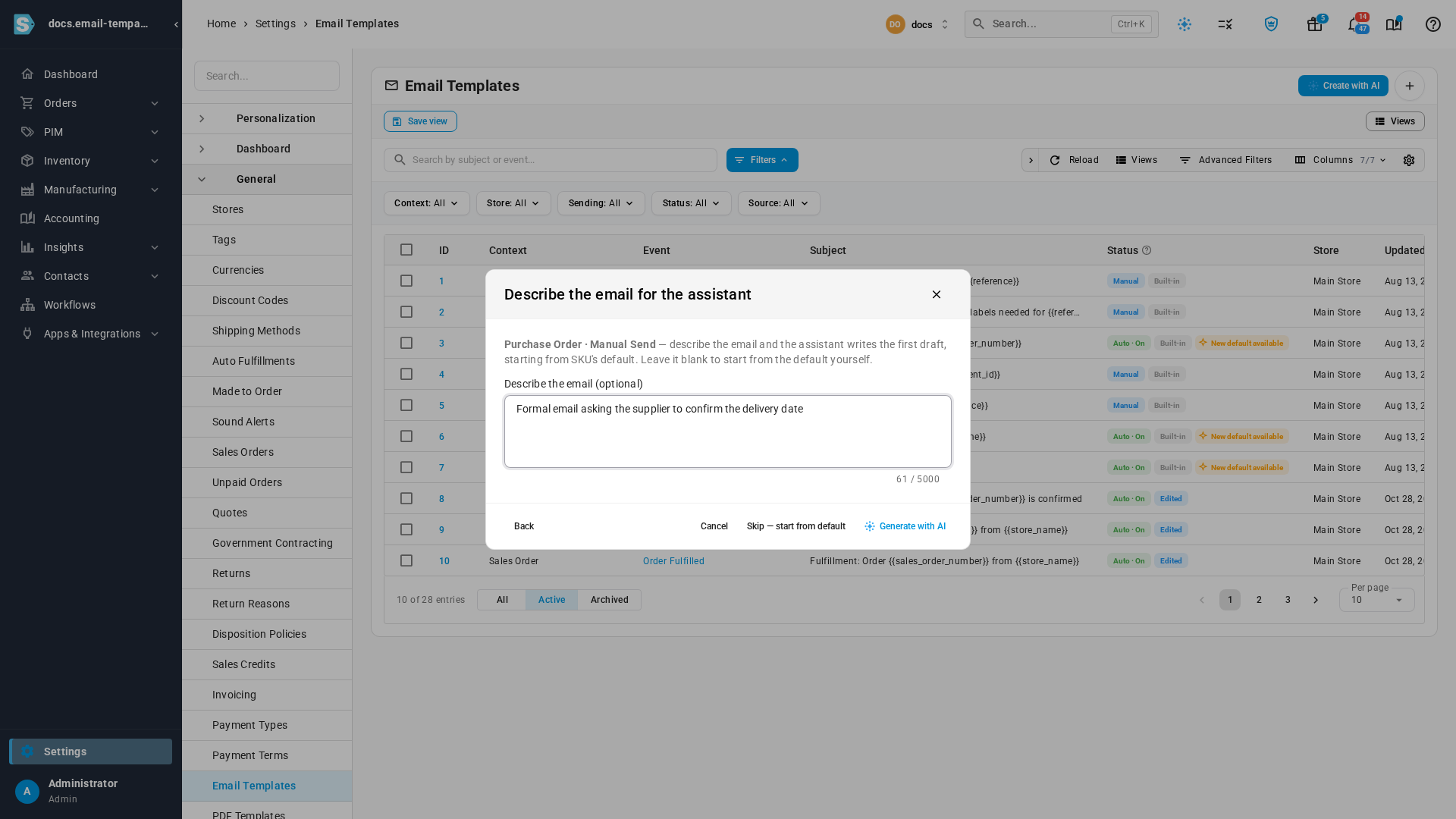
- New emails in a sentence. Create with AI writes a first draft from a short description.
Chat with the assistant
Open any template and the Email assistant sits beside a live preview. Type what you want, or pick a suggestion, and press Enter. The assistant only uses details that exist for that kind of email, and it tells you when something can't be done instead of guessing. Every change shows a summary and a line-by-line Diff. Undo takes it back, and nothing changes for your customers until you click Save.
To change just one part, click Point above the preview, then click that part, such as the order table or a button.
Give every email the same look
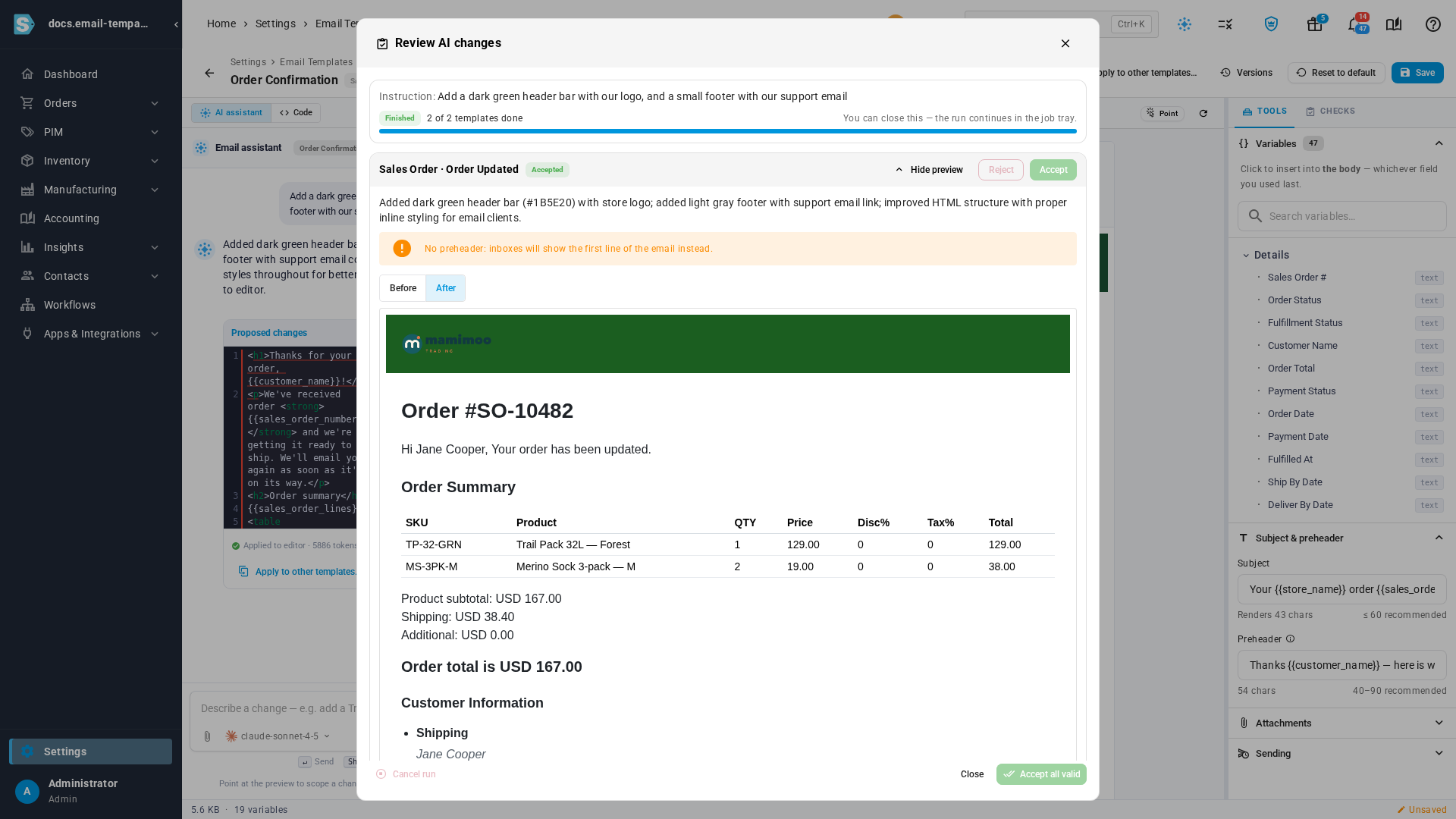
Your logo, colours and footer are part of each email, so you control exactly which emails carry them. Nothing changes the look of your emails unless you ask for it. To bring several emails into line, click Apply to other templates, tick the ones you want and run it. The assistant makes the same change to each in the background. You preview each one and accept or reject it.
Preview it the way it will arrive
Pick a recent order from the sample list and the email fills in with its real details. Switch to Mobile to see it on a phone, and to dark mode to see how it looks in dark inboxes. The preview and the sent email come from the same source, so what you see is what's delivered.
Write a new email in a sentence
Click Create with AI, choose what the email is for and when it sends, and describe it, for example "a formal email asking the supplier to confirm the delivery date". The assistant writes a first draft for you to check and save. You can always switch to Code to edit the HTML yourself, with a list of the details you can insert.
Where to find it
Go to Settings → General → Email Templates and open any template. The AI assistant needs an AI provider connected under Settings → AI Assistant. Without one, you can still edit templates in Code.
Full guide: Customize email templates