Amazon MFN pricing lane — price merchant-fulfilled listings differently, and set pricing on many listings at once
If you sell on Amazon both ways — Fulfilled by Amazon and merchant-fulfilled, where you ship the order yourself — you already know the two rarely want the same price. You carry the shipping on an MFN order, the Buy Box behaves differently, and until now the only way to price those listings apart was to pin them one at a time. The Amazon MFN pricing lane fixes that at the channel level: your merchant-fulfilled listings follow their own sequence of price levels, checked before the channel's FBA levels and falling through to them whenever a product has no MFN price. The channel's Pricing page now says which lane priced every listing, and a new Set Pricing action on the listings table lets you pin — or reset — a whole selection of listings in one go, with a preview of every price that would change.
✨ What this means for you:
- One rule for every MFN listing on the channel. Set the lane once under Which price to send; every merchant-fulfilled listing follows it, FBA listings are untouched, and a listing you pinned yourself keeps its pin.
- Nothing falls off a cliff. A product with no price at your MFN level simply uses the channel's FBA levels — the lane shows exactly how many products it prices and how many fall through, before you save.
- You can see why a listing has the price it has. The Pricing page marks each listing FBA or MFN and shows the level and the lane behind its price — MFN default, fell through, or pinned — with filters for each.
- Bulk pricing from the listings table. Select any group of listings — a brand, everything you ship yourself, a clearance range — and pin them to a master of price and tier, or clear their overrides so the channel's levels apply again. A preview shows every price that would change and what the next push would do with it.
Give your MFN listings their own price levels
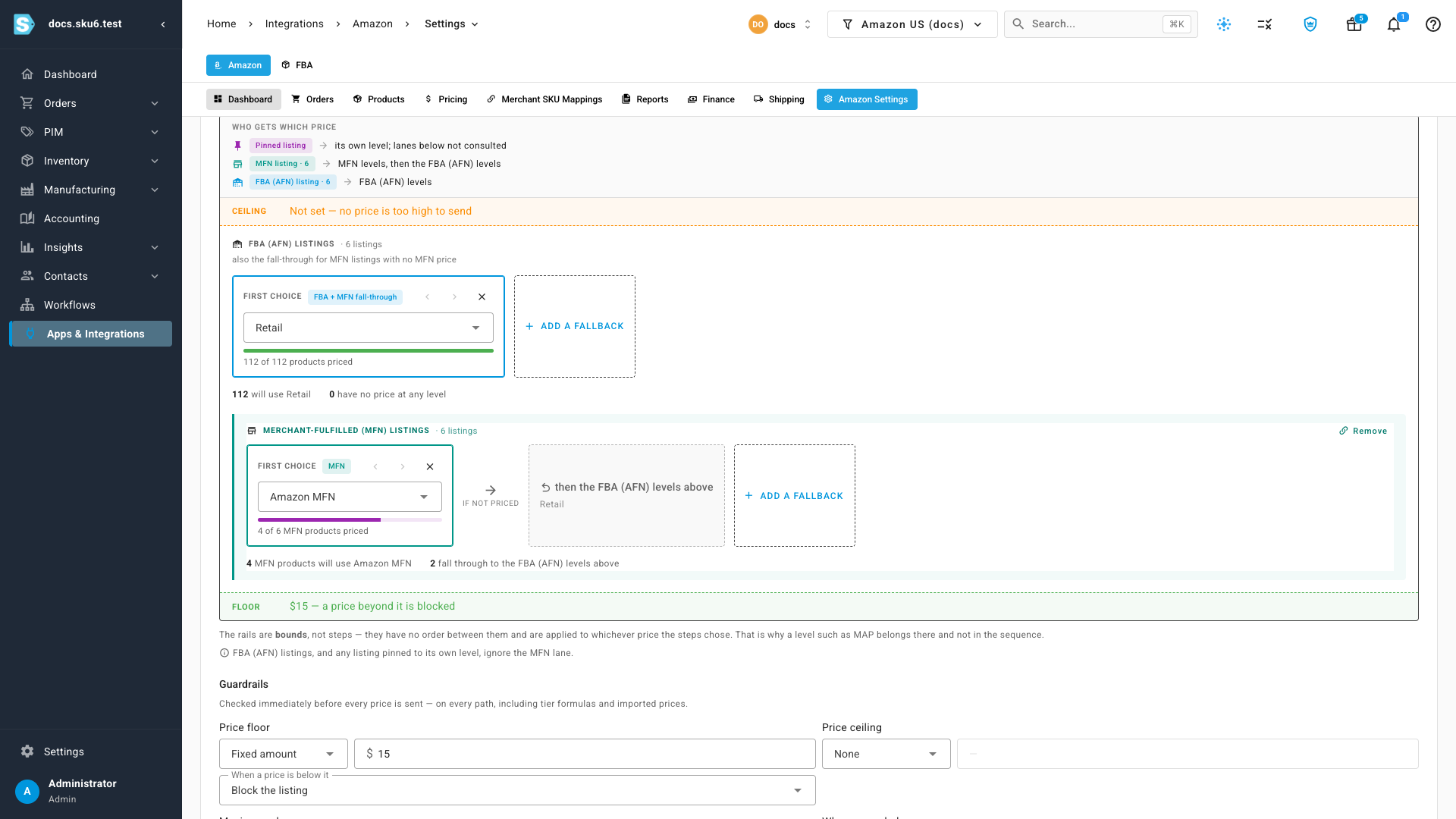
Open your Amazon channel's Pricing Sync tab and scroll to Which price to send. A Who gets which price legend spells out the rule: a pinned listing keeps its own level, an FBA listing uses the FBA levels, and an MFN listing checks the MFN levels first, then falls through to the FBA levels.
Until you set a lane, the Merchant-fulfilled (MFN) listings row reads Priced by the FBA levels above. Click Price MFN listings differently and the lane opens with a first choice already filled in — a level that isn't in the FBA sequence yet. Under it, a coverage bar shows how many MFN products that level prices, and a dimmed then the FBA levels above step shows where the rest go. Add a fallback to check another MFN level first, then save. SKU.io re-prices the channel's MFN listings in the background.
See which lane priced each listing
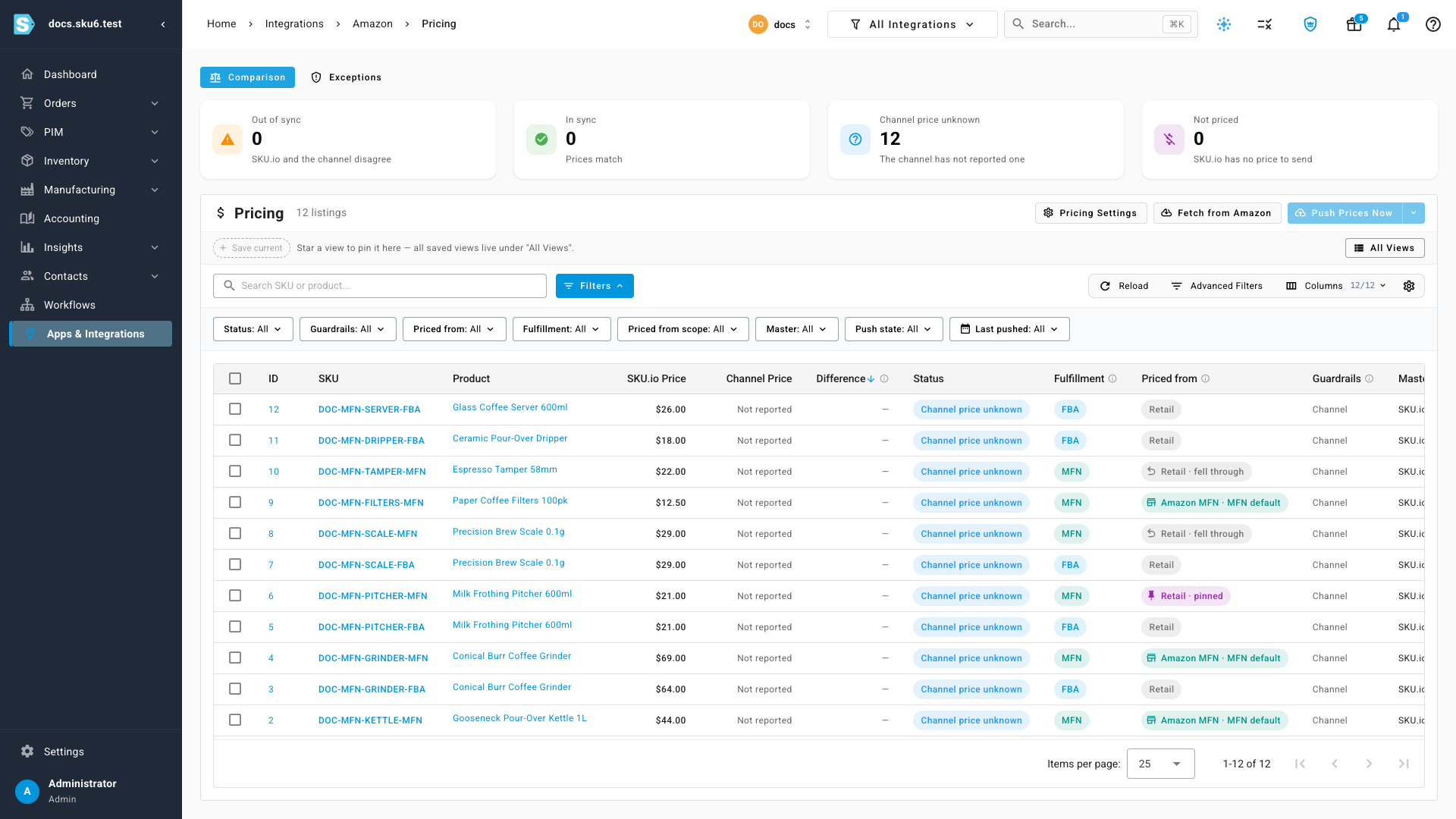
On the channel's Pricing page, a new Fulfillment column marks each listing FBA or MFN, and the Priced from column now names both the level and the lane it came from. Amazon MFN · MFN default means the lane priced it; Retail · fell through means the product had no MFN price, so the FBA levels supplied it; Retail · pinned means the listing keeps a level of its own and ignores both lanes. Filter by Fulfillment or Priced from scope to see exactly which listings the MFN levels reach.
Set pricing on many listings at once
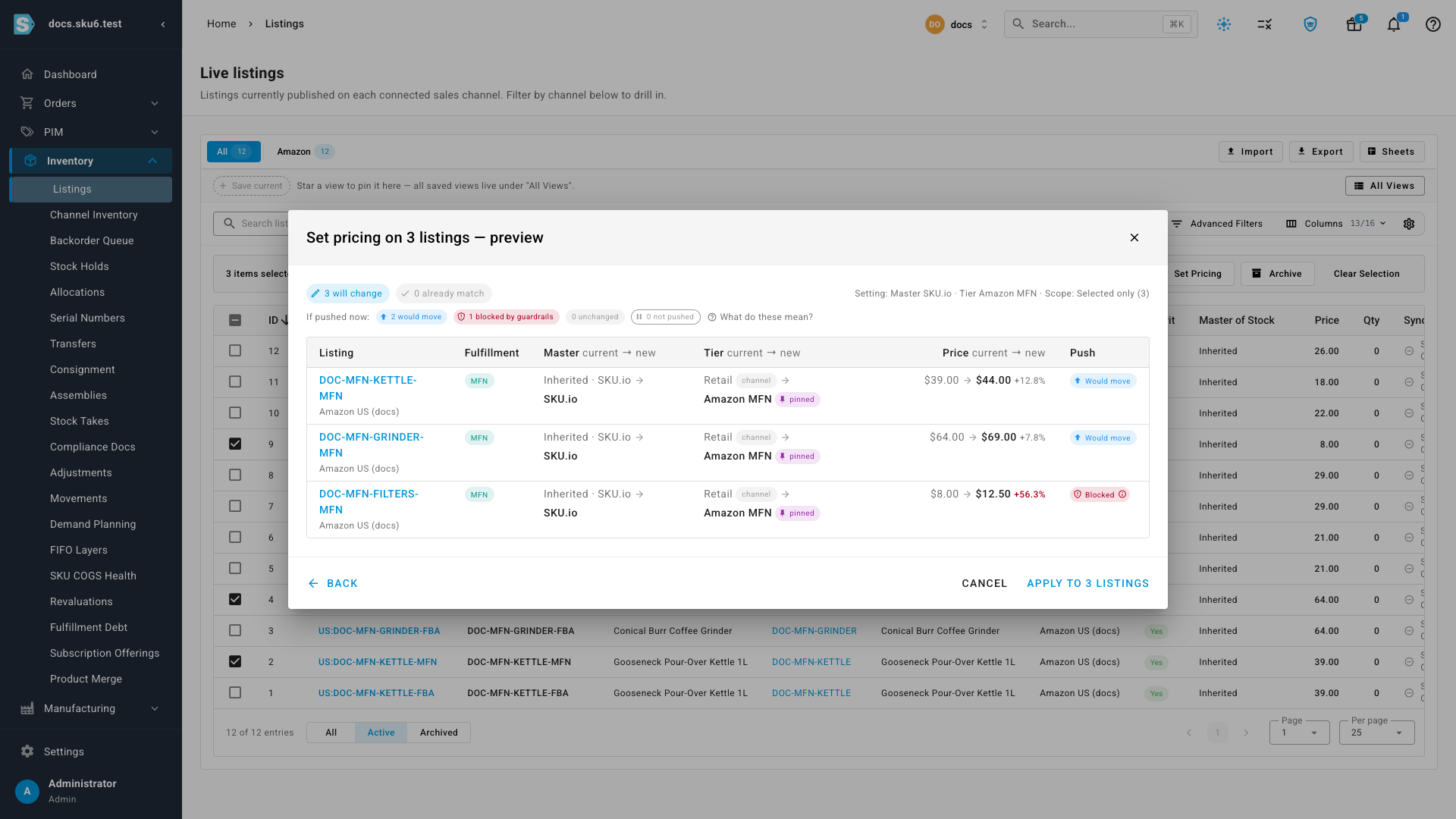
On Inventory → Listings, select the listings you want to change and click Set Pricing in the toolbar. Set Master of Price pins every selected listing to one master and, for SKU.io, one pricing tier; Inherit from channel settings does the opposite, clearing any listing-level override so the channel's own levels apply again. Choose Selected only for just the rows you ticked, or All filtered to cover every listing that matches your current filters, across every page.
Nothing is saved until you apply. The preview counts how many listings will change and how many already match, shows each row's master, tier and price — current and new — and says what the next price push would do with the new price: would move, or blocked by a guardrail such as your price floor. Up to 25 listings update on the spot; a larger selection runs as a background job you can follow in the job tray.
Where to find it
- Set the MFN lane: Apps & Integrations → Amazon → Amazon Settings → Pricing Sync, under Which price to send — click Price MFN listings differently. Remove on the same row puts everything back on one sequence.
- See which lane priced each listing: the channel's Pricing page — the Fulfillment and Priced from columns, plus the Fulfillment and Priced from scope filters.
- Set pricing on a selection: Inventory → Listings — tick the listings, then Set Pricing in the toolbar.
- Full guides: Price Amazon MFN listings differently · Set pricing on multiple listings at once