Record automations — run your workflows from any record, in one click
Some jobs happen one record at a time: add the standard note to an order, flag it for the warehouse, update a supplier in your accounting system. Until now, a workflow could only start on its own, from a schedule or an event, so these jobs stayed manual. Record automations let you run a workflow by hand on the record you're looking at. Open a supplier, product, sales order, purchase order or customer, click the lightning bolt at the top of the page, and pick what to run. A workflow can even hand the job to a script or an AI agent on your own computer, and report the result back on the record.
✨ What this means for you:
- Any workflow can become a one-click action on suppliers, products, sales orders, purchase orders and customers.
- Run it from the record's Automate menu, from a button pinned to the record header, from the search box (Ctrl+K, then type run), or on many records at once from a list.
- An automation can ask a question before it runs, such as a note or a reason, and use the answer in its steps.
- You choose who can run each one, separately from who can edit workflows.
- Every run is tracked on the record, with its status, its result and who started it.
- Agent Runners hand work to a program on your own computer or server, such as a script or an AI agent, with no webhook, open port or tunnel.
Run an automation from the record you're on
The lightning bolt at the top of every supported record opens Automate. It lists the automations you can run on that record and when each last ran there. Click Run, answer any questions it asks, and it starts. The Automation runs card on the record shows each run from start to finish, with a link to every step it took.
On a list, tick the records you want and open Automate the same way. The automation runs once on each selected record, or on everything that matches your filters as a background job.
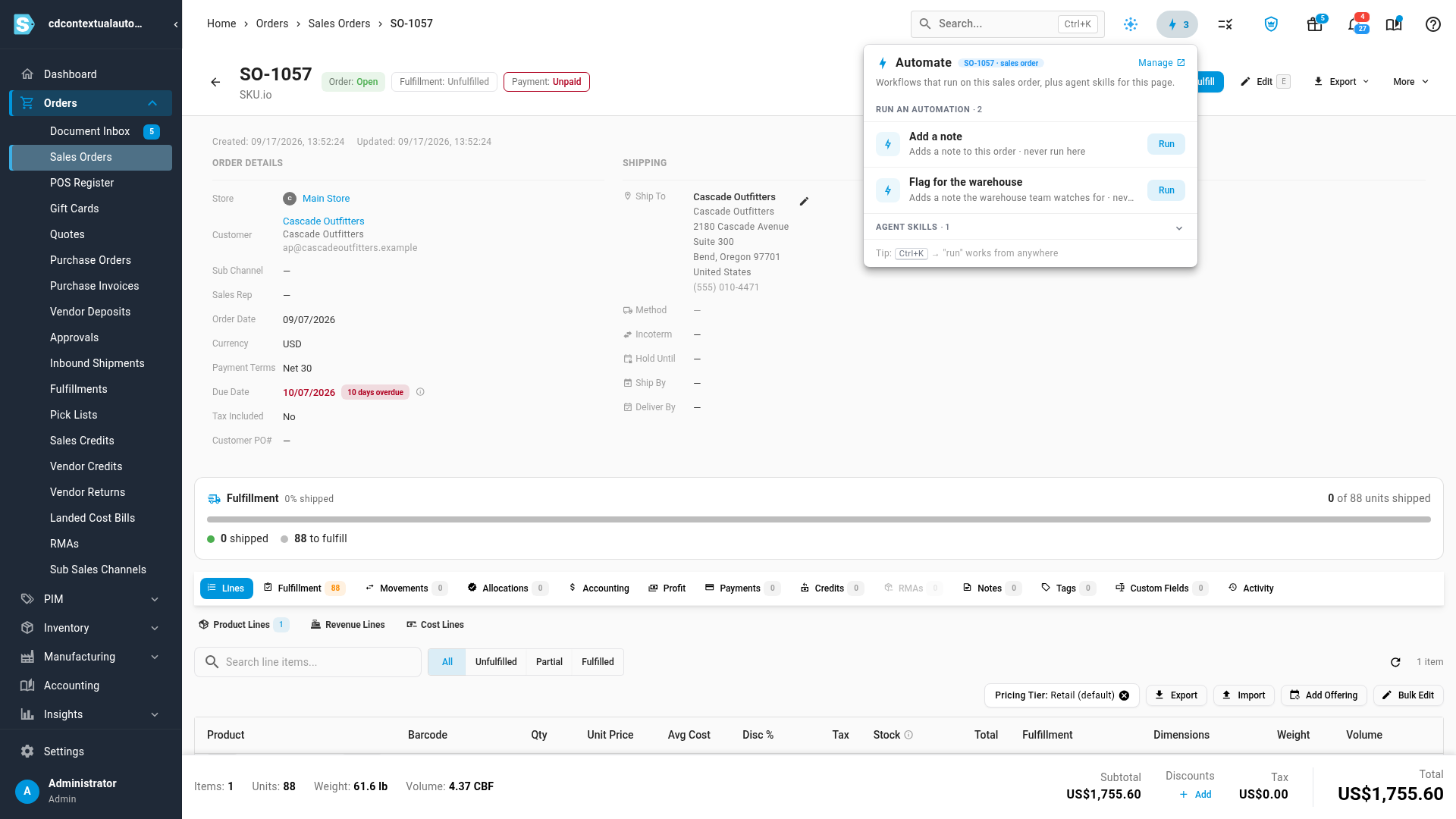
Turn any workflow into a record action
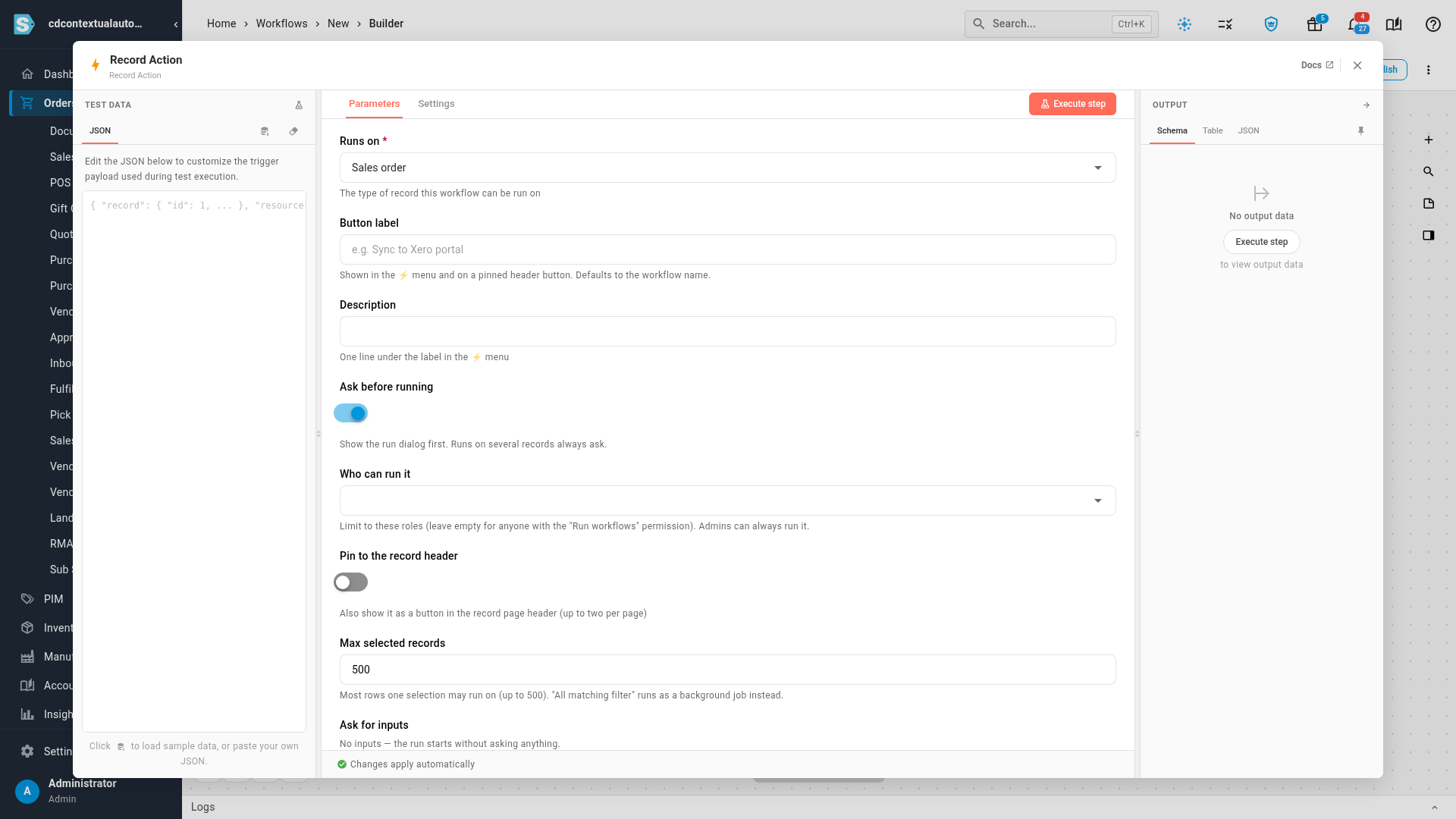
Start a workflow with the new Record Action trigger and choose what it runs on. Give it a button label and a one-line description, decide who can run it, and pin it to the record header if your team uses it every day. Under Ask for inputs, add the questions people answer when they run it. The first time, you can start straight from the record: Create sales order automation in its Automate menu opens the builder with the trigger already set up.
Hand the work to your own machine
Some jobs can only happen on a computer you control: a script that logs in to your accounting system, an AI agent driving a website, a file on the office PC. Register an Agent Runner under Workflows → Runners, start it on that machine, and add an Agent task step to your workflow. The runner picks up the job, runs the command you configured, and sends the result back. The runner asks SKU.io for work, so nothing on your network has to be opened up. Your commands, prompts and passwords stay on your machine.
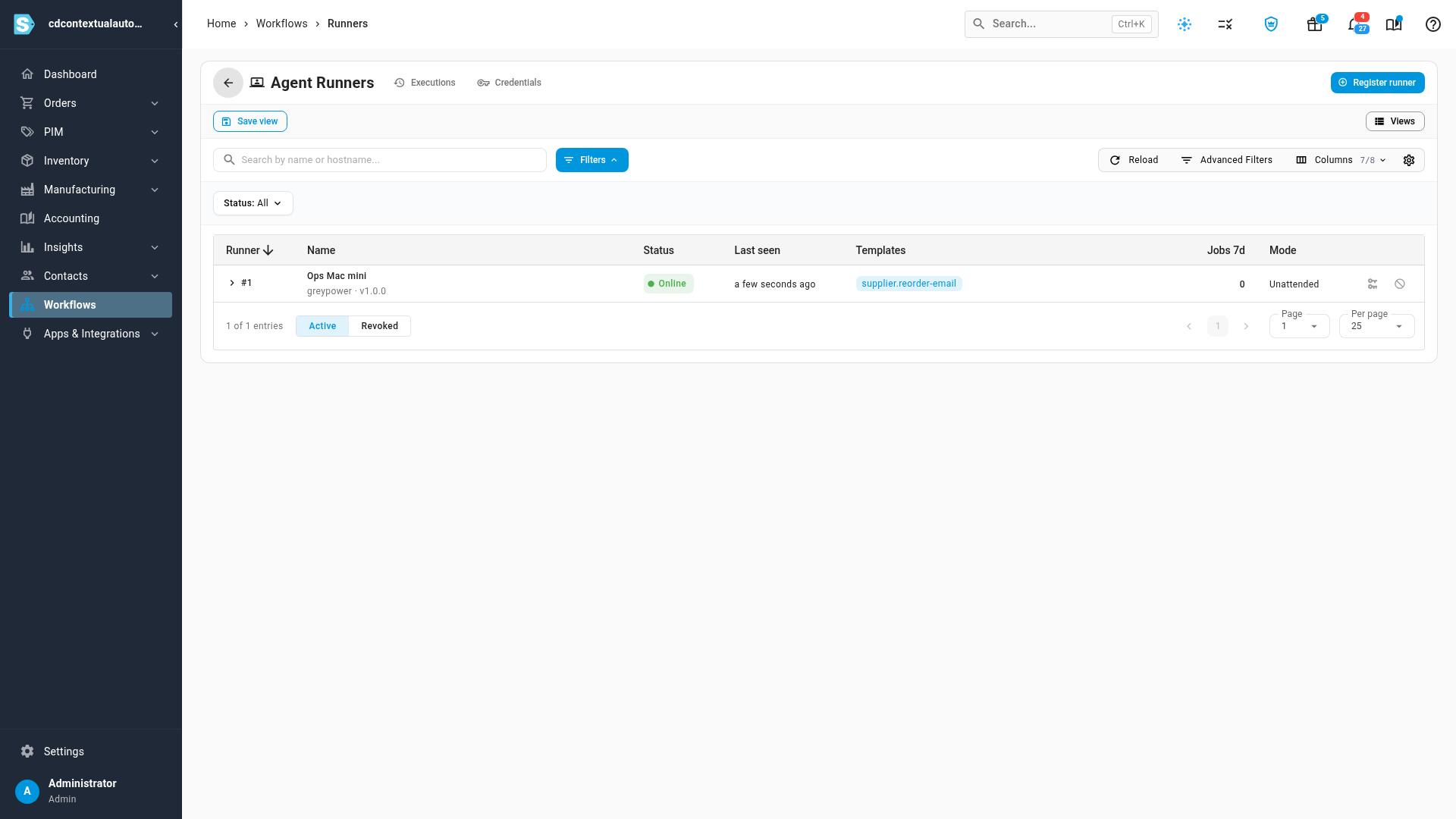
When the job is done, its result shows on the record it ran on.

Where to find it
- Open any supplier, product, sales order, purchase order or customer, and click the lightning bolt at the top of the page.
- Set automations up under Workflows, starting with the Record Action trigger. Manage Agent Runners under Workflows → Runners.
Full guides: Add an automation to a record, Run an automation on a record and Run a script or AI agent on your own machine.