Merge orders into one shipment: one package, every order keeps its own tracking
When a customer places a second order before the first one ships, you used to send two parcels to the same door. That meant two picks, two labels, two shipping emails, and a "where's my other order?" ticket. Merge orders into one shipment fixes that from the Sales Orders list. Tick the orders, choose Merge Orders, check the preview, and confirm. Your warehouse or 3PL receives a single order and ships a single package. Each sales order stays its own order, and when the package ships, every one of them gets the tracking number on its own sales channel.
✨ What this means for you:
- One package, one label. Orders going to the same address ship together, so you pick, pack and pay postage once.
- A preview before anything changes. See the address, the warehouse, the combined units and totals, and every order's lines before you confirm.
- Orders stay separate. Each order keeps its own number, lines, payments, invoices and sales channel order. Only the shipment is shared.
- Tracking goes to every channel. When the package ships, each order records the shipment and sends the same tracking number to its own channel, even when the orders came from different channels.
- Clear reasons when it can't merge. If an order can't ship with the others, the preview tells you why before you try.
Select the orders and merge
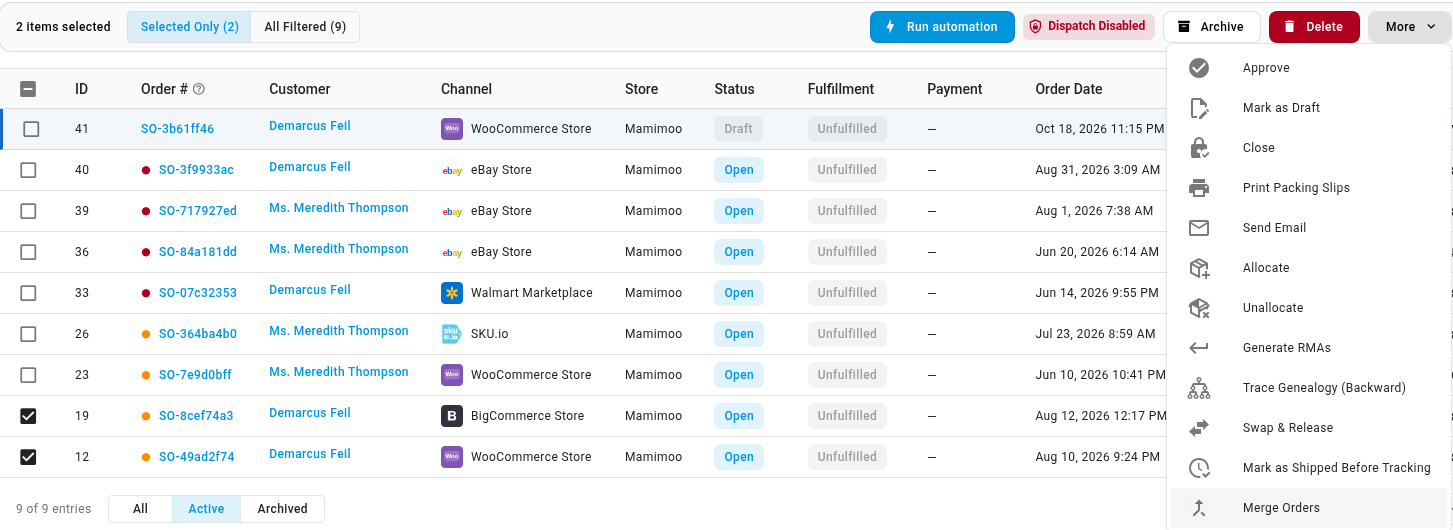
On Orders → Sales Orders, tick the orders you want to ship together (up to 50), then open More in the bar above the list and choose Merge Orders. The orders must be open, not yet sent to the warehouse or shipping provider, and going to the same address from the same warehouse through the same shipping provider.
Check the preview, pick the primary
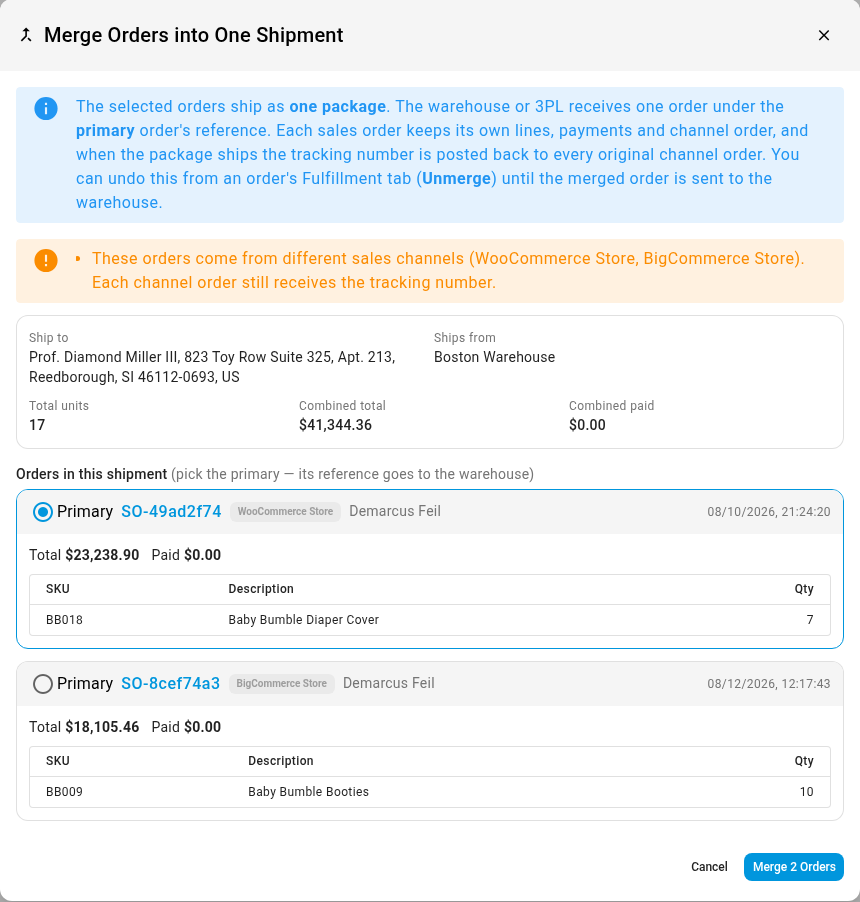
The Merge Orders into One Shipment preview shows where the package goes, the warehouse it ships from, the total units, the combined total and the combined amount paid. Each order is listed with its sales channel, customer, date and the lines still waiting to ship. Choose the Primary order: the warehouse or 3PL receives the package under its number. SKU.io picks the oldest order for you. If the orders come from different sales channels, or belong to different customers, the preview warns you without blocking the merge. Anything that would block it is listed under These orders can't be merged.
One shipment, every order in step
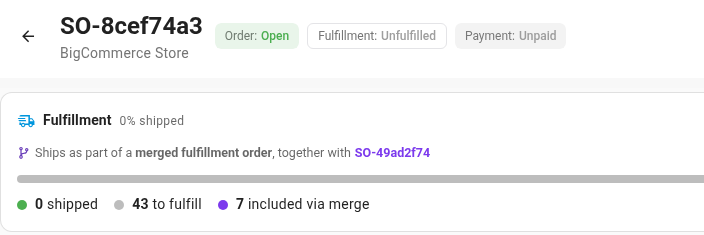
Click Merge 2 Orders (the button counts your orders) and SKU.io confirms the merge. Open any of the orders: its Fulfillment summary says it ships as part of a merged fulfillment order and links the others. A note on each order records the merge and who made it. To add a late order to the package, select it with one of the merged orders and merge again. Changed your mind? Unmerge on the order's Fulfillment tab undoes it until the shipment goes to the warehouse.
Where to find it
Go to Orders → Sales Orders, tick two or more orders, then choose More → Merge Orders. You need permission to view and edit fulfillment orders. Orders already sent to the warehouse can still be combined from the order's Fulfillment tab.
Full guide: Merge orders into one shipment