Product substitutions — sell the SKU they search for, ship the one you stock
The same physical part often lives under two SKUs: the official part number customers search for, and the identical equivalent you actually keep on the shelf. Until now those orders just stalled — the listed SKU sat backordered while the interchangeable item was in stock a few feet away, and "fixing" it meant editing order lines by hand. Product substitutions links equivalent SKUs so those orders flow: swap a stalled line to the stocked substitute in one click, or select the whole backlog and release it at once. The customer still sees exactly what they ordered — the invoice and packing slip keep the original SKU — while the pick list tells your warehouse which part to actually pull.
✨ What this means for you:
- Orders for an out-of-stock SKU stop stalling when an equivalent is on the shelf — swap one line in a click, or bulk Swap & Release the backlog.
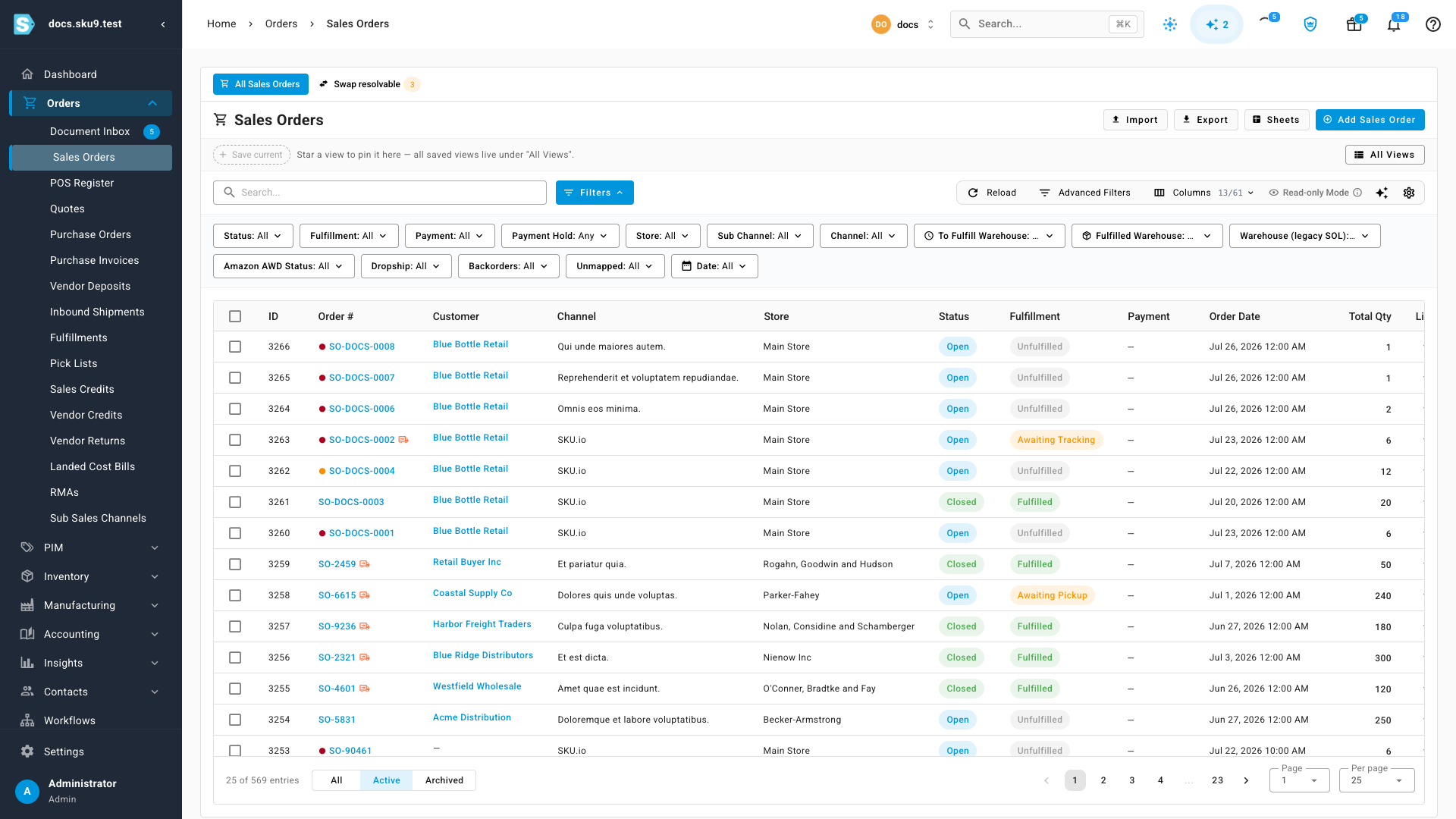
- A Swap resolvable tab on Sales Orders counts every stalled order a substitution could release right now, so the opportunity is never invisible.
- Customer documents stay honest: the invoice and packing slip keep the ordered SKU; the pick list shows the substitute with the original in brackets so pickers grab the right part.
- Substitutes can count toward the availability you publish to your sales channels — so a listing backed by interchangeable stock stays buyable instead of showing sold out.
- Demand and profit follow the SKU that actually ships, so replenishment reorders the right item instead of the alias.
- Manage rules anywhere: per-product on a Substitutes tab, or across your whole catalog on a Substitutions page with Excel import and export.
Set the rules once, per product pair
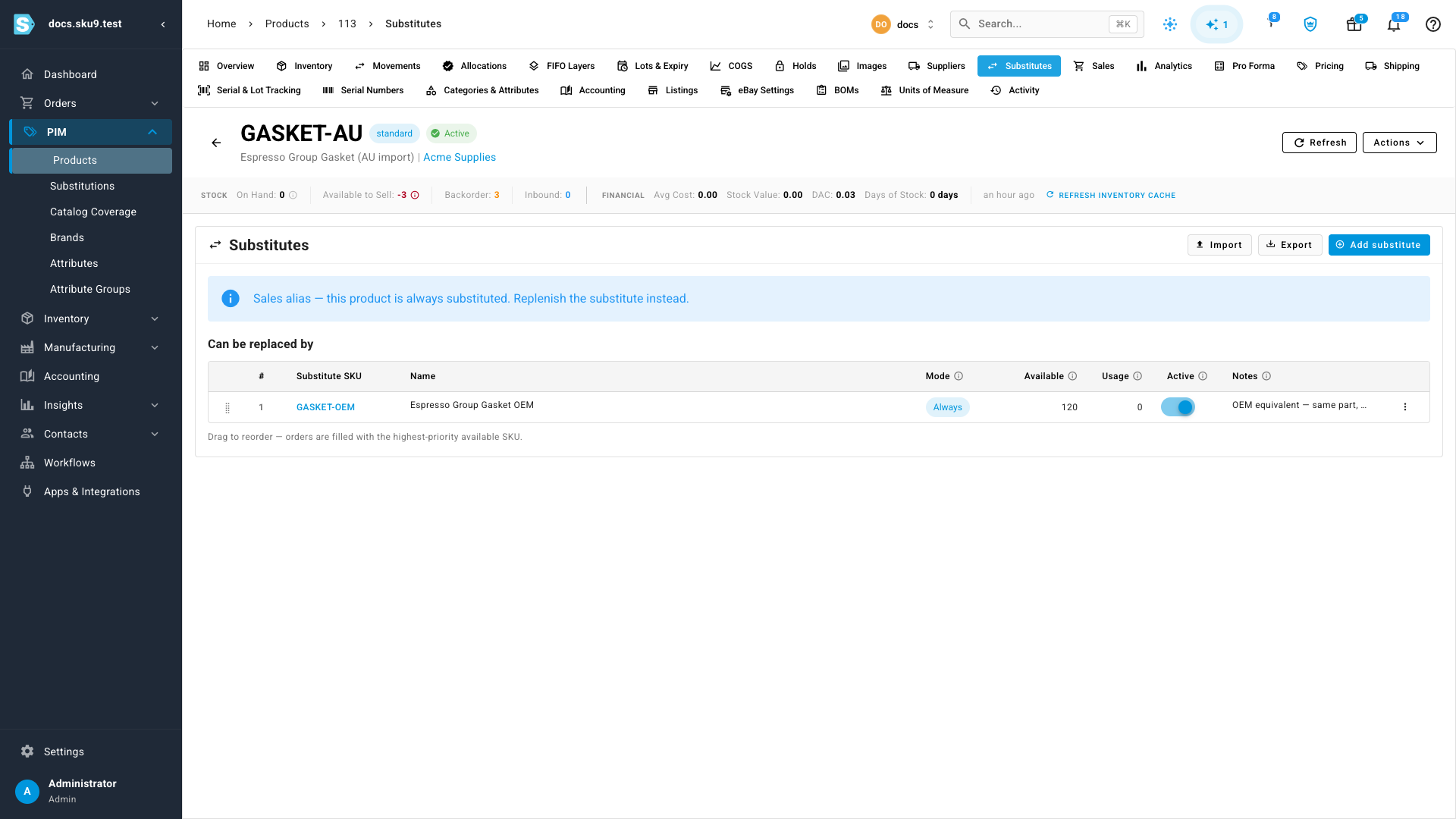
Open a product's Substitutes tab and add the equivalent you stock. Each rule has a mode: Manual only (a person applies it from the order line), Only when out of stock (swaps automatically when the ordered product can't cover the line), or Always (every order swaps — perfect for part numbers you list for search but never stock). You can also allow swaps when the substitute is itself out of stock, and choose whether its stock counts toward the original's published availability.
Spot the stalled orders a swap would fix
The Sales Orders page gains a Swap resolvable tab with a live count of stalled orders that a substitution could release right now. Click it and you're looking at exactly those orders — nothing else.
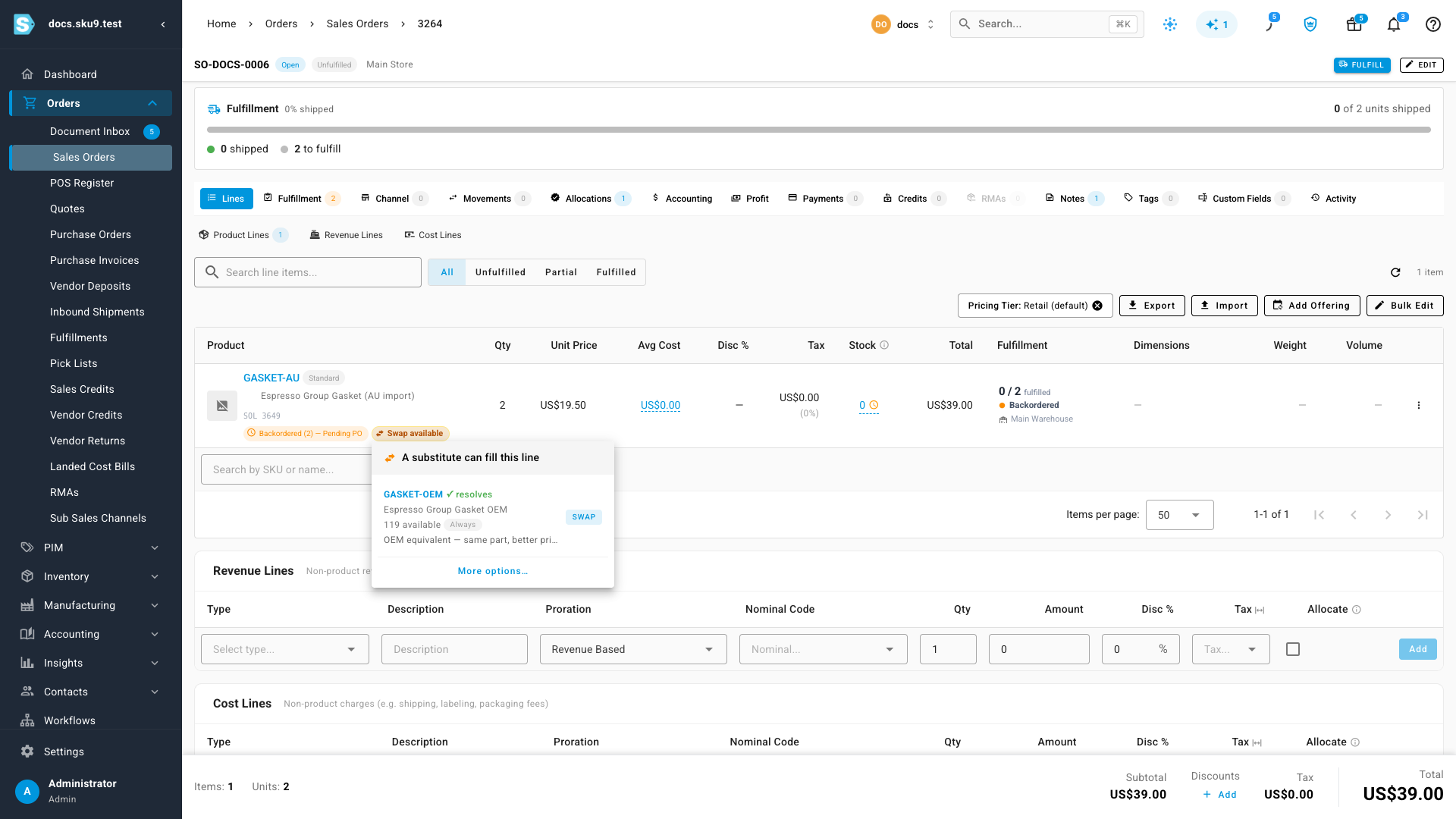
On any stalled order, lines with a matching rule show a Swap available chip. The menu lists each substitute with its live availability, the rule's mode and notes, and marks the ones that fully resolve the shortfall — one click swaps the line and allocates stock from the substitute.
Release a whole backlog — with a preview first
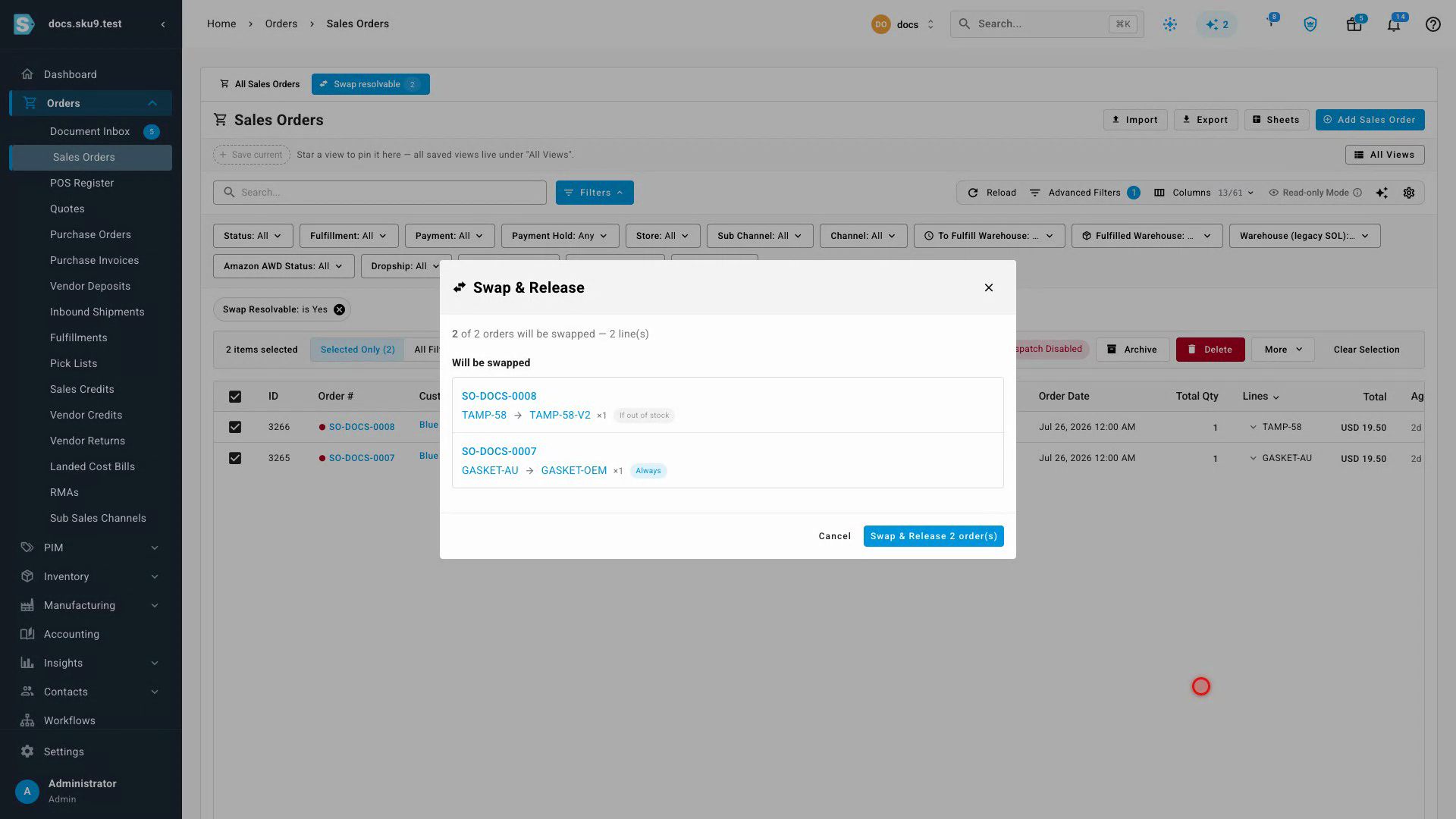
Select the stalled orders and choose Swap & Release. Before anything runs, a confirmation shows precisely what will happen: each order's planned swaps — ordered SKU → substitute SKU with quantity and rule mode — plus any orders that would be skipped and why. Confirm, and a background job applies the swaps and sends the orders to fulfillment while you watch the resolvable count drop to zero.
Where to find it
Turn the feature on under Settings → Products → Product Substitutions. Manage rules on any product's Substitutes tab or the Substitutions page under PIM, and work the backlog from Orders → Sales Orders → Swap resolvable.
Full guide: Substitute an out-of-stock product on a sales order