Move from Extensiv Order Manager: your whole account, checked to the cent before you switch
Switching order managers is where inventory goes wrong. Stock loads at an average cost instead of what you really paid, a half-received PO comes across in full, two spellings of the same SKU become two products, and nobody can say whether the opening value matches the old system. If you're leaving Extensiv Order Manager (formerly Skubana), SKU.io now loads your Order Manager account for you from Order Manager's own CSV exports: products and bundles, suppliers, warehouses, opening stock at its real FIFO cost, open purchase orders, customers and, if you want them, your past orders. You see a plan before anything is written, and a valuation check proves the result matches to the cent.
✨ What this means for you:
- Nothing is written until you've seen the plan. The first pass is a dry run that sends you a one-page plan report: what will load, what needs a decision, and what's wrong in the export.
- Your real costs come across. Stock bought at $3.90 and stock bought later at $4.20 stay two separate cost layers, so your margins are right from day one.
- Open POs, not closed ones. Only what's still to arrive moves, as draft purchase orders that keep their Order Manager numbers.
- Duplicate SKUs get a human decision. SKUs that differ only in case, share a barcode or share a name are never merged on their own. You pick the survivor.
- Your labels and custom fields survive. Labels become tags and custom fields become product attributes.
- History without side effects. Past shipped orders count in sales history and demand planning and can be returned, but never touch your stock, your 3PL or your accounting.
Read the plan before anything loads
Export your data from Order Manager to CSV and send the files to your SKU.io onboarding contact. They run a dry run and send you the plan report. It opens in any browser, with no SKU.io login. The banner says where things stand. The tiles count what will load, down to the value of your opening stock. The tables list possible duplicates with the units behind each SKU, opening stock by warehouse, the past orders that will come across, and each open PO with the units it still has due.
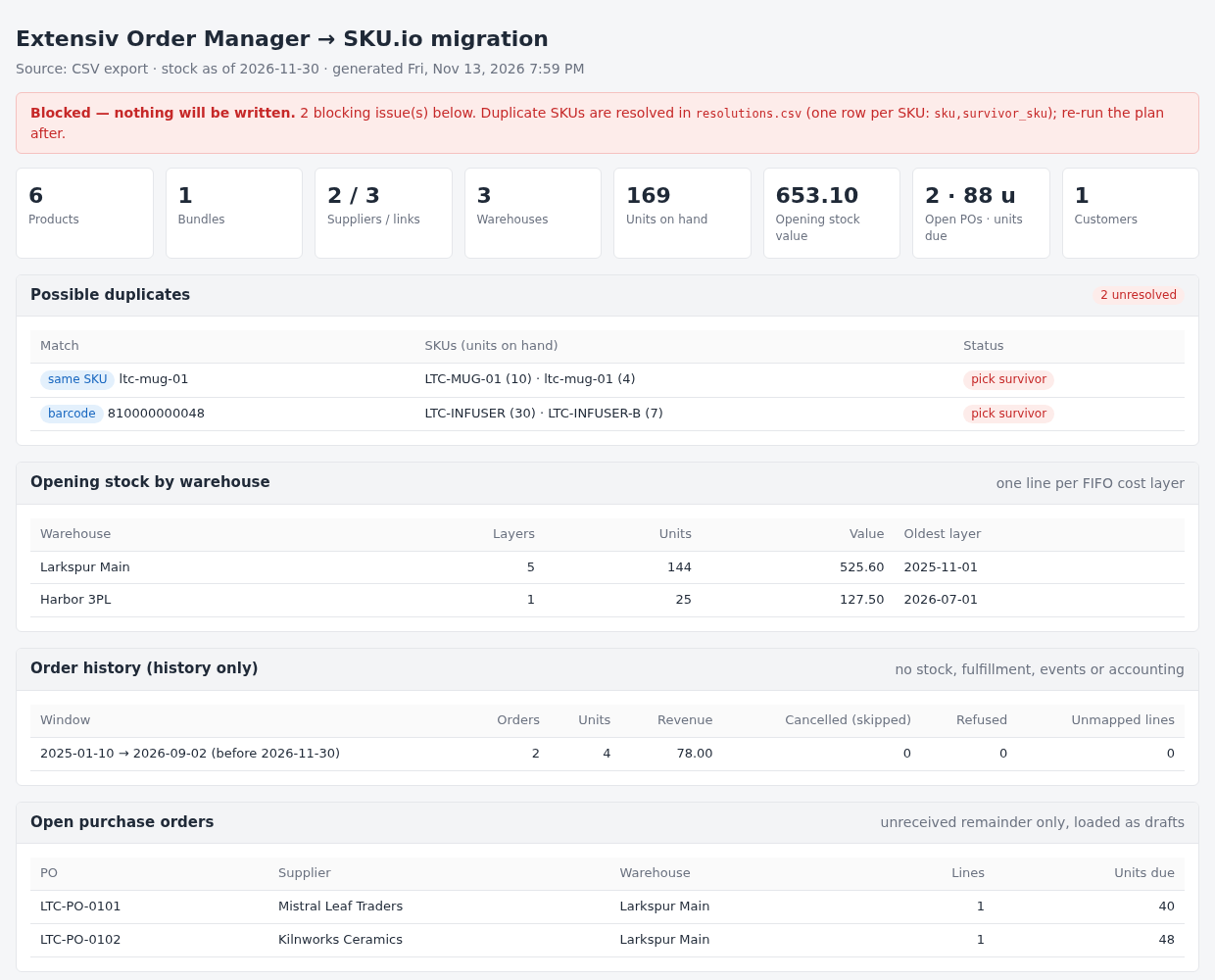
A Blocked banner means something needs your decision first, usually a duplicate SKU. You fill in a resolutions file, choosing which SKU survives or keeping two SKUs apart, and fix anything the report flags in Order Manager, such as stock that isn't in any warehouse. Then you take a fresh export as close to your inventory start date as you can.
A valuation check you can sign off on
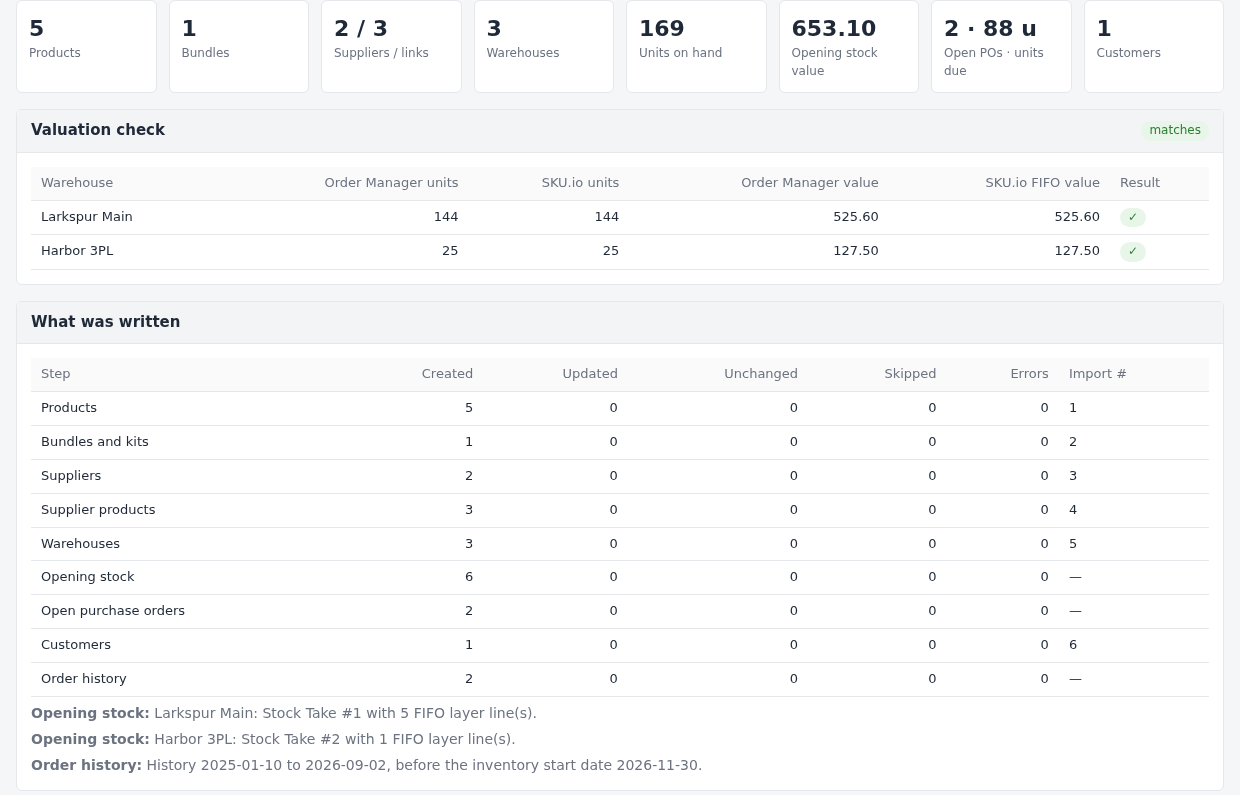
Once the plan reads Ready to load, your account is loaded and you get the final report. Its Valuation check puts Order Manager's units and value for every warehouse next to what SKU.io now holds in its FIFO layers. What was written counts what each step created, updated or skipped, with an import number you can look up. The load is safe to repeat: nothing is created twice.
Opening stock that keeps its FIFO layers
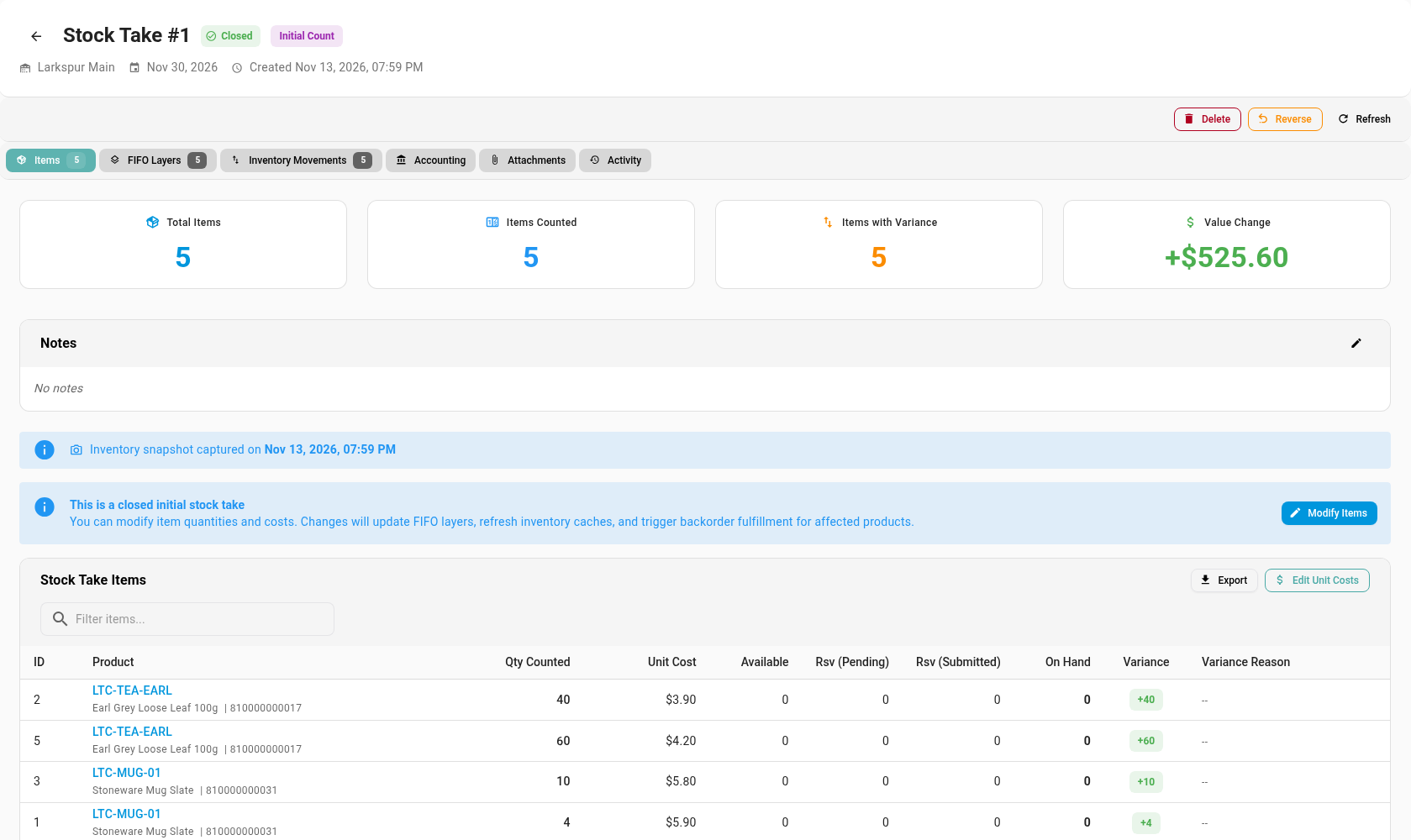
Each warehouse gets one closed Initial Count stock take, dated to your inventory start date, with one line per cost layer at that layer's own cost. The oldest layer is used up first when you sell, just as it would have been in Order Manager.
Past orders, as history only
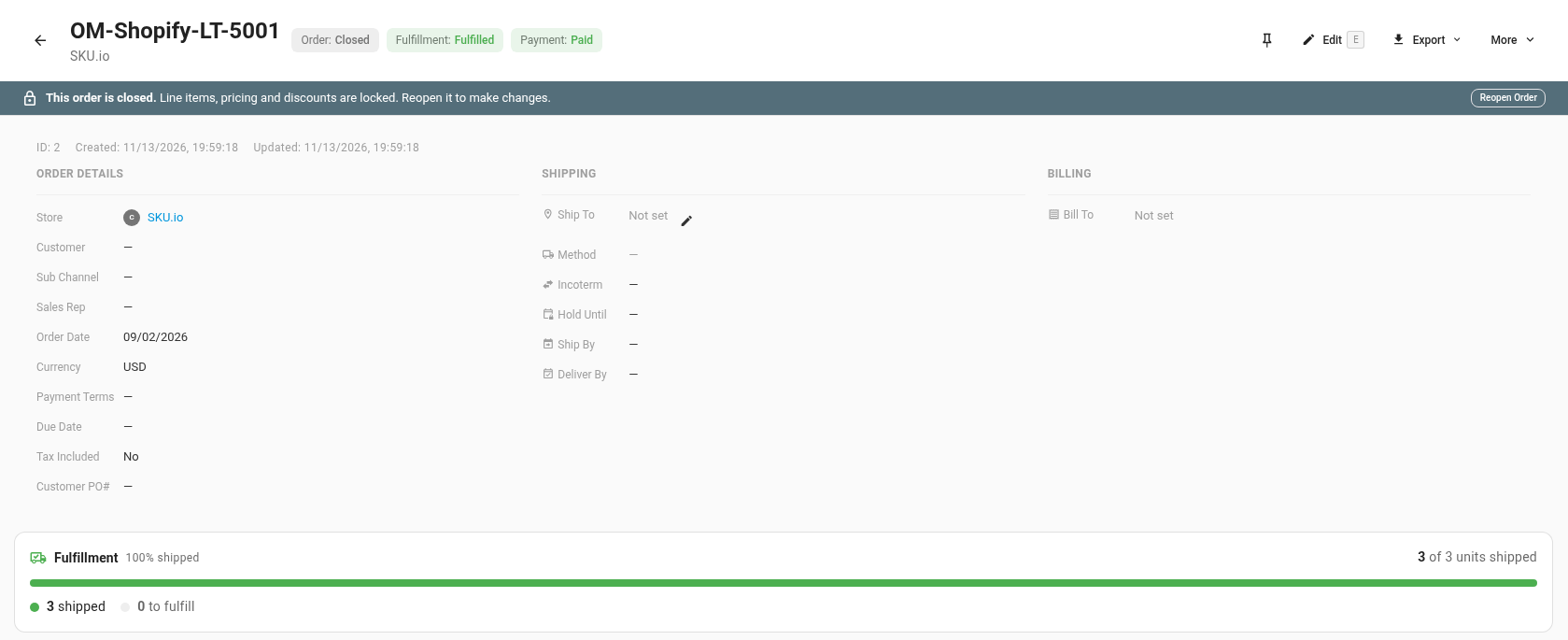
You can also bring across orders that shipped before your inventory start date. Each one lands in Sales Orders as closed, fulfilled and paid, numbered OM- plus the channel and its Order Manager number, and keeps the tax Order Manager charged. History orders feed demand planning and reorder suggestions from day one, and you can raise a return against them. They never move stock, create a fulfillment, run a workflow or post to your accounting. Cancelled orders are skipped, and anything still open comes in live when you connect your sales channel.
Where to find it
Set your inventory start date in Settings → Inventory, then ask your SKU.io onboarding contact to turn on the Order Manager migration for your account. Once you're loaded, check the results under PIM → Products, Inventory → Stock Takes, Orders → Purchase Orders and Orders → Sales Orders.
Full guide: Move from Extensiv Order Manager to SKU.io. For how past orders come across, see How Order Manager order history imports.