Stockout-adjusted velocity — a sell-out no longer shrinks your next order
Your best sellers are the products most likely to run out, and that used to work against them. While a product is out of stock it sells nothing, and those zero days dragged its average down, so the next suggested order came out too small and it ran out again. Demand Planning now has Adjust for out-of-stock days: a forecast measures each product's velocity over the days it could sell, not every day on the calendar. It's on for every new forecast.
✨ What this means for you:
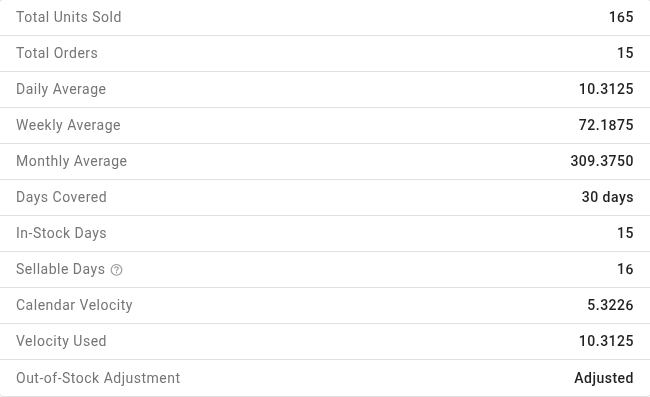
- Reorder at real demand. A product that sold 165 units in the 16 days it was in stock plans at about 10 a day, not 5, and its suggested order nearly doubles.
- Backorder sales still count. A day the product was out of stock but still sold counts as a day it could sell.
- Guardrails built in. The adjustment never goes above three times the calendar velocity, and it skips products with too few days in stock to judge.
- Every adjusted number explains itself. A badge on the line and new rows in Calculation Details show the days in stock, the calendar velocity and the velocity the order used.
Turn it on in Sales Order Filters
The option sits under Sales Order Filters in the forecast's configuration, next to Exclude returns and Exclude cancelled. New forecasts start with it selected. Configurations you saved earlier load with it off, so your existing numbers don't change until you choose.

See which lines it changed
A badge next to Avg/d marks every product the adjustment touched. Hover it for the days in stock and the calendar figure next to the adjusted one. A blue badge means the velocity was adjusted, orange means it hit the 3× cap, so check that line before you order, grey means there were too few days in stock to adjust, and red means the product was out of stock for the whole window.

Check the working
Open a line's calculation details to see In-Stock Days, Sellable Days, Calendar Velocity, Velocity Used and the outcome. The forecast export carries the same figures when you include calculation details.
Where to find it
Go to Inventory → Demand Planning, open Sales Order Filters in the configuration, and build a Sales Based forecast.
Full guide: Adjust velocity for out-of-stock days