Import a receipt — receive a purchase order from your 3PL's spreadsheet
When a container lands at your 3PL, you get a spreadsheet of what they counted, and someone types it into SKU.io one line at a time, with bins, lot numbers and expiry dates. Import receipt reads that file for you. Upload it on the purchase order and SKU.io matches every row to a PO line, shows you what will be received before anything posts, and records the rows that pass as one receipt.
✨ What this means for you:
- No retyping. Receive a whole PO from your 3PL's receiving report, a CSV or an Excel file.
- Rows match themselves. Each row is matched by PO line, SKU, supplier SKU or barcode, and common 3PL column headings are recognised.
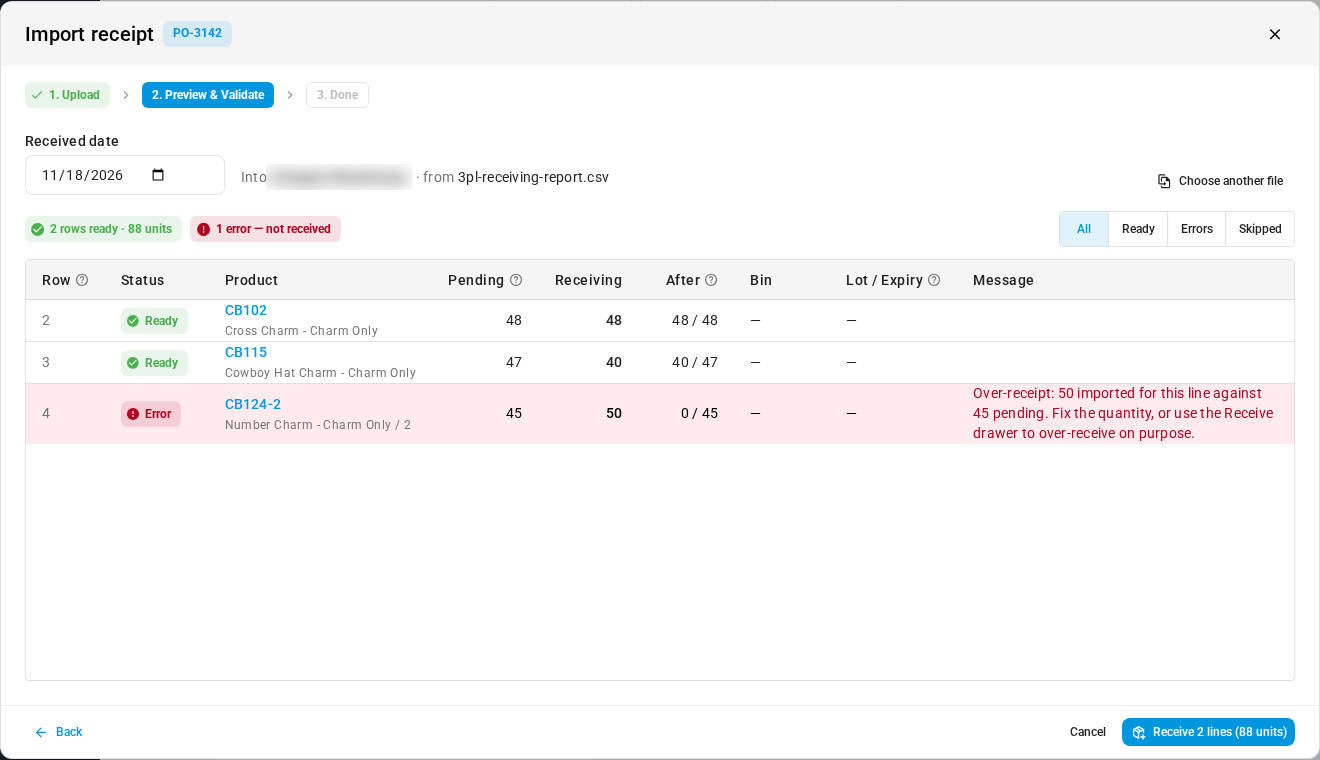
- Check before you post. The preview shows what's pending, what you're receiving and what's left on every line.
- Mistakes stay out. Over-receipts, unknown SKUs, bins that can't take stock and lot-tracked rows without a lot or expiry are flagged as errors and left out.
- Same receipt as always. The rows that pass record the same receipt the Receive Items drawer does, and the PO's Activity tab notes the file name.
Start from a template, or your own file
Click Import receipt on a purchase order's More menu, or Import from file in the Receive Items drawer. Download the template for a sheet of the PO's open lines, or upload your 3PL's file as it is. Enter the units that arrived in the Quantity column, with a Bin, Lot number and Expiry date where you need them.
Preview, then receive
Preview & Validate lists every row as Ready, Errors or Skipped, with the reason for each error. Set the Received date, then receive the ready rows. If someone receives the same PO while you're looking at the preview, the changed rows turn red and nothing posts until you check them again.
Where to find it
Open a purchase order and go to More → Import receipt, or use Import receipt on an inbound shipment.
Full guide: Import a receipt from a file