TikTok Posting — post product videos to TikTok from SKU.io
Your catalog, stock and TikTok Shop listings live in SKU.io, but posting a product video to TikTok usually means downloading the clip to a phone, typing the caption again and posting it by hand, one account at a time. Nothing ties the post back to the product it sells. TikTok Posting brings that work into SKU.io. Each store connects its own TikTok account. Pick a product, upload its video, fill the caption from the product's details, and post it straight to the TikTok profile or send it to the account's TikTok drafts. Posts can go out now or on a schedule, and a person approves exactly what TikTok receives. TikTok has approved SKU.io for direct posting, so videos can go out to everyone, not just to private accounts.
✨ What this means for you:
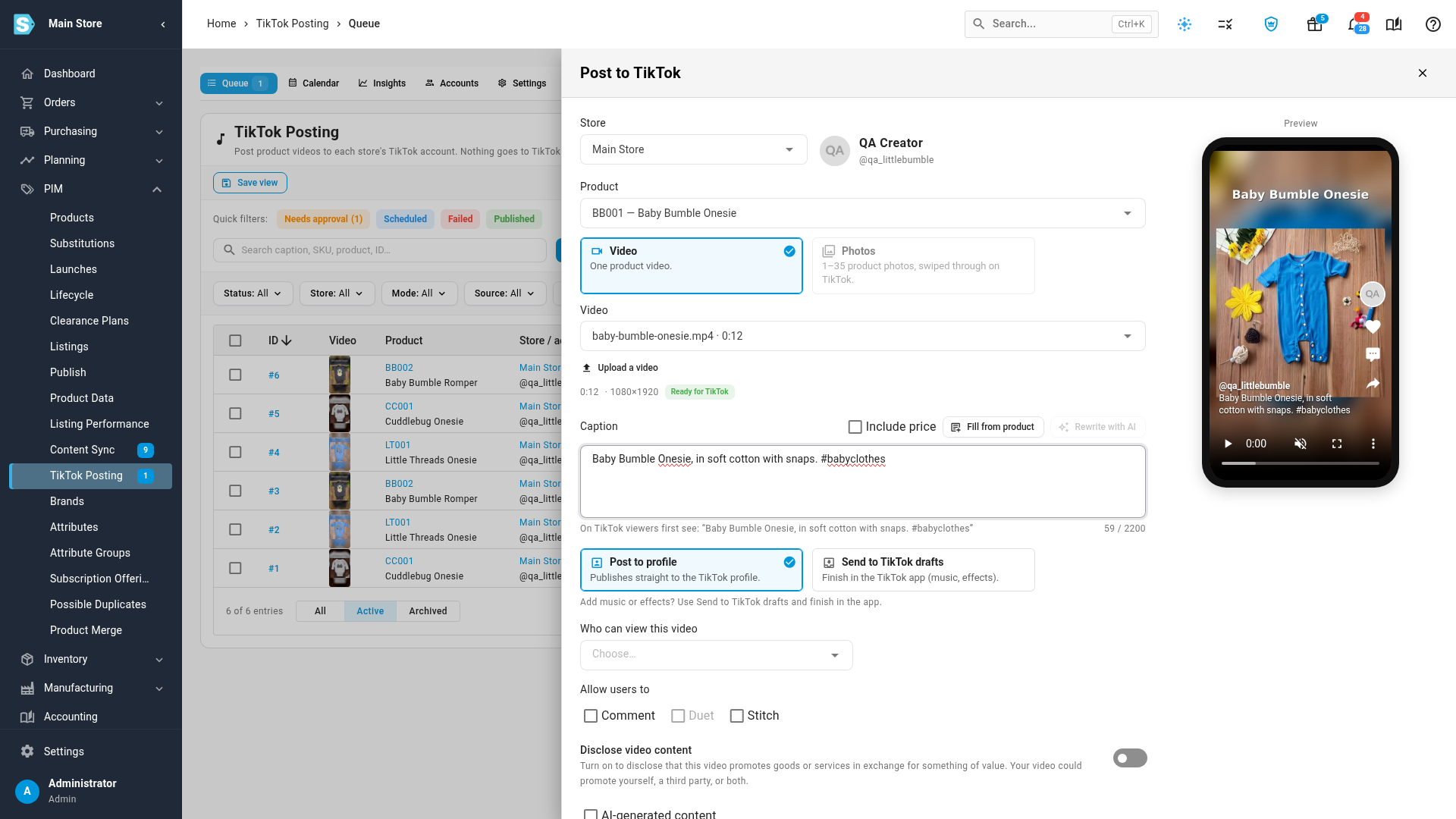
- Post from the product. Choose the product, and Fill from product writes the caption from its details. Edit it any way you like, and add your hashtags.
- One TikTok account per store. Each store posts to its own profile, so a brand never posts to another brand's account.
- Straight to the profile, or to drafts. Post to profile publishes it for you. Send to TikTok drafts lets you add music or effects in the TikTok app first.
- You choose who sees each video. Pick Everyone, Friends, Followers or Only me for every post, along with comments, duets, stitches and brand disclosure.
- Schedule up to 60 days ahead. Posts go out on their own at the time you set, and you can drag them to a new time on the calendar.
- Nothing posts without a person. Posts sent by a script wait in Needs approval until someone checks the video, caption and every setting.
- See what worked. Views, likes, comments and shares for every post, totalled per product.
Write the post next to its preview
Open New post, choose the store and the product, and upload the video. SKU.io checks its length, size and frame rate and marks it Ready for TikTok when TikTok will accept it. Click Fill from product to start the caption, edit it, then choose where it goes and who can view it. The preview on the right shows how the video will look on TikTok, and a line under the caption shows the words viewers see first.
Approve exactly what goes out
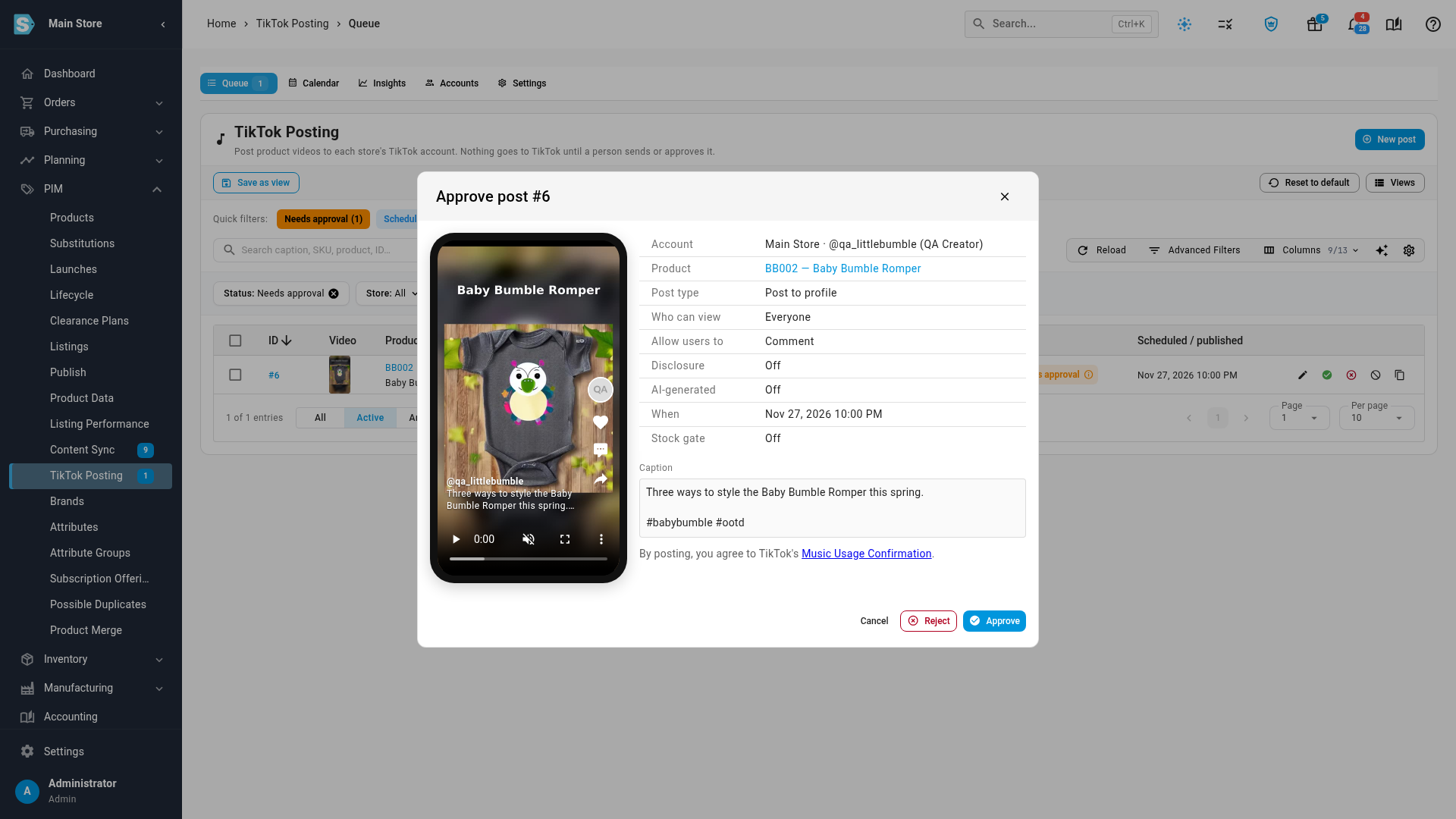
People who can't approve posts see Submit for approval instead of Post, and posts sent by a script wait in the queue too. Click the Needs approval filter, then the green check on a post. The dialog lists everything TikTok will receive: the account, product, video, caption, who can view it, what viewers are allowed to do, disclosure and when it goes out. Click Approve and the post is scheduled, or Reject and give a reason.
Plan the week on the calendar
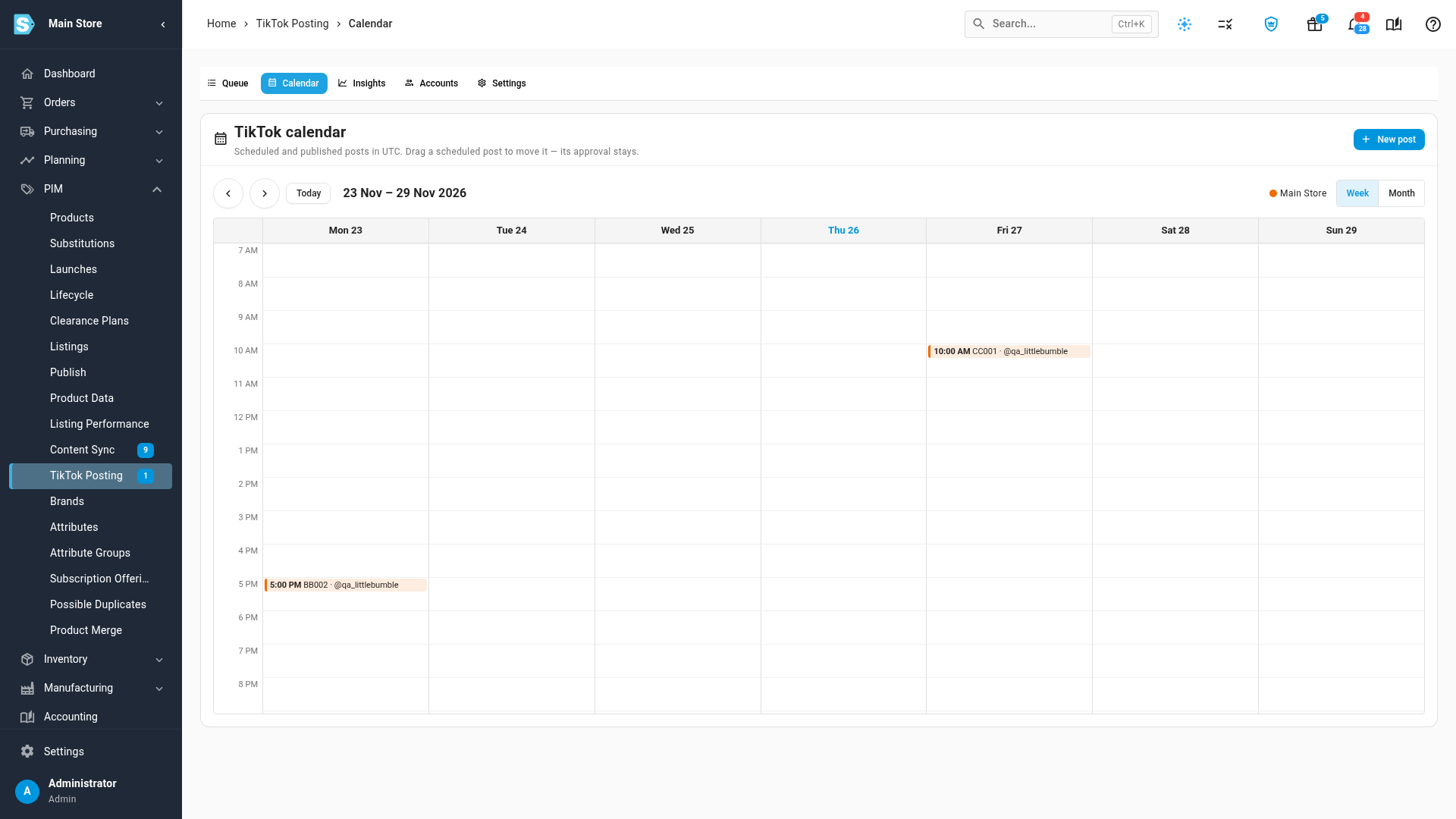
The Calendar tab shows scheduled and published posts a week or a month at a time. To move a scheduled post, drag it to a new time. It keeps its approval.
See what each product's videos did
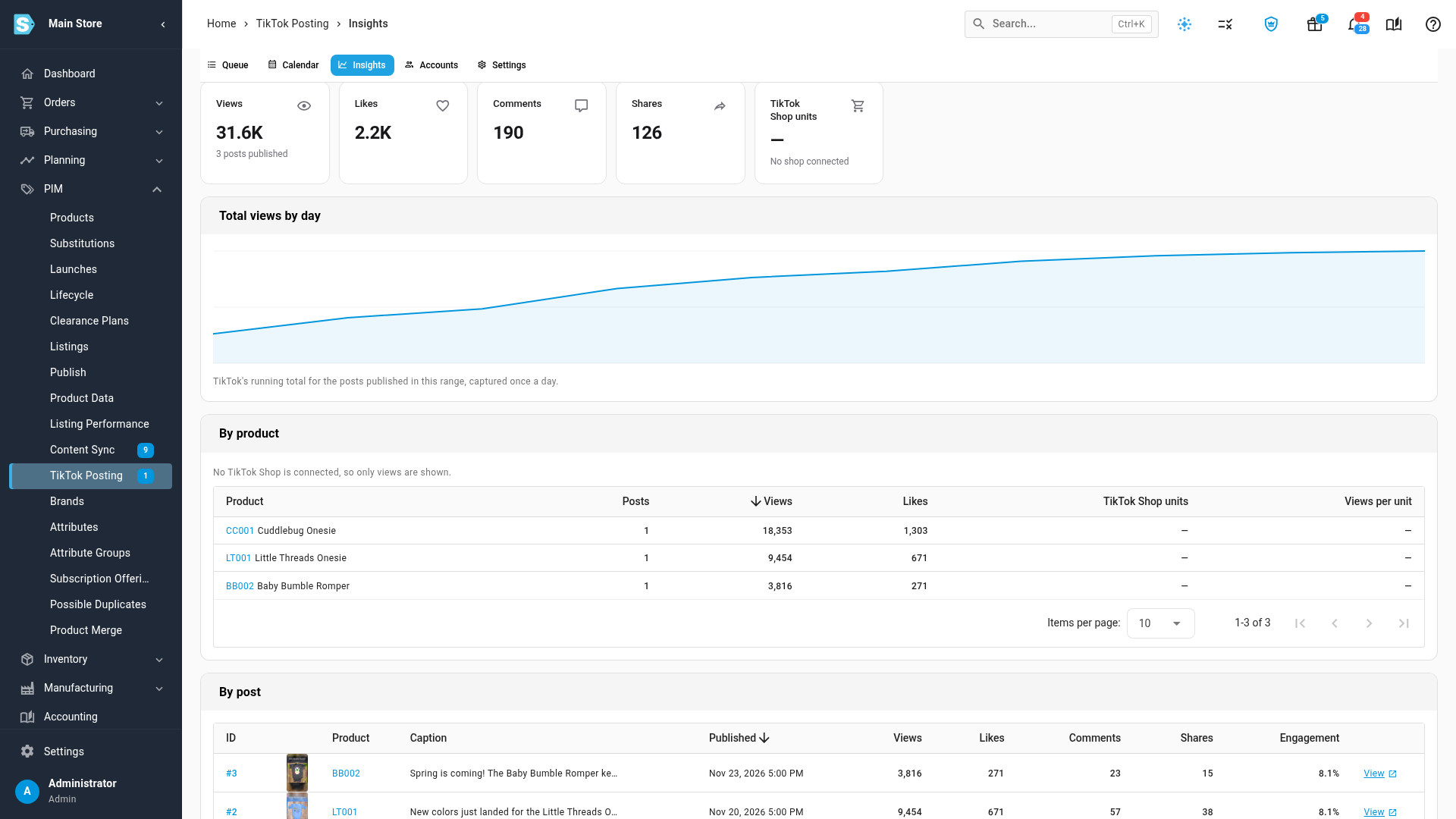
The Insights tab totals views, likes, comments and shares for your published posts, charts views by day, and gives each product and each post its own row. When the store's TikTok Shop is connected, it puts the units sold through TikTok Shop next to the views.
Where to find it
- Posting, queue and approvals: PIM → TikTok Posting, then New post. Connect each store's TikTok account first on the Accounts tab.
- Posting defaults: the Settings tab holds each store's caption template, hashtags, daily post limit and the minimum gap between posts.
- Who can post and approve: an administrator grants the TikTok Posting permissions on the Roles screen.
For every step, read the guides: Post a product video to TikTok and Schedule and approve TikTok posts.