Buy within your cash — know what you can afford to order this week, and what has to wait
A demand plan tells you what you need. It doesn't tell you what you can pay for. When stock ties up most of your cash, the real question is "what should I buy with the money I actually have this week, and what can wait?" Until now you answered it in a spreadsheet, supplier by supplier, guessing which bills land when. Buy within your cash answers it inside Demand Planning. Tell SKU.io your cash, your credit line and the balance you never plan below. It works out what you can spend each week after the bills you already owe. Then it ranks every reorder line from every supplier and shows where the money runs out.
✨ What this means for you:
- One buying capacity for the whole business: cash on hand plus available credit, minus the reserve you always keep. You can type your cash in or read it from your QuickBooks Online or Xero bank balance.
- Spendable cash by week, after supplier deposits, balances, invoices and bills you already owe, with the tightest week flagged before you commit to anything.
- A Ranked by cash list across all your suppliers, best value for your cash first, with a cut line where the budget runs out.
- Generate orders creates draft purchase orders for the lines that fit now. Lines that wait for cash, or aren't due yet, stay listed.
- A cash-flow calendar that shows month by month whether you'll have enough.
Set your buying capacity once
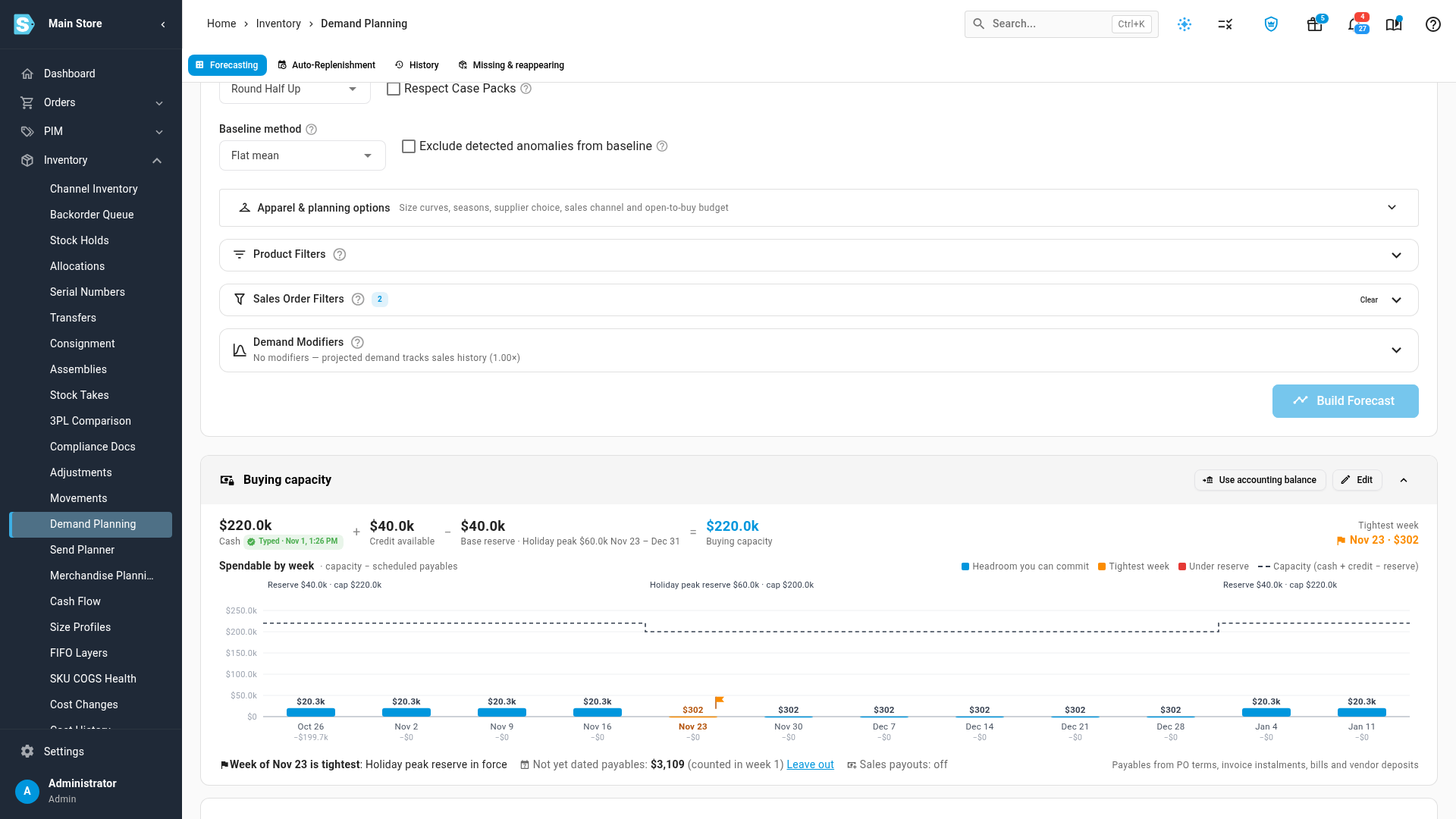
In Inventory → Demand Planning, the Buying capacity card holds three numbers: your Cash on hand, your Credit line limit and how much is Drawn, and your Base reserve, the bank balance you never plan below. Cash on hand can come from Use QuickBooks balance (or Xero): SKU.io reads the bank accounts you tick and uses the figure only after you confirm it.
Need more cash in the bank for a busy season? Add a reserve override such as Holiday peak, with dates and an amount. Reserve by week shows which reserve each week uses. The card then shows the spendable cash for each week and flags the tightest one.
See what to buy first, across every supplier
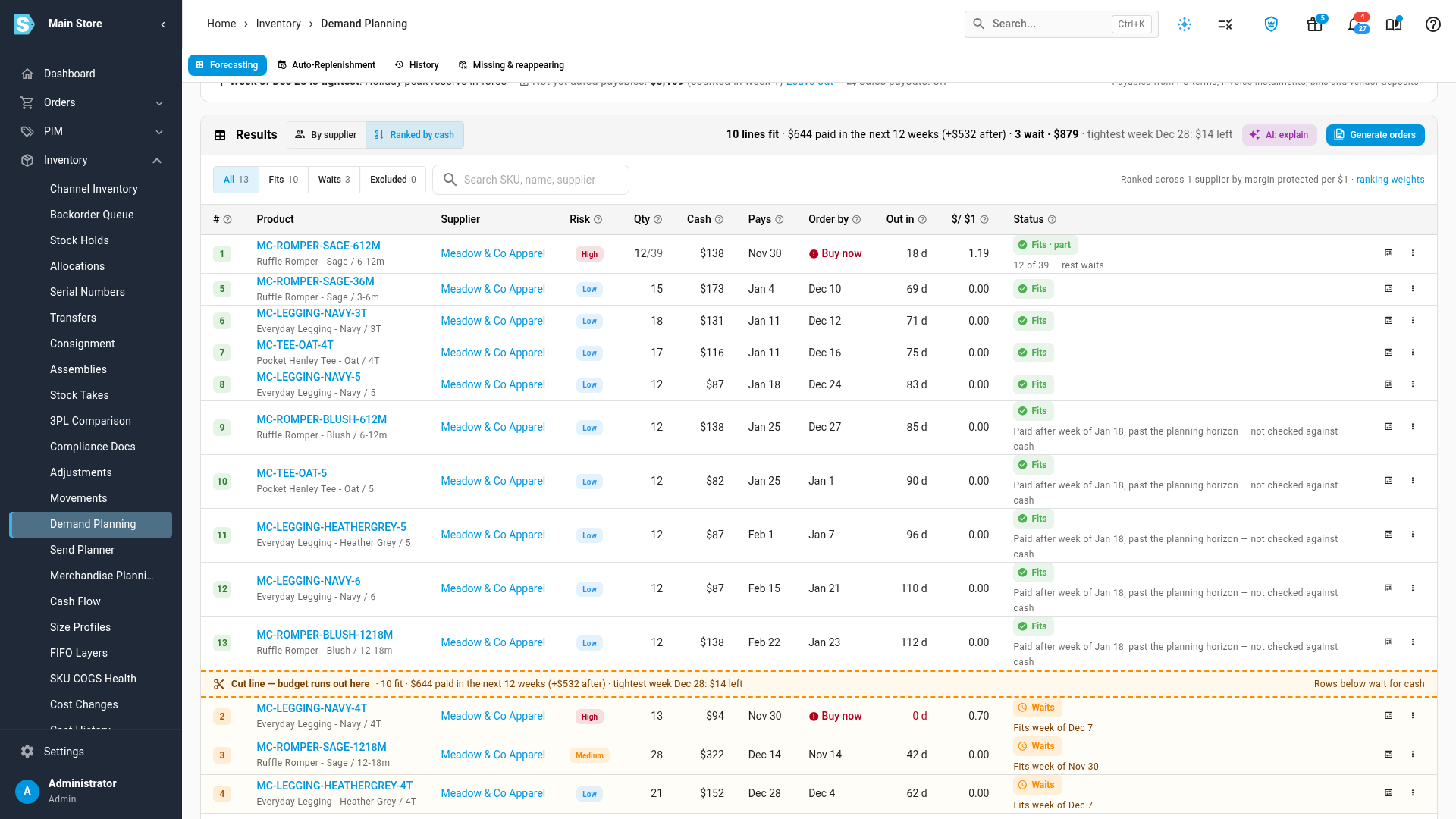
Build a forecast as usual, then click Ranked by cash. Every reorder line from every supplier sits in one list, scored by the margin it protects for each dollar it costs. Each line shows its stockout Risk, Qty, the Cash it costs, the week it Pays, its Order by date and its $/ $1 score. The Cut line — budget runs out here row splits the lines that fit your weekly headroom from the ones that wait. Lines that wait show the week they would fit.
A line marked Buy now has reached its order-by date. Disagree with the ranking? Keep in pins a line above the cut, and Push out pins it below. The cut line moves and the pin is logged. To see why a line landed where it did, open its calculation details: the Cash step shows its pay weeks, the headroom before and after, and its rank.
Turn the lines that fit into purchase orders
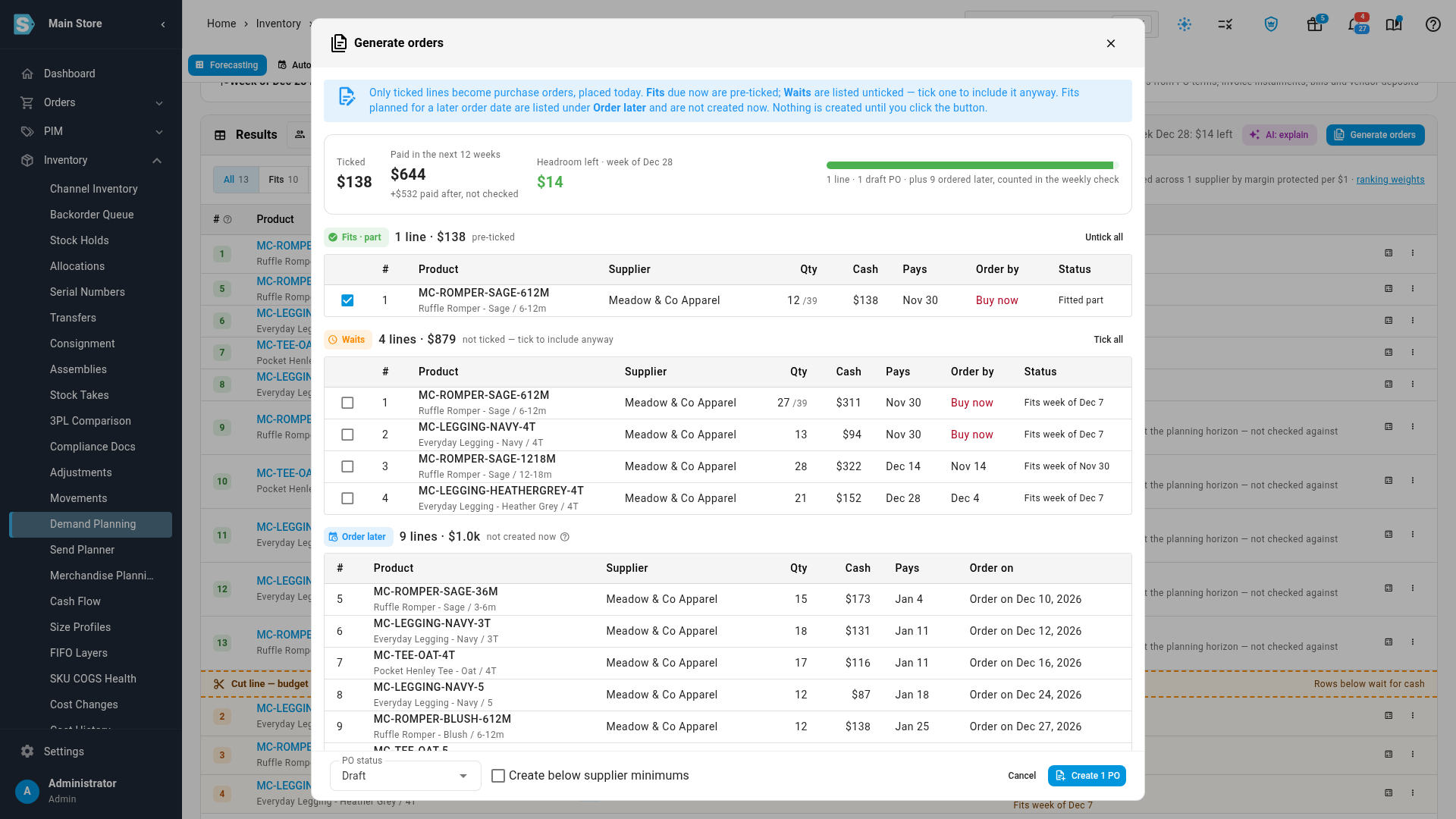
Click Generate orders to review before anything is created. Lines in Fits that are due now come ticked. Lines in Waits are unticked, and you can tick one to include it anyway. Order later lists lines that fit but aren't due yet, each with the date to order it. The summary shows the ticked total, what's paid in the next 12 weeks and the headroom left in the tightest week. Then click Create, one purchase order per supplier. SKU.io checks the headroom again first, so a bill added since you built the plan can't slip through.
Check the months ahead on the cash-flow calendar
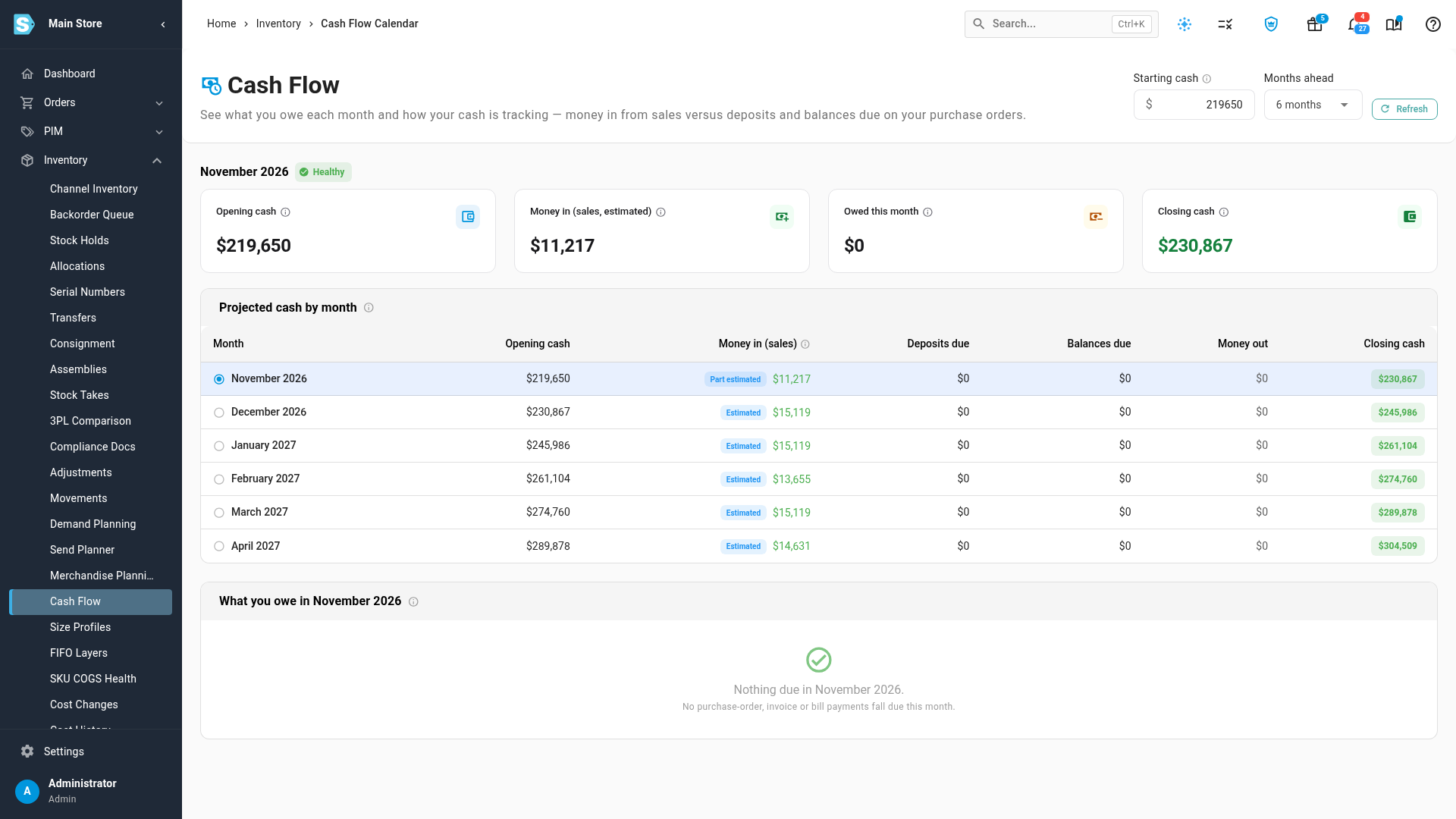
Inventory → Cash Flow projects your cash by month. It starts from the cash in your buying capacity, adds expected sales payouts and takes off the supplier deposits and balances due. Click a month to list what you owe. Each payable links to its purchase order or bill and shows where its due date came from. Change Starting cash to try another figure without touching your saved capacity.
Where to find it
- Set your capacity: Inventory → Demand Planning → Buying capacity → Set your buying capacity (or Edit).
- Rank a plan: build a forecast on Inventory → Demand Planning, then click Ranked by cash in Results.
- Create the orders: click Generate orders on the plan's results.
- See the months ahead: Inventory → Cash Flow.
Full guide: Set your buying capacity. See also Rank the plan by cash, Generate orders within your cash and Read the cash-flow calendar.