Channel-reserved stock holds: set stock aside for one sales channel
When one channel needs guaranteed stock, such as a wholesale account, a book-fair season or a marketplace promotion, the usual fix is to hold the units back and release them by hand when that channel's orders arrive. Meanwhile every other channel still sees the stock as available and can sell it first. Channel-reserved stock holds let you reserve a hold for one sales channel. Your other channels can't sell those units, the reserved channel still sees them, and its orders use the reserve automatically, either before or after your free stock, as you choose.
✨ What this means for you:
- Stock that only one channel can sell. The quantity SKU.io sends to your other channels leaves the reserved units out, and their orders can't allocate them.
- The channel's own orders use it automatically. No releasing by hand: when the reserved channel's order is allocated, it takes units from the reserve.
- You choose the order. Use Reserved stock first to use up the reserve before free stock, or Free stock first to keep the reserve as a safety net.
- You can see what's been used. A Used by Channel column shows how many units the channel's orders have already taken from each hold.
- Nothing is stranded. When the hold expires, whatever is left goes back to general stock.
Reserve stock for a channel
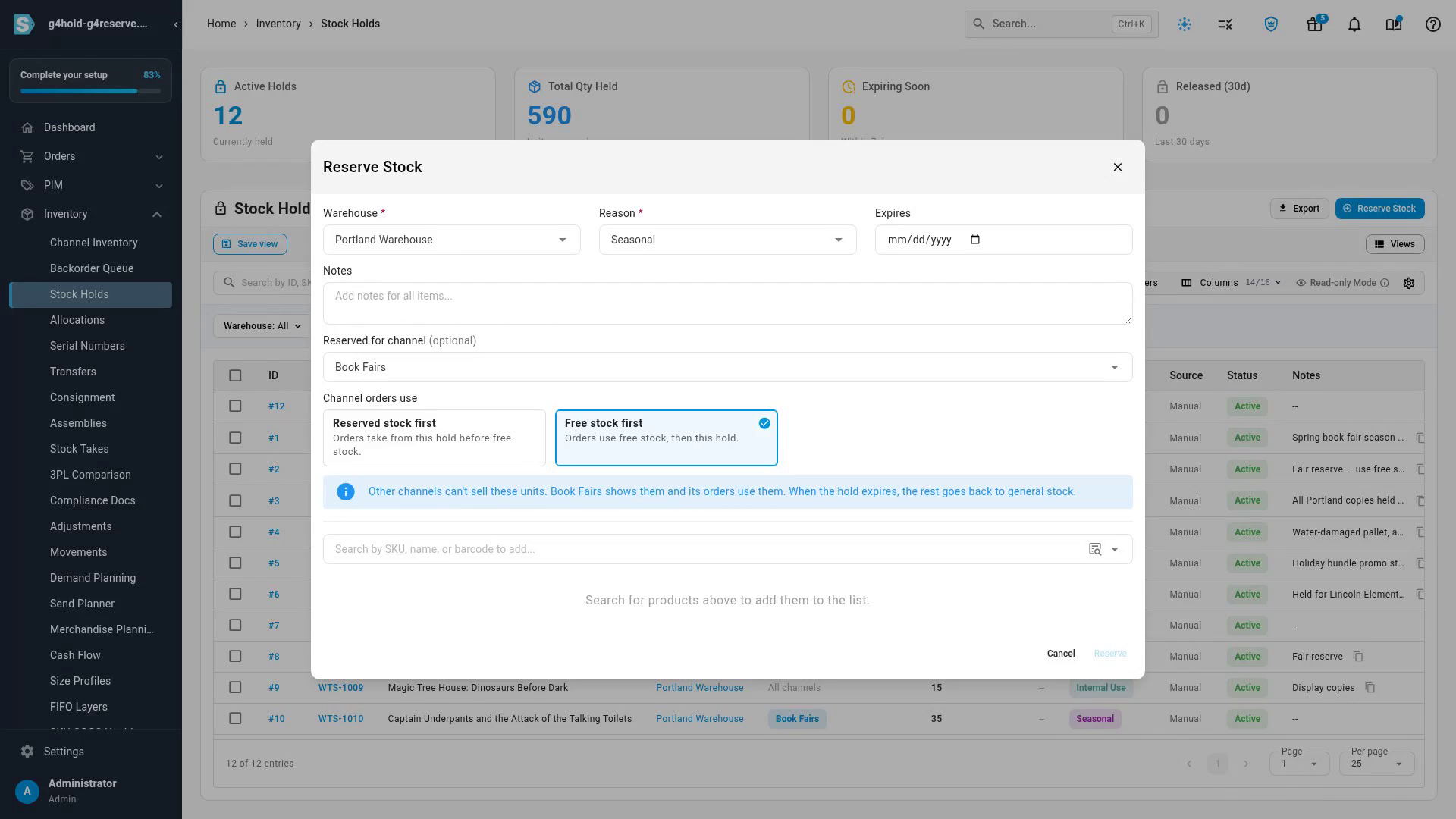
Click Reserve Stock on Inventory → Stock Holds, or on a product's Holds tab. Pick the warehouse and reason as usual, then choose a channel in Reserved for channel. Leave it on Any channel for an ordinary hold that no channel can sell. Under Channel orders use, choose whether that channel's orders take from the reserve before or after free stock.
See which channel owns each hold, and how much it has used
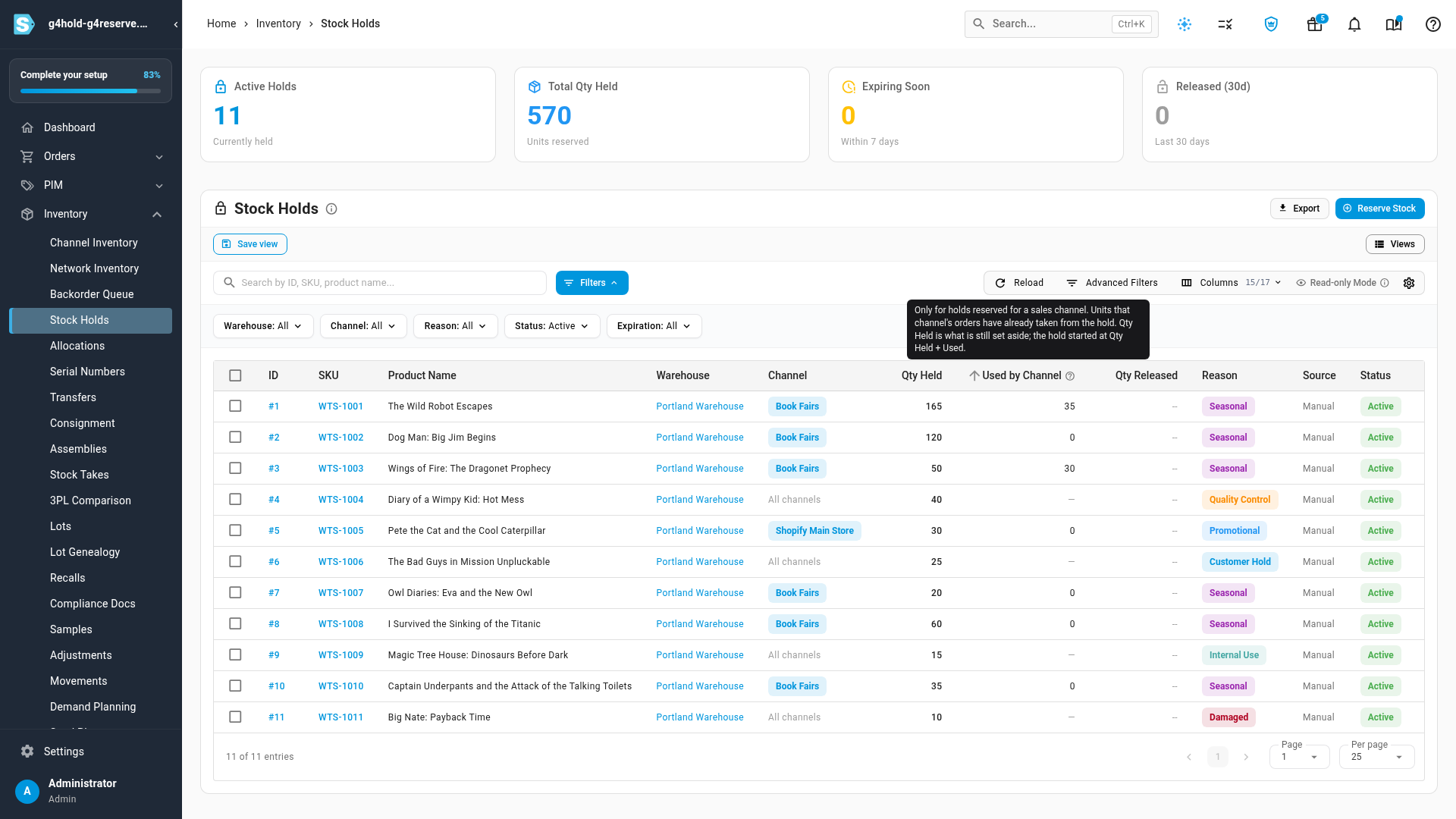
The Stock Holds list has a Channel column and a Channel filter, so you can see one store's reserves at a glance. Holds with no channel show All channels. Next to Qty Held, the Used by Channel column shows the units the channel's orders have already taken. Qty Held is what's still set aside, so the hold started at Qty Held + Used by Channel. Holds that aren't reserved for a channel show a dash. You can sort by the column, filter it in Advanced Filters (for example, Used by Channel greater than 0), and it's included when you export the list.
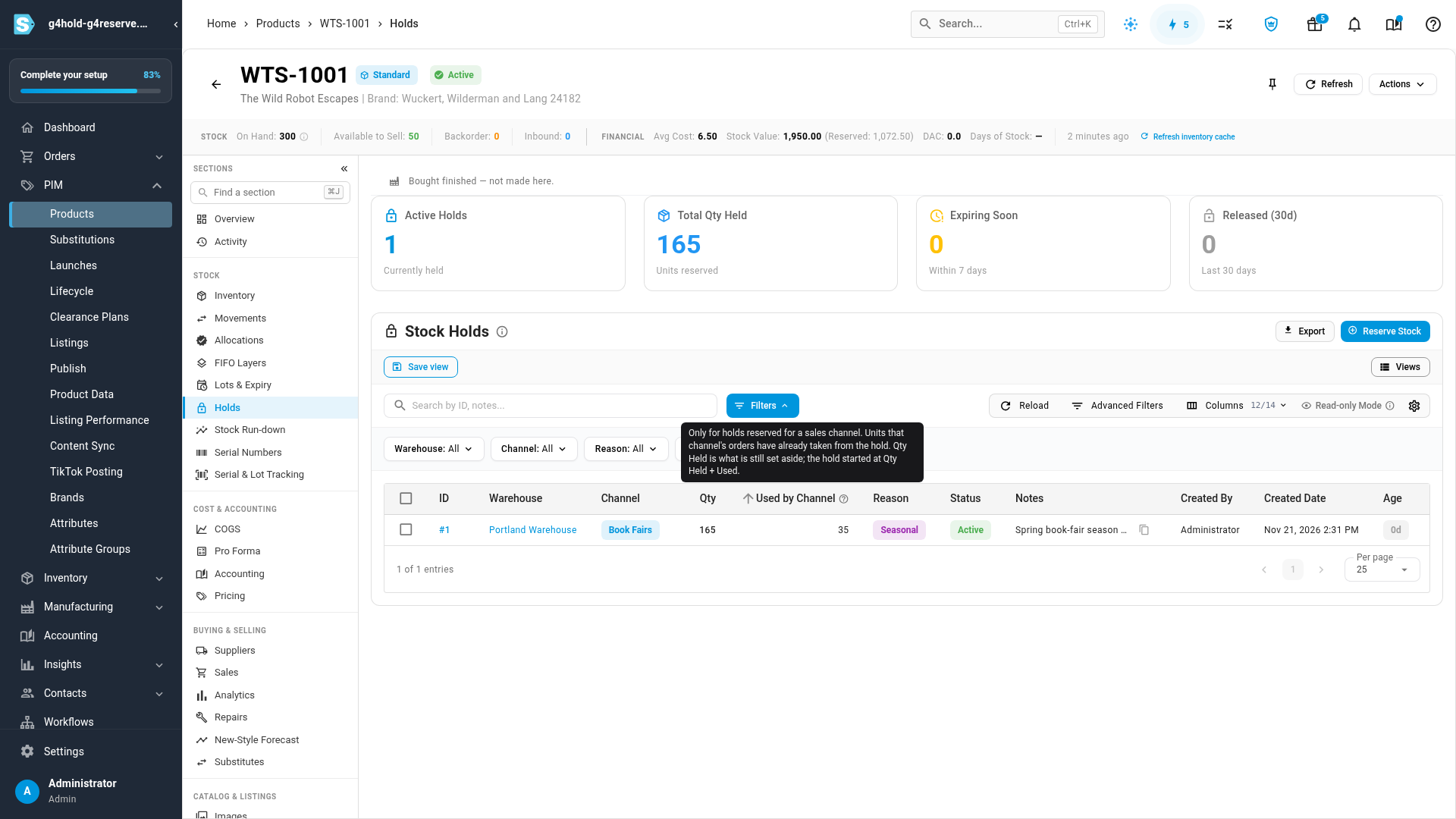
The same columns appear on each product's Holds tab and on the mobile cards, and a hold's detail page shows its channel, its draw order and how much has been used.
Where to find it
Go to Inventory → Stock Holds and click Reserve Stock, or open a product and go to its Holds tab.
Full guide: Place & manage stock holds