Committed-spend billing — see what you've committed to before the invoice arrives
Your accountant plans cash flow from your accounting file — and until the supplier's invoice arrives, an open purchase order is invisible there. You have committed the money, the goods are on their way, and the books show nothing. For businesses ordering weeks ahead of delivery, that gap can hide a large slice of upcoming spend.
Committed-spend billing closes it. Turn it on and every purchase order you submit posts a bill for its unbilled amount right away, so committed inventory spend appears in your books the moment you commit to it. Each committed bill then looks after itself: it shrinks as real supplier invoices are recorded against the order, and disappears entirely once the order is fully billed.
✨ What this means for you:
- Committed spend shows in your books weeks earlier — no more purchase orders that are invisible to your accounting file
- Nothing new to maintain: committed bills reduce themselves as real invoices arrive and remove themselves at zero
- Your real supplier invoices are never touched, double-counted, or duplicated
- Off by default — the standard invoice-based behaviour is unchanged unless you opt in
One setting decides what a purchase order puts in your books
Purchase-order accounting now lives in a single place, as one choice rather than a scatter of switches. Under Accounting → Settings → General, the Generation card asks it plainly:
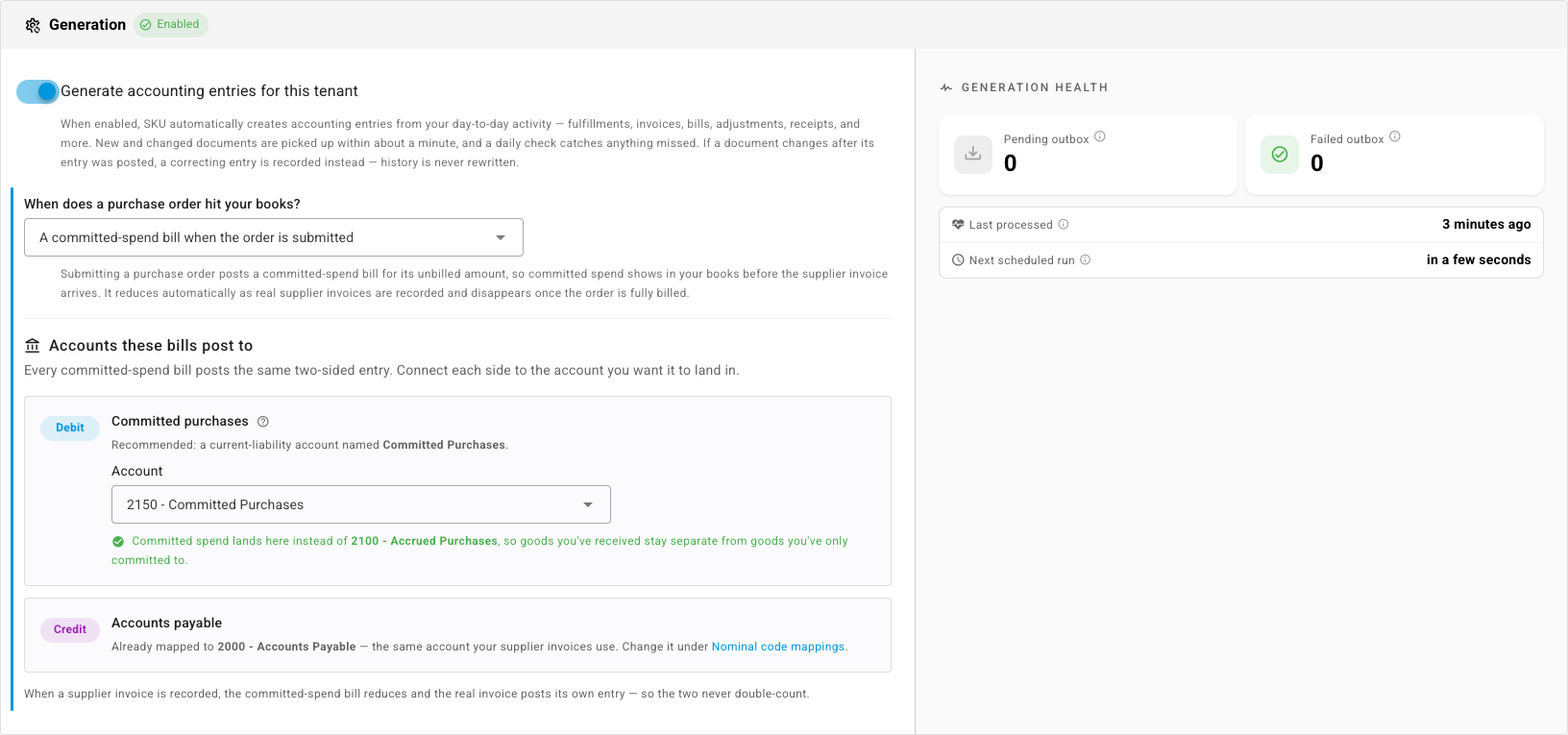
The three answers are mutually exclusive, so there is no way to end up in a contradictory state:
- Nothing until the supplier invoice is recorded — the default, and the orthodox treatment most accountants expect
- A non-posting commitment entry per purchase order — open commitments visible in your ledger without touching profit and loss or payables
- A committed-spend bill when the order is submitted — the new option
Pick the third and the panel beneath it shows exactly which accounts these bills post to. We recommend a dedicated Committed Purchases liability account so that goods you have received never mix with goods you have only committed to — and if you don't have one, SKU will create it and map it for you in a click.
Committed bills sit alongside your real invoices
Once an order is submitted, its committed bill appears in Purchase Invoices, badged so it is never mistaken for something the supplier sent you:
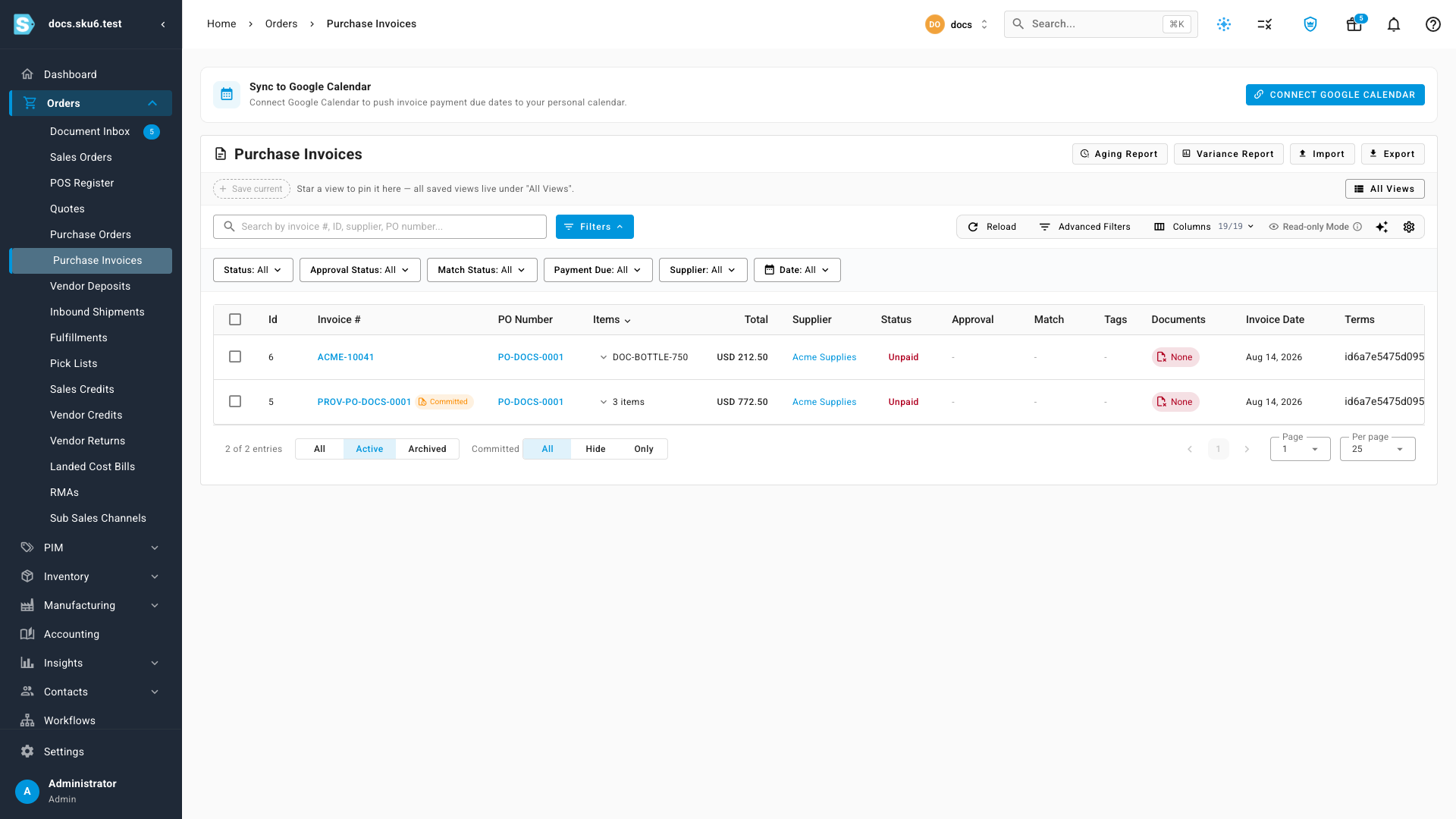
Here the supplier has invoiced $212.50 of a $985.00 order, so the committed bill has already restated itself to the $772.50 that remains outstanding. The Committed filter lets you show everything together, hide committed bills to see only real supplier invoices, or isolate them for a live view of everything submitted but not yet invoiced.
Committed bills are managed for you — they can't be edited, paid, or deleted by hand, because each one simply follows its purchase order. Reduce a quantity, short-close a line, apply a vendor credit or cancel the order, and the bill keeps up on its own.
Visible from the order itself
The order's Accounting tab lists everything that has posted against it, committed bills included, each linking straight through to its entry in the ledger:
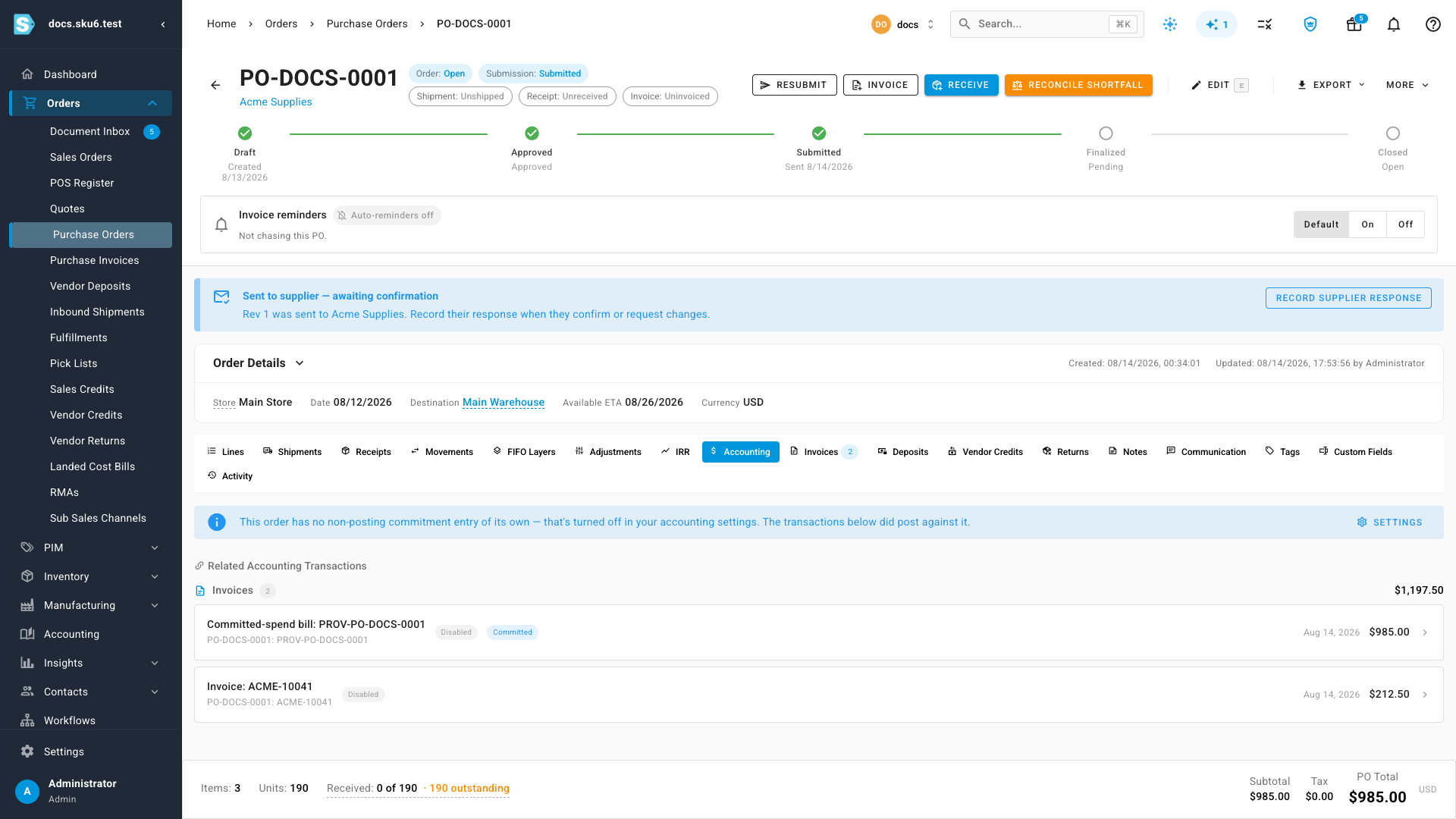
Turning the policy back off is equally clear: SKU tells you exactly how many committed bills will be removed and their total value before anything changes, reverses their journal entries, and voids the matching bills in your accounting provider. Real supplier invoices are left alone.
Where to find it
Accounting → Settings → General → Generation, under "When does a purchase order hit your books?". Committed bills then appear under Orders → Purchase Invoices, and on each order's Accounting tab.
Full guide: Post committed spend when a purchase order is submitted