Standing orders — your wholesale regulars, ordered on schedule
Wholesale runs on a rhythm. A roaster's cafés want "the usual" every Tuesday and Friday, a deli restocks every other Monday, a grocer takes beans on the 1st of each month. Until now, someone had to re-key or copy every one of those orders by hand, every week. Price changes and short stock usually came to light at pick time, or when a buyer complained. Standing orders fix this. Save a customer's regular order once, pick its schedule, and SKU.io creates each dated sales order a few days ahead at the customer's current pricing. It checks stock, links the order back to its standing order and tells the sales rep what it created and what needs a look. If you turn it on, buyers can set up and manage their own standing orders in the B2B portal.
✨ What this means for you:
- Set it once, not every week. Repeat an order every week or every few weeks on the days you choose, or monthly on a set day (including "the last day of the month").
- Orders show up early. Each order is created a set number of days before delivery, so picking, packing and purchasing see the demand in time.
- Always today's price. Each order is priced from the customer's pricing on the day it's created. You can still fix a contracted price on a line.
- You choose what happens. Decide what SKU.io should do when stock is short or a price has changed since the last order, so nothing surprises you at pick time.
- Reps hear about it. Reps get an alert when orders are created and when something needs attention, and a Needs attention filter shows every standing order with a problem.
- Skip, pause or end anytime. Skip one delivery for a holiday, pause for a few weeks, or end the arrangement. Orders that already exist stay as they are.
- Buyers can do it themselves. You can let B2B portal buyers repeat a cart, a saved list or a past order on a schedule.
Every regular order in one place
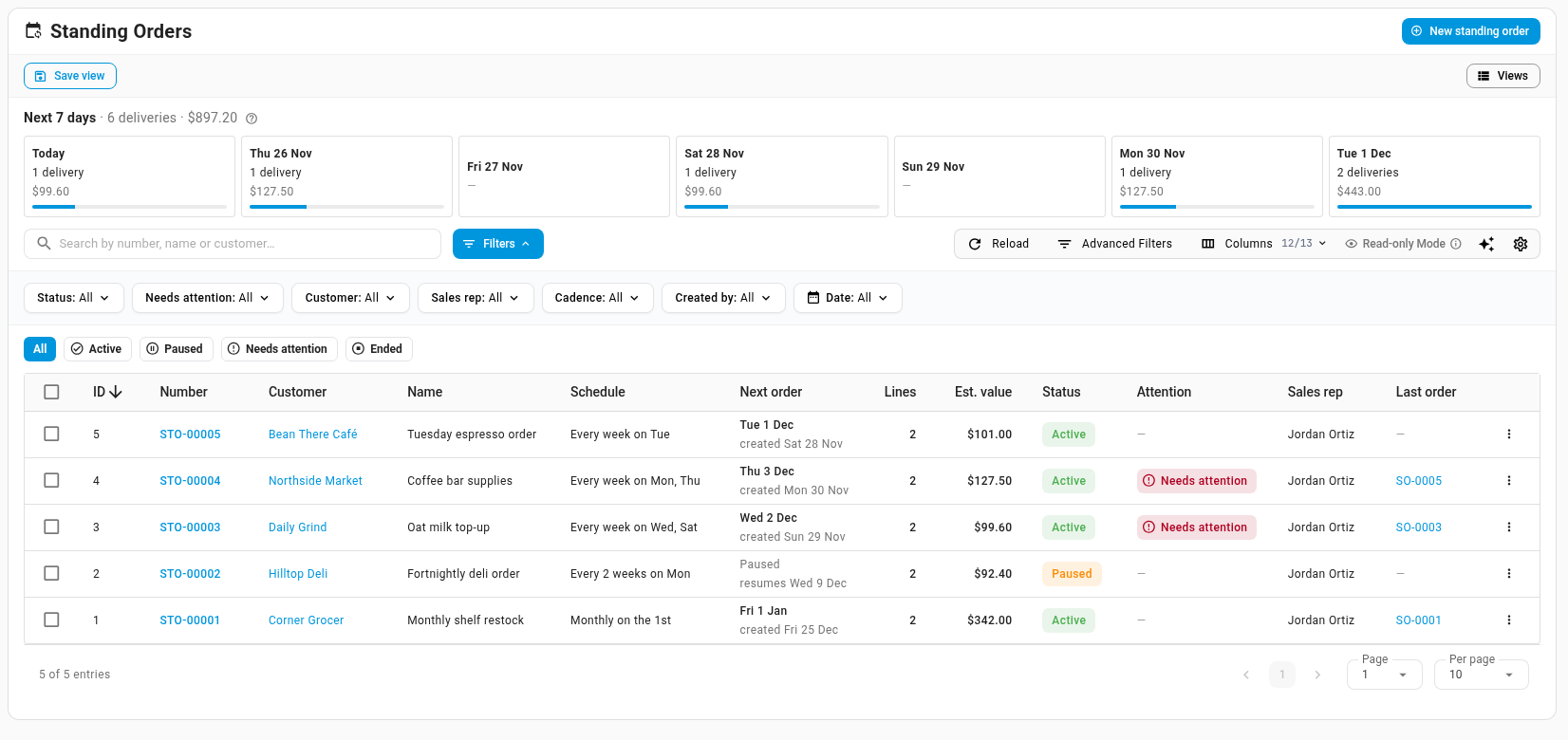
The new Standing Orders page lists every recurring arrangement: the customer, the schedule in plain words ("Every week on Tue, Fri", "Every 3 months on the 1st"), the next delivery and when its order will be created. It also shows the status and anything flagged Needs attention. A strip across the top sums up the next seven days: how many deliveries, their value, and how many need a look. Pause, resume, retry or end several standing orders at once with bulk actions.
Set one up in under a minute
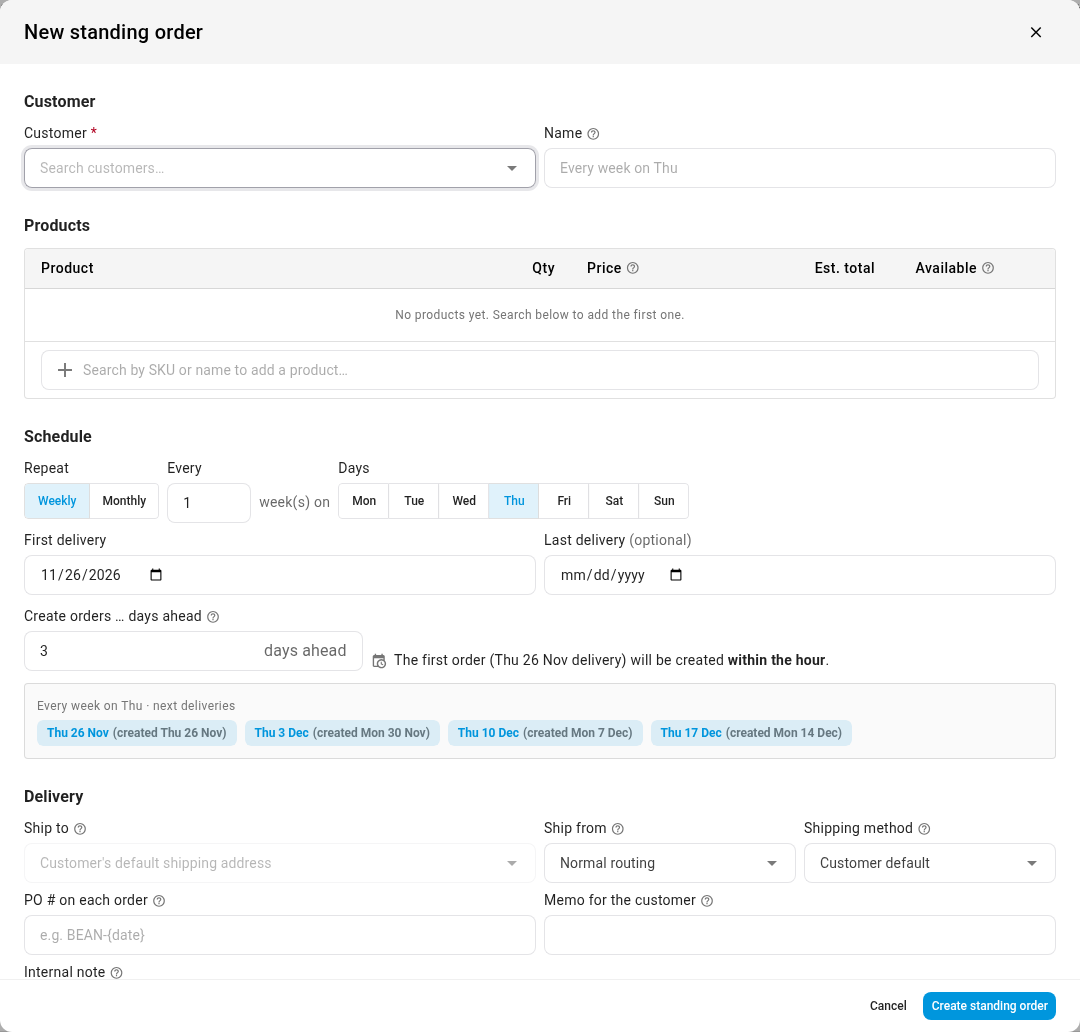
Click New standing order, pick the customer and add the products. Each line shows the customer's price today and how much stock is available. Then set the schedule: weekly (every 1 to 52 weeks, on any days) or monthly (every 1 to 12 months, on a day of the month or the last day). Choose how many days ahead each order should be created. As you go, a preview lists the next deliveries and the day each order will be created, so you can check the schedule before you save.
Already have the order you want to repeat? Open the sales order and choose More → Make standing order. The customer, delivery details and lines are copied over, and you only need to add the schedule. You can also start one from the customer's new Standing orders tab.
Rules for short stock and price changes
Every standing order says what happens when things don't go to plan:
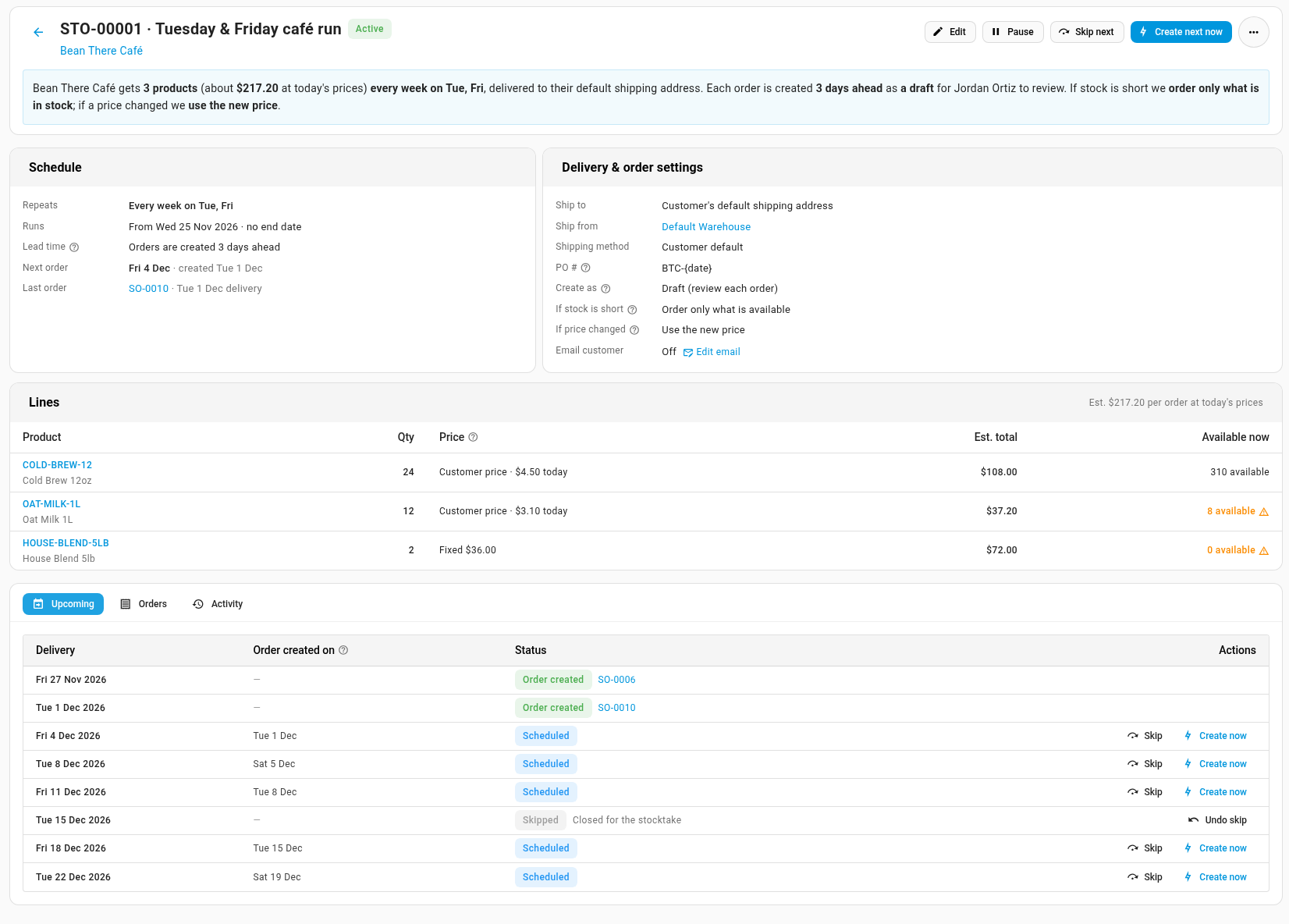
- If stock is short: Order the full quantity (backorder the rest), Order only what is available, or Hold the order for review.
- If the price changed since the last order: Use the new price (the rep is told about the change), or Hold the order for review.
- Create orders as a draft for the rep to review, or as an approved order that reserves stock straight away.
The standing order page sums all of this up in one sentence, for example: "Bean There Café gets 3 products (about $217.20 at today's prices) every week on Tue, Fri…". It also lists each line's price source and the stock available now, with short lines in amber. If a generated order hits a problem, such as a product that can no longer be sold, a customer on credit hold, or a missed date, it's marked Needs attention. The reason is spelled out in plain words, with Retry, Create now and Mark resolved right beside it. Each generated sales order also links back to its standing order and notes any issues found when it was created.
Skip, pause or end anytime
The Upcoming tab lists the next eight deliveries. Skip any of them, with an optional reason like "Closed for the holiday", and Undo skip if plans change. Pause from a date, until a set date or until you resume it. End the arrangement when the customer moves on. Changes apply to deliveries whose order hasn't been created yet. Orders that already exist are ordinary sales orders, and you edit them on their own page. The Activity tab keeps a record of who changed what.
Let buyers set up their own
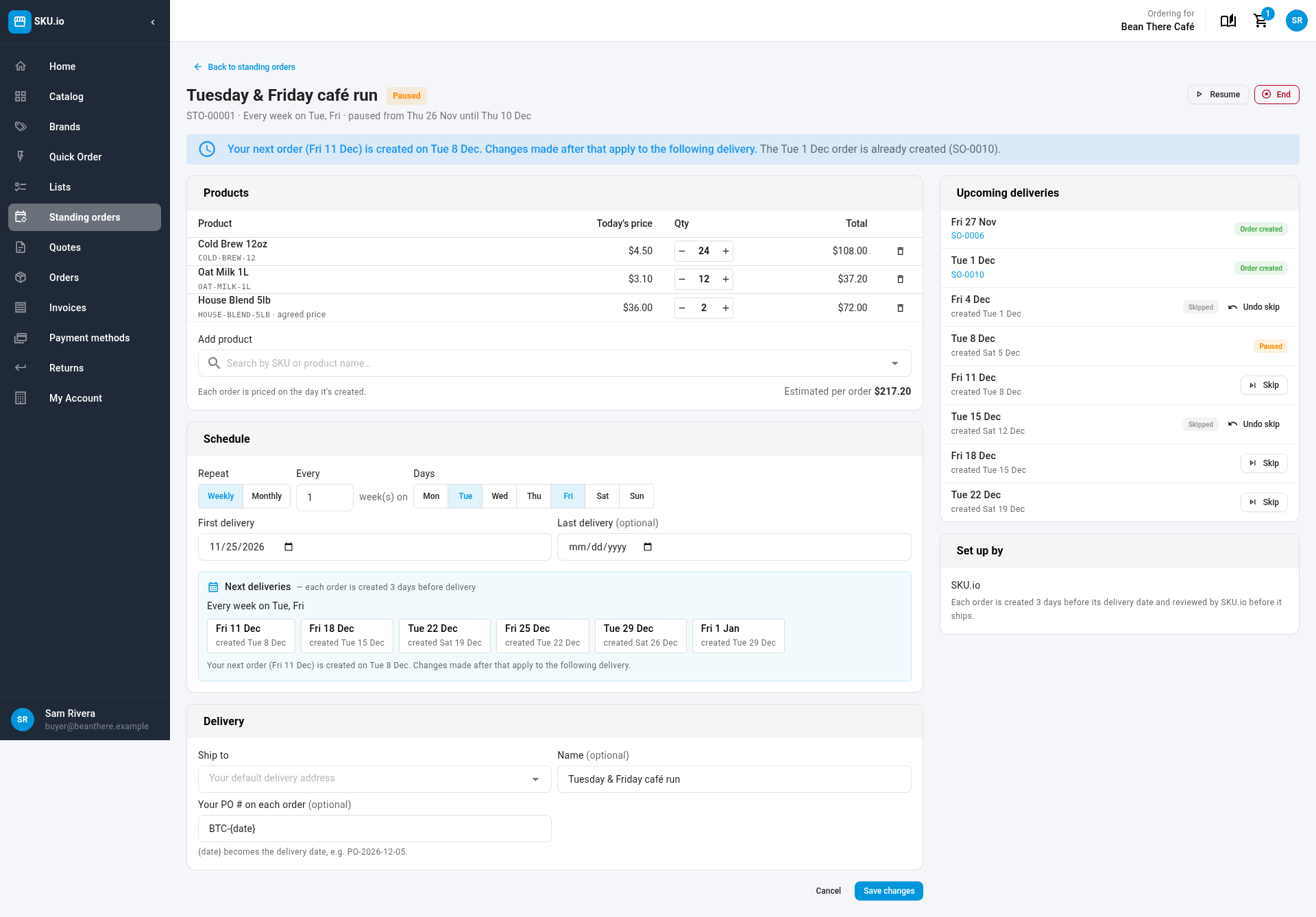
If you turn it on, buyers in your B2B portal get a Standing orders page. They can repeat a cart (Repeat this order on a schedule), a saved list or a past order (Repeat on a schedule), then change quantities, skip a delivery, pause or end the standing order themselves. The portal always shows the cutoff, for example: "Your next order (Fri 11 Dec) is created on Tue 8 Dec. Changes made after that apply to the following delivery." Buyers see today's prices with a reminder that each order is priced on the day it's created.
Your rules still apply. Buyers only see the products in their catalog, and minimum order values still count. Orders that are big enough to need approval inside the buyer's company can only be set up by an approver. Orders from buyer-created standing orders always start as drafts for your rep to review, and the rep is told whenever a buyer creates, changes, skips, pauses or ends one.
Optional email to your customer
Turn on Email the customer when each order is created on a standing order to send the customer a confirmation for every order. It's off by default. The email uses a template you can edit, like your other customer emails, and Edit email next to the setting takes you straight to it.
Where to find it
- Standing orders list: Orders → Sell → Standing Orders, then New standing order.
- For one customer: open the customer and go to the Standing orders tab.
- From an existing order: open the sales order, then More → Make standing order.
- Let buyers set them up: CRM → Customers → Portal → Portal settings → Let buyers set up standing orders (off by default). You can override it for a single account in that account's dealer settings.
- Customer email wording: Settings → Email Templates → Standing Order Created an Order.
For every step, read the guide: Set up a standing order for a wholesale customer.