Account rules — send whole groups of products to the right accounts
If your accountant reports revenue by product line, every product needs the right sales and cost accounts — and until now that meant setting them on each product, one at a time, and remembering to do it for every new product too. Miss one and its sales land in the wrong line of your P&L. Account rules fix that at the source: write a few rules such as "Apparel posts sales to 4010 Apparel Sales", and every matching product follows them — today's catalog and every product you add tomorrow. A live preview shows what a rule will change before you save it, and an account map shows where your whole catalog posts.
✨ What this means for you:
- Set accounts once per product line, by category, brand, default supplier, product type, tag or SKU prefix — not product by product.
- New products follow the rules automatically the moment they're saved with a category, brand or supplier.
- A live preview shows how many products match and how many will change account before anything is saved.
- The account map shows where every product posts, and flags the ones that look different from the rest of their category.
- Every product now says where each account comes from: its own override, a rule, or the company default.
- A guided setup builds your first rules for you in a few minutes.
Write a rule, see what it changes
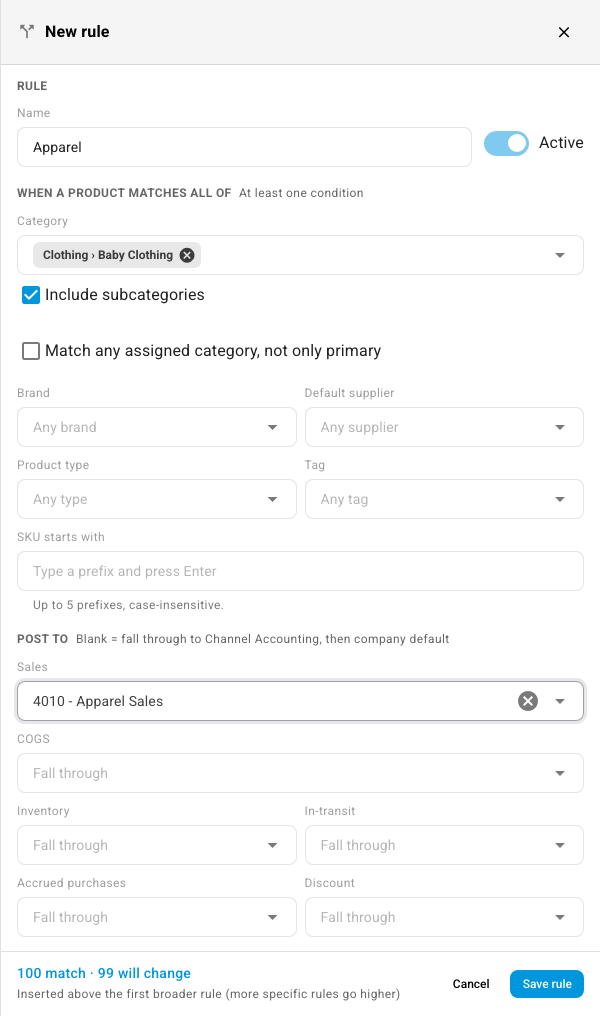
A rule says which products it covers and which accounts they should post to. Pick the conditions — a category, a brand, a supplier and so on — then the sales, COGS, inventory or discount accounts. Leave an account blank and it falls through to your sales channel's account or the company default, as before.
As you build it, the preview counts the products that match and shows exactly which accounts they move from and to. Rules are checked from the top of the list down, and the first match wins, so a specific rule can sit above a broader one.
See where your whole catalog posts
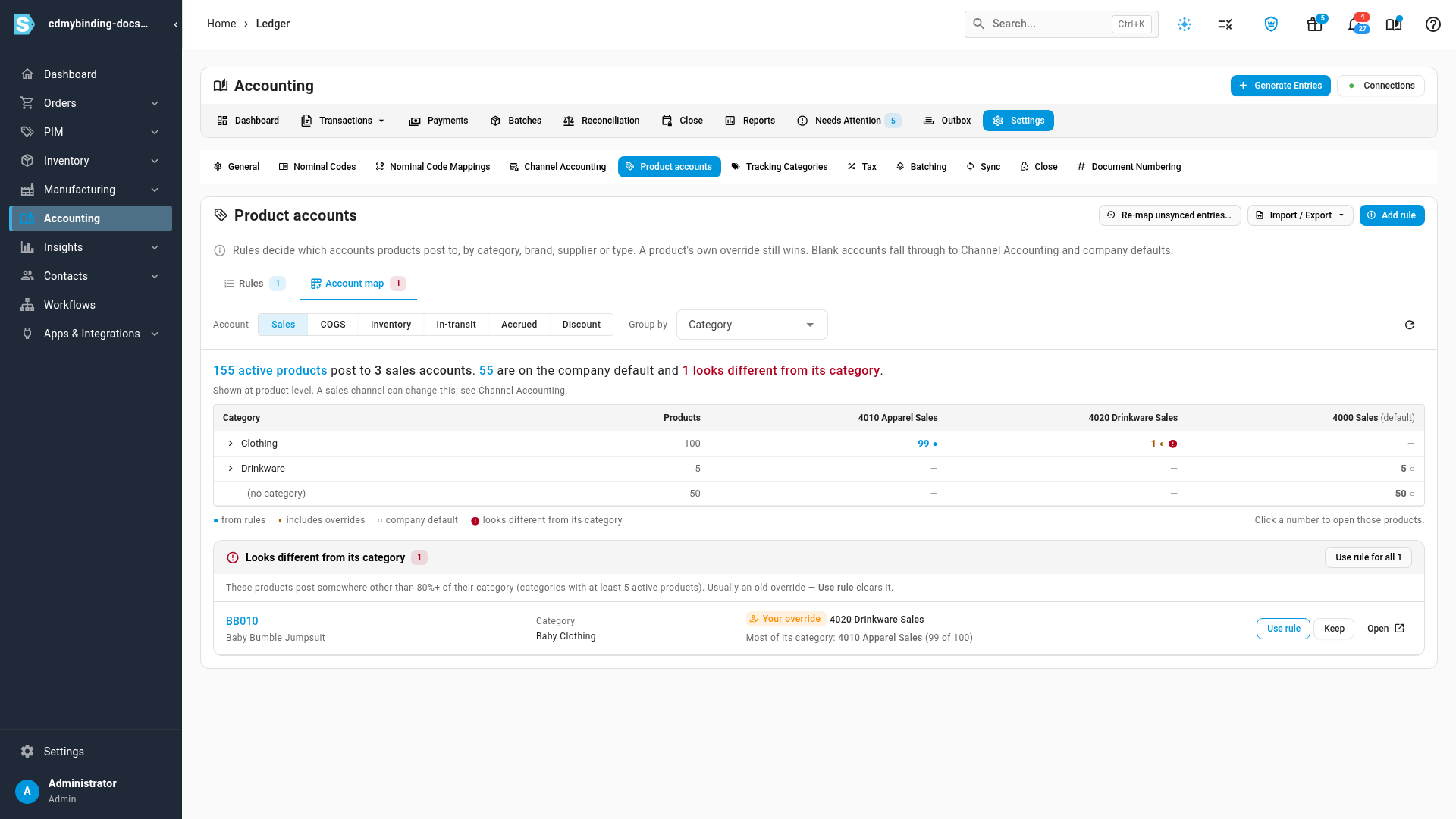
The Account map shows, for each account type, how many products in each category, brand, supplier or product type post to each account — and whether they got it from a rule, from an override, or from the company default. Click any number to open those products.
Products that post somewhere other than most of their category are flagged. Usually it's an old override someone set by hand; Use rule clears it in one click, or Keep marks it as intentional.
Know where every account comes from
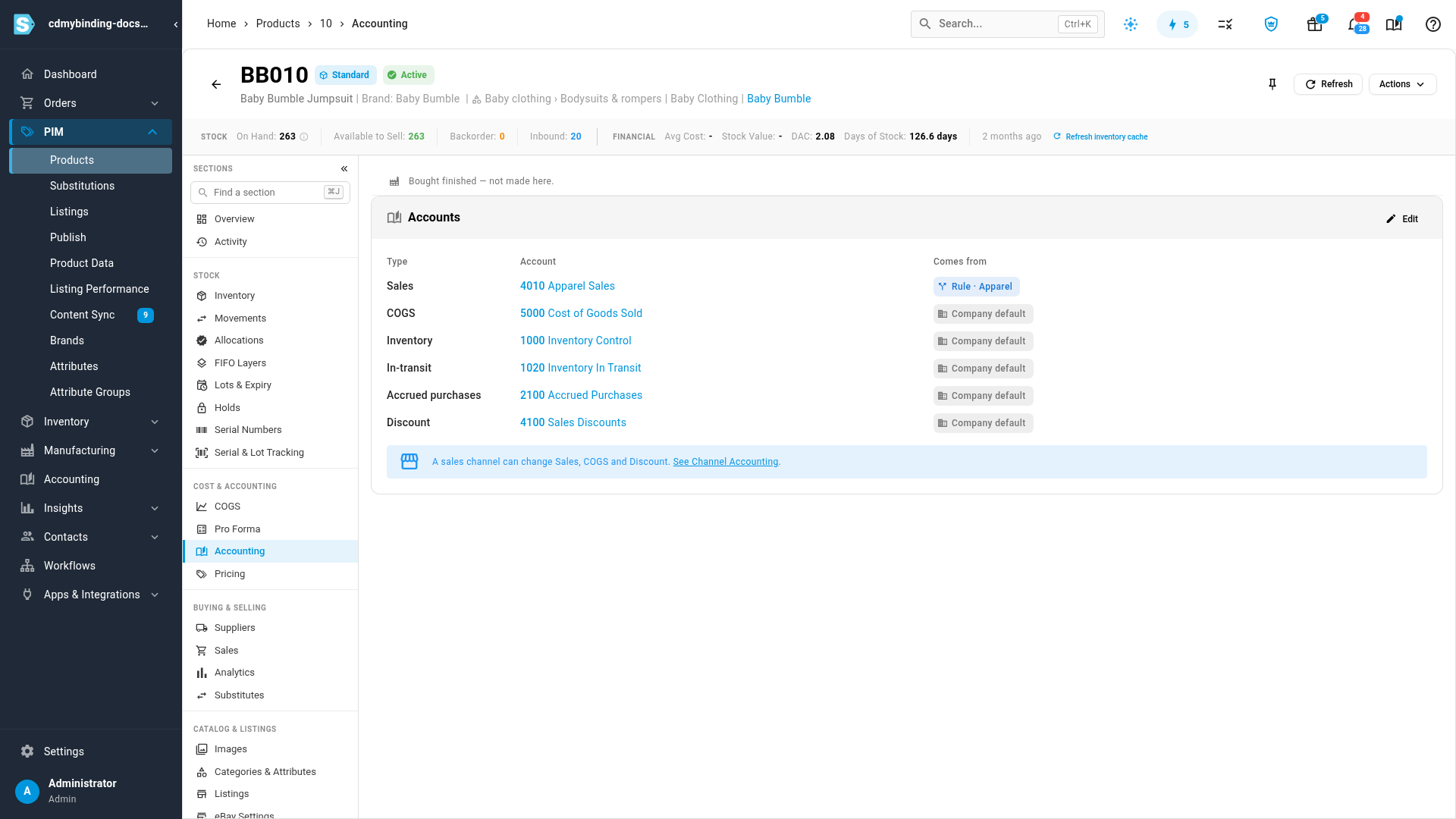
A product's Accounting tab now shows a Comes from column for each of its six accounts. When a product has its own override but a rule would apply, it says what the rule would set, and Use rule sends the product back to the rule.
Get set up in a few minutes
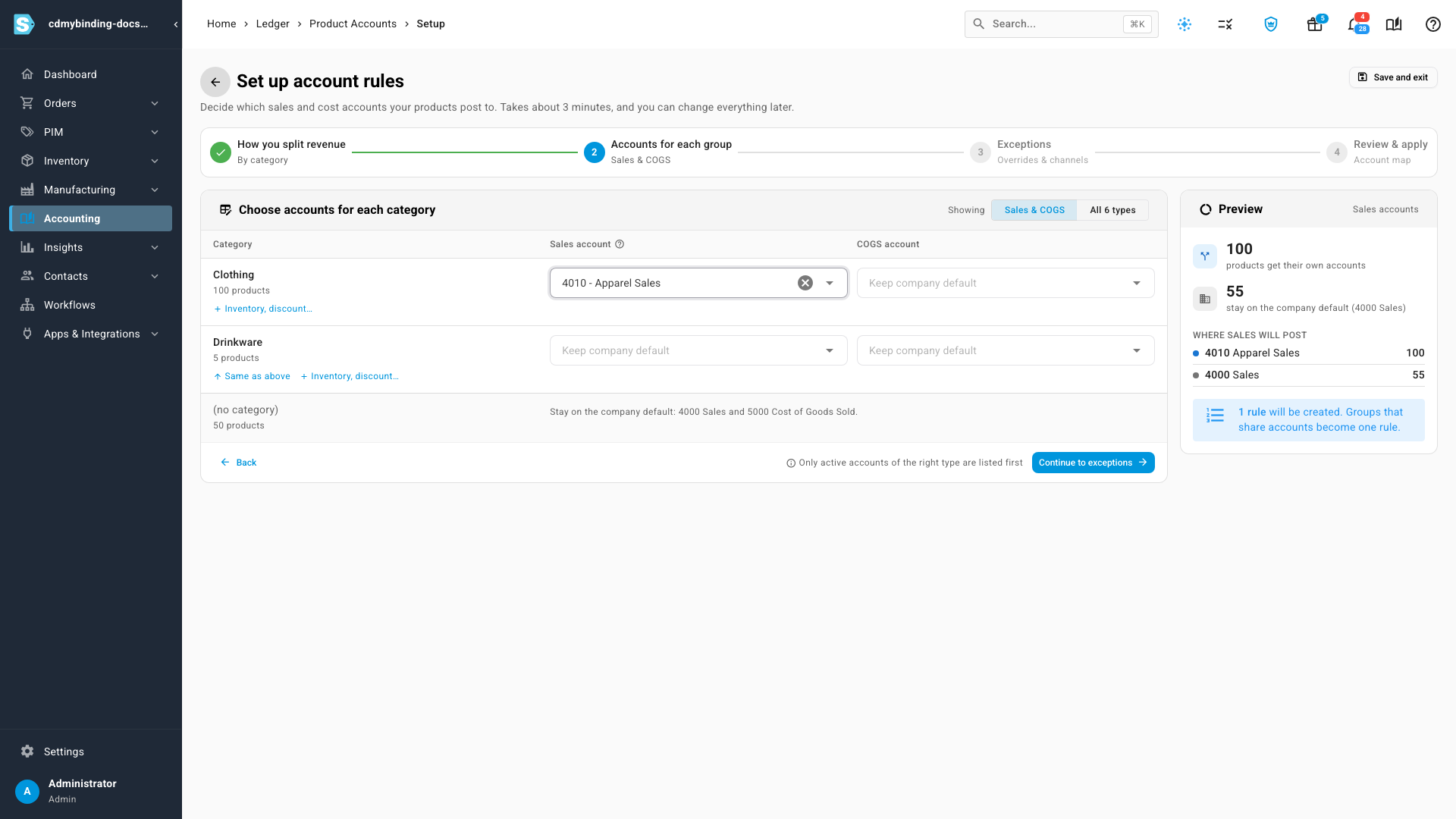
Not sure where to start? Guided setup asks how you split revenue — by category, brand, supplier or product type — then has you pick the accounts for each group, review any products with their own overrides, and compare the account map before and after. Nothing changes until you apply it, and it never edits rules you already have.
You can also keep rules in a spreadsheet — export them, edit, and import them back — and re-map journal entries that haven't synced to QuickBooks or Xero yet, so they follow your new rules too.
Where to find it
Go to Accounting → Settings → Product accounts. To see where a single product's accounts come from, open the product and choose Accounting.
Full guide: Map product accounts with rules