Customs entries — duty rates, HTS codes and exact duty splits from your broker's 7501
Every shipment you import into the United States gets a customs entry, and it already lists everything your duty setup needs. For each line it gives the HTS code, the value, the base rate, every Section 301, IEEPA or Section 122 duty stacked on top, and the duty actually charged. Until now that data sat in a PDF from your broker. You typed rates and product codes in by hand, and the broker's duty bill was split across products by cost. Customs entries reads the entry for you. Import a broker's 7501 or your ACE ES-003 report, and SKU.io matches each line to your purchase order. It proposes the duty rates and product codes the entry proves, and lets you split the duty bill by what each product was actually charged.
✨ What this means for you:
- Set up duty in minutes, not days. One entry proposes a dated rate for every tariff it lists, plus the HTS code and country of origin for every matched product. You review the proposals and apply them in one click.
- Duty lands on the right products. A duty bill split by customs entry gives each product the duty charged on its own entry line. A product taxed at 25% is no longer averaged with one taxed at 7.5%, so landed cost and margins come out right.
- Problems with an entry show up on their own. SKU.io flags a declared value far from what you paid, a product filed under a different HTS code, an invoice converted at the wrong currency rate, and an entry filed for another company.
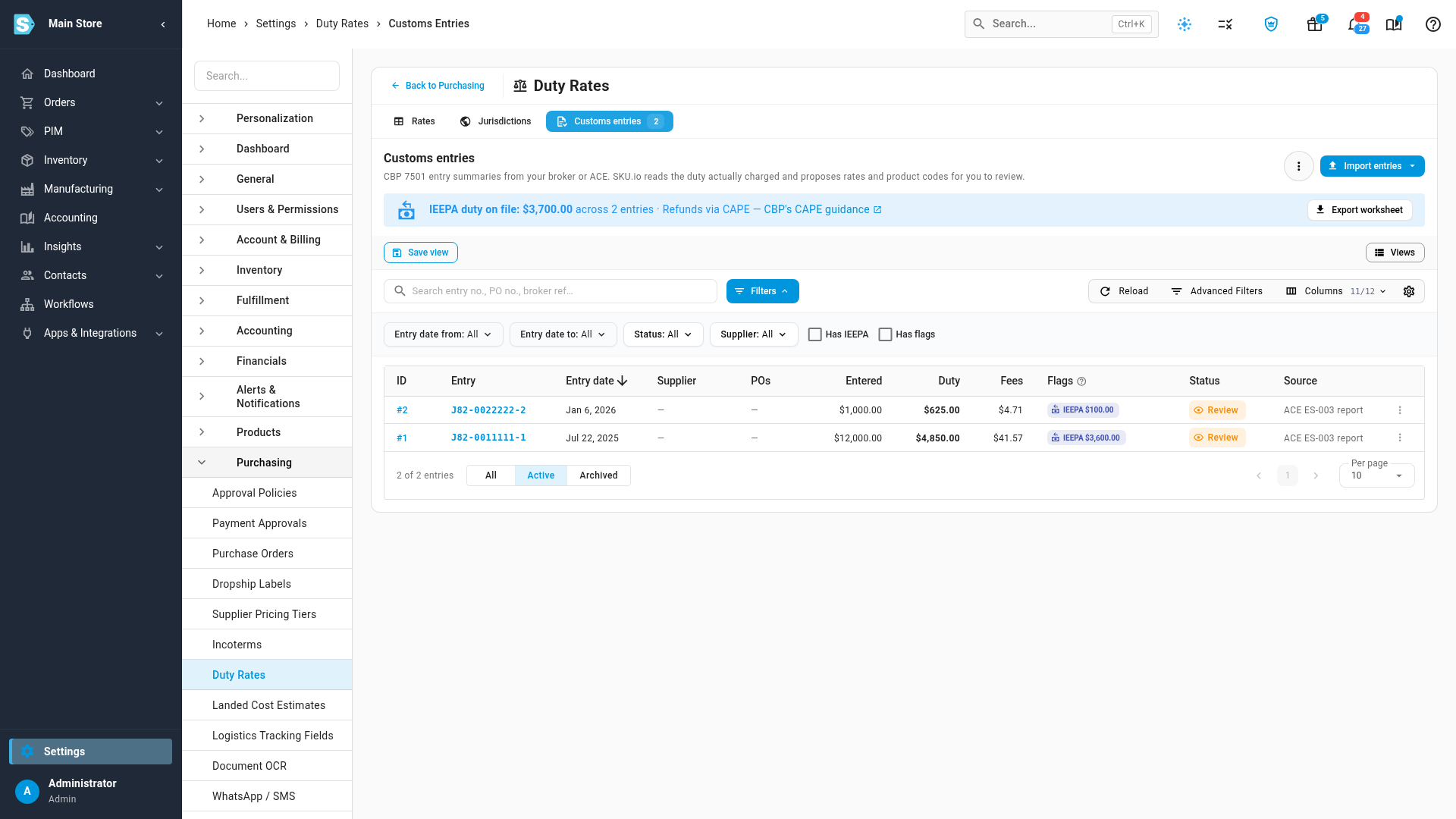
- Your IEEPA refund list is ready. A banner totals the IEEPA duty on your entries, and Export worksheet downloads the lines for your refund claim.
Bring in your entries
Open the new Customs entries tab under Settings → Purchasing → Duty Rates and click Import entries. Choose 7501 PDF for a single entry from your broker, or ACE ES-003 report to import every entry under your importer number at once, from CSV or Excel. The file is read in the background, and each entry lands in the list for review. Nothing changes until you apply it. Importing the same file again does nothing. An amended entry becomes a new revision, with a banner listing what changed.
Review what the entry proves, then apply it
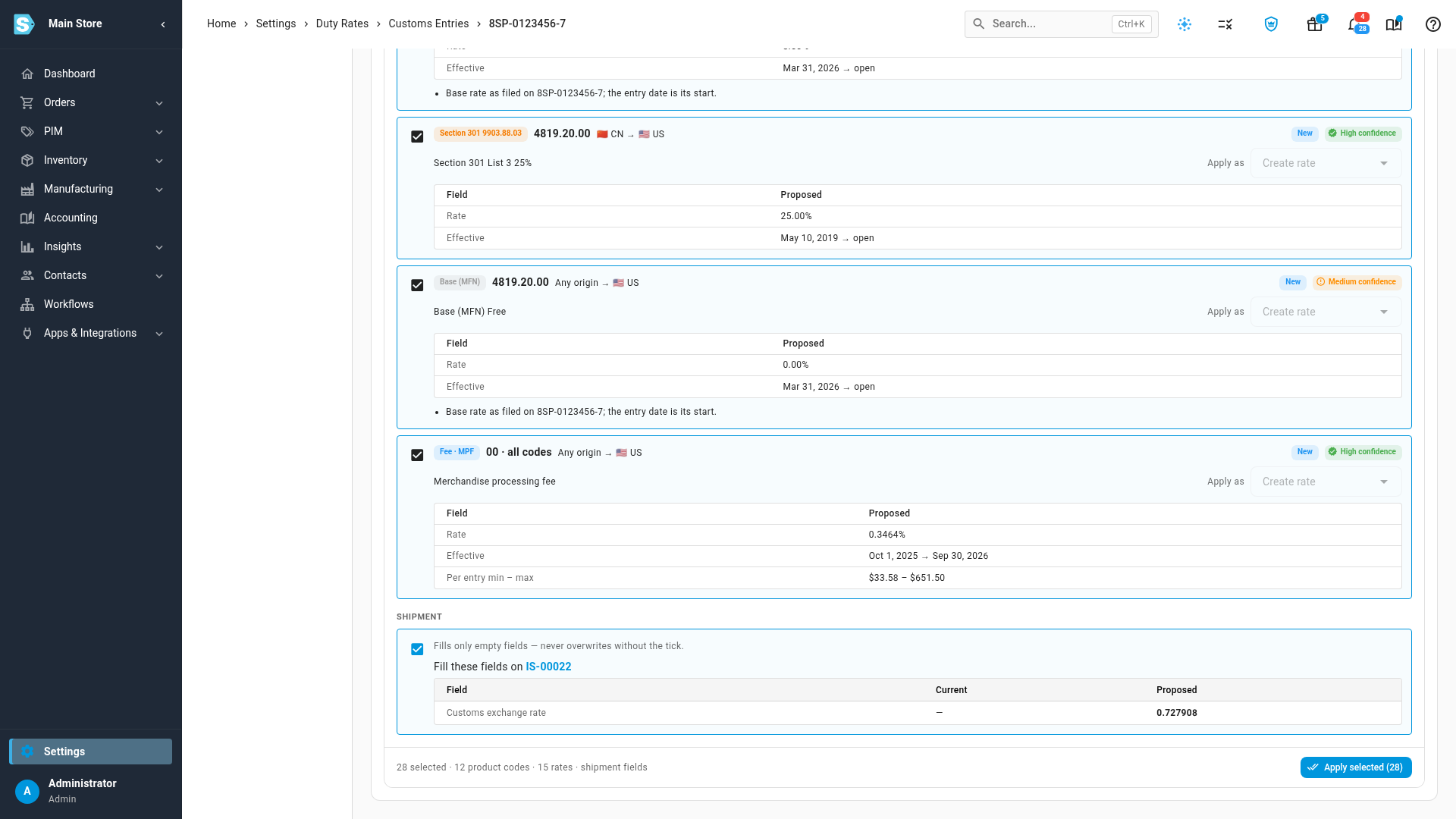
Open an entry to see its totals, its checks and its lines. Each line shows the full tariff stack and the purchase order lines it was matched to, with how confident the match is. You can fix any match by hand. Under Proposals, SKU.io ticks the changes it's sure about. These are the HTS code and origin for each product, a dated duty rate for each tariff, and the empty customs fields on the inbound shipment. Each rate card says whether it's new, matches a rate you already have, or differs from it. Untick anything you're unsure of and click Apply selected. Your purchase orders then estimate duty with the new rates and codes.
Split the duty bill by what was actually charged
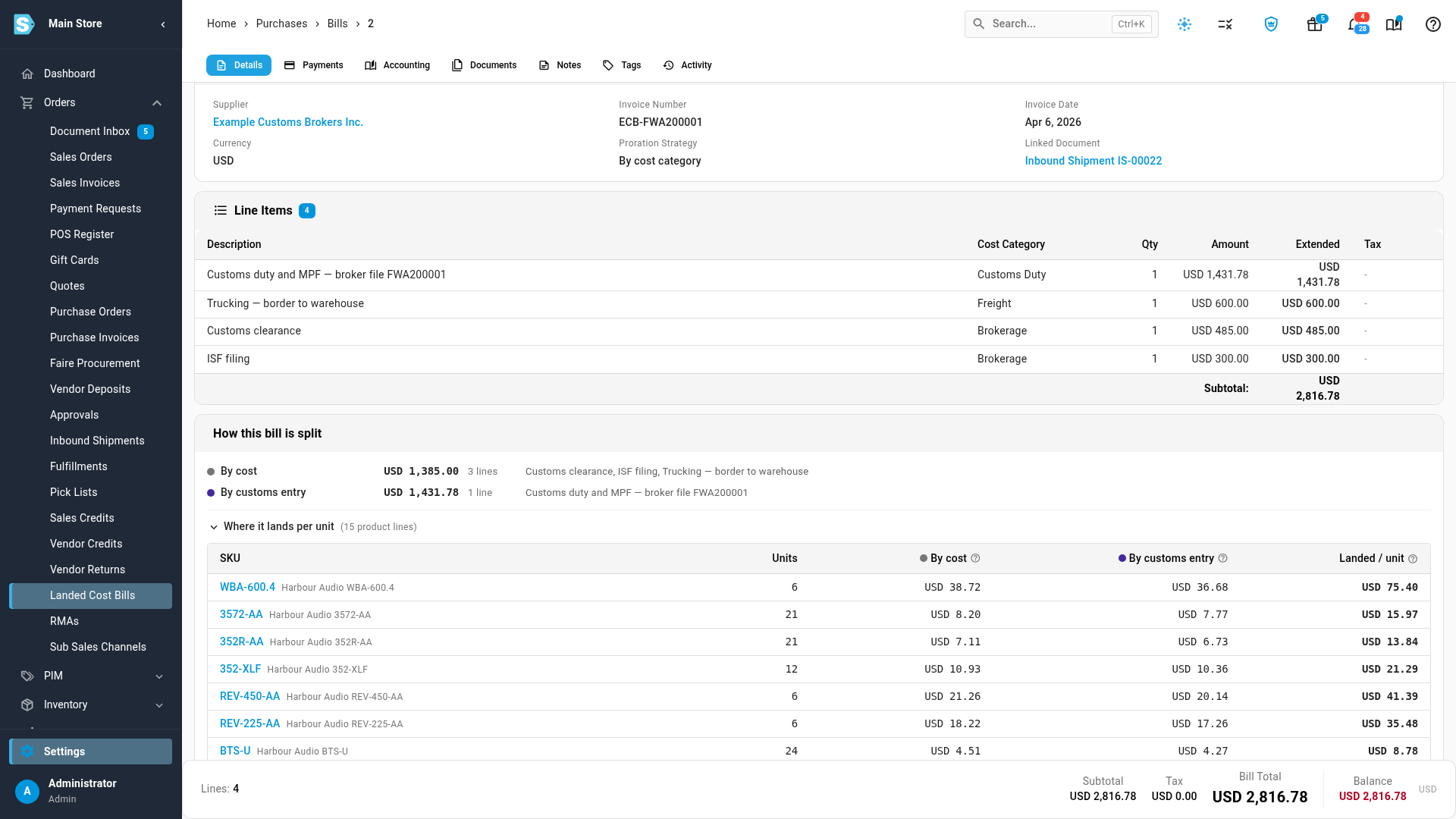
Link the broker's bill to the entry with Link duty bill. On the bill, set Proration Method to By cost category. The duty line then splits By customs entry, while freight and brokerage keep their own method. How this bill is split shows the result per product. When every line on the entry is matched, the duty split is exact to the cent. If no fully matched entry is linked, the duty falls back to estimated duty, then to cost, as before.
Where to find it
Go to Settings → Purchasing → Duty Rates and open the Customs entries tab. Roles that can already manage duty rates get access automatically.
Full guide: Import customs entries