Purchases by store — see what you bought for each brand you buy for
If you buy stock for more than one store, such as partner brands you run alongside your own, "what did we purchase for them this month?" used to mean exporting purchase orders and sorting them in a spreadsheet. Purchases by store answers it inside SKU.io. Custom reports can now group purchase order spend, order counts and units by store, the purchase order list filters to one store, and your accounting provider can tag each store's bills.
✨ What this means for you:
- See spend, purchase orders and units for each store or partner brand in one report.
- Group or filter purchasing by the tags and custom fields on your purchase orders, too.
- Pull up one store's purchase orders in a click.
- Split purchasing by brand in Xero or QuickBooks without separate accounts.
A report of what you bought for each store
In Custom Reports, purchase orders now have Store, Tags and Custom Fields fields. Add Store with PO Count, Total Spend and Total Quantity, and each store gets one row. Each purchase order counts once, even when it carries several tags. Purchase order lines have PO Store, PO Tags and PO Custom Fields, so you can see the units and titles bought for each store.
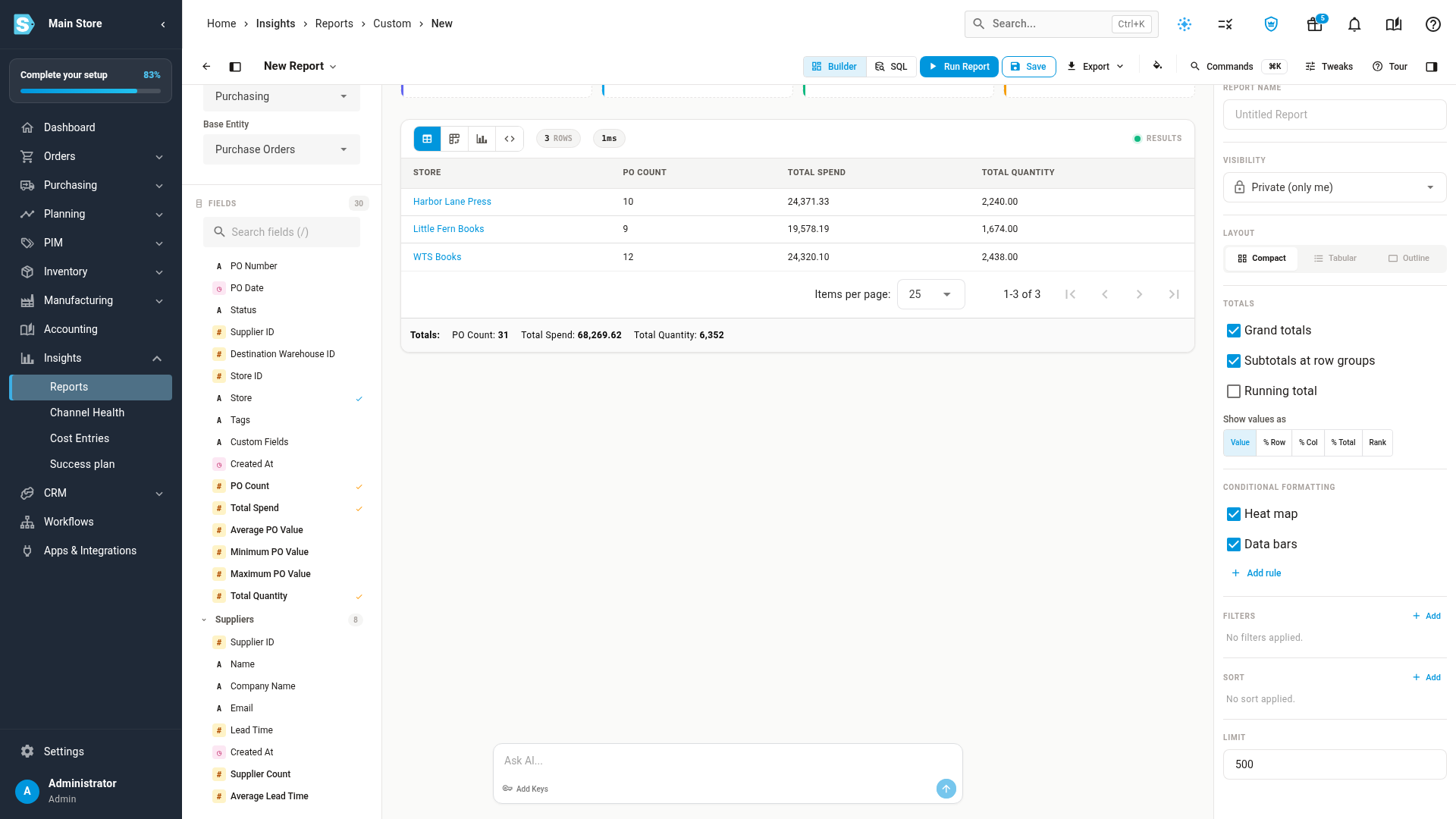
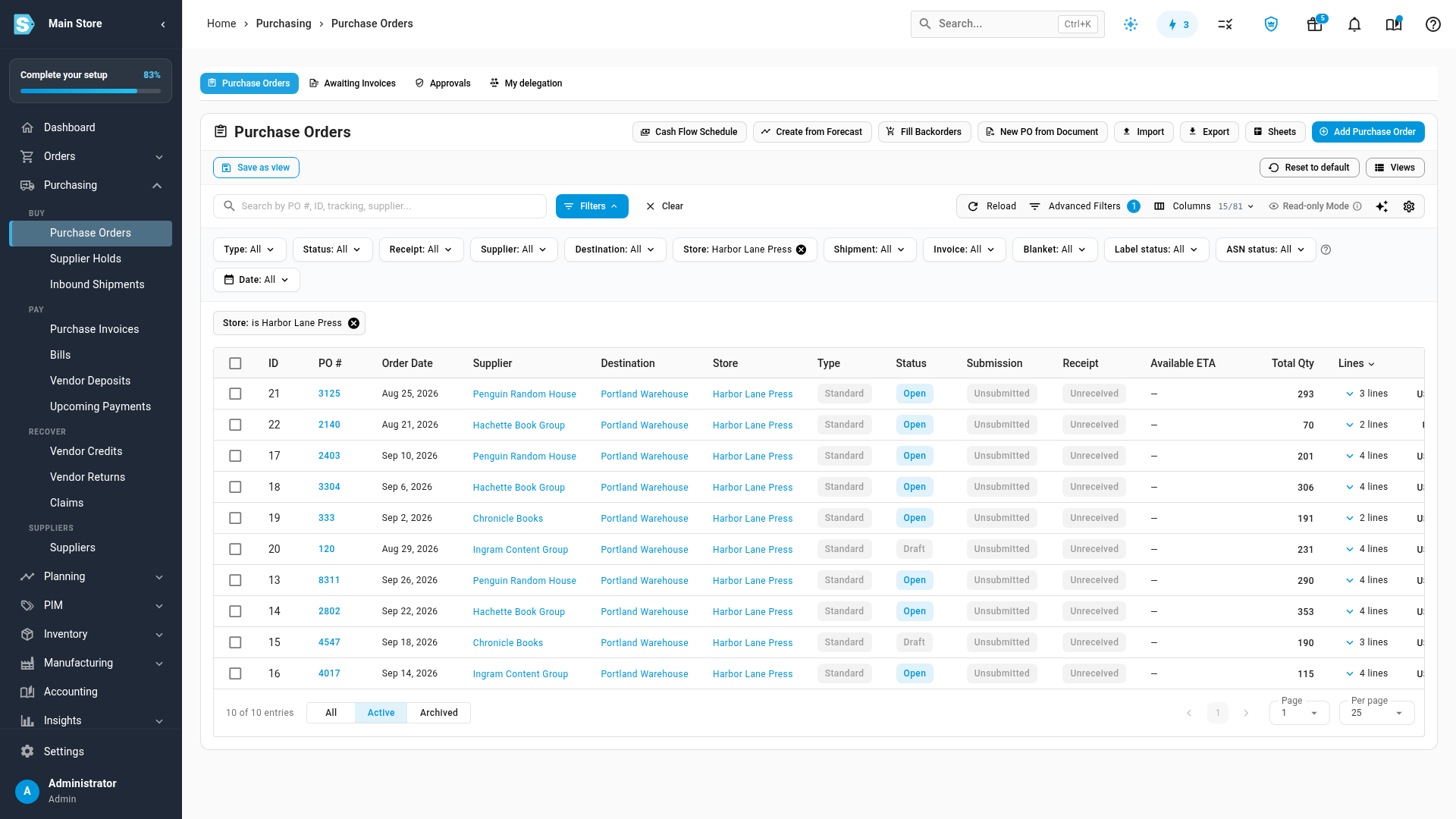
One store's purchase orders
The purchase order list has a Store filter whenever you have more than one store, and a Store column you can turn on under Columns.
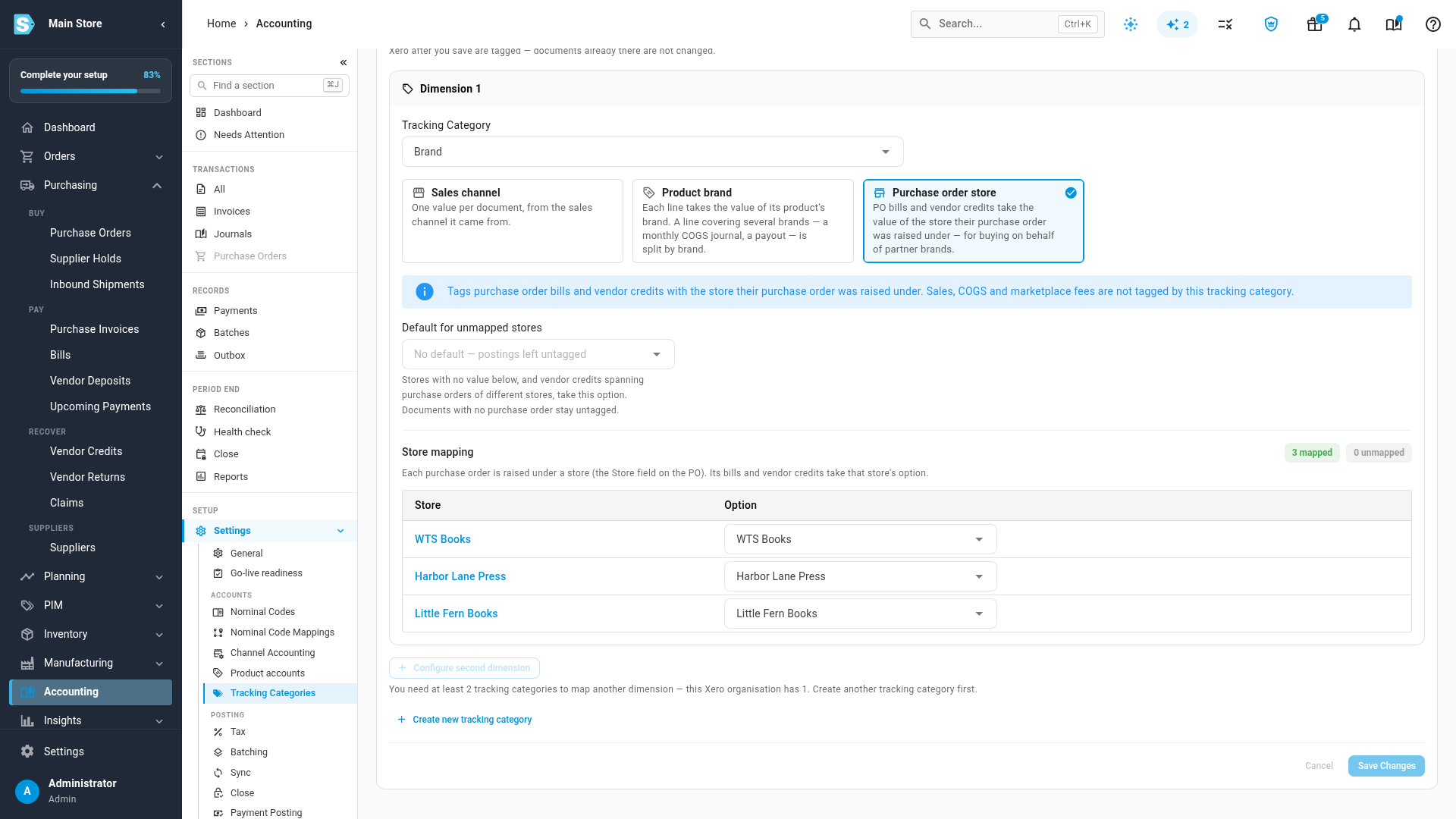
Tag each store's bills in your books
In Accounting → Settings → Tracking Categories, choose Purchase order store for a dimension and map each store to a Xero tracking option or a QuickBooks class. Bills and vendor credits for each store's purchase orders then reach your provider tagged with that store.
Where to find it
- Insights → Reports → Custom Reports, base entity Purchase Orders or Purchase Order Lines.
- Purchasing → Purchase Orders, Store filter and column.
- Accounting → Settings → Tracking Categories, Purchase order store.
Full guide: Report what you purchased for each store