PO numbers that read like your purchasing — order date plus order type
A purchase order number like PO-0042 tells you nothing on its own. Many buying teams number their orders so they can read them at a glance: the date the order was raised, a running number, and a letter for the kind of order, such as N for the first run of a new design and R for a reorder. Now SKU.io can build those numbers for you. Set a Number format and a list of Order types once, pick the type on each new PO, and the number comes out as, for example, PO-261126-40-R.
✨ What this means for you:
- Your number format. Combine your prefix, the order date (
{YYYY},{YY},{MM},{DD}), the running number ({SEQ}, or{SEQ:2}for two digits) and the order type ({TYPE}). - Your order types. Add your own codes and names, such as Sample (S), or start with one click from New order (N) / Reorder (R). Mark one as the default.
- Picked on each PO. The New Purchase Order dialog has an Order type field, and you can change it later on the order.
- Numbers keep up with drafts. Change a draft's order type, and the type code in its number follows. A number someone typed by hand stays as it is.
- Nothing changes until you want it to. Both settings start empty, so existing numbering carries on as before.
Set your format
Go to Settings → Purchasing → Purchase Orders. Under Order types, add your types and tick the default. In Number format, click the tokens to build the number. The examples under the field show the number each order type would get, and the number for an order with no type.
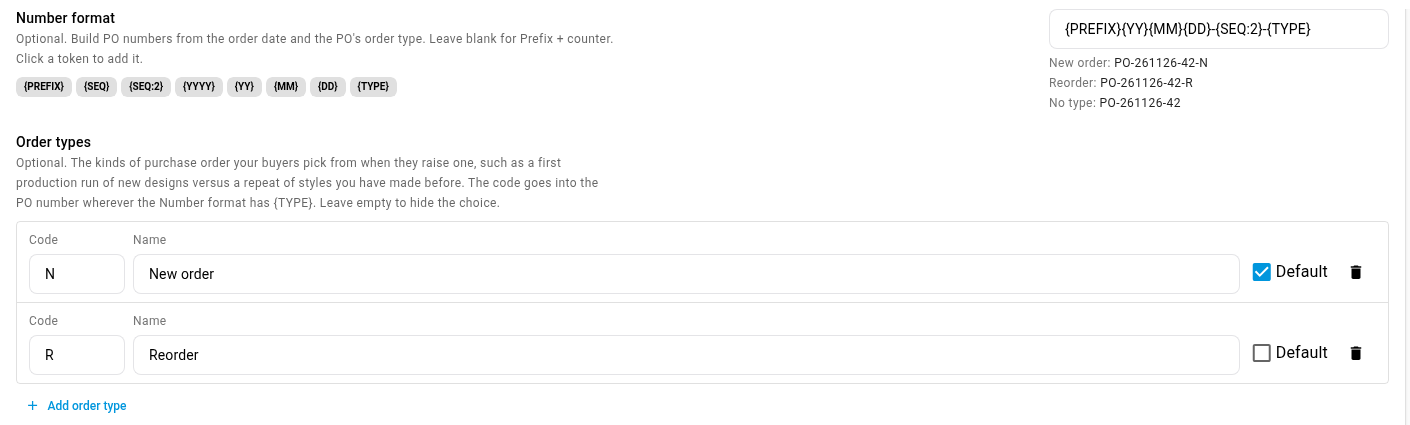
The date in the number is the order's own order date, so a backdated order carries its date. An order without a type drops {TYPE} and its separator. Duplicated orders and draft orders from demand planning follow the same format.
Pick the type on each order
When you add a purchase order, choose its Order type in the New Purchase Order dialog. It starts on your default.
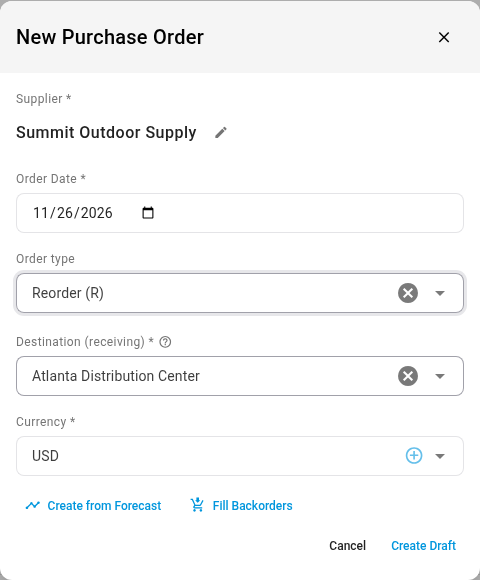
Where to find it
- Format and types: Settings → Purchasing → Purchase Orders, under Number format and Order types.
- On an order: the Order type field in the New Purchase Order dialog, or under Order Details when you edit a purchase order.
Full guide: Set purchase order numbering and defaults