ShipBob — send orders out, bring shipments, stock and every fee back
When ShipBob runs your warehouse, the day-to-day work splits across two systems. Orders have to reach ShipBob, tracking has to come back to your sales channels, and ShipBob's stock count drifts from yours. Then the weekly invoice arrives as a list of pick fees, packaging, surcharges, storage and freight that never makes it onto the orders and products that caused it. The ShipBob integration connects the two. Fulfillment orders go to ShipBob automatically, shipments, tracking, stock, returns and receiving come back, and every ShipBob charge is matched to the order, product or purchase order behind it, so your margins show what fulfillment really costs.
✨ What this means for you:
- Orders reach ShipBob on their own once you map your fulfillment centers, shipping methods and products, and tracking flows back to the sales channel when each parcel ships.
- Split shipments handled properly: when ShipBob ships an order from two centers, each parcel becomes its own fulfillment with its own tracking and freight cost.
- ShipBob's stock next to yours, center by center, with a Discrepancies view that turns differences into a stock take you review before anything changes.
- Returns and receiving orders in one place, with expected-versus-received quantities and a link to the purchase order a receiving order came from.
- Every ShipBob fee where it belongs: shipping, pick, packaging and surcharges on the sales order; storage on each product; receiving fees on the purchase order; anything that can't be matched kept visible as overhead.
- Invoices that tie out: each ShipBob invoice is checked against its charges, and can post to your accounting as a bill.
Connect and watch it run
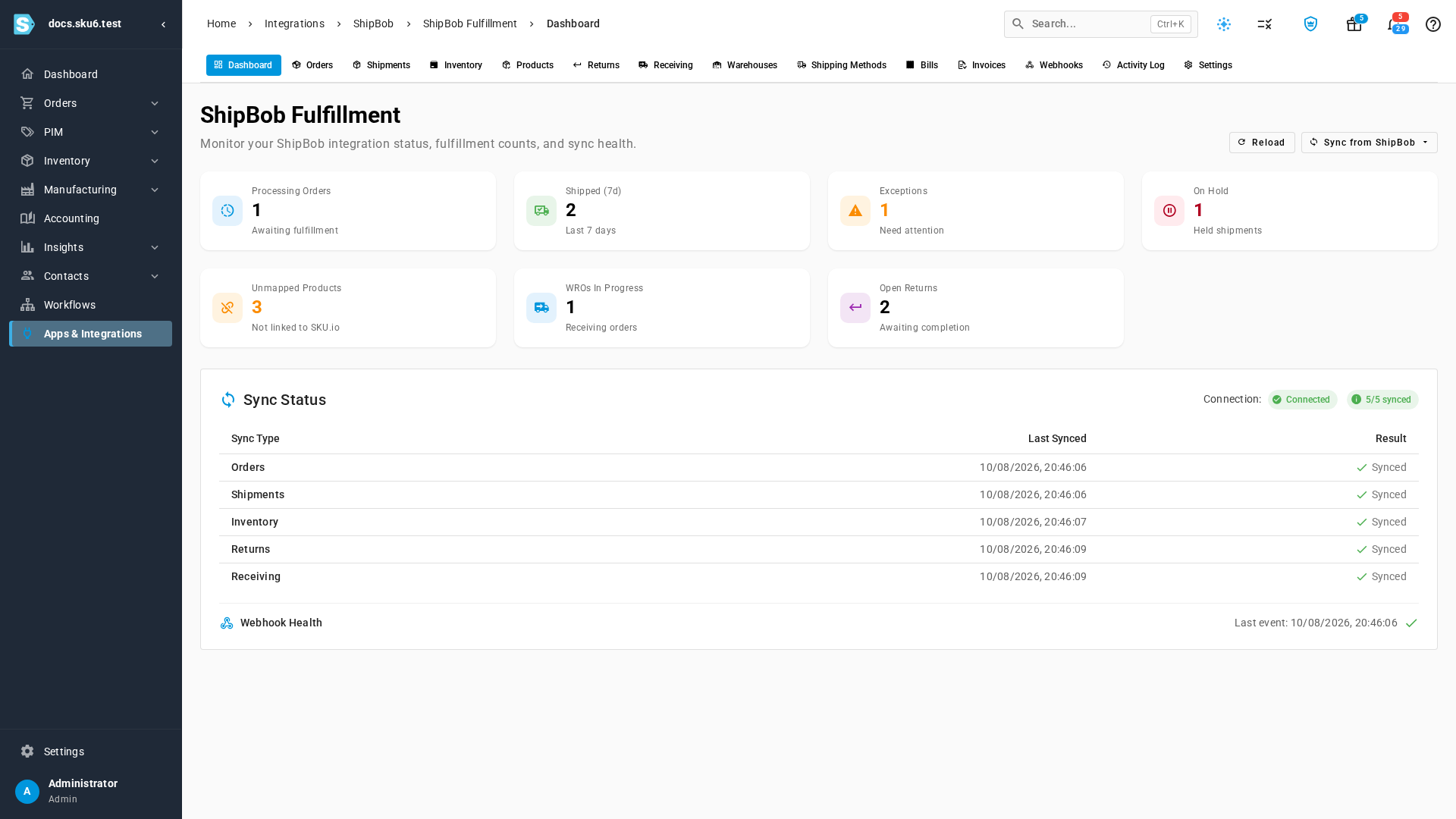
Connect with a ShipBob token, test the connection, then map your fulfillment centers to warehouses, your shipping methods, and your products. The dashboard shows what needs attention, such as orders on hold, exceptions and unmapped products, alongside when each sync last ran.
Orders, shipments and tracking
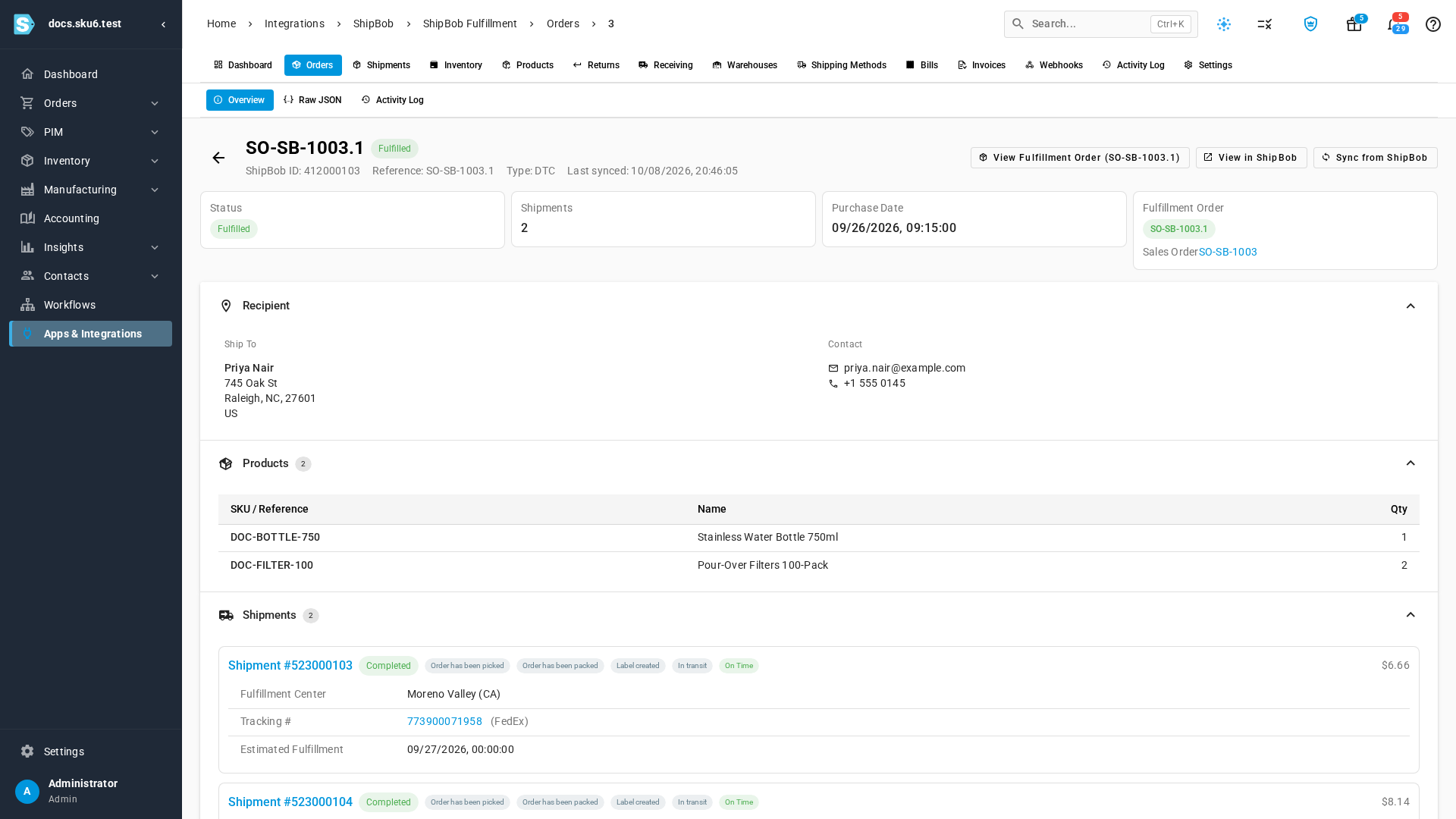
Each fulfillment order you submit becomes a ShipBob order. As ShipBob picks, packs and ships, the order page follows along: every parcel, the center that shipped it, its tracking number and its freight cost. If ShipBob can't take a change you make after submitting, such as a new quantity, SKU.io tells you what differs and what to do instead of letting ShipBob ship the old order.
Every ShipBob charge, matched
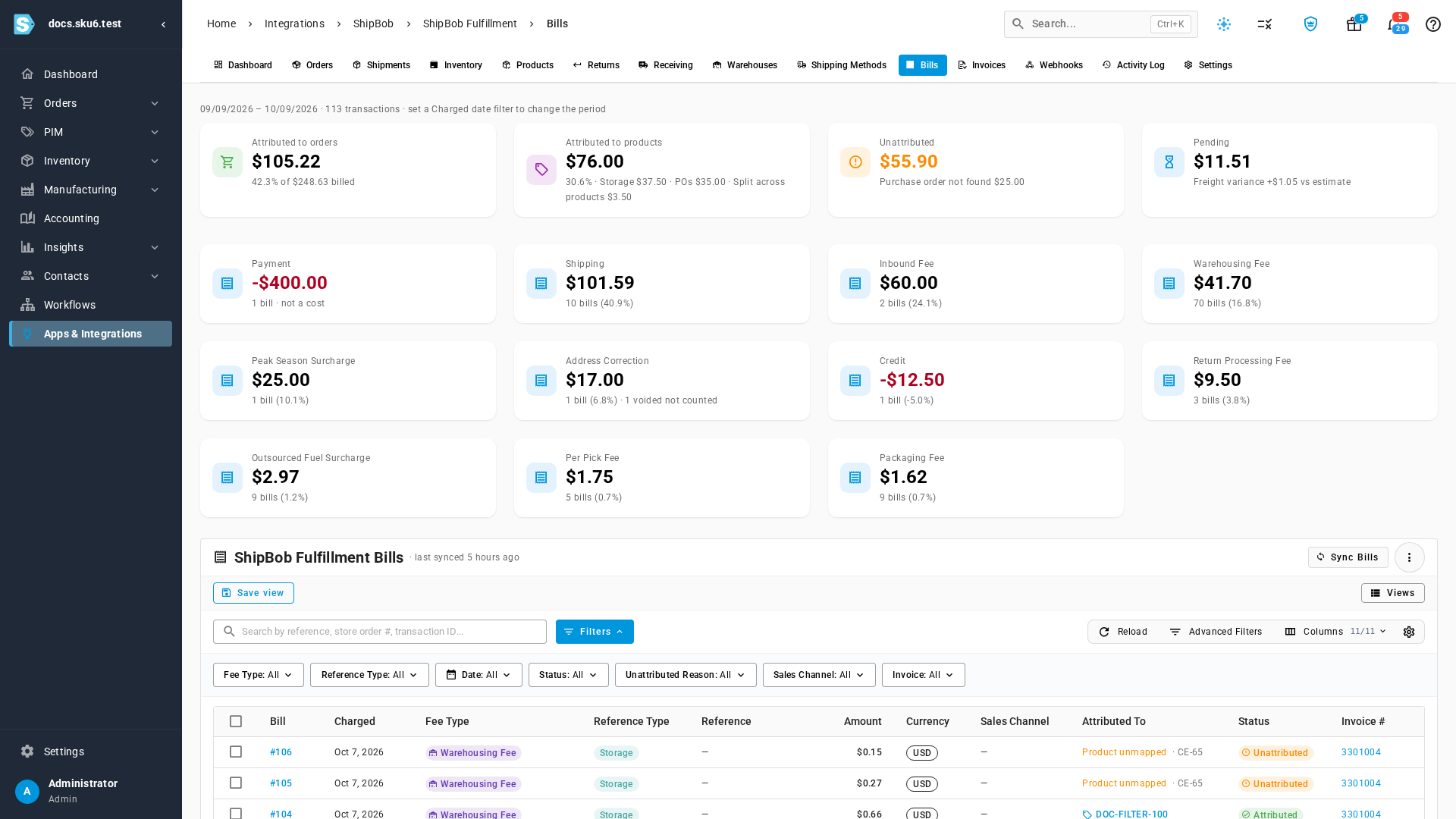
Turn on billing sync and SKU.io pulls in every charge, credit and payment ShipBob bills you. Each charge goes to what caused it: a shipment's fees become cost lines on its sales order, daily storage becomes a monthly cost per product, and receiving fees go to the purchase order. Anything that can't be matched stays visible with the reason, so you can fix it or keep it as overhead.
Invoices that reconcile
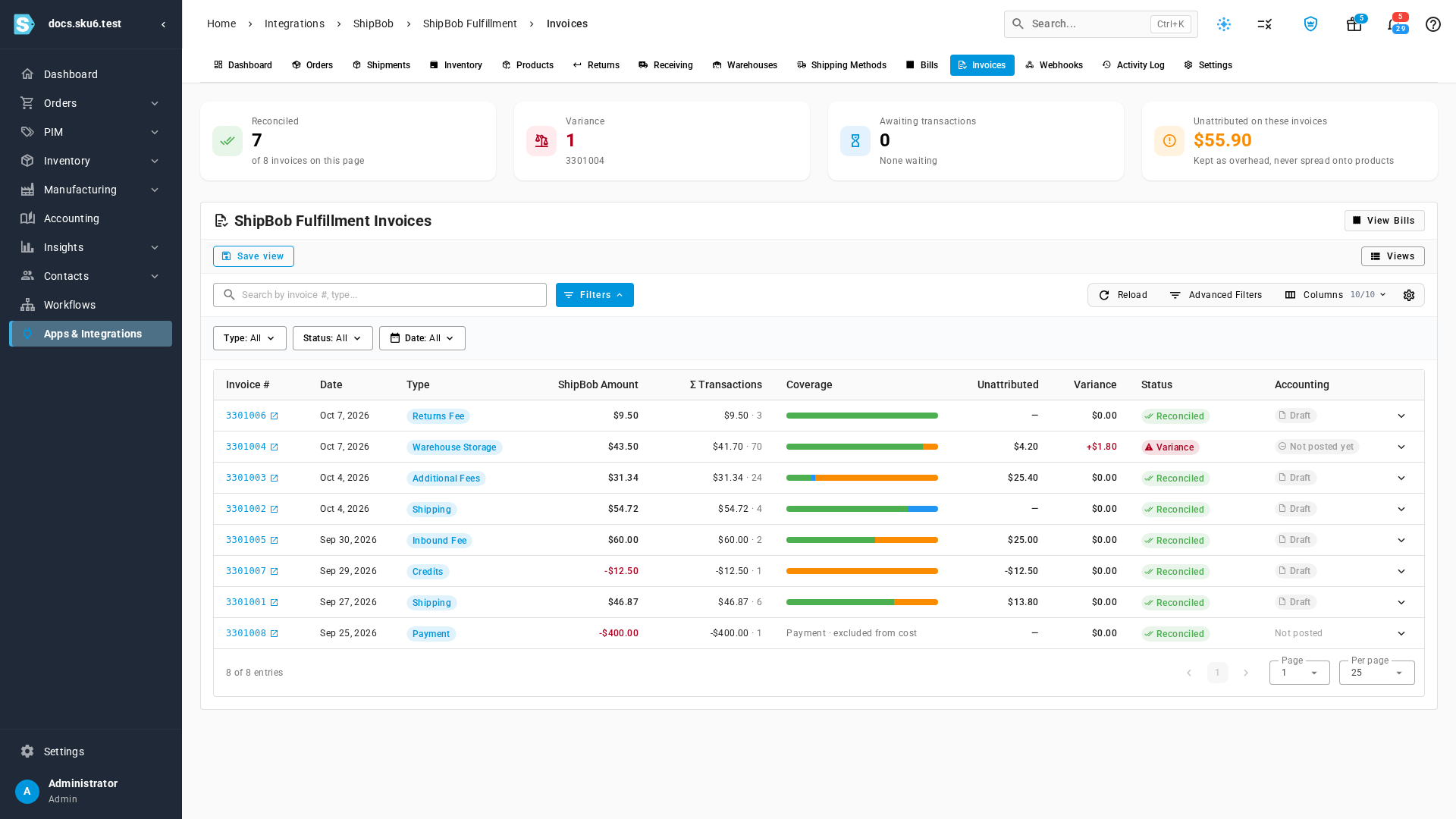
The Invoices tab checks each ShipBob invoice against the charges behind it. Reconciled invoices tie out to the cent; a difference is flagged with what to do about it. Turn on posting and each invoice becomes a bill in your accounting.
Where to find it
Go to Apps & Integrations, open Shipping & Fulfillment, and choose ShipBob. Billing sync is on the connection's Settings → Financial tab.
Full guide: ShipBob