Reorder reminders: nudge wholesale customers when it's time to restock
A wholesale customer who forgets to reorder doesn't always come back. Your reps can spot them on Missing orders, but writing to each one takes time. Reorder reminders writes that email for them. You choose when each customer is reminded. On that date SKU.io prepares a short email with what they ordered last time and a link back to that order in your B2B portal. A rep reads it, adjusts it if needed, and sends it.
✨ What this means for you:
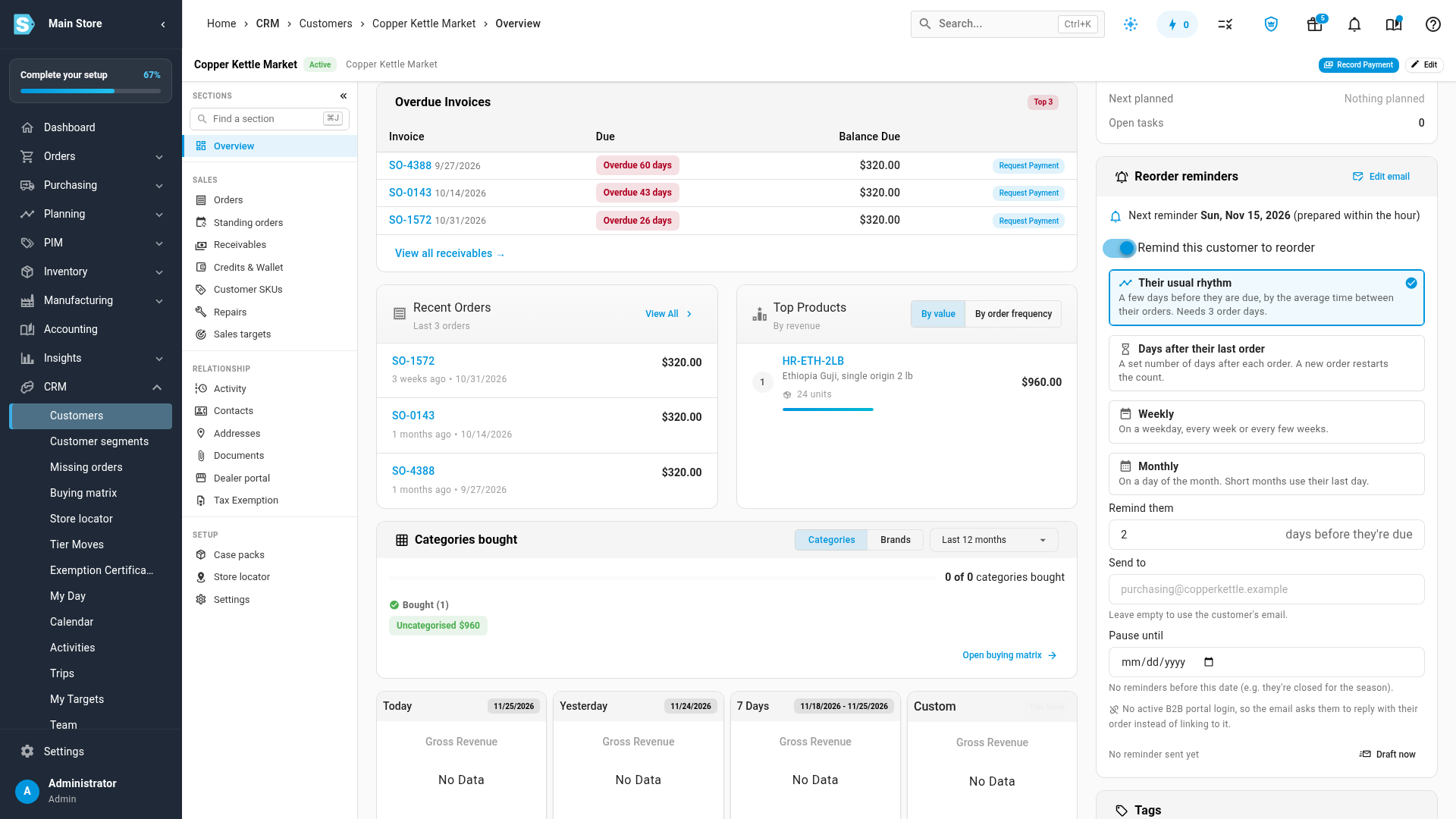
- Timing that fits each customer. Remind them a few days before they're due by their usual rhythm, a set number of days after each order, on a weekday, or on a day of the month. Pause a customer who is closed for the season.
- A rep reviews every email. Drafts wait on the new Reminders tab under Missing orders. Send & next works through them one after another, with the customer's last order and sales rep beside the email.
- No awkward reminders. A customer who has ordered since the draft was prepared is flagged before you send. Customers on a standing order, customers who opted out of email, and addresses that bounced are never sent one.
- One click to reorder. The email links to their last order in your portal, where Reorder fills their cart. Customers without a portal login are asked to reply with their order.
- Sending stays in your hands. Automatic sending is off. Turn it on in Settings → CRM only if you want due reminders to go out without review.
Choose when each customer is reminded
Open a customer and use the Reorder reminders card on their Overview. To set many at once, tick customers on CRM → Missing orders and click Set reorder reminder. The Reminder column shows each customer's timing, and Draft ready when a draft is waiting.
Review and send
On CRM → Missing orders → Reminders, open a draft to read the email next to the customer's context. Edit the subject or message for that customer if you like, then click Send & next. Tick several to send or discard them in bulk. A large batch is sent in the background and shows in the job tray. Each sent reminder also appears on the customer's Activity tab.
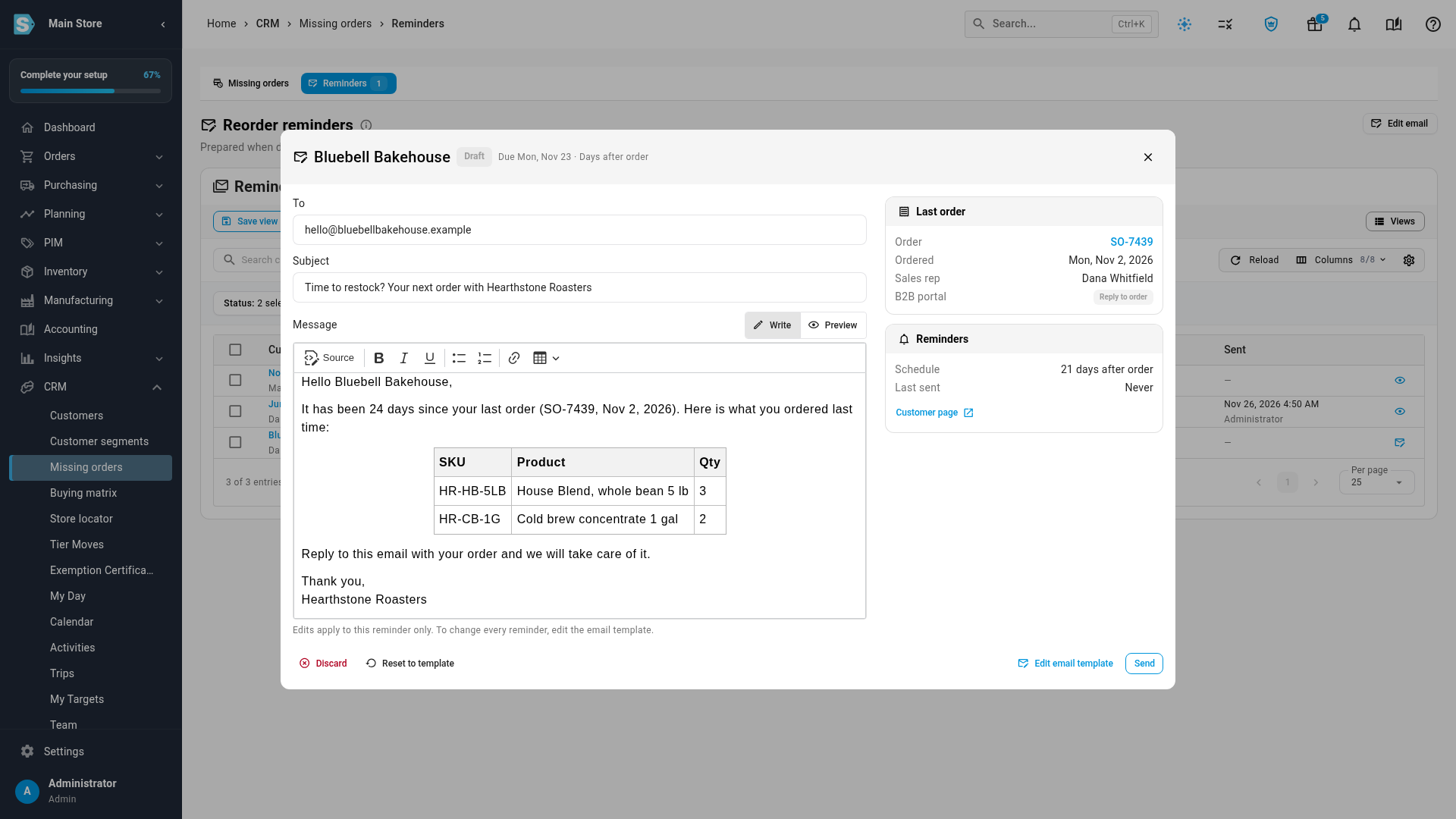
The wording comes from the new Reorder Reminder email template, which you can change under Settings → Email Templates.
Also in this release
The Closeout Offer email's link to your portal now opens the customer portal. Before, it pointed at the staff sign-in page, so customers who clicked it couldn't see the offer.
Where to find it
Set a customer's timing on their Overview (CRM → Customers, then open the customer), or in bulk from CRM → Missing orders. Review drafts on CRM → Missing orders → Reminders. The account-wide settings are under Settings → CRM → Reorder reminders. Reorder reminders are part of the CRM module.
Full guide: Send reorder reminders to wholesale customers