Quantity breaks — every tier's price ladder on one grid, with margins
Volume pricing used to mean adding one break at a time: pick the product, pick the tier, type the quantity, type the price, save, and repeat for every rung and every tier. And you couldn't see what any of those prices did to your margin. Quantity breaks now live on one grid per product: every pricing tier down the side and every quantity across the top. Under each price you see the discount it gives and the margin it earns on your cost. You can type a margin and let SKU.io work out the price, and give a whole range of products the same ladder in one step.
✨ What this means for you:
- Set every tier's price and every quantity break for a product on one screen, with one Save.
- See the discount and the gross margin under every price, with thin margins in amber and losses in red.
- Type the margin you want, or a percentage off the tier price, and SKU.io sets the price.
- Give dozens of products the same ladder, such as 5% off from 10 units and 10% from 25, in one go.
- Find every product with breaks in one list, with the lowest margin each one earns.
One grid for every tier
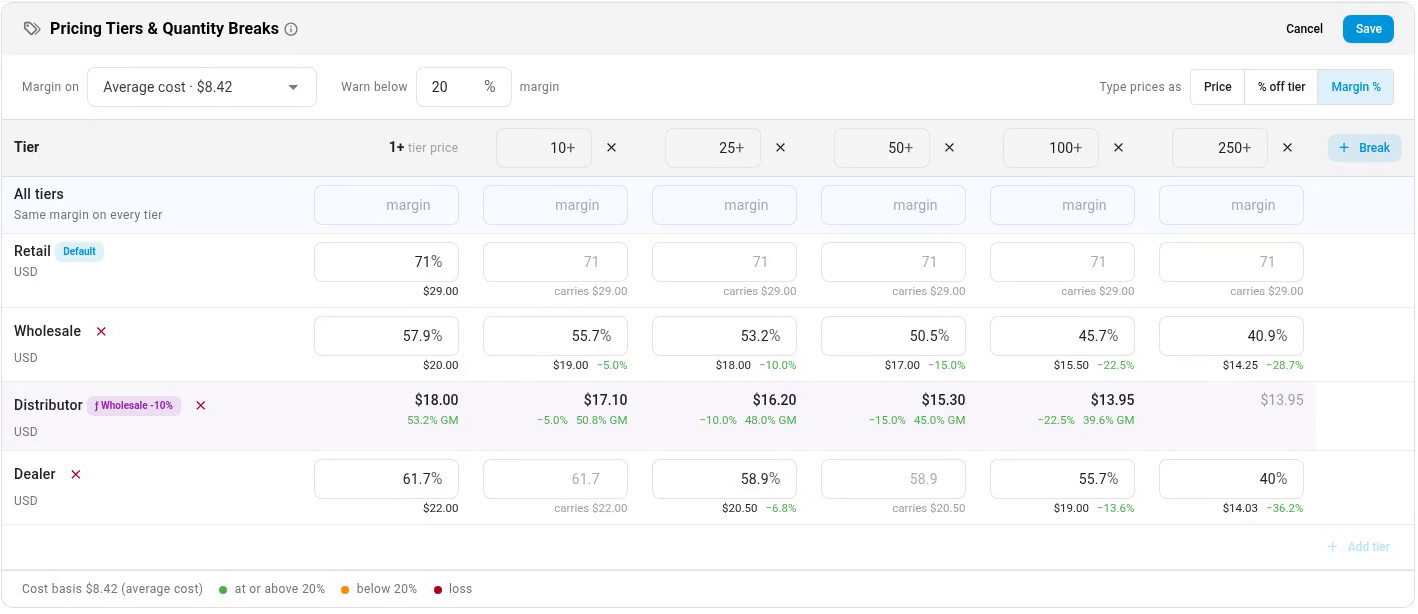
On a product's Pricing tab, the Pricing Tiers & Quantity Breaks card shows each pricing tier as a row and each quantity as a column. The first column is the tier's own price; the columns to its right are the breaks. Click Edit, add a quantity with + Break, type the prices straight into the grid, and click Save: every tier is saved together. Calculated tiers, such as Distributor at Wholesale −10%, follow their base tier's breaks automatically.
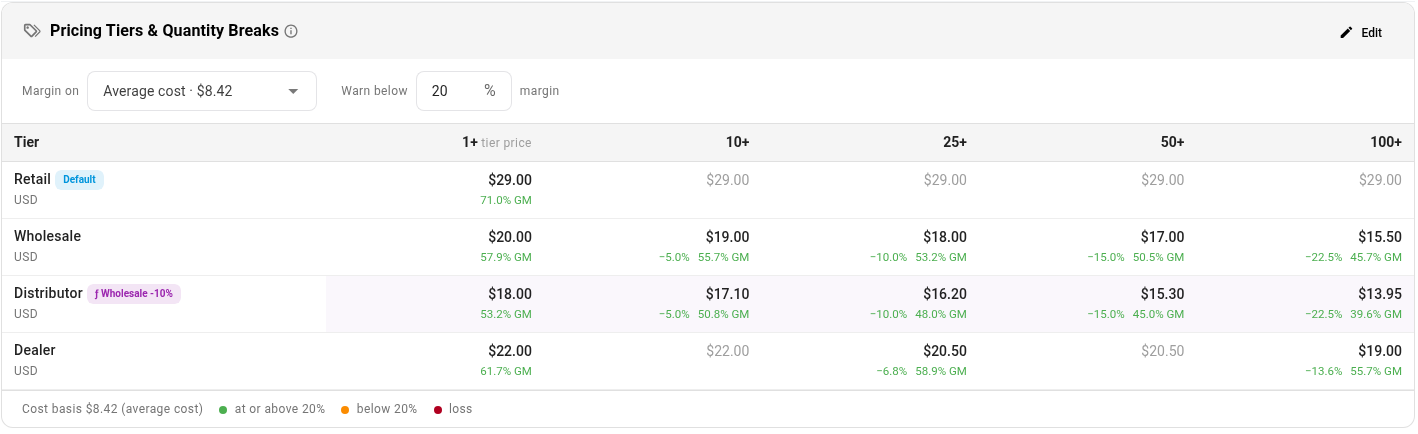
Margins on every price
Every price shows what it takes off the tier price and the margin it earns on the product's average cost. Cells turn amber below the margin you set as your floor and red when the price is below cost. Hover over a price to see the revenue and profit for an order of that size. To test a cost change before it happens, pick a custom cost and watch the margins move.
Work back from the margin you want
While you edit, Type prices as switches what you type into the grid: the Price, a % off tier, or the Margin % you want. Type 40 under 250+ in Margin %, and SKU.io sets the price that earns 40% on your cost. The All tiers row fills a whole column at once, so 25% off from 100 units is one entry for every tier.
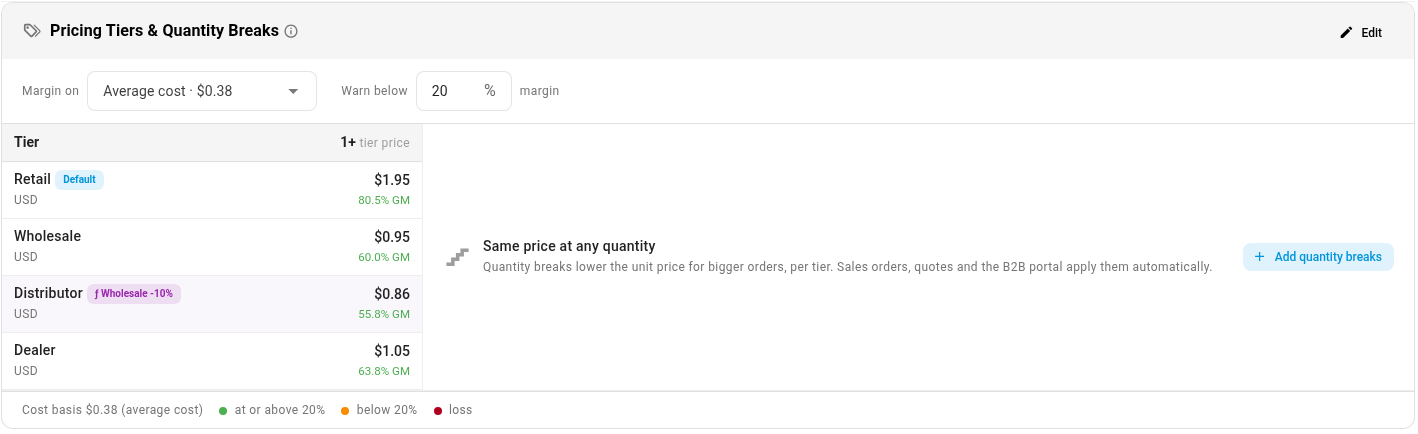
A product without any breaks shows a compact price list with an Add quantity breaks button. That button opens the grid with 10+, 25+ and 50+ columns ready to fill.
Every product's breaks in one list
Quantity Breaks in the customer portal's pricing now lists one row per product, with each tier's ladder of prices and the lowest margin any of them earns. Search it, filter by pricing tier and save your views. Click a product to open its grid right in the list and edit it there.
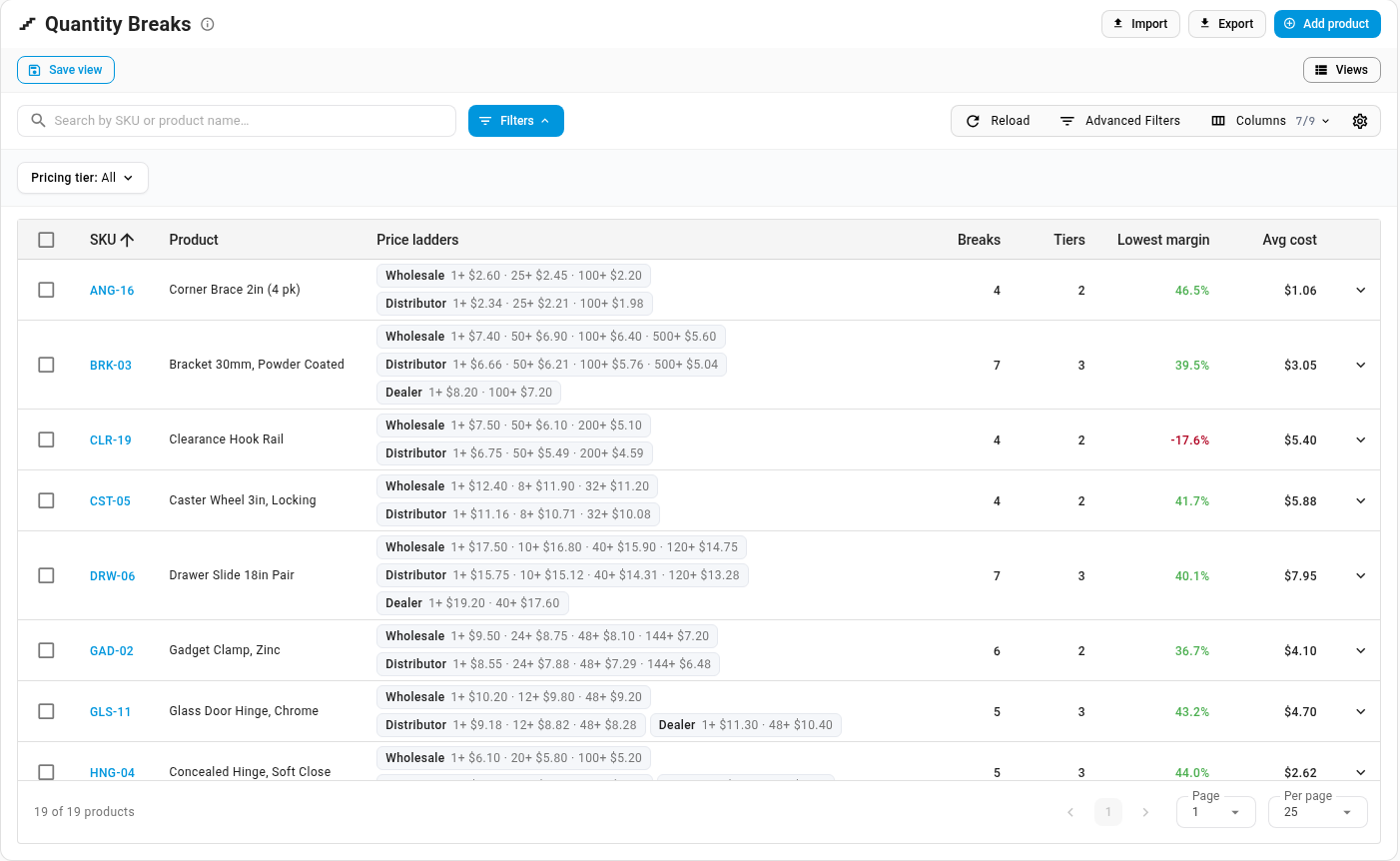
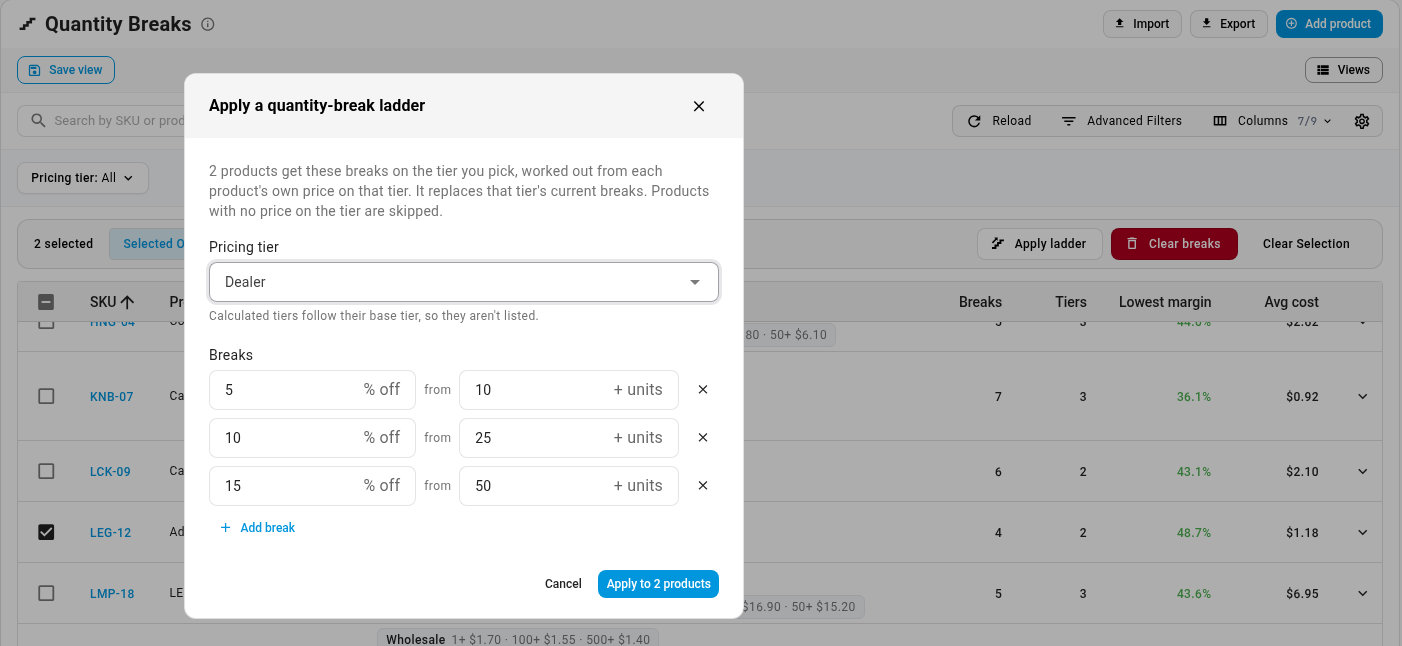
To price a whole range, tick the products, or choose all that match your filters. Click Apply ladder, pick the tier and set each break as a percentage off. Every product's breaks are worked out from its own price on that tier. Clear breaks removes them just as quickly, and Import and Export still move breaks in and out with a spreadsheet.
Sales orders, quotes, the point of sale and the customer portal all price from these breaks as soon as an order reaches a break's quantity.
On a sales or purchase order line, a pencil and Manually priced now appear only when someone typed the price. A line priced before its break applied shows a grey clock instead, with the date it was added and the break price it would get now, and Reset moves it onto that price.
Where to find it
- A product's breaks: PIM → Products, open the product, then Pricing.
- Every product's breaks: Contacts → Customers → Portal → Pricing → Quantity Breaks.
Full guides: Set a product's prices and quantity breaks · Manage quantity breaks across products