Supplier Analytics — service providers get their own spend report, and every score shows its working
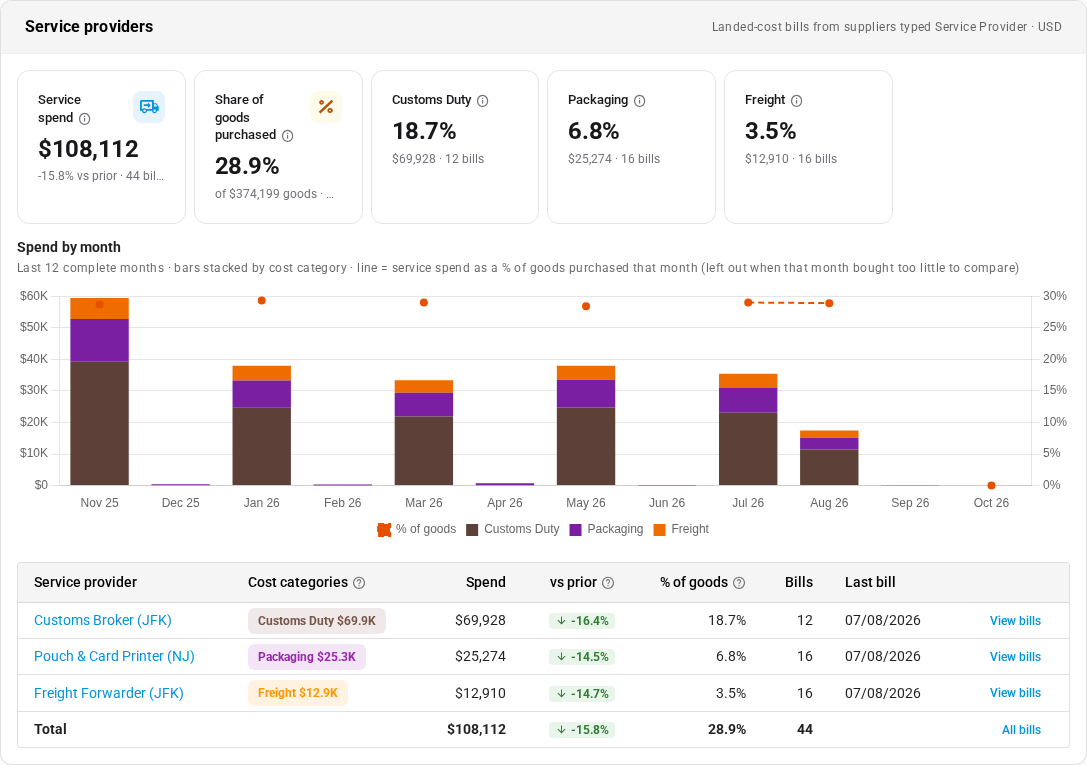
Your freight forwarder and customs broker bill you every month, but they never ship you a single unit. In Supplier Analytics they sat next to your factories, flagged as low-volume suppliers, and pulled down the averages. Supplier Analytics now treats service providers separately. Goods figures count only goods suppliers, and a new Service providers section shows what your service providers billed, by provider and cost category, and how that compares with the goods you bought.
✨ What this means for you:
- Cleaner goods figures. Service providers no longer count in the KPIs, growth heatmap, leaderboard, purchasing targets, lead times or cost comparisons.
- See what services cost you. Spend by provider and cost category, month by month, with each figure as a share of the goods you purchased.
- Click through to the bills. Every service figure opens the bills behind it, and Open in Bills takes the same filter to the Bills list.
- Scores you can check. Each scorecard row shows the figure behind its score, such as 1 of 5 POs on time, and opens the purchase orders or lines it came from.
Service providers, side by side with goods
The Service providers section has a monthly chart stacked by cost category, with a line for the share of goods purchased, and a table of providers with their cost categories, change against the comparison period, % of goods and last bill. A service provider's own Performance tab shows its service spend instead of a goods scorecard.
Scores that show their working
On a goods supplier's scorecard, every row now shows its raw figure next to the score. Click a row to see the records behind it for the same period: the POs scored for on-time delivery and lead time, the lines behind the fill rate, vendor returns, price changes, repairs and warranty costs. In Recent Purchase Orders, hover the On Time column to see the dates behind each state, such as Received Oct 31 · ETA Oct 20 · 11 days late.
Where to find it
Go to Insights → Supplier Analytics. To move a supplier into the service providers report, set its type to Service Provider on its profile.
Full guide: Find slipping suppliers with Supplier Analytics