Approval policies — the right sign-off on every purchase order, deposit and bill payment
Most teams have a rule for spending money: the purchasing manager signs off on everyday orders, the owner signs off on the big ones, and someone checks every deposit and bill before it's paid. Until now that rule lived in people's heads and inboxes. Approval policies put it in SKU.io. You set tiers by amount and choose who approves each one, and every purchase order, vendor deposit and bill payment is routed to the right people automatically. Approvers work from one Approvals queue, and email alerts mean a request never sits unnoticed.
✨ What this means for you:
- Approvals by amount. Split purchase orders into tiers, for example up to $10,000 for your purchasing manager or owner, and anything above for the owner only. The right people are asked every time.
- Deposits and bill payments too. Require sign-off before a deposit or a bill can be paid, with SKU.io tracking exactly how much is approved to pay.
- One queue for everything waiting on you. Orders → Approvals lists every purchase order, deposit and bill payment that needs your decision. Review one in a side drawer, approve the next with a keystroke, or approve many at once.
- Approvals that don't get missed. Turn on approval emails for every approver in one click, so requests reach their inbox and not only the in-app bell.
- Controls that hold up. Choose whether people can approve their own requests, ask for re-approval when an approved order changes, send reminders, hand approvals to a colleague while you're away, and let an administrator unstick a request with a recorded reason.
Set the rules once, by amount
Open Settings → Purchasing → Approval Policies and pick a tab: Purchase orders, Vendor deposits or Bill payments. Each tier has an upper limit and its approvers, people or whole roles. For each step you choose whether any one of them, a set number, or all of them must approve. Test an amount shows who would approve any value before you save, and the At a glance list shows where each band starts and ends.
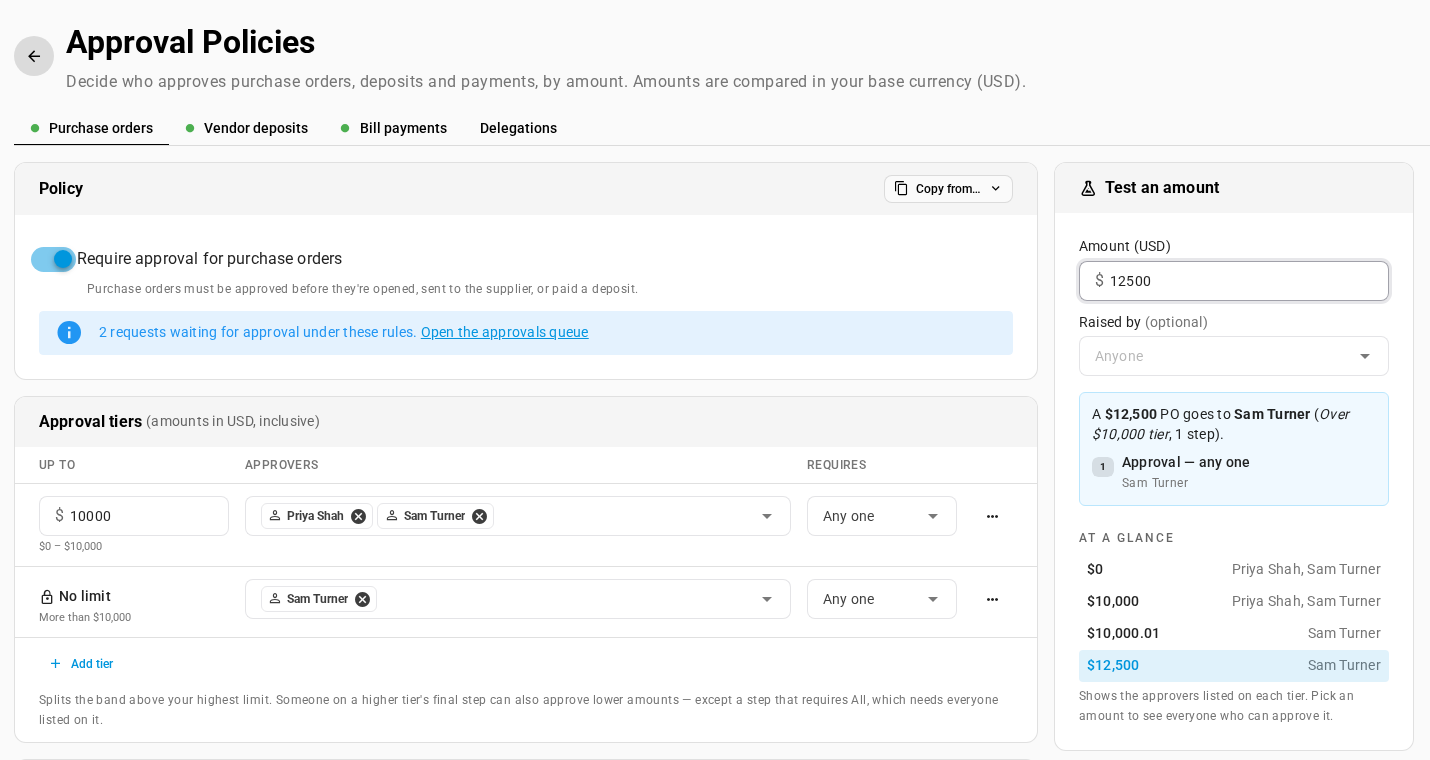
The same page sets the rules around approval. You can decide whether the person who raised a request can approve it themselves and how often approvers are reminded. You can also set how far an approved order can change before it needs approving again, and which kinds of purchase orders the policy covers (manual, imported, auto-reorder, forecast and planning orders).
Work every request from one queue
Orders → Approvals shows everything waiting on you, with All pending and History views alongside. Click a row to review it in a side drawer: the amount, the tier, the requester's note and who else can approve. Then Approve & next moves straight on to the next one. Keyboard shortcuts (J and K to move, A to approve, R to reject) make a long queue quick, and you can select several requests and approve them together.
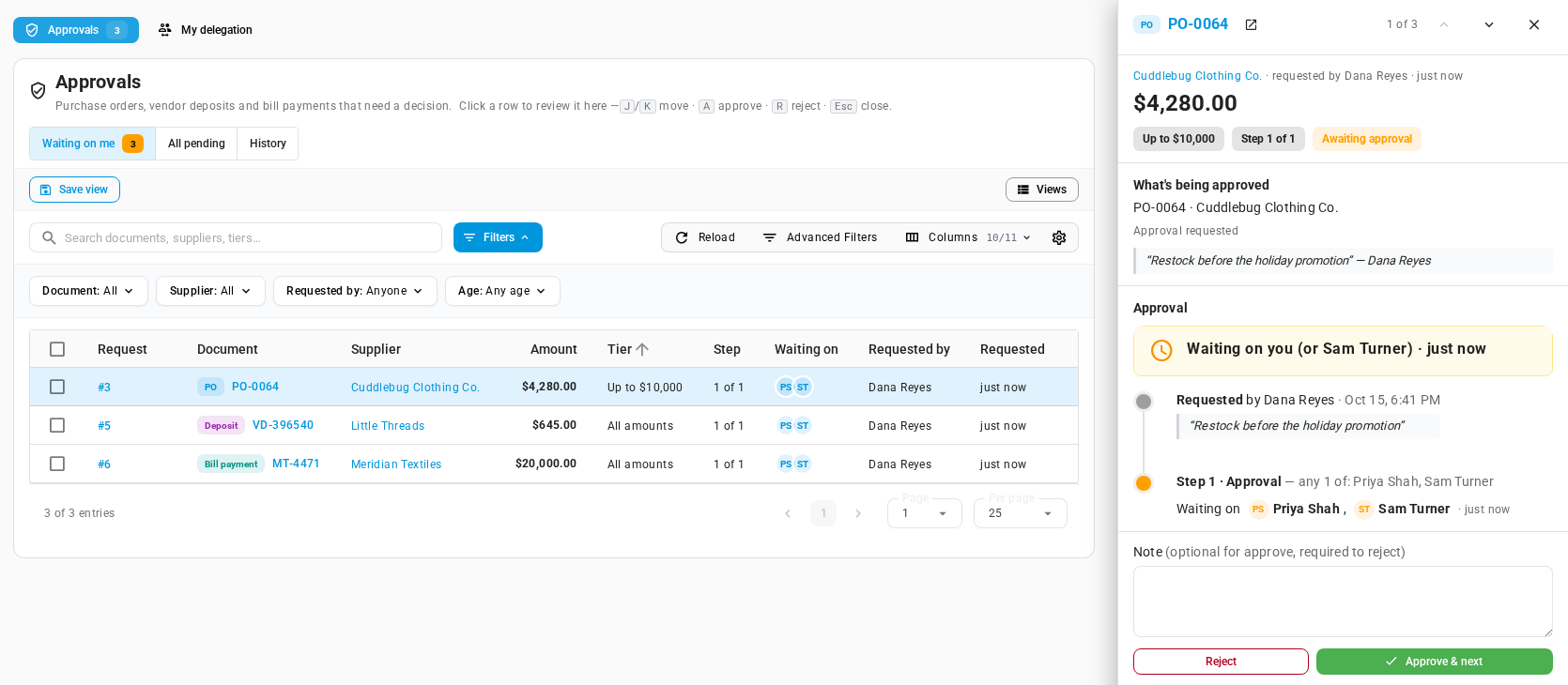
Every purchase order, deposit and bill also shows an Approval card with its full history. A buyer can request approval from a draft, and an approver can approve in one click when their limit allows.
Make sure approvers see requests
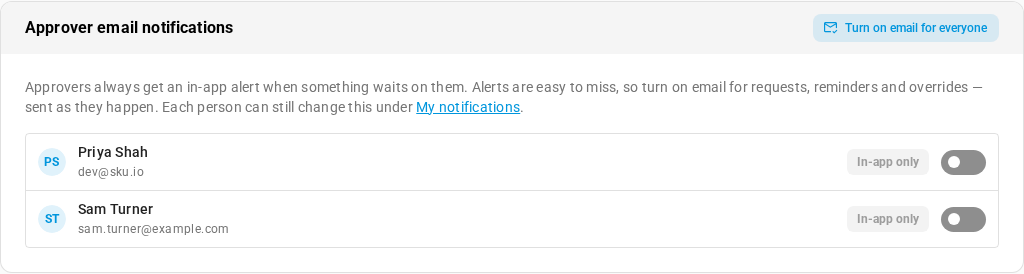
In-app alerts are easy to miss, so the policy page lists every approver with an email switch and a Turn on email for everyone button. It uses each person's own alert settings, so anyone can still change how their approval alerts reach them under My Notifications.
Where to find it
- Set up policies: Settings → Purchasing → Approval Policies.
- Review and approve: Orders → Approvals (the badge shows how many are waiting on you).
- Hand off while you're away: Orders → Approvals → My delegation.
- Your own approval emails: Settings → Alerts & Notifications → My Notifications.
Full guide: How approvals work, with step-by-step guides and videos for setting up policies, approving, bulk approval, deposits, bill payments and delegation.