Automatic Walmart lag time — promise the ship date your stock can actually make
Walmart promises every buyer a ship date, worked out from each listing's lag time. If you sell the same product from a fast warehouse and a slower one — your own 3PL and Amazon FBA through Multi-Channel Fulfillment, say — one fixed lag time is always wrong for one of them: too slow while the fast warehouse has stock, too optimistic once only the slow stock is left. Automatic Walmart lag time fixes that. SKU.io gives each listing the lag time of the fastest warehouse that actually holds its stock, tells Walmart the slower lag time before more orders are promised the fast date, and never sends more than the lag time Walmart has approved for your store.
✨ What this means for you:
- Each Walmart listing's lag time follows its stock — fast while your fast warehouse has it, slower only when it doesn't.
- No ship dates you can't keep: while Walmart shows the fast lag time, units in slower warehouses aren't advertised, so no order is promised a date they can't make.
- Stay within Walmart's rules: SKU.io never sends a lag time above the maximum Walmart has approved for your store, and warns you wherever a setting would need more.
- Pin the exceptions — made-to-order or oversized items keep a fixed lag time of your own.
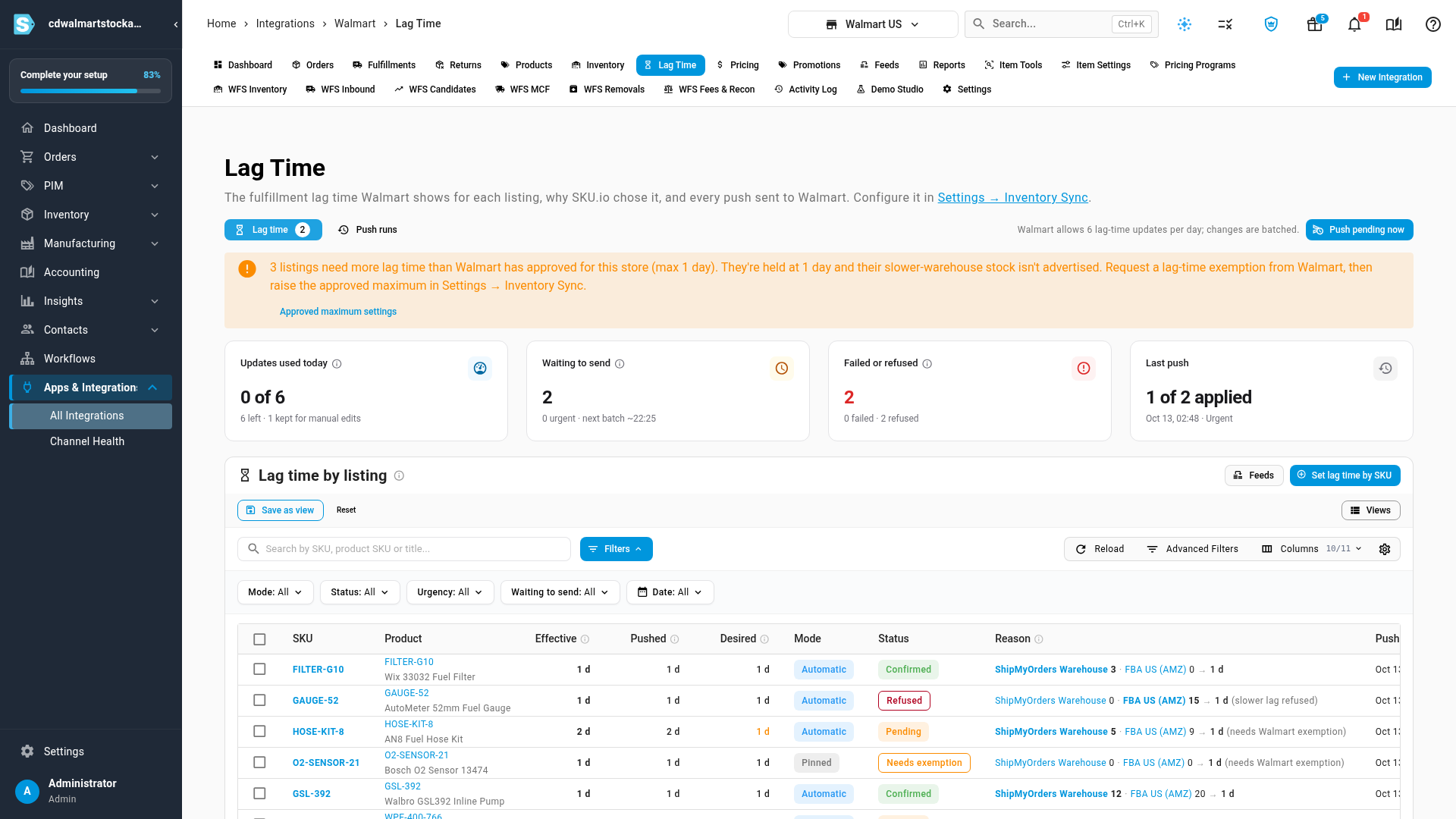
- See every decision: the new Lag Time tab shows each listing's lag time, why SKU.io chose it, and every update sent to Walmart.
- Orders routed to a slower warehouse, such as Amazon FBA, can be dispatched the moment they arrive, so that warehouse's extra day isn't spent waiting on you.
Tell SKU.io how fast each warehouse ships
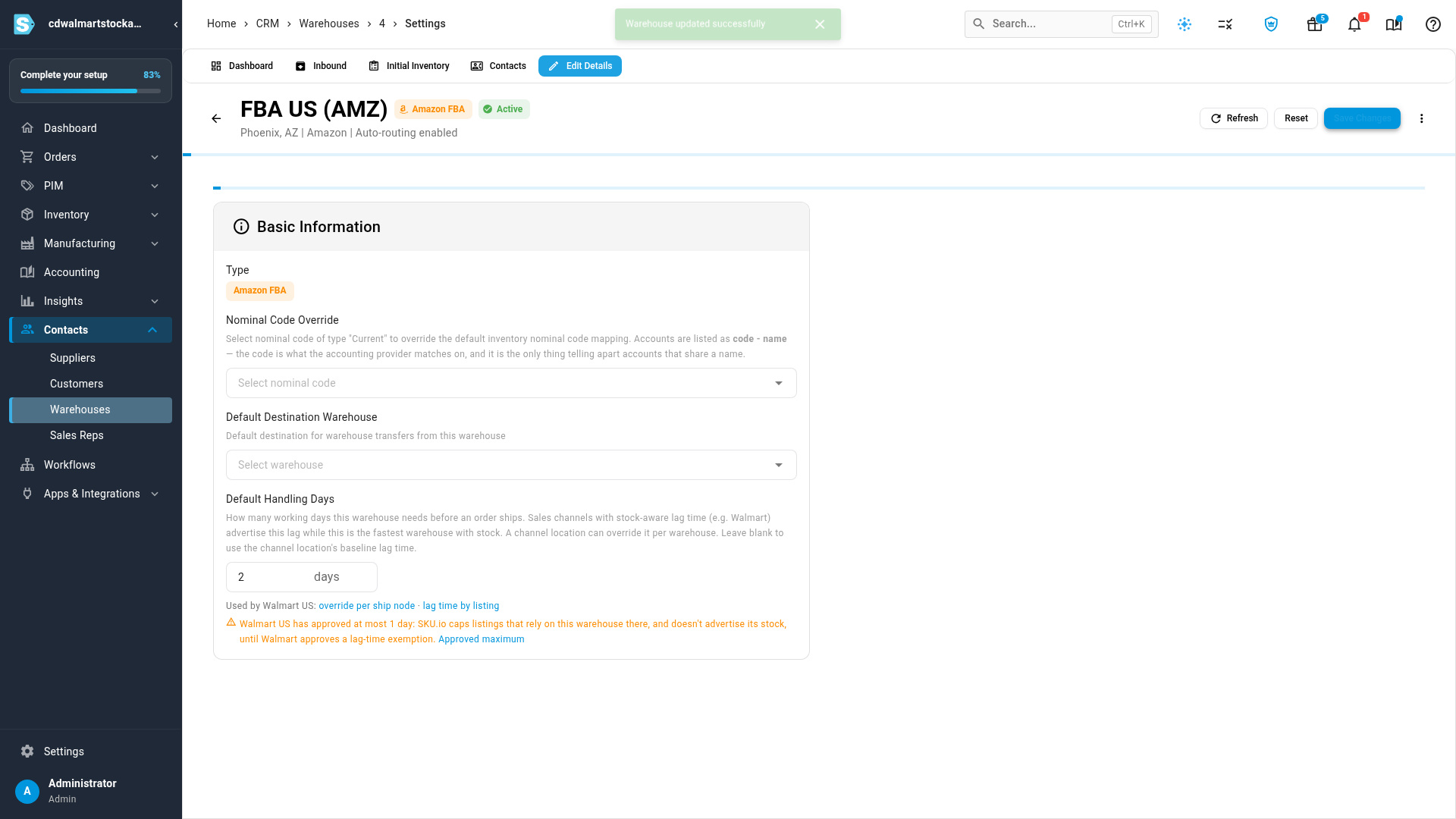
Every warehouse now has Default Handling Days: the working days it needs before an order ships. A Walmart ship node can override it per warehouse, and its baseline lag time covers anything left blank. If a warehouse needs more than Walmart has approved for one of your stores, the warehouse page says so right under the field.
Turn on automatic lag time — within what Walmart allows
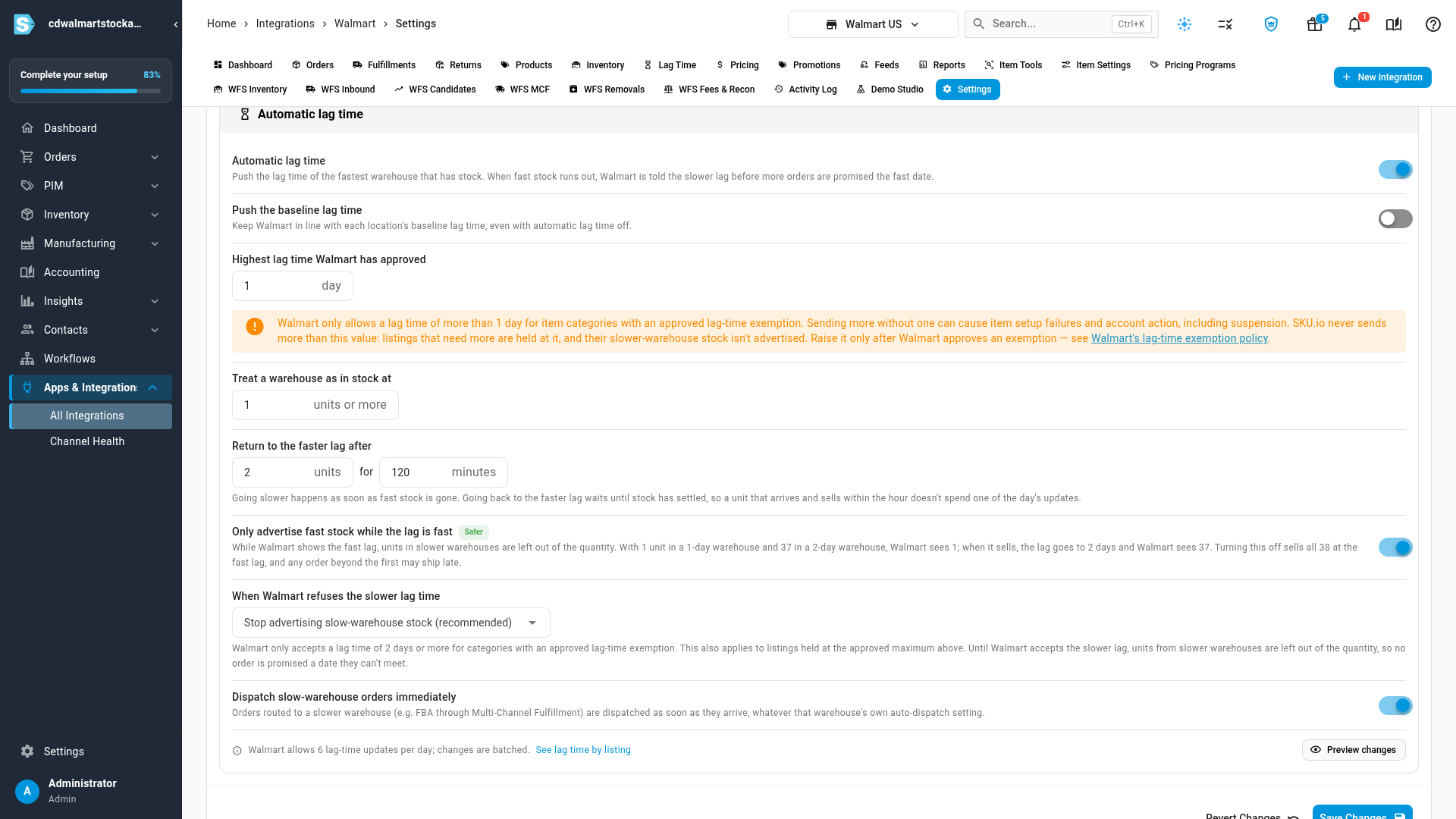
Walmart only accepts a lag time of more than 1 day for item categories with an approved lag-time exemption, and sending more without one risks item setup failures and account action. So Highest lag time Walmart has approved starts at 1 day, and SKU.io never sends more. A listing that needs more is held at that maximum, and its slower stock isn't advertised, until Walmart approves an exemption and you raise the number. Preview changes shows exactly what each listing would get before anything is sent.
See every listing's lag time, and why
The Lag Time tab lists every Walmart listing with the lag time Walmart has, the one SKU.io wants, and the reason: each stock warehouse, its units, and the one that decided. A banner counts listings that need an exemption, statuses show what's pending, confirmed, refused or held, and Push runs records every batch sent to Walmart along with Walmart's reply. Walmart allows six lag-time updates a day, so changes are batched, and anything that makes a listing slower goes first.
Pin the items that don't follow the rule
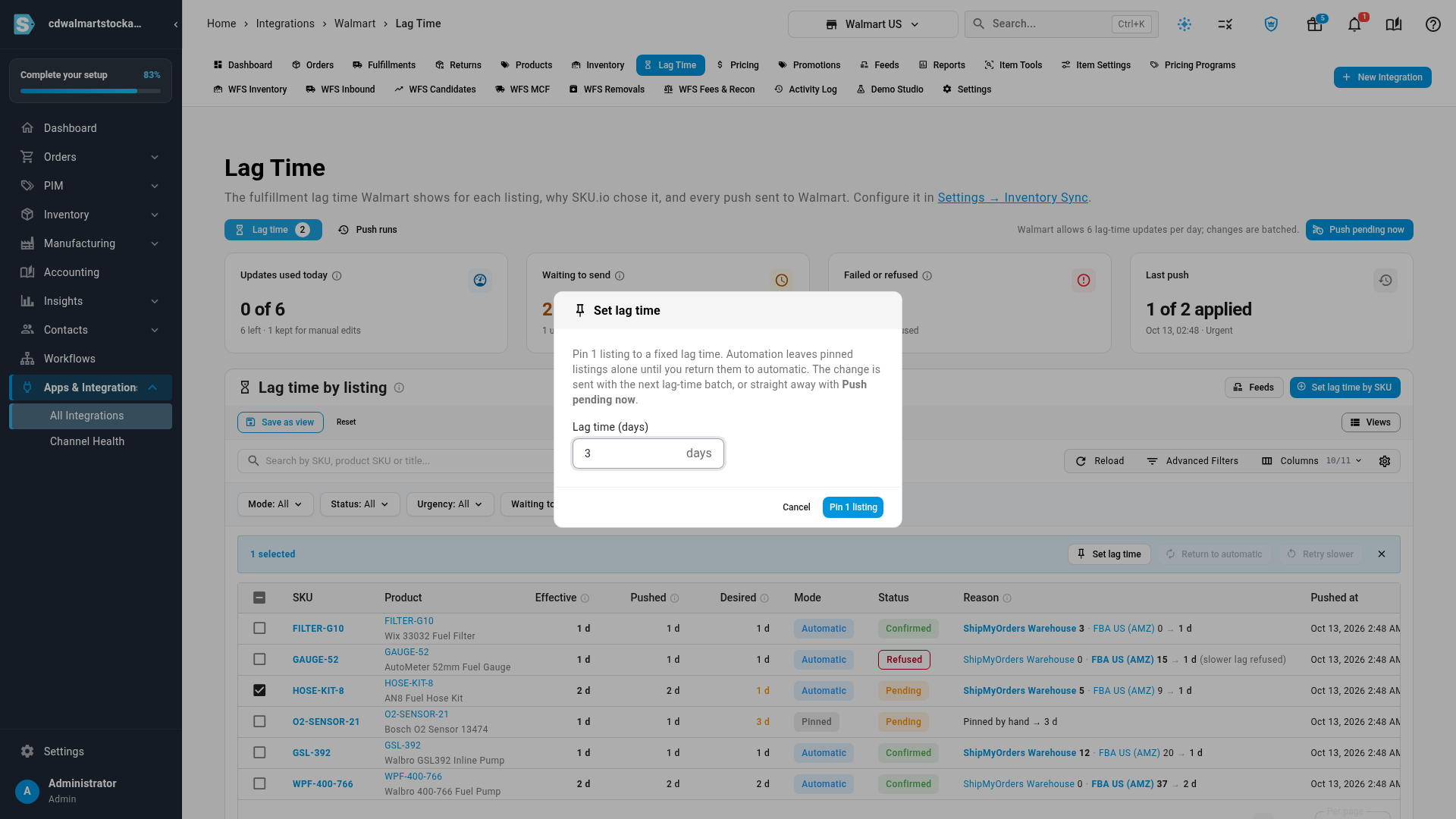
Select listings on the Lag Time tab and choose Set lag time to give them a fixed lag time that automatic lag time leaves alone, or paste a list of SKUs with Set lag time by SKU. A value above what Walmart has approved is refused with an explanation, never sent. Return to automatic hands a listing back whenever you like.
Where to find it
- Warehouse handling days: Contacts → Warehouses → (your warehouse) → Edit Details → Default Handling Days.
- Turn it on: open your Walmart channel under Apps & Integrations, then Settings → Inventory Sync → Automatic lag time.
- Review and pin: your Walmart channel's Lag Time tab.
- Full guide: Walmart lag time — set it up, pin specific SKUs, and review lag times and pushes.