Payment terms and credit limits — decide when customers pay, and how much they can owe
Payment terms used to be a purchasing-only idea in SKU.io — something you agreed with a supplier, not something you could set for the people who buy from you. So the sales side had no answer to two questions every business asks: when is this customer supposed to pay? and how much are we willing to let them owe before we stop shipping? Payment terms and credit limits answer both. Terms now work in both directions from one shared list, every customer can carry default terms and a credit limit, and you get a live picture of what each one owes against the room they have left. Turn on credit enforcement and an order that would take a customer past their limit is held in Reserved instead of quietly shipping.
✨ What this means for you:
- One shared list of payment terms, with each term marked as applying to purchasing, sales, or both — so Net 30 is defined once and used everywhere.
- Customers carry default payment terms, and every order they place inherits a payment due date that Receivables ages the balance against.
- A credit limit per customer, with current exposure and available credit shown live on their record.
- Optional credit enforcement: over-limit unpaid orders are approved into Reserved with a credit hold, so nothing ships until someone decides.
- A credit hold switch to cut off a disputed account by hand — it holds new orders and blocks On Account at the register.
- Paid orders are never credit-checked, and orders arriving from a sales channel are checked on exactly the same terms as ones you type in yourself.
One list of terms, for both sides of the business
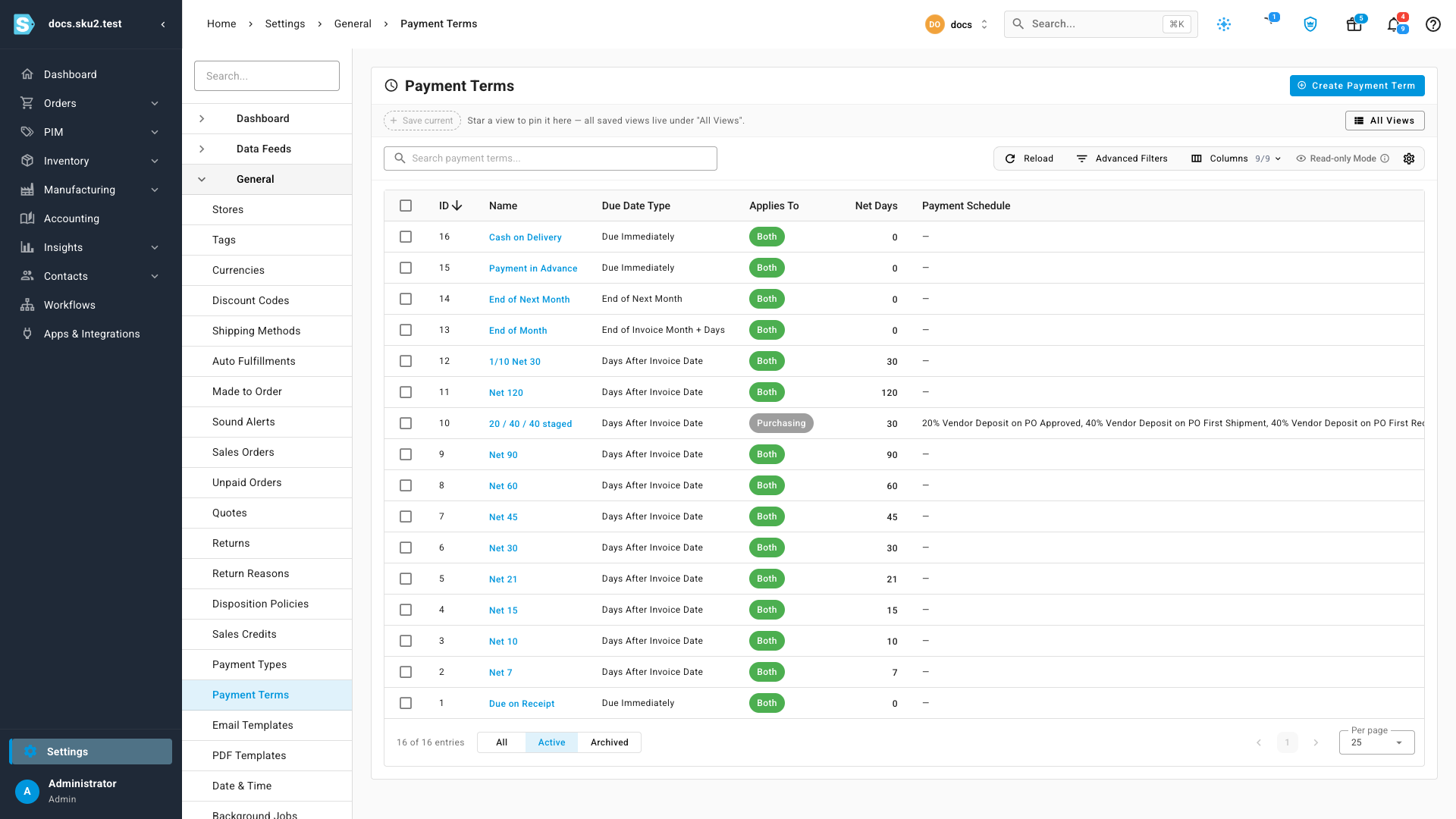
Payment terms live in Settings → General → Payment Terms. Each term records how its due date is calculated — due immediately, a number of days after the invoice date, end of month, end of next month, or a fixed day — plus any early-payment discount, so a deal like 2/10 Net 30 is expressible in full.
The new Applies To column is what makes the list serve both sides. Mark a term Purchasing for supplier-only deals, Sales for customer-only ones, or Both — the right answer for a plain Net 30. Terms that carry purchasing-only machinery, like a staged vendor-deposit schedule, are automatically pinned to Purchasing so they can never be offered on a sales order by mistake.
Give a customer terms and a limit
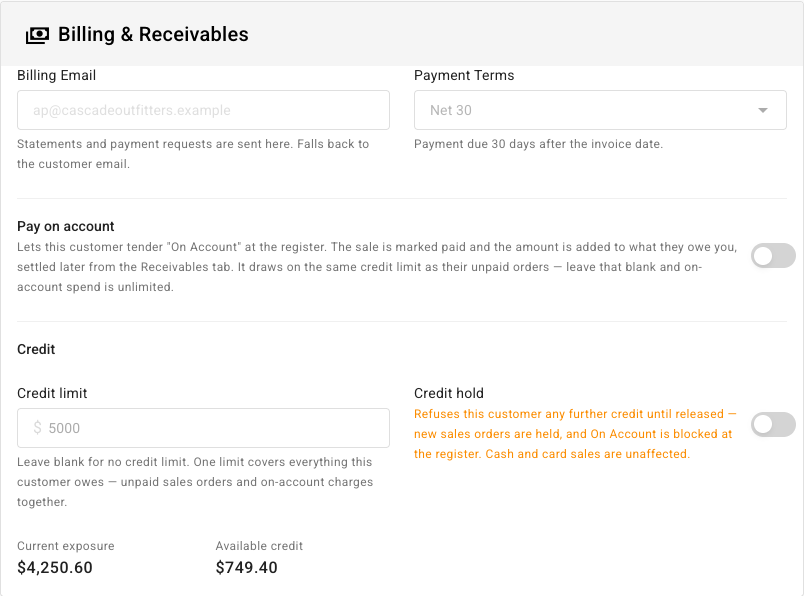
On a customer's Settings tab, Billing & Receivables is where you pick their default payment terms — only terms scoped to sales are offered — and Credit is where you set how much they're allowed to owe.
Underneath, two live figures do the work: current exposure is everything they owe you right now, and available credit is the room left against the limit. Leave the limit blank and the customer has no limit at all.
See where a customer stands at a glance
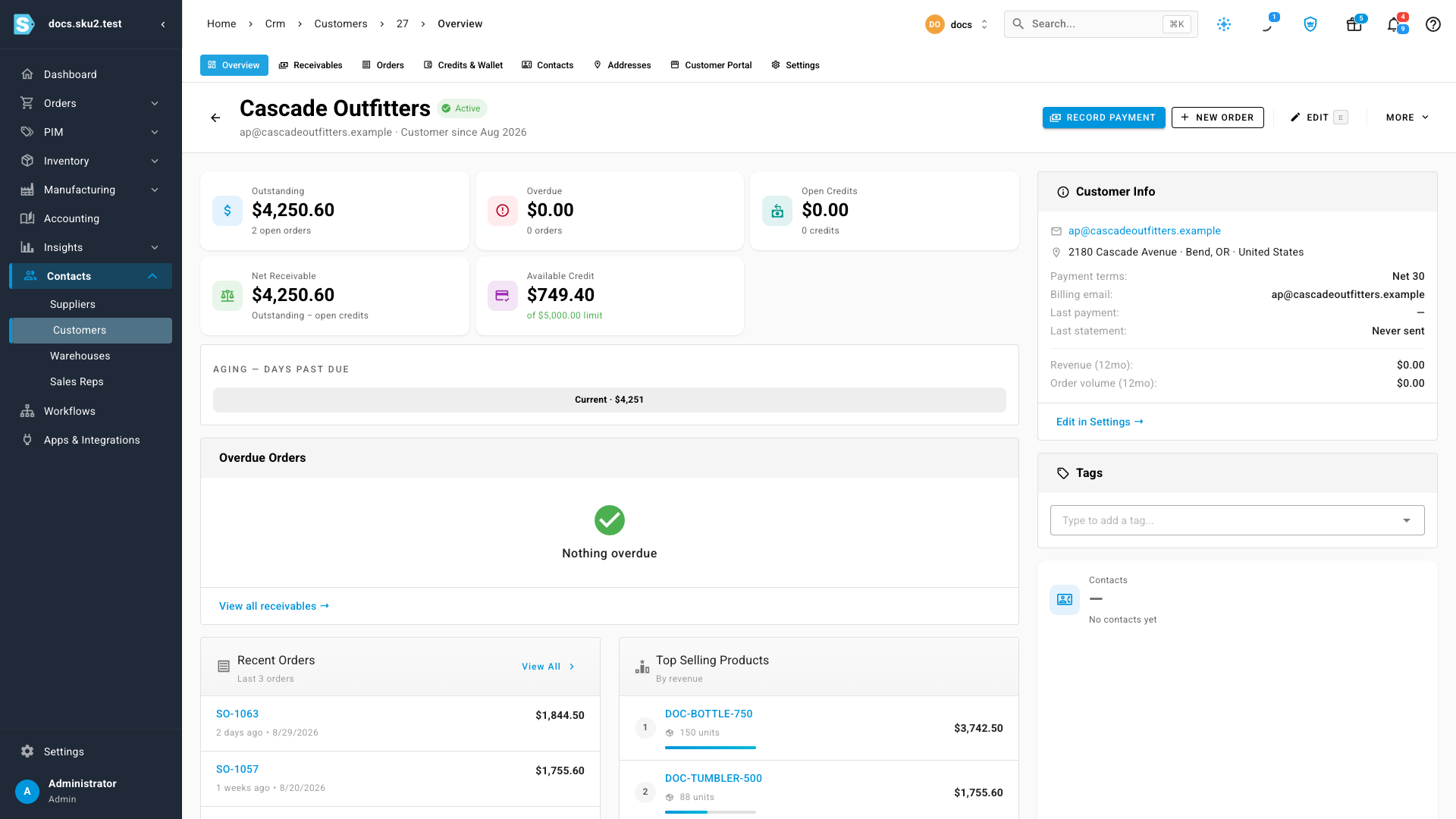
The customer's Overview leads with the same picture: Outstanding, Overdue, Open Credits, Net Receivable, and Available Credit against the limit, with an aging strip breaking the balance down by how far past due it is. For the order-by-order detail — each order, its due date, its age — the Receivables tab has the full list.
Stop an over-limit order before it ships
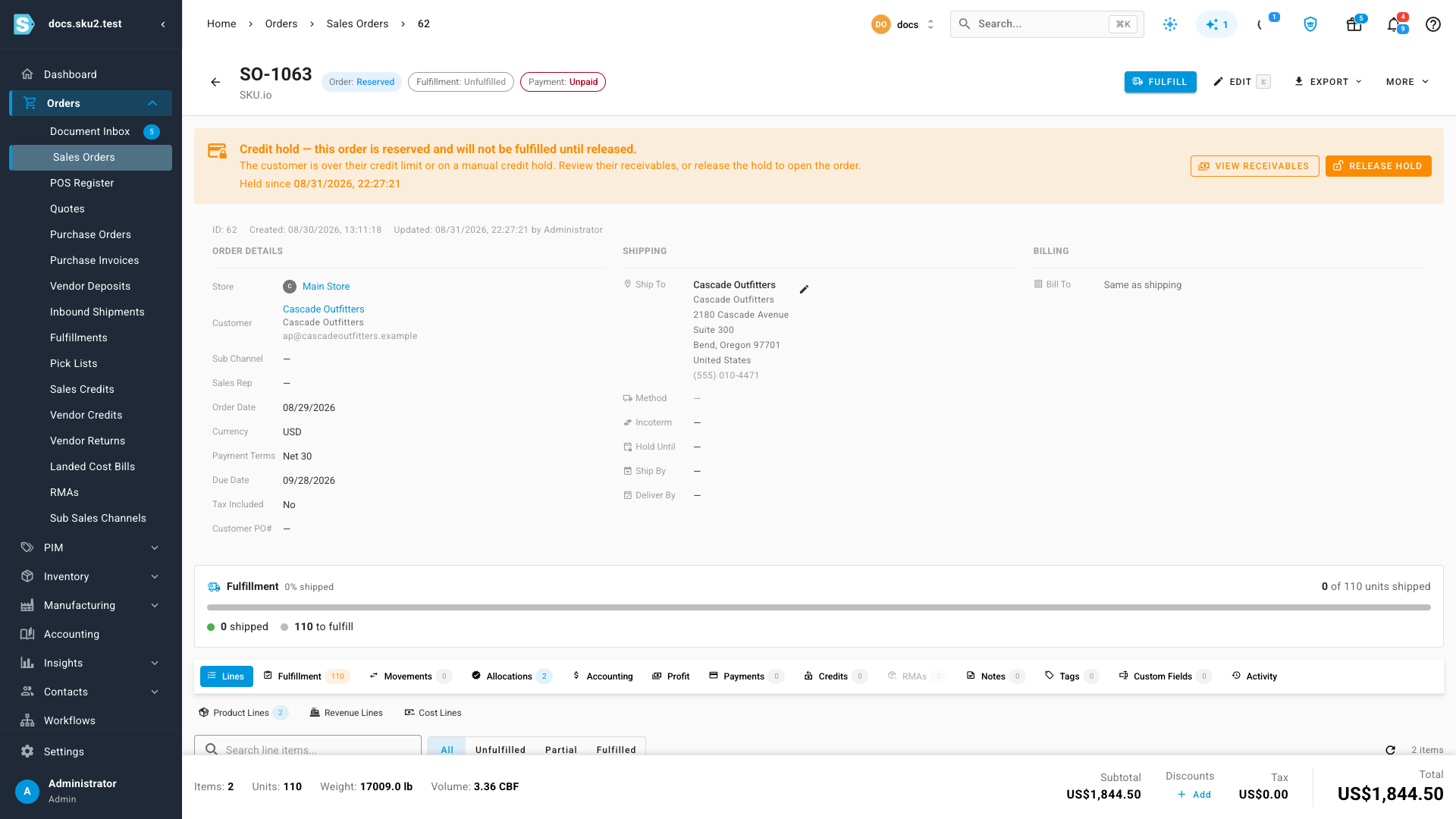
Credit checking is off until you switch it on, in Settings → General → Sales Orders → Credit limit enforcement. There are three modes: Off does no checking, Warn shows a warning on the order form but opens the order normally, and Hold approves an over-limit unpaid order into Reserved with a credit hold on it.
A held order is approved and its stock is committed, but it cannot be fulfilled. A banner across the top explains why and gives you the two ways forward — review what the customer owes, or release the hold and open the order. Releasing is recorded against the order, so you can see who made the call and when, and it affects only that order: the next one is judged on its own merits. An order that gets paid in full while it's held releases itself.
One credit line per customer
If you sell at the register, a customer set up to pay on account can tender On Account and settle later. Those charges draw on the same credit limit as their unpaid orders — one limit covering everything they owe, not two separate allowances. A customer sitting near their limit on open orders has correspondingly less room at the till, and a credit hold stops both. It doesn't stop the sale itself: cash and card tenders are unaffected, and paying an existing balance down is always allowed.
Where to find it
- Settings → General → Payment Terms — create and scope the terms your business uses.
- Contacts → Customers → (a customer) → Settings — set their default terms, credit limit, and credit hold.
- Settings → General → Sales Orders → Credit limit enforcement — choose Off, Warn, or Hold.
- Orders → Sales Orders — filter by Credit hold status to work everything currently held as a queue.
Full guides: Set up payment terms · Set a customer's payment terms and credit limit · Manage credit holds on sales orders