Purple Dot pre-orders — your purchase orders and pre-orders finally in step
If you sell pre-orders through Purple Dot, the shopper's order sits in Purple Dot until stock arrives, so your inventory system never sees it. Purchasing can't tell how much incoming stock is already sold, Purple Dot doesn't know when your purchase orders will really land, and when stock arrives someone has to work out by hand how many pre-orders can go out. The new Purple Dot integration connects the two. Every held pre-order joins your backorder queue and is covered by a purchase order. Your incoming stock and its dates go to Purple Dot as planned inventory. Receiving stock tells Purple Dot exactly how many pre-orders it may release.
✨ What this means for you:
- Held pre-orders show up in your backorder queue, each covered by the purchase order that will fill it, so incoming stock is never promised twice.
- Your incoming purchase orders (and, if you choose, warehouse transfers) are sent to Purple Dot as planned inventory with their expected dates, so it sells against real supply.
- When a purchase order's date slips, SKU.io holds the new date for your approval before Purple Dot emails shoppers.
- Receiving a purchase order allocates the stock to the waiting pre-orders and tells Purple Dot how many it may export to Shopify.
- When Purple Dot exports a pre-order, the new Shopify order takes over its reserved stock instead of being allocated twice.
- Returned pre-orders can be refunded through Purple Dot from the order's return.
One dashboard for every held pre-order
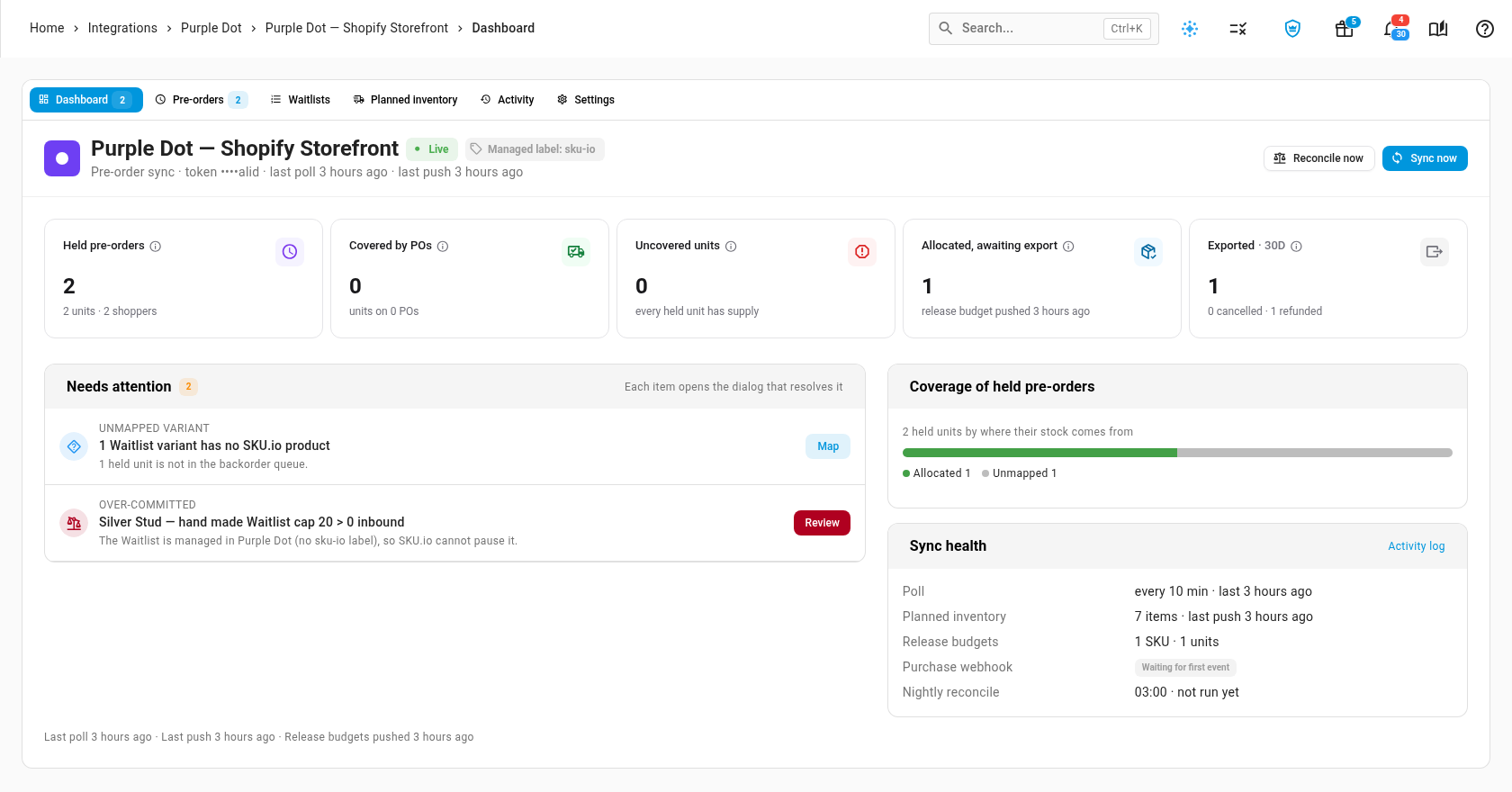
Connect Purple Dot from Apps & Integrations with your Purple Dot API token and the Shopify store it runs on. A dry run shows exactly what will be sent before anything goes live. After that, the Purple Dot dashboard shows how many pre-orders are held, how many units are covered by purchase orders, and anything that needs you, such as a Purple Dot product that isn't matched to a SKU.io product yet.
Every pre-order, with its coverage and status
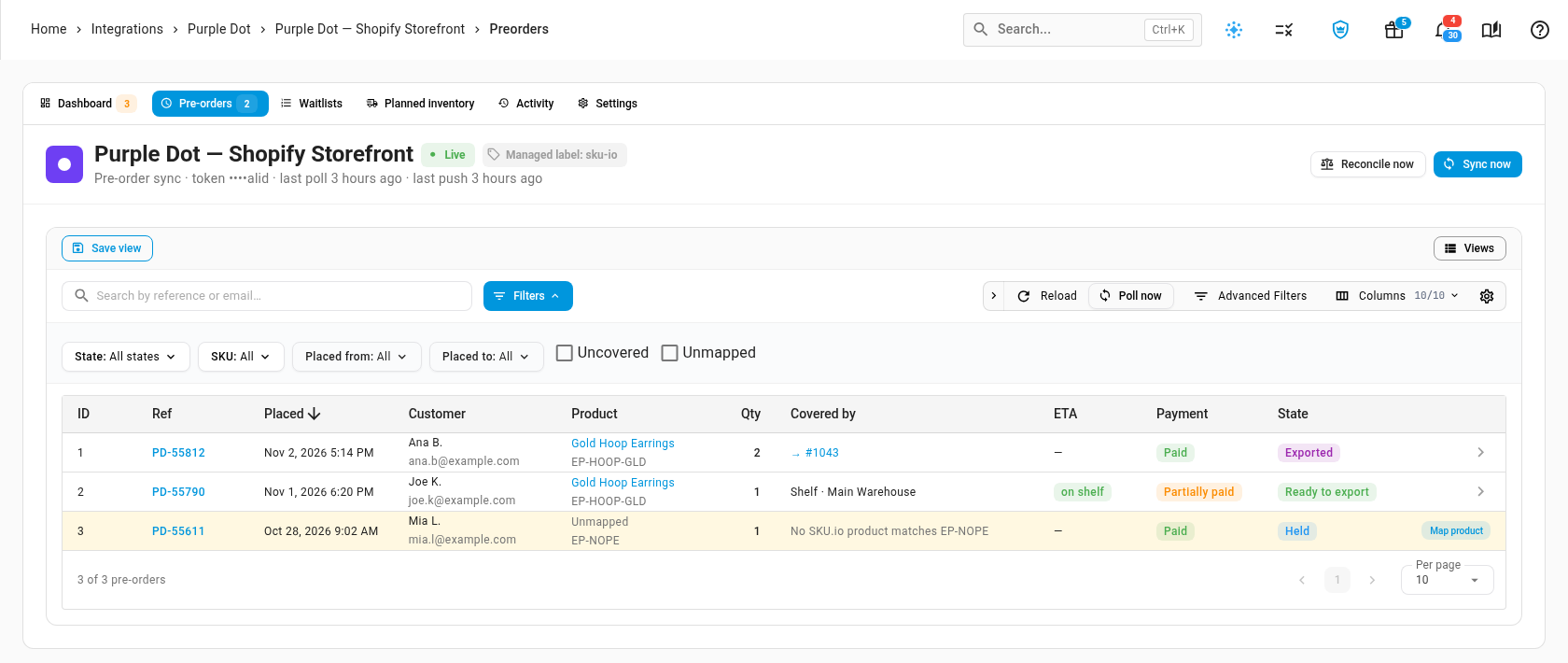
The Pre-orders tab lists each pre-order with its shopper, product, quantity, what covers it (a purchase order line, shelf stock, or the Shopify order it became), its expected date, payment status and state. Filter to uncovered or unmapped pre-orders to see what needs attention, and open any row for its full detail.
Planned inventory that follows your purchase orders
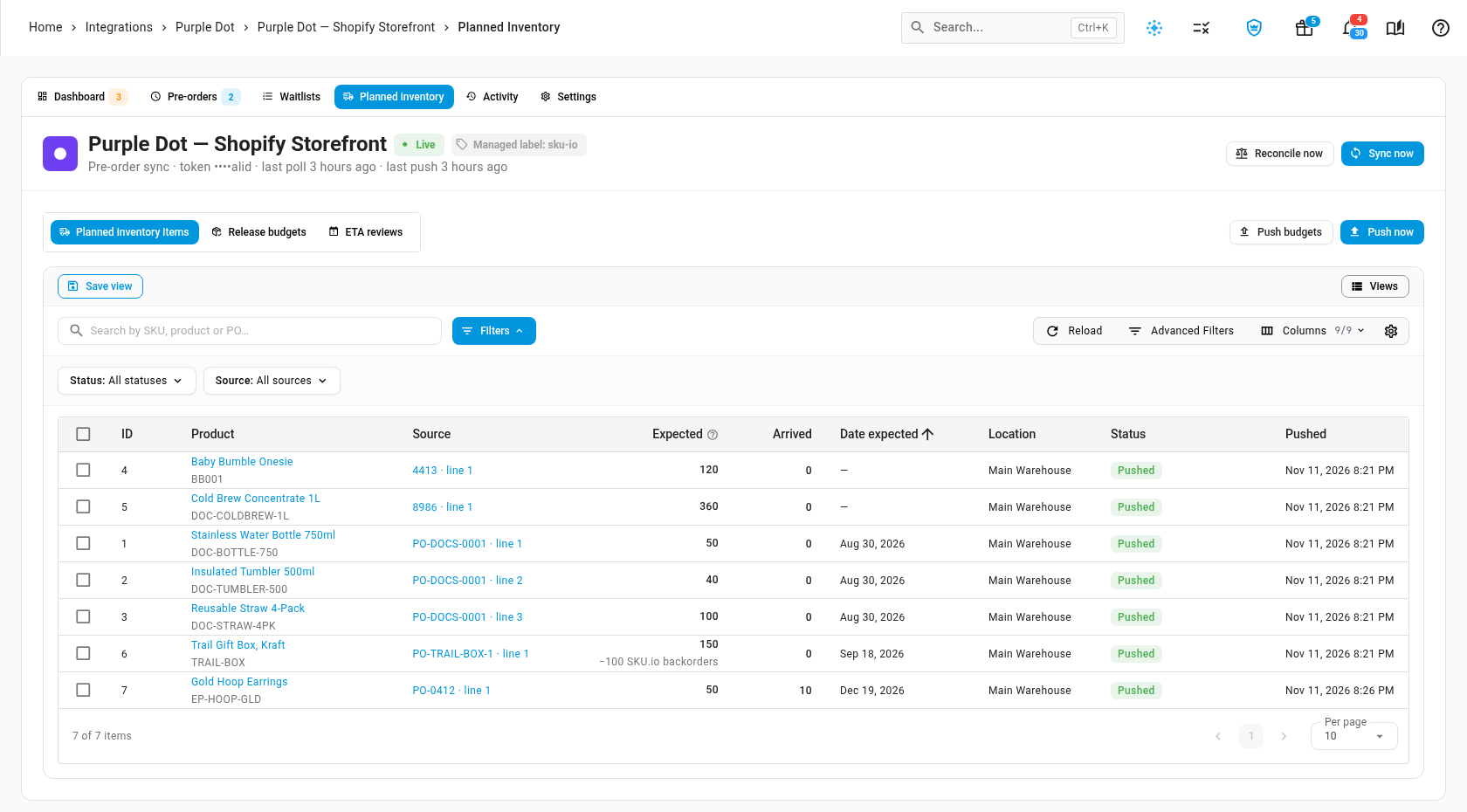
The Planned inventory tab shows exactly what SKU.io has sent to Purple Dot: each incoming purchase order or transfer line, the units expected and already arrived, the expected date and the warehouse. It's updated as your purchase orders change. The Release budgets and ETA reviews views next to it show how many pre-orders Purple Dot may export, and any slipped dates waiting for your approval.
Where to find it
Go to Apps & Integrations → All Integrations, search for Purple Dot and choose it under Pre-orders to connect it. Once it's live, its dashboard, pre-orders, Waitlists, planned inventory, activity and settings are all on the connection's page, and Purple Dot pre-orders appear in Inventory → Backorder Queue with their own demand type.
Full guide: Connect Purple Dot pre-orders, with a video walkthrough.