Ecommerce standard chart of accounts — a chart built for selling on marketplaces
A general-purpose chart of accounts doesn't fit how an online seller makes money. Shipping you charge lands in Sales, marketplace fees, fulfillment fees and storage fees pile into one line, and anything a payout can't place falls back to a catch-all you have to clean up at month end. Fixing it by hand means creating a dozen accounts and pointing every mapping at the right one. The ecommerce standard chart of accounts does that for you. New accounts start with it, and if you're already set up, Apply ecommerce standard shows you exactly what's missing and adds only that, leaving everything you've already set exactly as it is.
✨ What this means for you:
- A chart made for marketplace selling: shipping income, sales discounts, marketplace reimbursements, separate accounts for referral, fulfillment, storage and other marketplace fees, merchant processing fees, advertising, and a clearing account for each channel.
- Fees sit above gross margin: marketplace and processing fees are cost of sales, so your gross margin is what you keep after selling on each channel. Advertising stays an operating expense.
- Purchases are split properly: goods you've received but not been billed for and bills you've paid ahead of delivery go to two separate accounts, so each one can be reconciled.
- Payouts have somewhere sensible to go: lines with no mapping post to Marketplace Reimbursements (money in) or Marketplace Fees: Other (money out), so they're easy to find and reclassify.
- Adding it is safe: you see a full preview first. Nothing already set is remapped, renamed or deleted, and nothing is written in a locked period.
- One chart, every channel in your reports: tag revenue, cost of goods sold, marketplace fees and FBA inventory with the sales channel in Xero or QuickBooks Online.
See exactly what's missing before anything changes
On Nominal Code Mappings, click Apply ecommerce standard. SKU.io compares your chart and mappings with the standard and lists every difference in one table: accounts it would add, mappings it would fill, and how many settings are already set and left untouched. When you already have a matching account, it's reused instead of duplicated. When a standard account number is already taken, the new account uses the next free number, and the row tells you so.
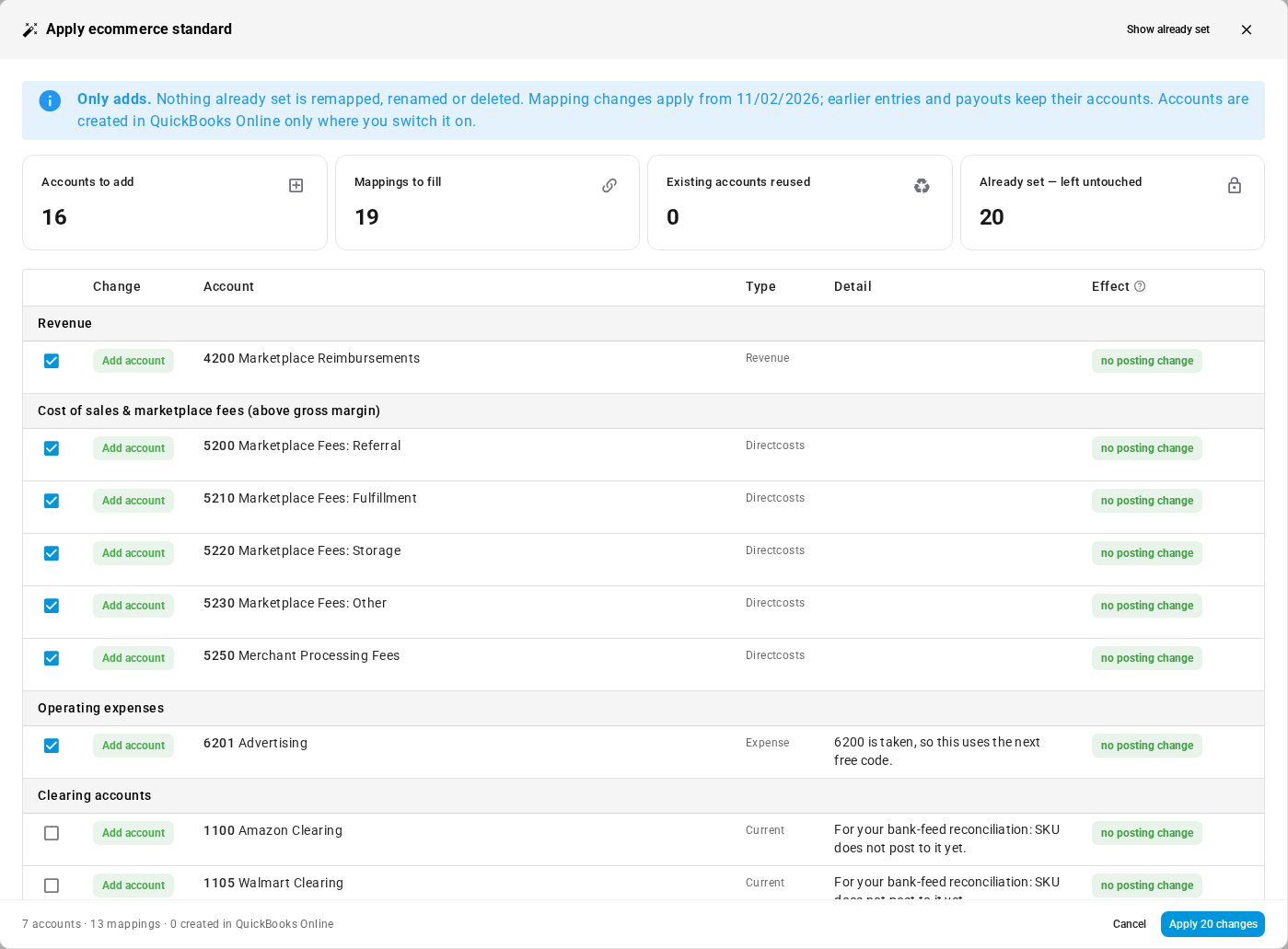
Every row says what ticking it does to your books. No posting change means the account simply becomes available. Changes future postings means entries that fall back to another account today will post to the new one, starting from the date shown. Earlier entries and payouts keep their accounts. If you use Xero or QuickBooks Online, accounts are created there only where you switch it on.
Put marketplace fees in the right place
The standard also fills payout mappings that are still empty. Fee types SKU.io recognizes are matched to the right fee account (for example, referral and final value fees to Marketplace Fees: Referral and ad fees to Advertising), and each channel's fallback for unmapped lines is set. Types it doesn't recognise, and anything you've already mapped, are left alone.
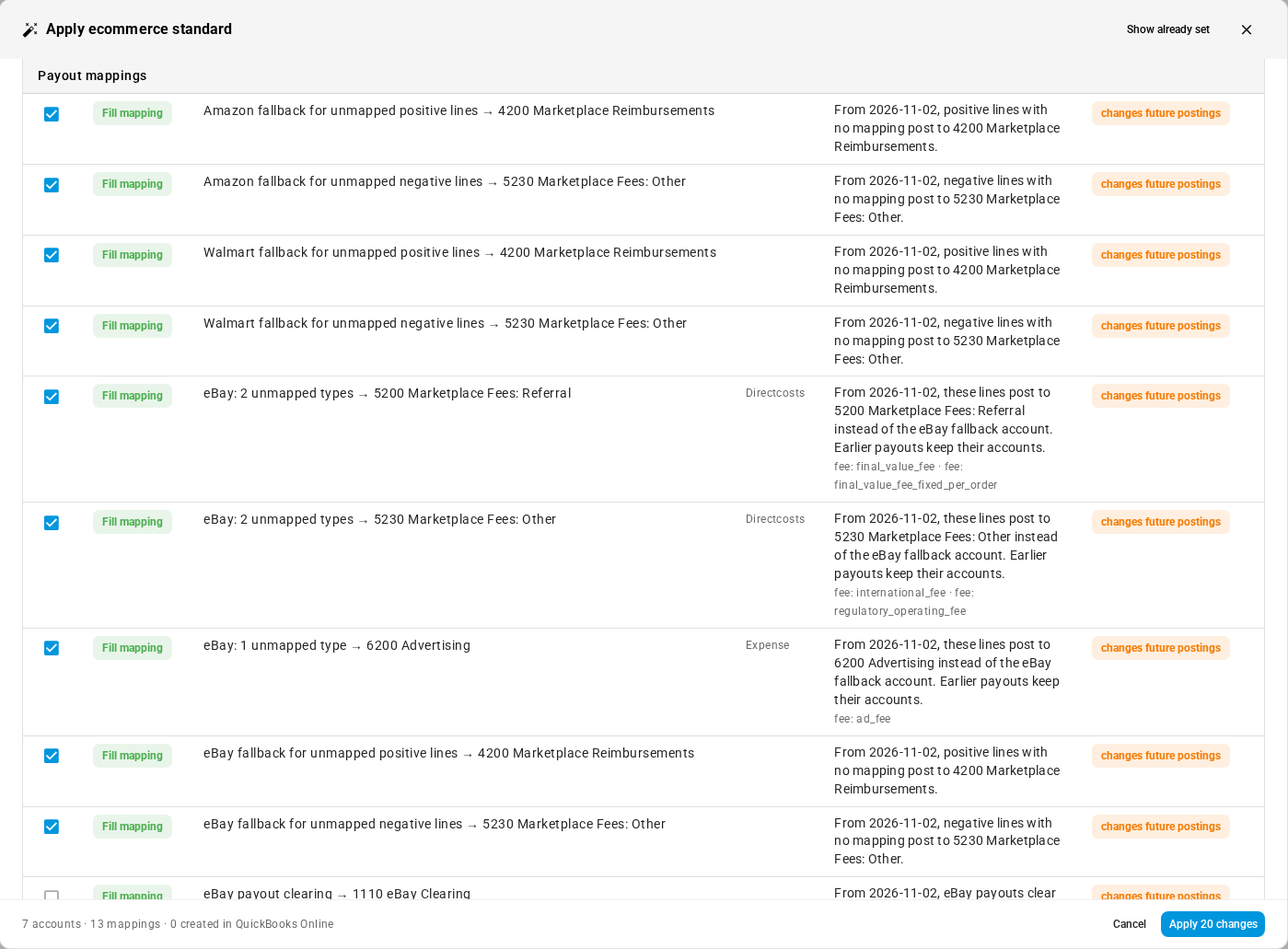
A few rows start unticked on purpose. The split for goods received but not billed changes how purchases post, so you choose it yourself, and existing history is only restated with SKU support's help. Clearing accounts for channels whose deposits SKU.io doesn't post through yet are offered for your bank-feed reconciliation, but are off by default.
Apply in one step
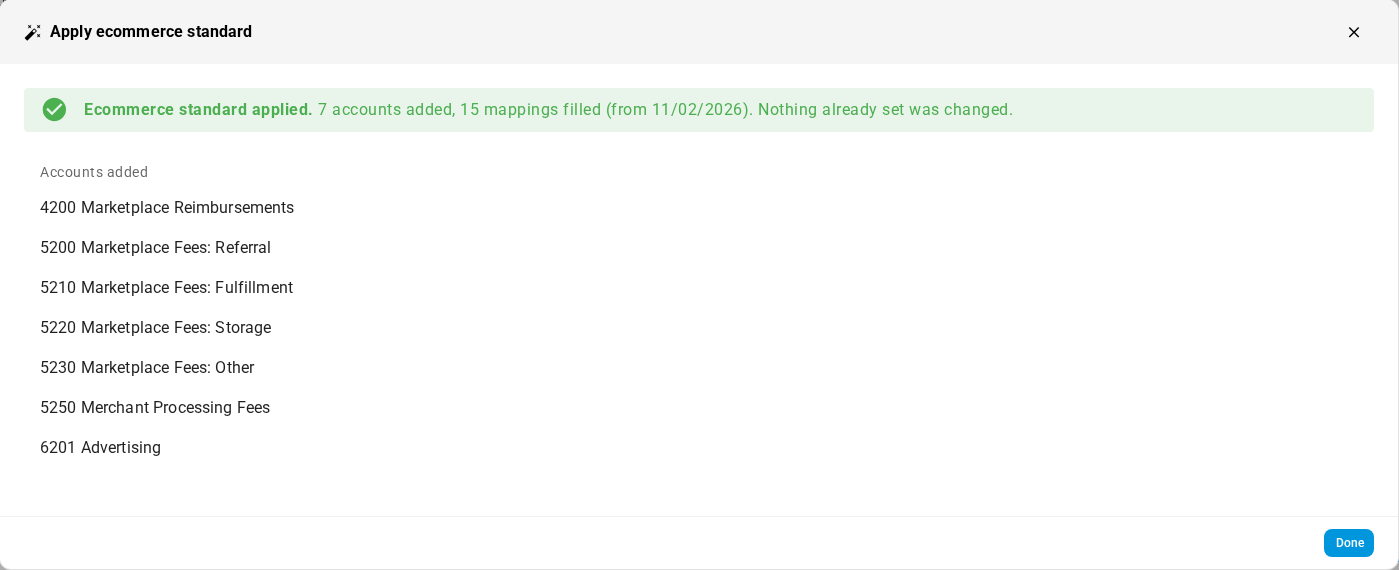
Tick the rows you want and click Apply (the button shows how many changes you picked). SKU.io confirms how many accounts it added and how many mappings it filled, and from which date, and links each new account so you can open it straight away.
Report by channel without a longer chart
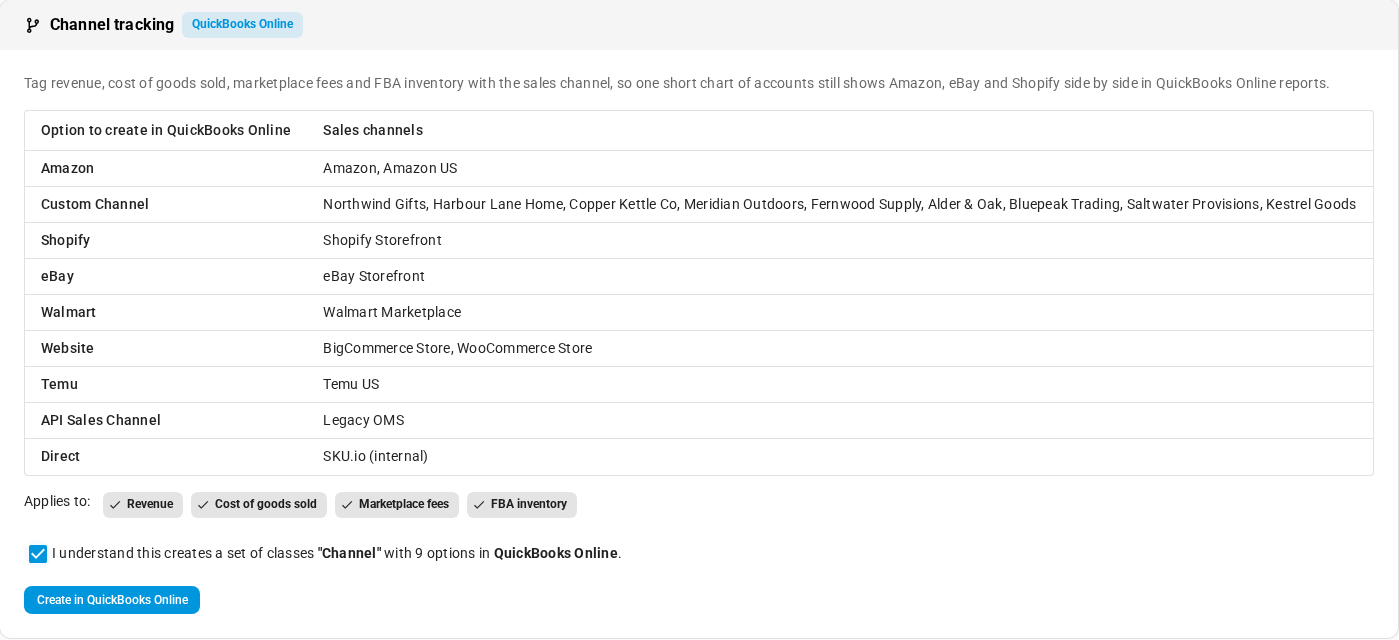
The standard keeps one short chart and uses channel tracking to tell your channels apart. On Tracking Categories, the Channel tracking card shows exactly what it will create in your accounting software: a Channel tracking category in Xero, or a set of classes in QuickBooks Online, with one option per kind of sales channel. It applies to revenue, cost of goods sold, marketplace fees and FBA inventory. Nothing is created until you tick the box confirming it. New accounts that connect Xero or QuickBooks Online are offered the same step during setup. See Tag entries by channel with tracking categories for how tagging works.
Where to find it
Go to Accounting, click Settings, and open Nominal Code Mappings. Apply ecommerce standard is at the top of the panel. Channel tracking is under Settings → Tracking Categories. New accounts get the ecommerce standard chart automatically when they set up accounting.