Repairs & Warranty — run every repair from claim to credit in SKU.io
If you stand behind what you sell, repairs tend to live outside your system: a spreadsheet of who sent what, an inbox of "where's my piece?", and no real answer to what your guarantee costs. Send a customer's item through a normal return and it can even end up counted as your own stock. Repairs & Warranty gives after-sales its own home in SKU.io. Every claim, from any channel, gets a coverage decision, a place on the board, a cost record, and a clear ending — repaired and returned, replaced, credited, or written off.
✨ What this means for you:
- One queue for every claim — your own repair form, the Customer Portal for wholesale buyers, the Receive Station, Gorgias, Loop Returns, AfterShip Warranty, Corso, Claimlane, or your own system through the API.
- Coverage answered for you — warranty policies and registrations decide whether a piece is in warranty, so nobody checks purchase dates by hand.
- A customer's item stays the customer's — a piece sent in for repair is never counted as your stock.
- Every cost in the right place — parts, labour and freight are recorded on the repair and billed to warranty or to the customer.
- Money back from suppliers — charge manufacturing defects back to the supplier that made them, and spot failing products and lots early.
- Customers kept in the loop — a status page they can follow, and emails you can edit.
One list and one board for every repair
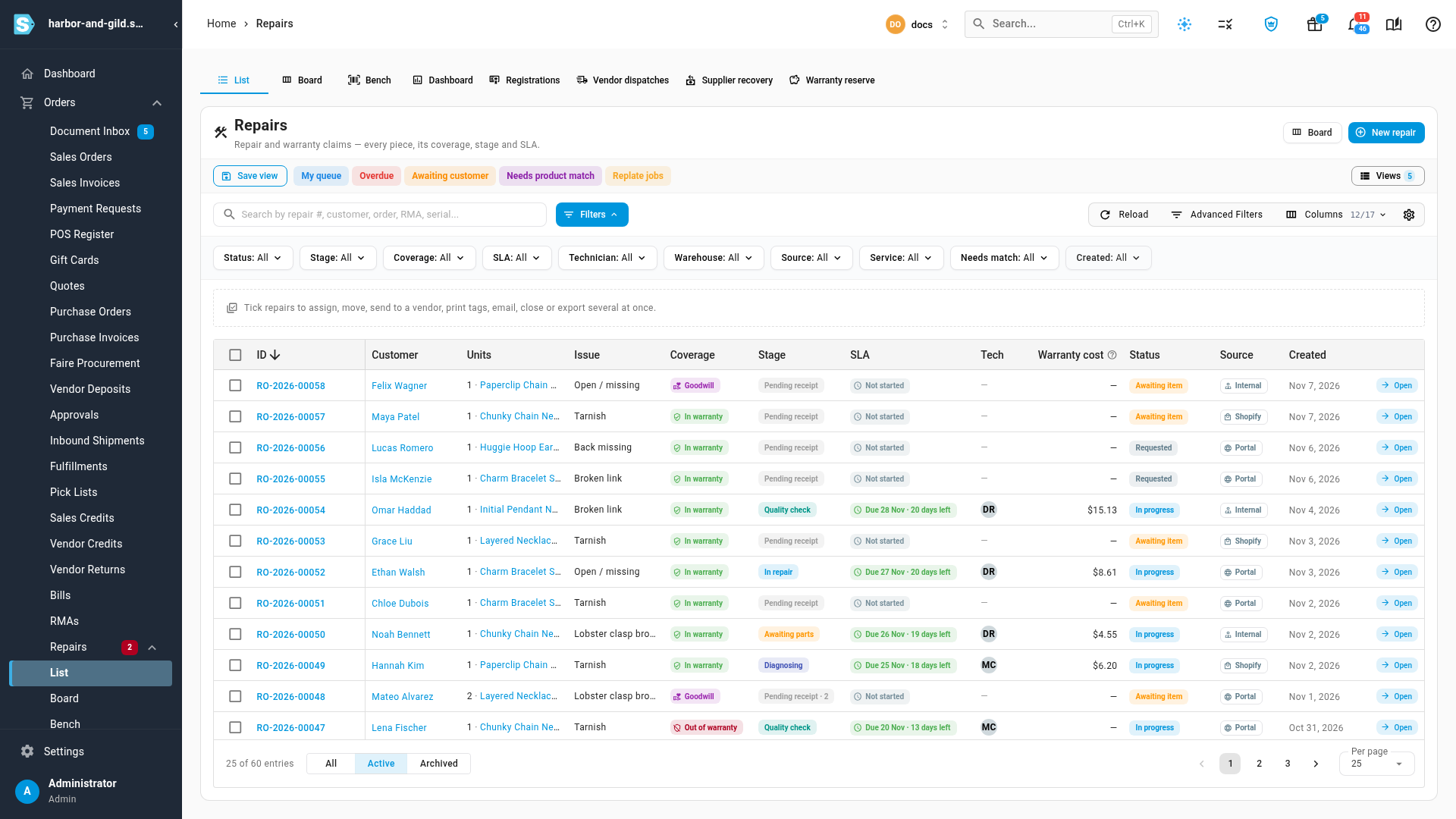
Orders → Repairs shows every piece in repair with its coverage, stage, turnaround clock and technician. Filter it, save a view such as My queue or Overdue, and act on several repairs at once.
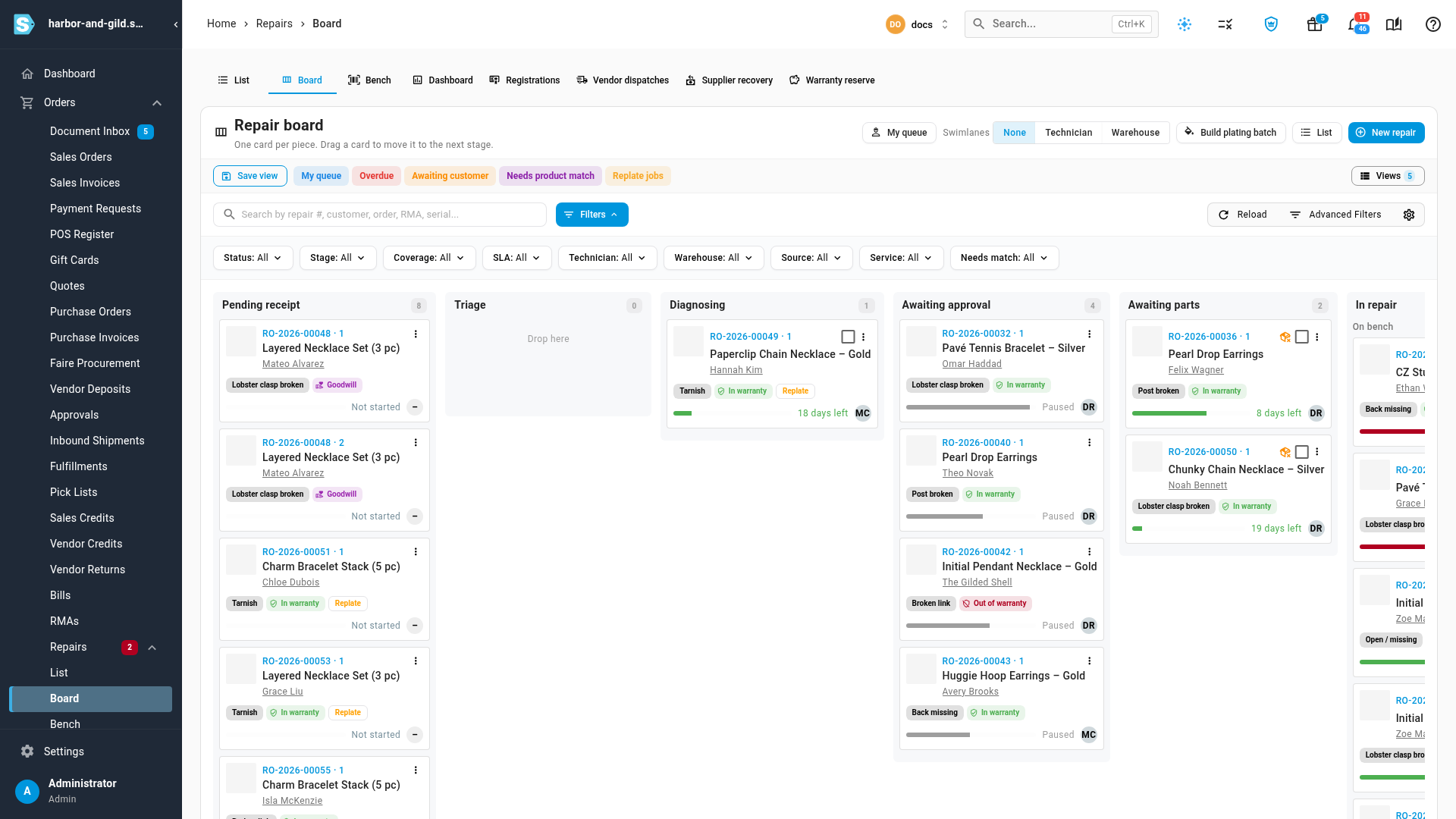
Prefer to see the work move? The Board gives each piece one card and a column for every stage, from Pending receipt to In repair and beyond. Drag a card to move it on. Technicians get a Bench view of their own queue, where they can scan a repair tag to pull up the next job.
Everything about a repair on one page
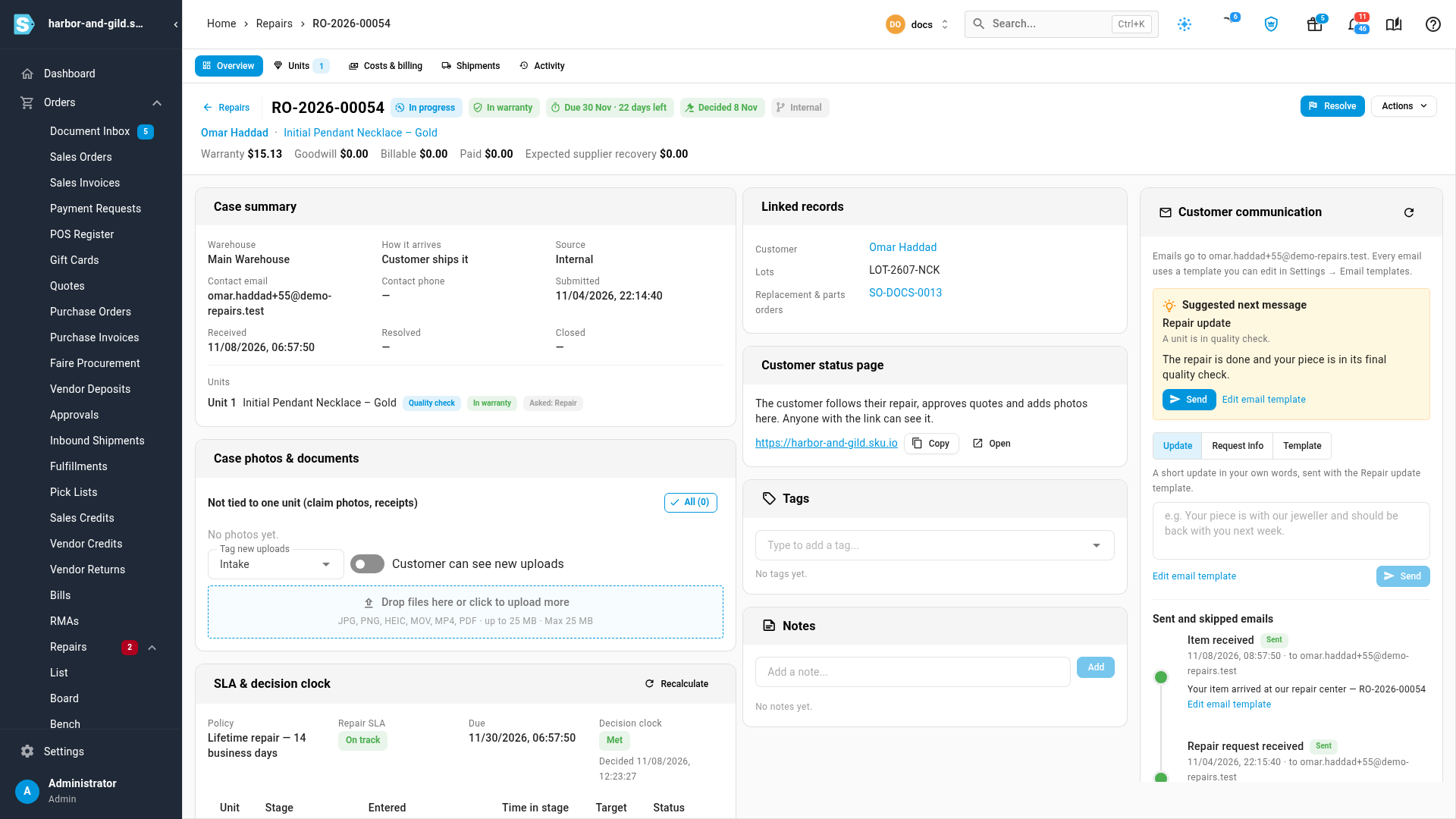
A repair's own page holds the whole story: the turnaround clock, what's been spent so far, linked records, photos, notes and every email sent. SKU.io suggests the next message to send, and each customer gets a status page where they can follow their repair, approve quotes and add photos.
From here you diagnose each unit against your inspection checklists, add parts and labour, and quote the customer when the repair isn't covered. Then choose how it ends.
Send work out, and get your money back
When a piece needs outside work, a vendor dispatch tracks it there and back, and a plating batch groups pieces of the same finish into one trip.
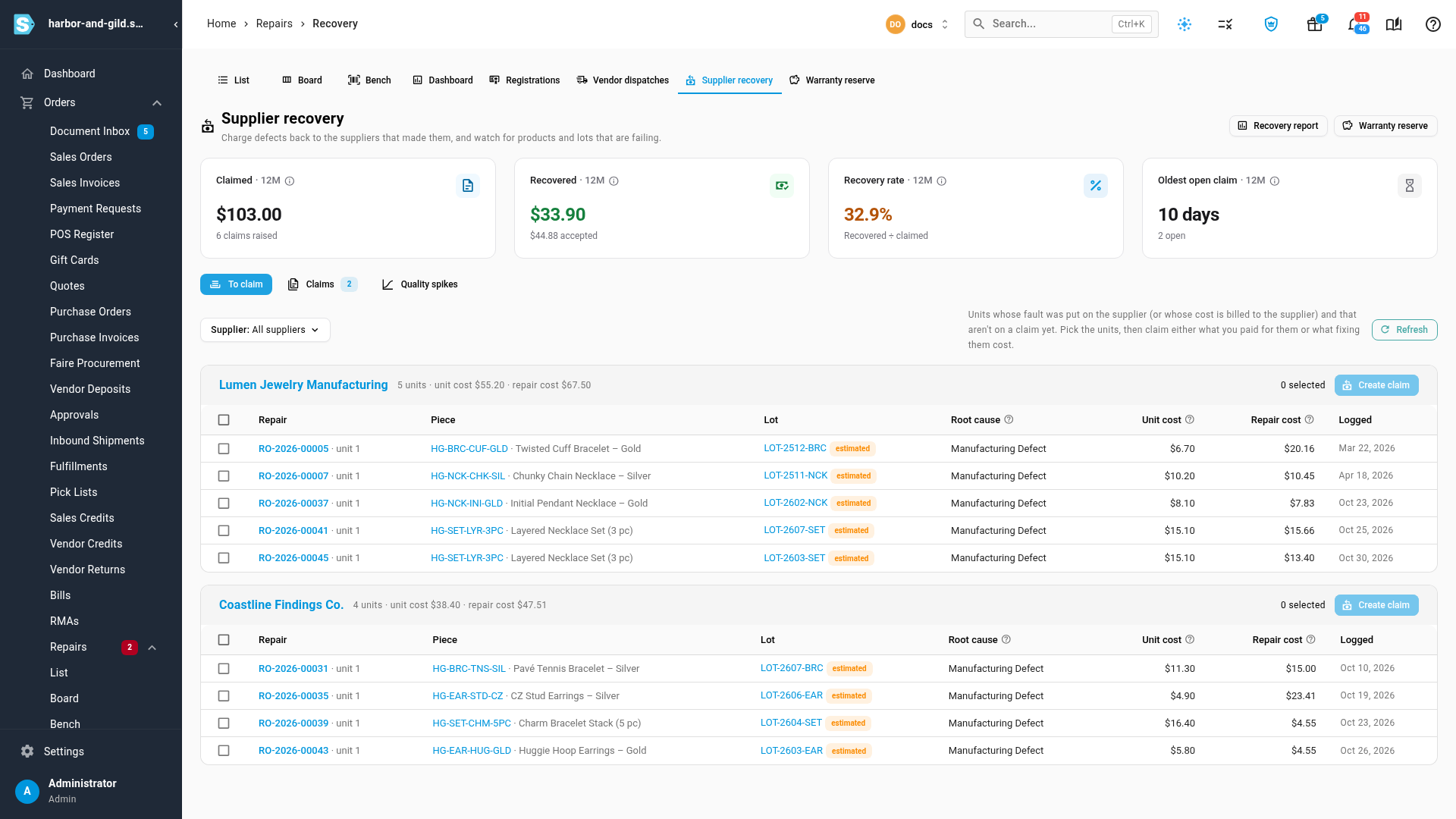
If the fault was the supplier's, Supplier recovery gathers those units by supplier, with the unit cost and the repair cost next to each one. Raise a claim, record the supplier's answer, and settle it. The Quality spikes tab flags products and suppliers failing more often than usual.
Finally see what your guarantee costs
The repairs Dashboard and reports cover repair rates, warranty cost, margin, turnaround and technician productivity. If you accrue for future warranty costs, the Warranty reserve page shows the balance, runs each month's accrual, and lets you post a true-up.
Where to find it
- Repairs: Orders → Repairs — List, Board, Bench, Dashboard, Registrations, Vendor dispatches, Supplier recovery and Warranty reserve.
- Set it up: Settings → Repairs & Warranty — warranty policies, issue types, inspection checklists, turnaround targets, rates, your customer repair portal and claim sources.
- In the app: press H on a Repairs screen to open its guide and video.
Full guide: Repairs & Warranty overview