Customer portal branding and Home page — your portal, your brand
Your customer portal is the one part of SKU.io your buyers actually see. Until now it looked like SKU.io: our colours, our icon in the browser tab, and a sign-in page and emails with no sign of your business. And once buyers signed in, they went straight to the catalog, so you had nowhere to tell them about a promotion, a new warehouse or a holiday cut-off. Portal branding and the new portal Home page fix both. Upload your logo and pick your colours once, and every page, the sign-in screen and every portal email carries your brand. Buyers can now land on a Home page with your announcements, their account at a glance, and the products you want them to see.
✨ What this means for you:
- Your logo, colours and name appear on every portal page, the sign-in page, the browser tab and every email the portal sends to buyers.
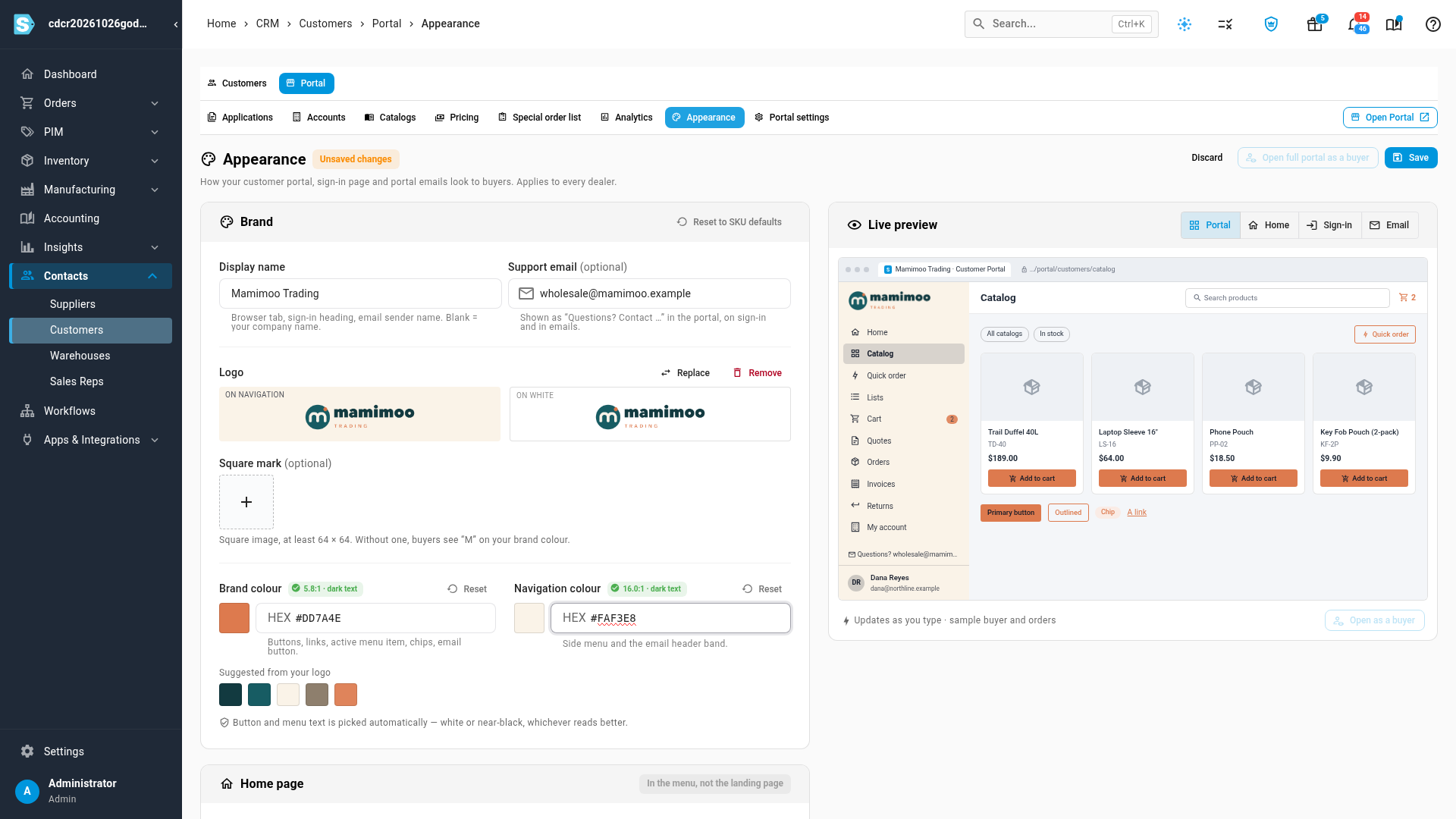
- Text stays readable on any colour you pick. Button and menu text switches to white or near-black automatically, and you get a warning if a colour is hard to read.
- A live preview shows the portal, Home page, sign-in page and email as you type, before you save.
- Announcements sit at the top of the buyer's Home page. Schedule them ahead, and pin the ones buyers shouldn't dismiss.
- Featured products respect each buyer's catalogs and show their own prices, so nobody sees something they can't order.
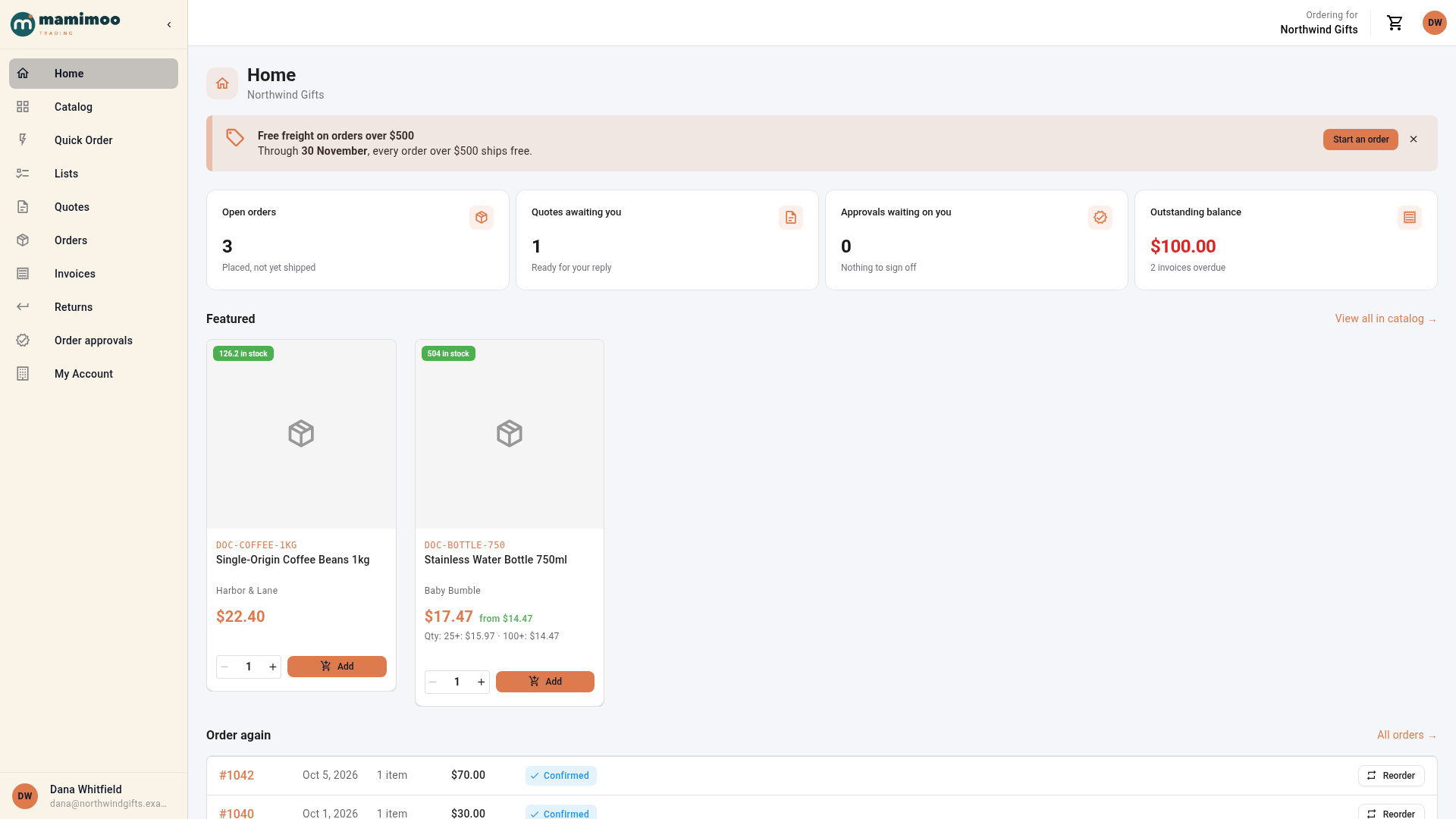
- Buyers get their account at a glance: open orders, quotes waiting on them, approvals and balance due, plus one-click Reorder on recent orders.
Make the portal look like your business
The new Appearance tab is where you brand the portal. Add a display name and a support email, upload your logo and an optional square icon, then choose a brand colour and a navigation colour. SKU.io suggests colours taken from your logo, so you don't need to know your brand's hex codes. The live preview on the right updates as you type, and switches between the portal, Home, sign-in and email views.
Your brand from the first screen
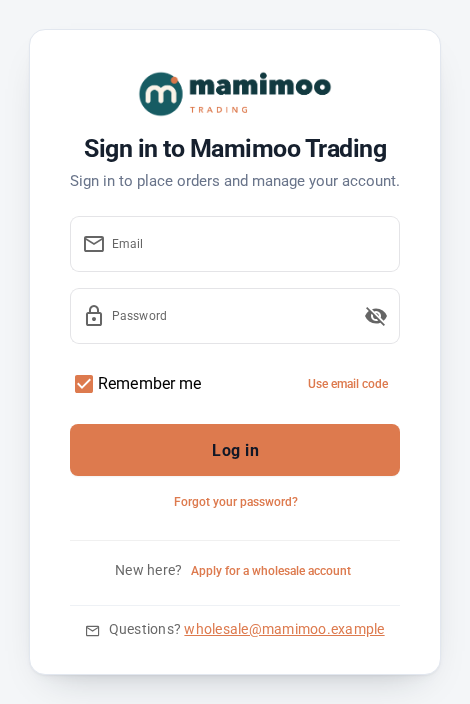
Buyers see your brand before they even sign in. The sign-in, registration and invitation pages carry your logo, your name and your support email, and the browser tab uses your name and icon. Portal emails, from invitations to order confirmations and invoices, use your logo and colours too, and come from your business's name.
Greet buyers with a Home page
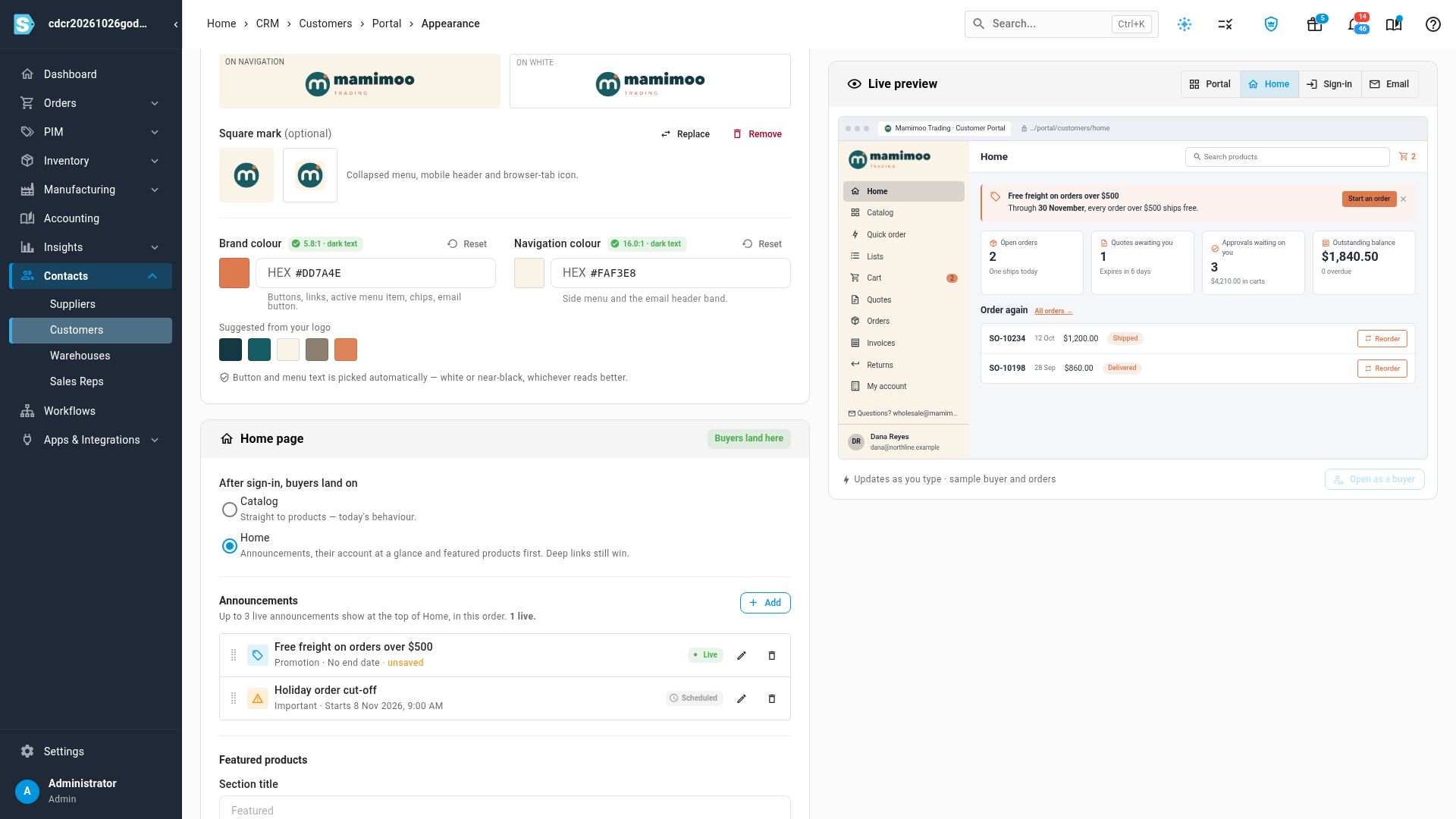
Choose whether buyers land on Home or go straight to the catalog after signing in; the catalog stays the default. Home leads with your announcements, then shows the buyer's account at a glance, your featured products and their recent orders, ready to reorder in one click.
Announcements and featured products you control
Add up to ten announcements, with up to three showing at once, in the order you set. Give each one a tone, a short message and an optional button. Schedule a start and end date so a promotion appears and disappears on its own, and pin anything buyers shouldn't dismiss, such as a holiday shipping cut-off. Pick up to twelve featured products. Each buyer only sees the ones in their own catalogs, and SKU.io warns you about any product no buyer can see.
Where to find it
- Brand your portal and set up Home: Contacts → Customers → Portal → Appearance.
- See it as your buyers do: use Open full portal as a buyer on the same page.
- Full guides: Brand your customer portal · Set up your portal Home page