In-app guides — help for the screen you're on, without leaving it
When you're stuck on a screen, the answer usually lives in a guide on another tab. You search for it, read it, then switch back and try to remember which button it said to click. In-app guides bring that help to you. Open the guide on any SKU.io screen and it slides in beside the page, with the summary, the video walkthrough and the numbered steps for exactly what you're looking at. You can follow along without leaving your work.
✨ What this means for you:
- Every screen has a guide. Lists, record pages, settings, integrations and reports all open the guide written for them.
- One place, everywhere: the book icon in the top bar opens the guide on every page, and a blue dot tells you the page has one. Press H to open or close it from anywhere.
- Watch, then do: the video plays right in the panel, next to the screen it shows.
- Checked against your account: Before you begin ticks off what you already have (the permission you need, a supplier, a warehouse) and flags what's missing, so you know you're ready before you start.
- Show me: steps that name a button can point straight at it on the page.
- Never a dead end: if a page doesn't have a guide yet, you get a docs search, the closest guides and a way to contact support.
The guide for the screen you're on
Open the guide on Purchase Orders and you get Create a purchase order first, with tabs for the other guides that cover the page: importing purchase orders, committed-spend billing and how purchase order status works. Each guide shows its summary, video length, number of steps and when it was last checked against the app. On wide screens the page moves aside so you can keep working while you read.
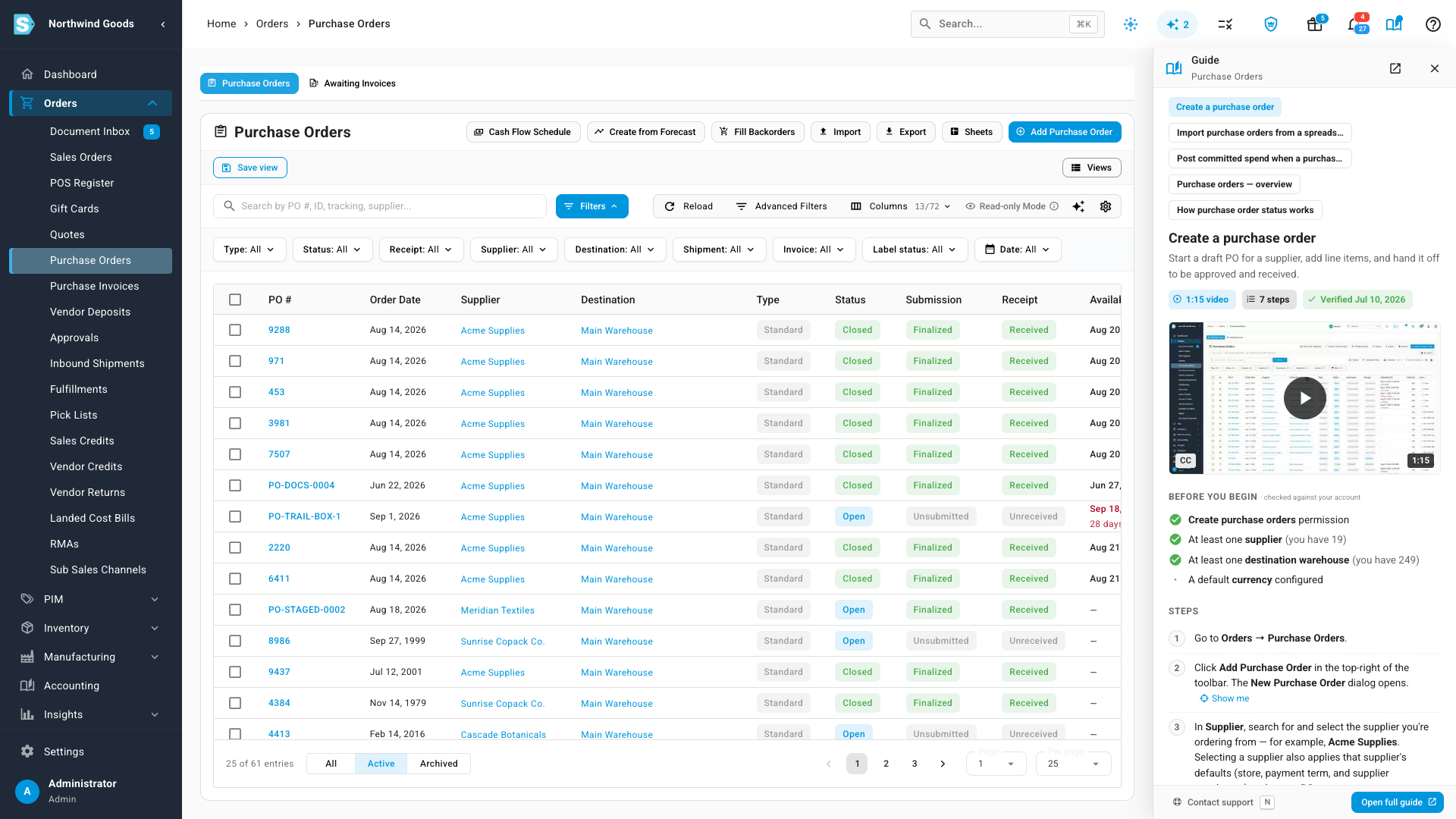
Before you begin isn't just a list. It checks your account as you read: here the user has permission to create purchase orders, 19 suppliers and plenty of warehouses, so every item is ticked. Further down, a step that tells you to click Add Purchase Order has a Show me link that points that button out on the page.
Jump straight to the right setting
On settings pages, On this page lists the page's sections. Jump to takes you to the one the guide is talking about, so you don't have to scroll through a long settings page looking for it.
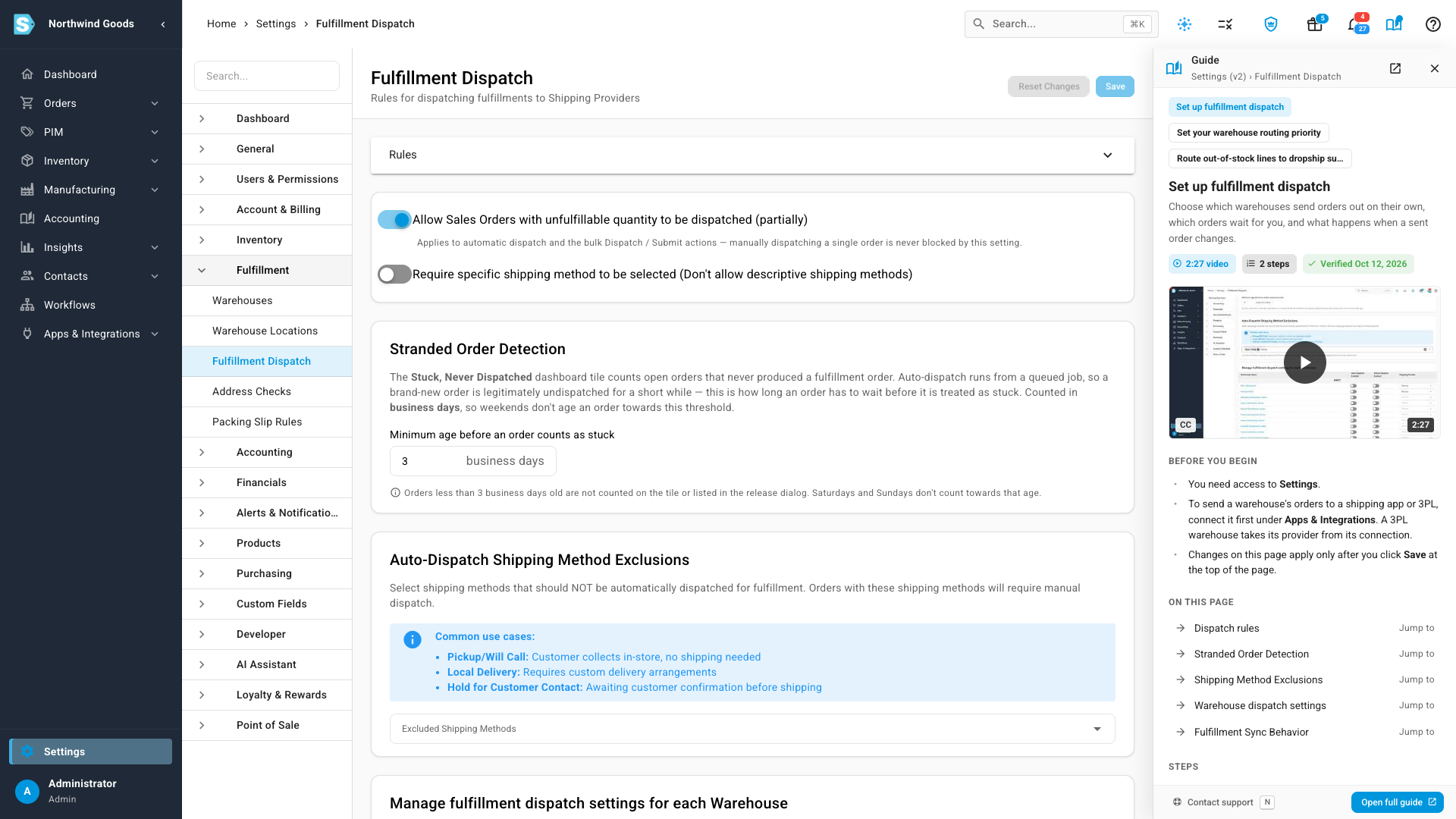
Where to find it
Click the book icon in the top bar, beside the ? help icon, on any page, or press H. Press Esc to close it. Open full guide opens the complete article on the docs site, and Contact support is at the bottom of the panel when you need a person.