Online payments — payment links, saved cards, ACH with card surcharges, and Stripe payouts in your books
Getting paid for a sales order used to mean sending a full Stripe invoice and waiting, or taking the customer's card details over the phone and running them through the register. Every card payment cost you around 3%, and Stripe's fees never reached your books, so the deposits in your bank didn't match what you'd recorded. Online payments fix all of that from the sales order. Send a payment link your customer can pay by card or bank transfer, charge a card you've saved for a repeat customer, offer ACH with no fee and add a surcharge to card payments, and post every Stripe payout to your ledger with its fees split out.
✨ What this means for you:
- Get paid faster. Create a payment link from the order, paste it into any email or message, and the payment is recorded on the order when the customer pays.
- Take deposits on quotes. Request a deposit link from a quote, and the deposit carries over to the sales order.
- Charge repeat customers in one click. Save a customer's card once, with their consent, and charge it from any of their orders.
- Cut your card costs. Offer bank transfer (ACH) with no fee, and pass your card processing cost on to customers who still pay by card.
- Books that match the bank. Each Stripe payout posts as one journal, with Stripe's fees in their own expense account, so the deposit matches your bank statement.
Send a payment link from the order
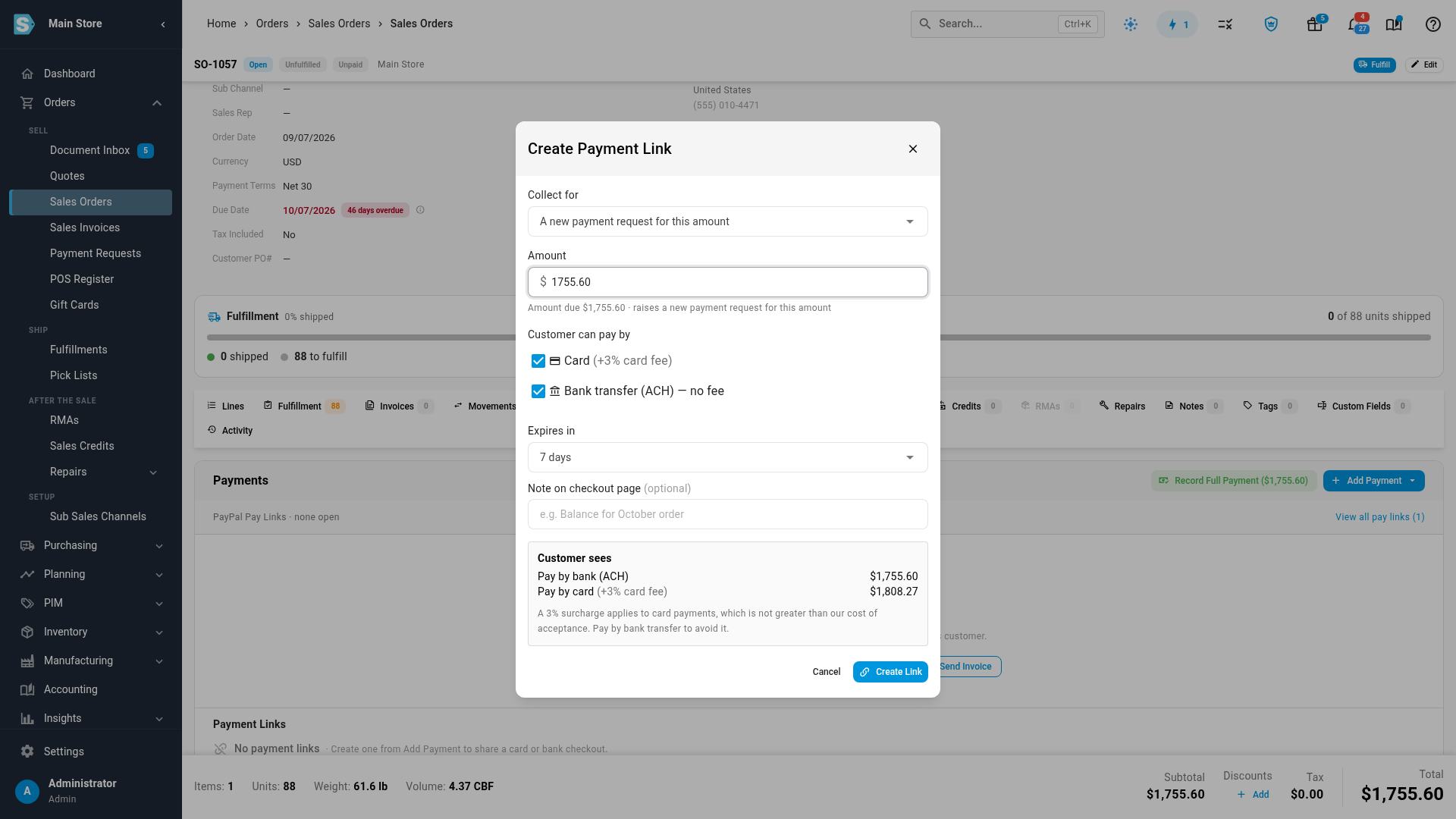
On a sales order's Payments tab, click Add Payment and choose Create Payment Link. The amount starts at the balance due, and you can lower it to ask for a deposit. Choose whether the customer can pay by Card, Bank transfer (ACH) — no fee, or both, and how long the link stays payable. Customer sees shows each price before you send anything. Click Create Link, and the link is copied for you, ready to paste. Each link also has buttons to open the customer's page and to show a QR code your customer can scan to pay on their phone.
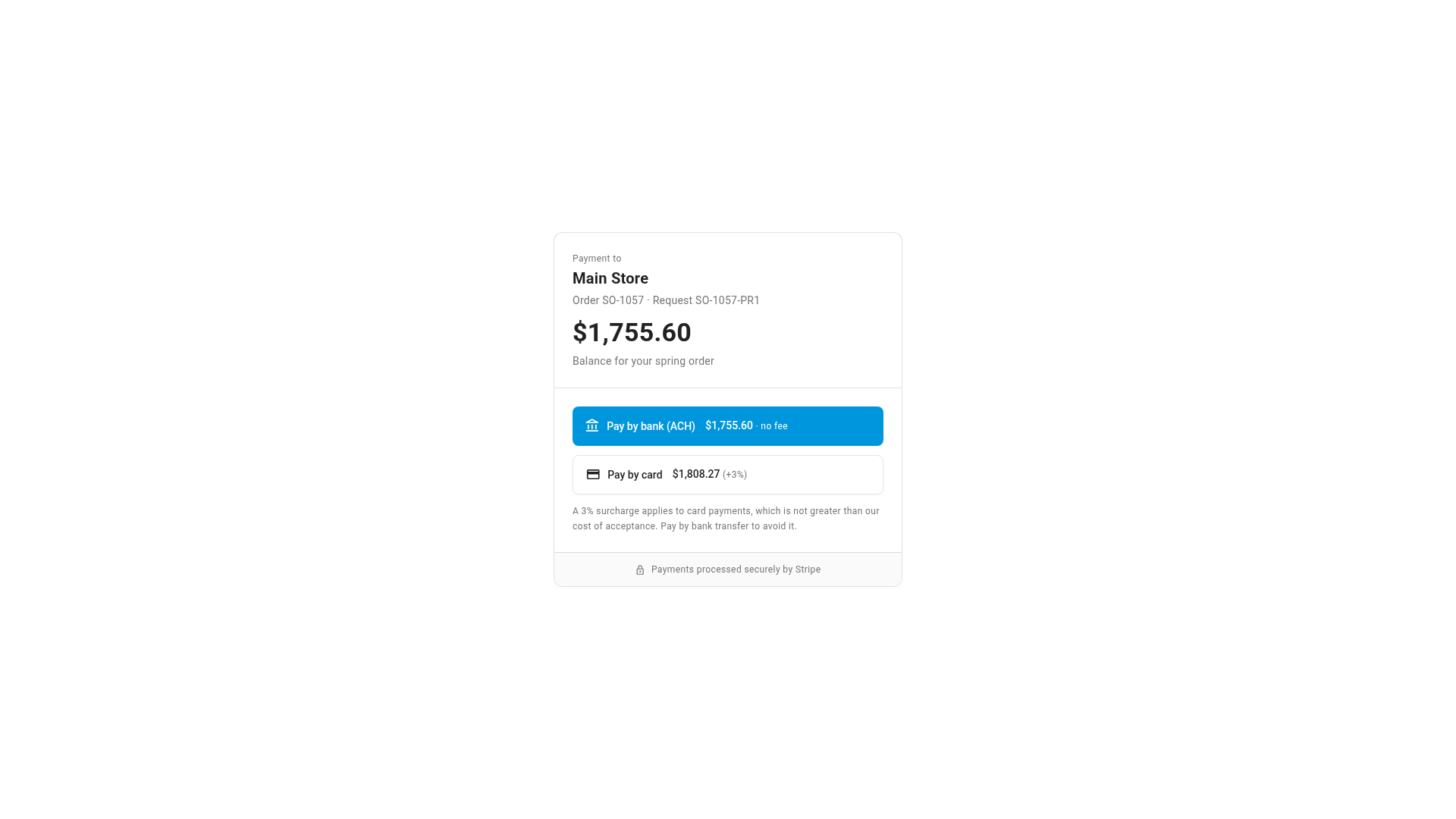
The link opens a payment page with your store name, the order and the amount. From there, Stripe's secure checkout takes the customer's card or bank details, so they never pass through SKU.io. When the customer pays, the payment shows up on the order's Payments tab and the link changes to Paid. A bank transfer is recorded once it settles, which usually takes a few business days.
On a quote with a deposit, Request Deposit Link opens the same dialog for the deposit amount.
Save a card and charge it from any order
For customers who pay by card regularly, open the customer, go to Credits & Wallet, and add their card under Payment Methods. You confirm that the customer agreed to having their card saved, and SKU.io records that consent. Your payment processor keeps the card. SKU.io stores only its brand, last four digits and expiry date.
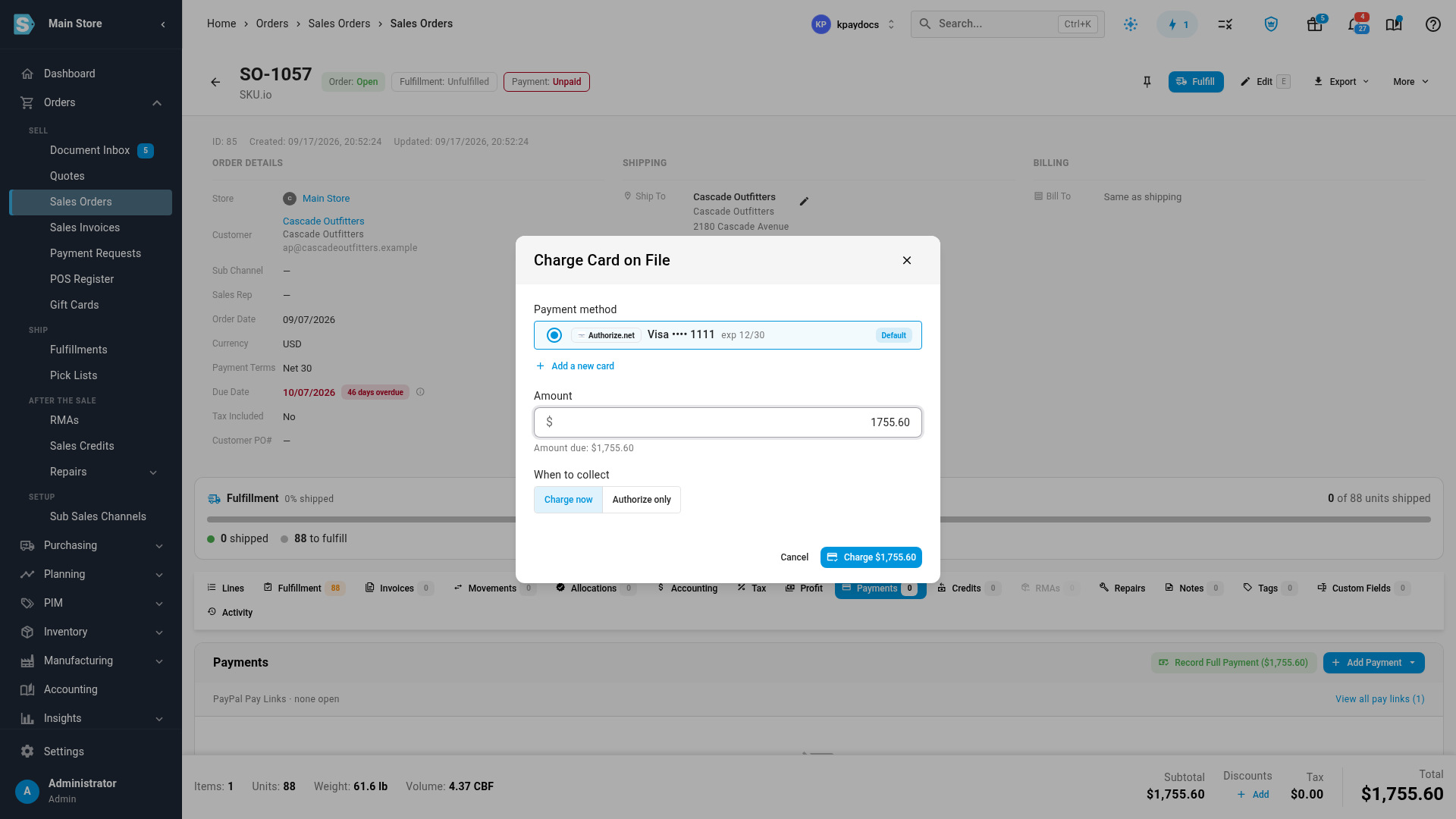
Then, on any of their sales orders, choose Add Payment → Charge Card on File. Their default card and the amount due are already filled in. Click Charge, and the payment is recorded on the order with the processor's transaction ID.
Offer ACH, and add a surcharge to card payments
Under Settings → General → Invoicing, the new Payment Collection tab decides how customers can pay you online:
- Bank payments (ACH): add a no-fee bank transfer option to your Stripe payment links, for USD orders paid from a US bank account. Stripe charges 0.8% for a bank payment, capped at $5, instead of about 3% for a card.
- Card surcharge: add a percentage, up to 3%, to card payments, with a disclosure your customer sees before paying. Bank payments are never surcharged. The fee is added to the order as a Card Surcharge line, so the order, the invoice and the payment all match. When you charge a saved card, you can waive the fee for that one charge.
- Payment links: choose how long new links stay payable.
Surcharging has rules of its own, including state restrictions and a ban on surcharging debit cards. The page lists them before you turn it on.
Post Stripe payouts to your ledger
Stripe pays your customers' payments into your bank in batches called payouts, with its fees already taken out. A Stripe account in Apps & Integrations now has a Payouts page that lists every payout with its gross, fees and net amount. It also shows whether each payout is posted to your ledger and whether it's been matched to your bank statement. Open a payout to see the charges and refunds it settles, each linked to its payment on a sales order, and a preview of the journal entry.
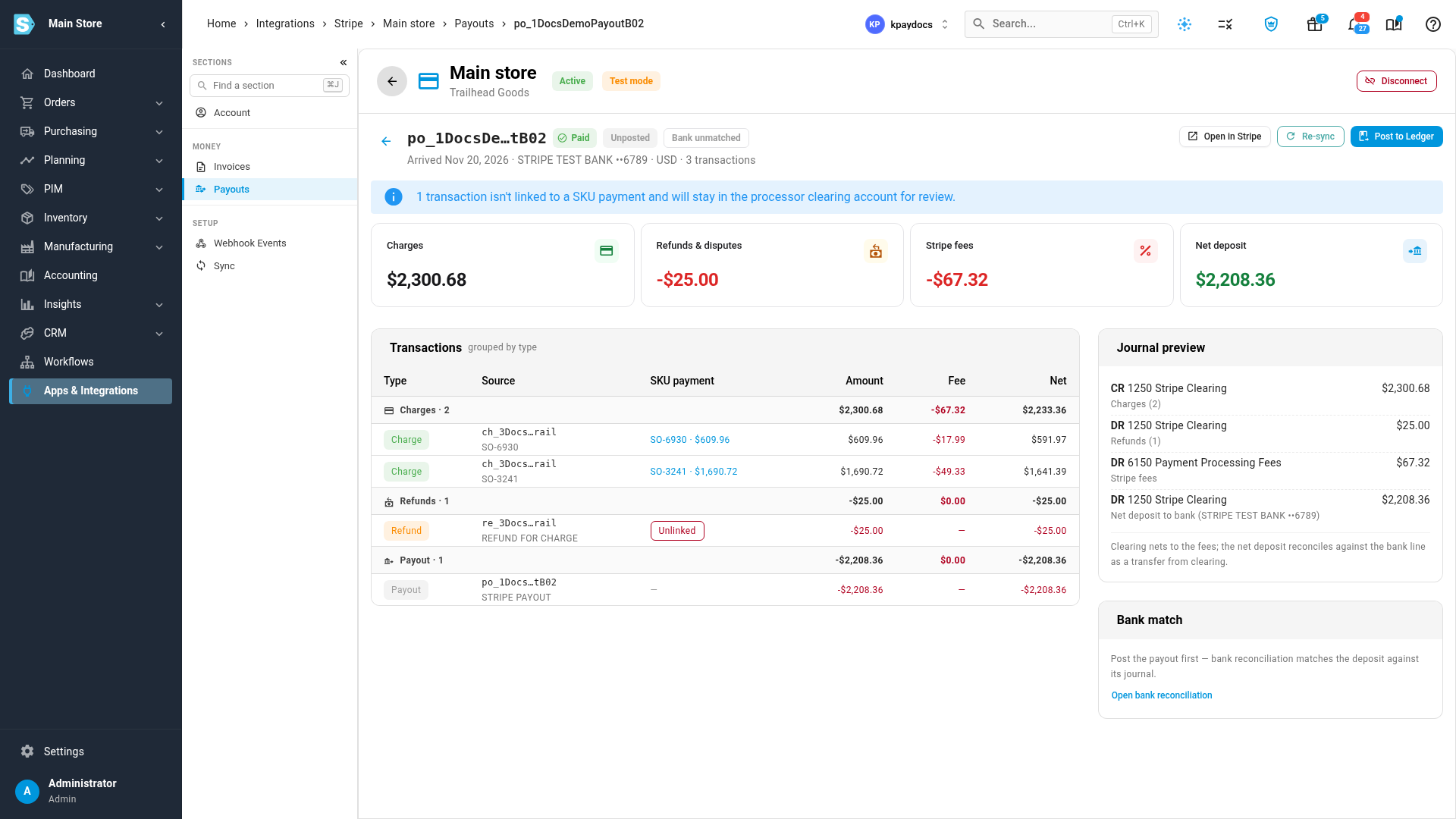
Click Post to Ledger to post it. Stripe's fees go to your Payment Processing Fees account, and the net deposit moves through a Processor Clearing account. You then match it to its line on your bank statement in bank reconciliation. Payouts sync from Stripe every night, or you can click Sync Payouts to get them right away.
Use Authorize.net instead of Stripe
If you process cards through Authorize.net, you can connect it in Apps & Integrations and use it for payment links, saved cards and portal payments. With Authorize.net you can also authorize an amount on a card and capture it later. If you connect both processors, choose which one new links and saved cards use with Default card processor on the Payment Collection tab.
Where to find it
- Payment links and saved cards: open a sales order, go to its Payments tab, and click Add Payment.
- Save a card: CRM → Customers, open the customer, then Credits & Wallet → Payment Methods.
- ACH and surcharge settings: Settings → General → Invoicing, Payment Collection tab.
- Stripe payouts: Apps & Integrations, open your Stripe account, then Payouts.
Full guides: