Product lifecycle — retire products cleanly and sell through what's left
Every catalog has products on the way out, and until now "discontinued" mostly meant remembering not to reorder something. Open purchase orders kept arriving, backorders kept piling up, the replacement product started with no sales history, and the leftover stock sat in the warehouse until someone noticed. Product lifecycle gives every product a state — Active, Phasing out or Discontinued, plus any of your own — and SKU.io acts on it: it stops reordering, shows you exactly what a change will affect before you confirm it, and gives you one place to watch the remaining stock sell through and clear it with markdowns or a closeout offer.
✨ What this means for you:
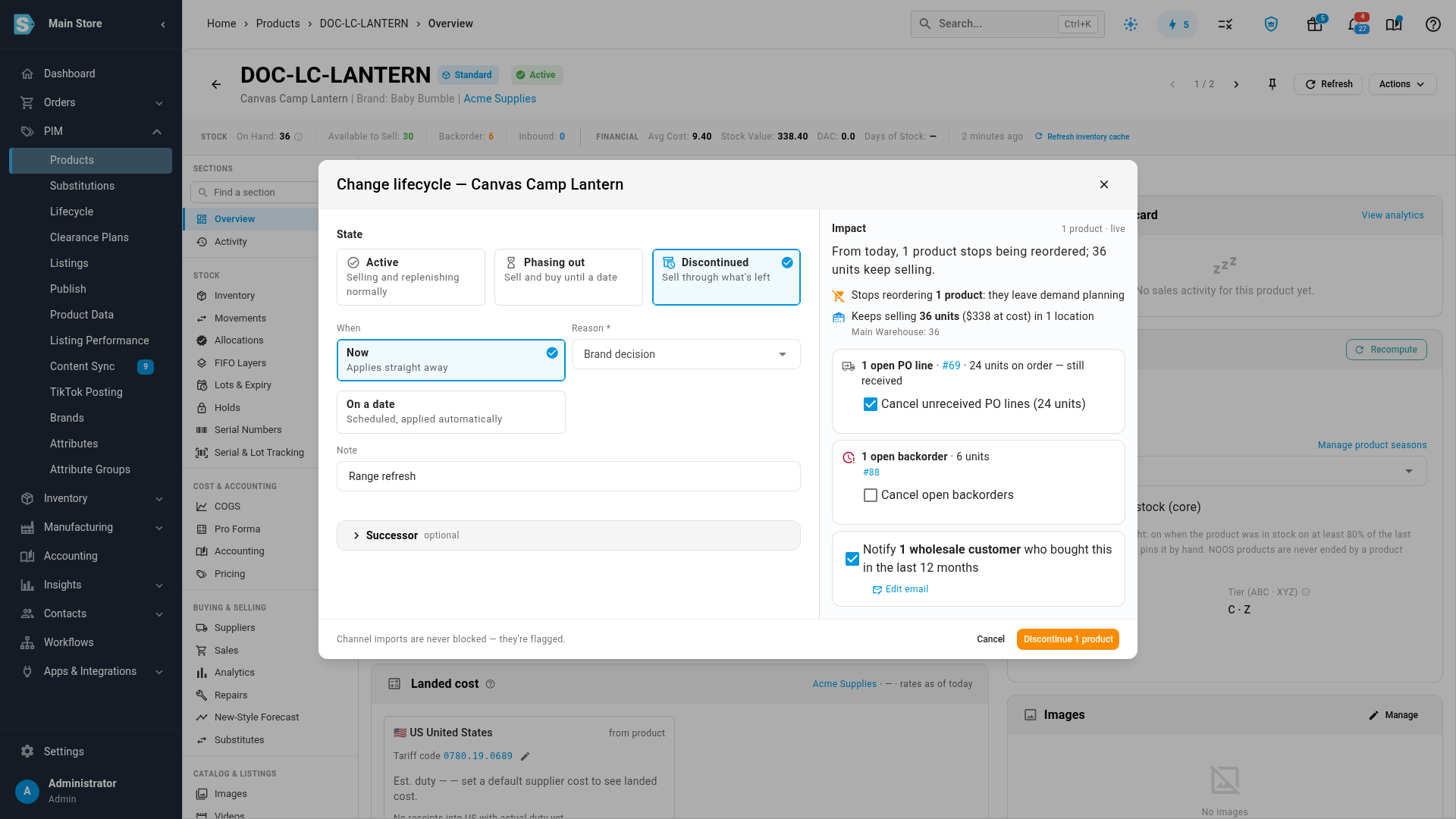
- See the impact before you commit. Discontinuing a product shows how much stock keeps selling, which purchase order lines and backorders are still open, and which wholesale customers bought it — and can cancel and notify in the same step.
- Plan a final buy. Phase a product out with a discontinue date: SKU.io plans demand only up to that date, and switches it to Discontinued on the day.
- Hand over to the replacement. Link a successor so the new product inherits the old one's sales history for planning, uses up the old stock first and can be substituted on orders.
- Change one product or hundreds — now, on a date, or in bulk from the products list — and undo a change if you got it wrong.
- Sell through what's left with clearance plans that step prices down for your approval, closeout catalogs, PDF linesheets and emailed offers to wholesale buyers.
- Let SKU.io spot candidates. Suggestions flag products that look ready to phase out, and seasons show what carries over and what to end.
Know what a change does before you make it
Choose Change lifecycle… on a product and the dialog works out the impact live: how many units keep selling and where they are, which open purchase order lines are still to be received, which backorders are waiting, and which wholesale customers bought the product recently. Tick the follow-ups you want — cancel the unreceived PO lines, cancel the backorders, email the customers — and they happen together with the change. Apply it now, or schedule it for a date and SKU.io applies it for you.
Watch the leftovers sell through
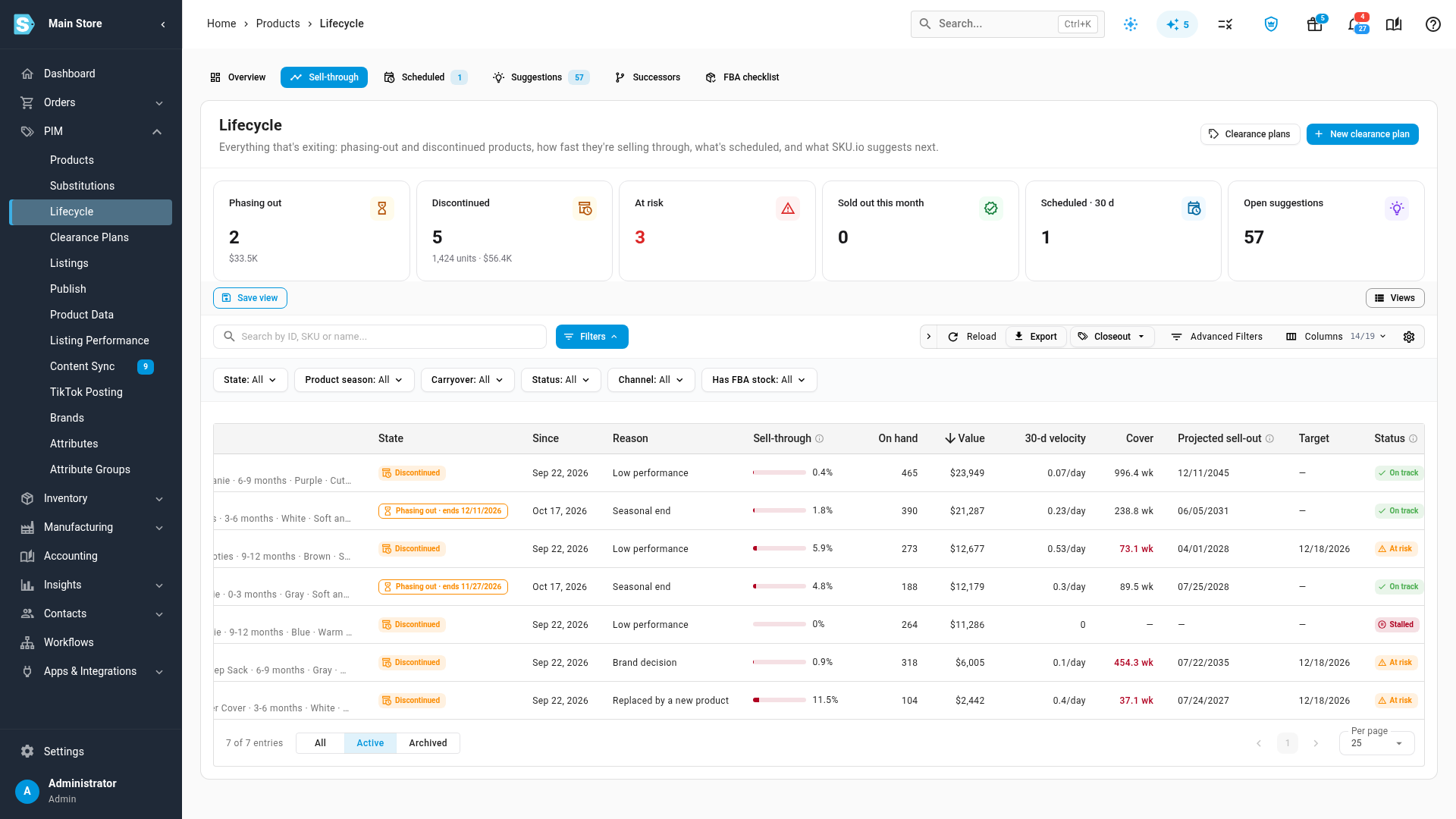
PIM → Lifecycle gathers everything that's on its way out. Sell-through shows each phasing-out and discontinued product with what's on hand, its value, how fast it's selling, when it's projected to sell out and whether it's on track, at risk or stalled. Next to it are the scheduled changes, the suggestions, the successor links and an FBA checklist for getting discontinued stock out of Amazon before the next aged-inventory surcharge.
Clear stock with markdowns you approve
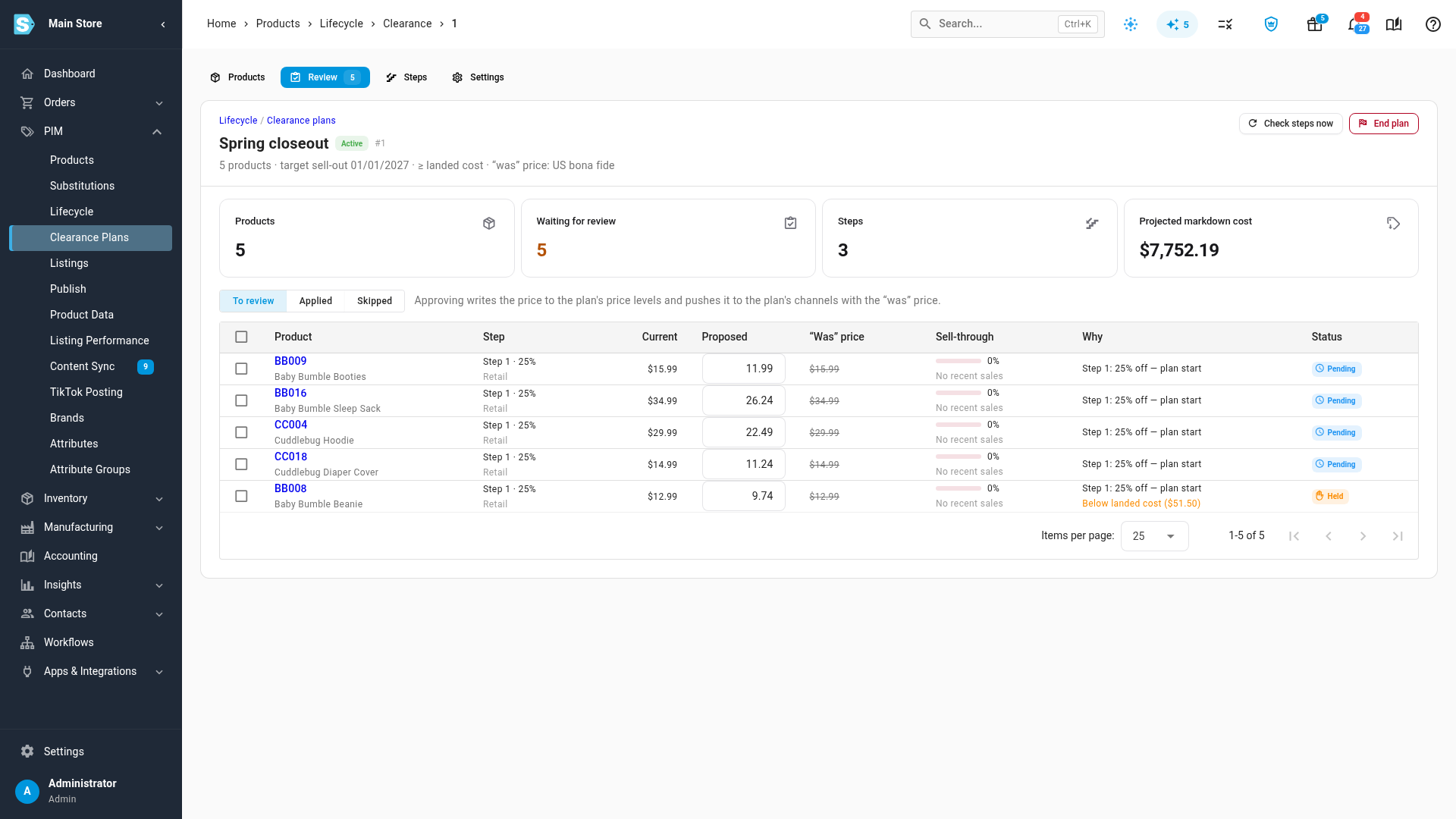
A clearance plan steps prices down on a schedule — for example 25% off at the start, then deeper if a product isn't selling. Each step is proposed for your review with the price, the "was" price that will show beside it, and the reason. Prices below landed cost are held for you to decide, and nothing reaches your channels until you approve it. For what's still left, export a closeout list, build a PDF linesheet, publish a closeout catalog on your B2B portal, or email an offer to your wholesale buyers.
Set it up the way you work
Under Settings → Products → Product Lifecycle you decide what each state allows, add your own states such as a quality hold, choose what each sales channel does when a discontinued product sells out — keep the listing at zero, end it, or end it and archive the product — and set up Shopify touches like a "Final stock" label or redirecting a sold-out page to its replacement.
Where to find it
- Change a product's lifecycle: open the product and click Actions → Change lifecycle…, or select products on PIM → Products and click Change lifecycle in the bar above the table.
- Watch sell-through, scheduled changes and suggestions: PIM → Lifecycle.
- Markdowns: PIM → Clearance Plans.
- Settings: Settings → Products → Product Lifecycle.
Full guide: Product lifecycle