Send Planner — one weekly plan for restocking Amazon, Walmart and TikTok
If you sell through Amazon, Walmart and TikTok fulfillment, restocking them is a weekly juggling act. Each network has its own replenishment screen, they all draw on the same stock in your warehouses, and none of them knows what the others asked for, or what you need to keep for the orders you ship yourself. Send Planner puts it into one plan. It works out how much of your stock should go to each network and from which warehouse, keeps enough back for your own orders, shares stock fairly when there isn't enough, and then creates the shipment drafts in each network for you.
✨ What this means for you:
- One plan for every network. Amazon FBA and AWD, Walmart WFS and TikTok FBT are planned together from the same stock, so they never compete for the same units.
- Your own orders come first. Stock for the orders you ship from your own warehouses is kept back before anything is offered to the networks.
- Fair when stock is short. You decide each network's target days of stock, its minimum and its priority, and the planner shares short stock by those rules.
- Every number is explained. Open any product to see why it gets its quantity, line by line.
- Drafts in one step. Select what to send and the planner creates one shipment draft per network and warehouse. Nothing ships until you submit or confirm each draft in its network.
- A weekly routine that runs itself. Schedule a send run every week, decide only the exceptions, and approve each network.
See where your stock should go
Open Inventory → Send Planner. The Plan tab sums up the send: how many units go out, which products can't reach their target, which will run out before the send lands, and how much is kept for your own orders. Where it goes shows the units for each network, and the grid below lists every product with a column per network.
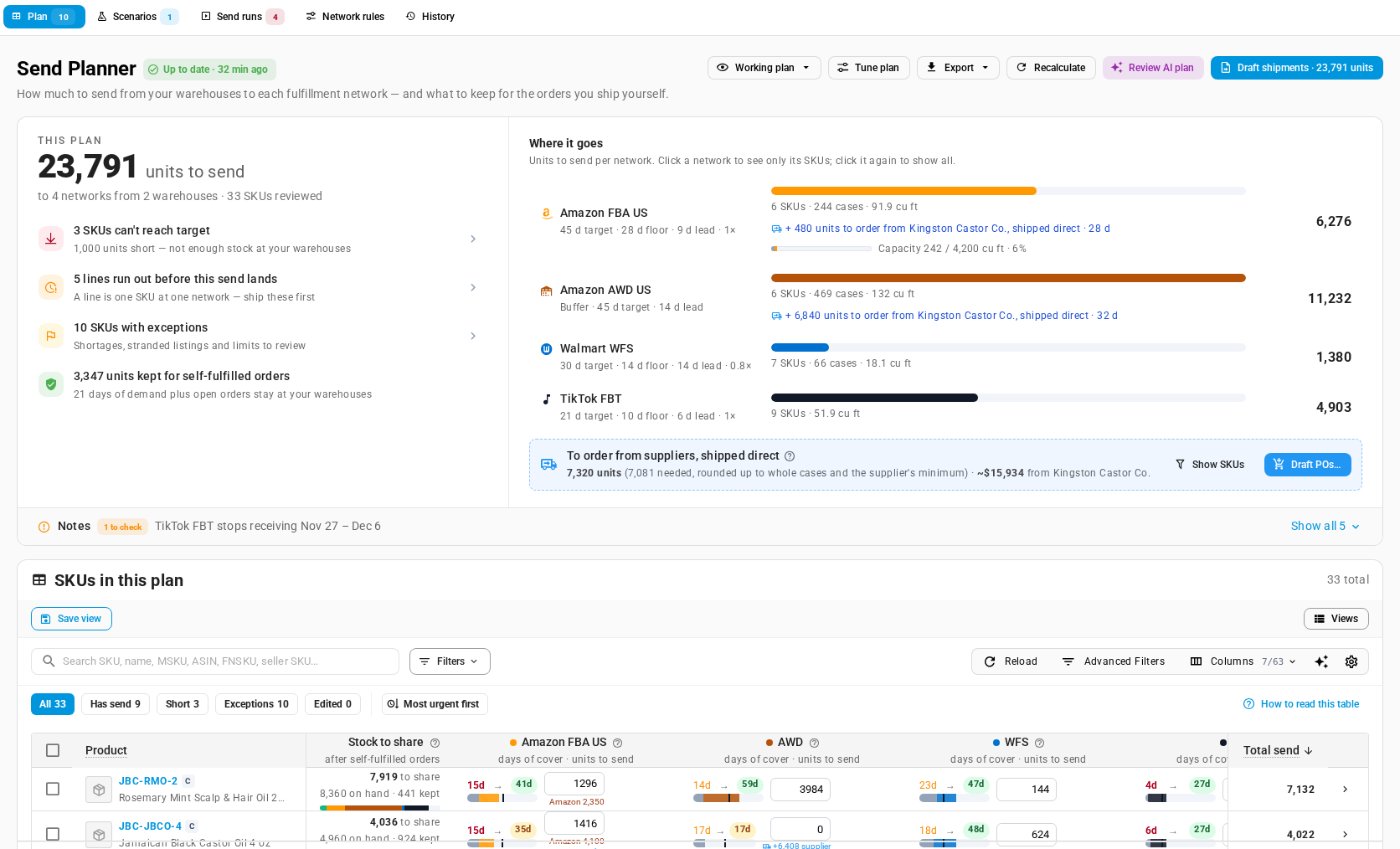
If you know better for one product, change its quantity right in the grid. The planner can rebalance the other networks around your change.
Turn the plan into shipments
Select the products to send, or none to send the whole plan, and click Draft shipments. The planner lists every draft before it creates anything: an FBA inbound plan, an AWD order, a WFS inbound shipment or an FBT inbound plan for each network and warehouse, with the stock set aside for it. Each draft stays a draft until you finish and submit it in the network.
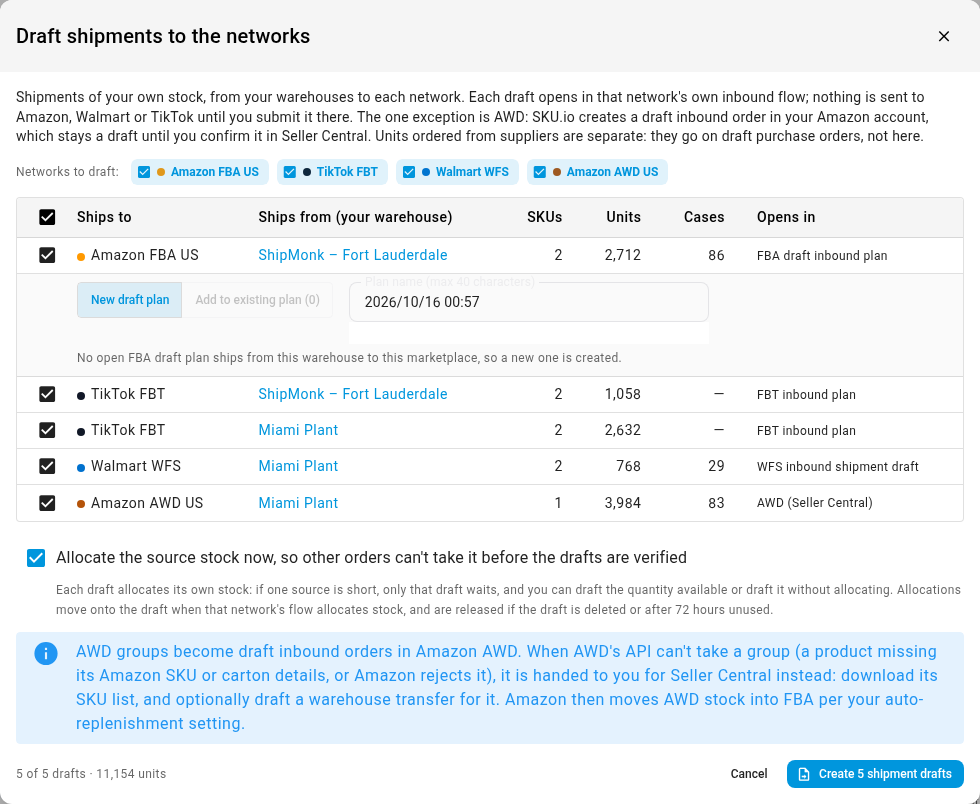
If a supplier ships straight to a network, the planner can also suggest that order and create a draft purchase order for it.
Make it a weekly habit
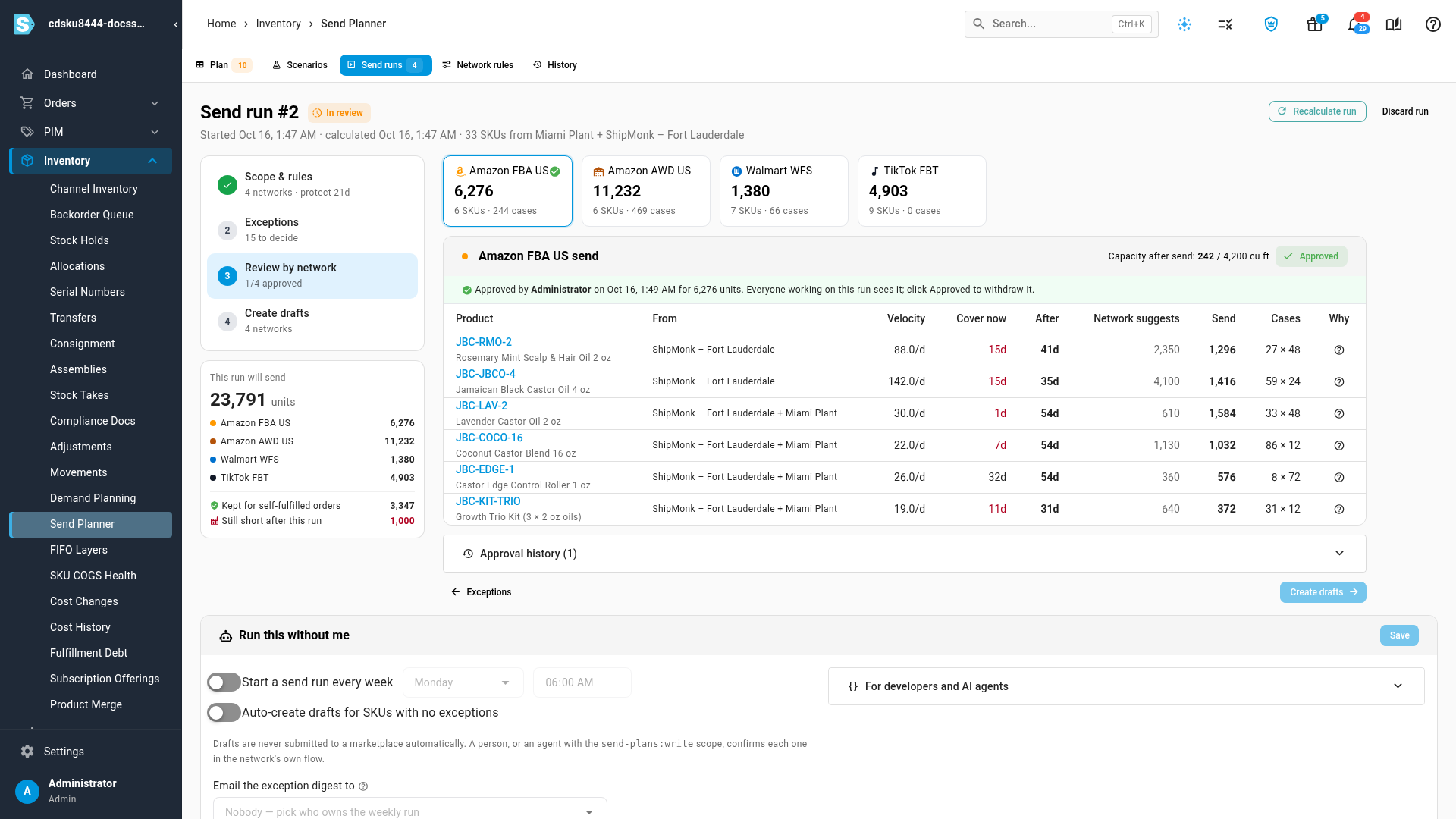
A send run walks you through the week's send: choose what it covers, decide the exceptions, approve each network, then create the drafts. You can schedule one every week and get an alert when it needs you.
Want to try something first, such as a promotion or a higher target? A scenario is a what-if copy of the plan that never touches your stock. Compare it with the working plan and promote it when you're happy.
Where to find it
Go to Inventory → Send Planner. The five tabs are Plan, Scenarios, Send runs, Network rules and History. To get started, read How the Send Planner works and Set up the Send Planner, or browse the whole Send Planner guide.