Regional coverage — see how many buyers your stock can reach in two days
A thousand units at a fulfillment center in California do little for a buyer in Ohio. Marketplaces place your stock where it suits them, and until now SKU.io showed it as one number per network, so you couldn't tell that most of a SKU sat on the West Coast while a third of its buyers live in the East. Regional coverage adds that missing view to the Send Planner. For every SKU and network, it estimates the share of buyers within two days of your stock, shows which regions are thin, and shows what this plan's send does about it. You can also play back how your stock spread over the last months.
✨ What this means for you:
- One number to manage to: the estimated 2-day reach of each SKU and each network, against a target you set (80% by default).
- Before and after the send, so you can see whether this shipment actually closes the gap.
- A Regions table that names the region that needs stock most, and links straight to the shipment's placement step.
- A playback of the last days, months or year, with stock arriving, selling down and moving between fulfillment centers.
- Covers Amazon FBA, TikTok Shop FBT and your own warehouses and 3PLs.
- Coverage never changes how many units the plan sends. It shows where those units are likely to end up.
The Coverage tab
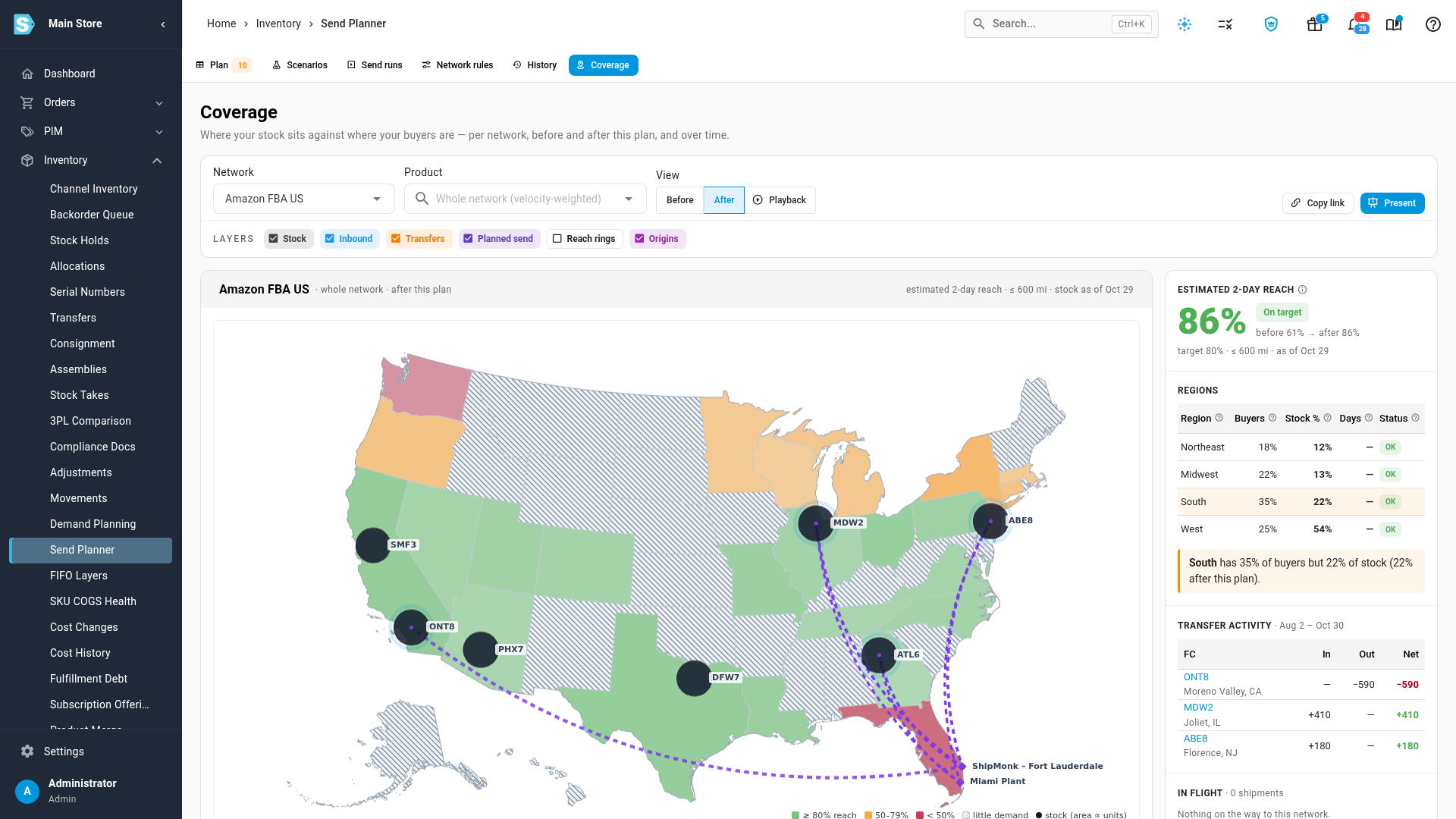
Open Inventory → Send Planner and click Coverage. Choose a network, and optionally one SKU. The map colours each state by how many of its buyers are within reach: green at or above your target, amber from 50%, red below. Dark circles are fulfillment centers holding the SKU, sized by units. Diamonds are your own warehouses and 3PLs where sends start, and dotted lines show planned sends and stock moving between centers.
The big number on the right is the estimated share of buyers within two days of stock once this plan's sends land. Under it you see the figure before the plan, the target and the date the stock figures are from.
Before and after the send
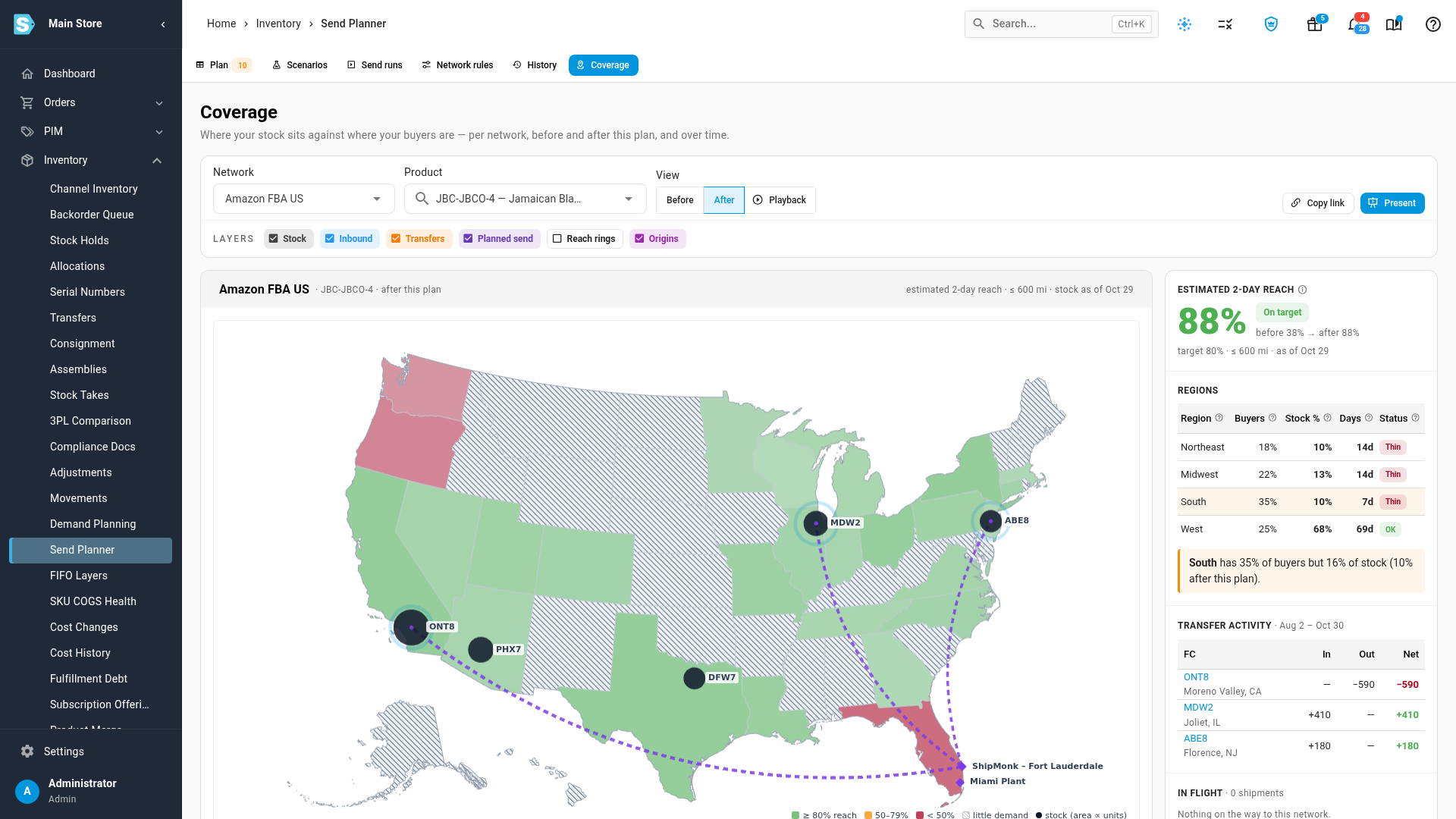
Switch View between Before and After to see reach today and once the send lands. The send is placed the way the network has placed this SKU's past shipments, or the way you chose when you picked a placement. In this example, a SKU that reaches 38% of its buyers today, with stock only in the West and Texas, reaches 88% once the send lands in the Midwest and Northeast.
The Regions table compares each region's share of buyers with its share of stock and days of cover, flags the Thin ones, and names the region to send more to.
Play back how your stock spread
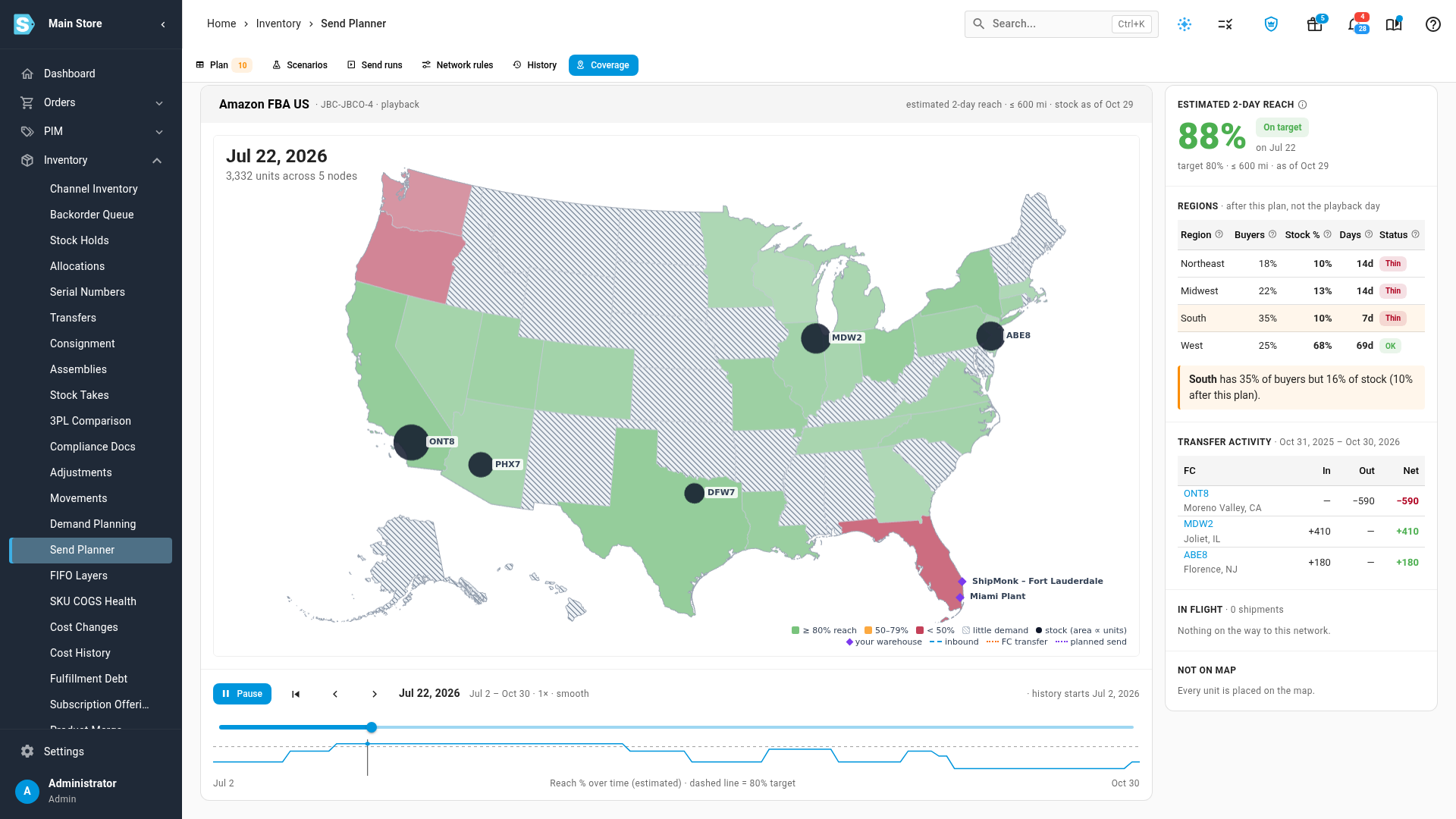
Click Playback, pick a range (7 days up to 12 months, or custom) and press Play. The map and the big number change day by day as stock arrives, sells down and moves between fulfillment centers, while the line under the map tracks reach against the target. Transfer activity lists what each center sent and received. Present opens a full-screen version that plays on its own, ready for a meeting.
Right on the Plan tab
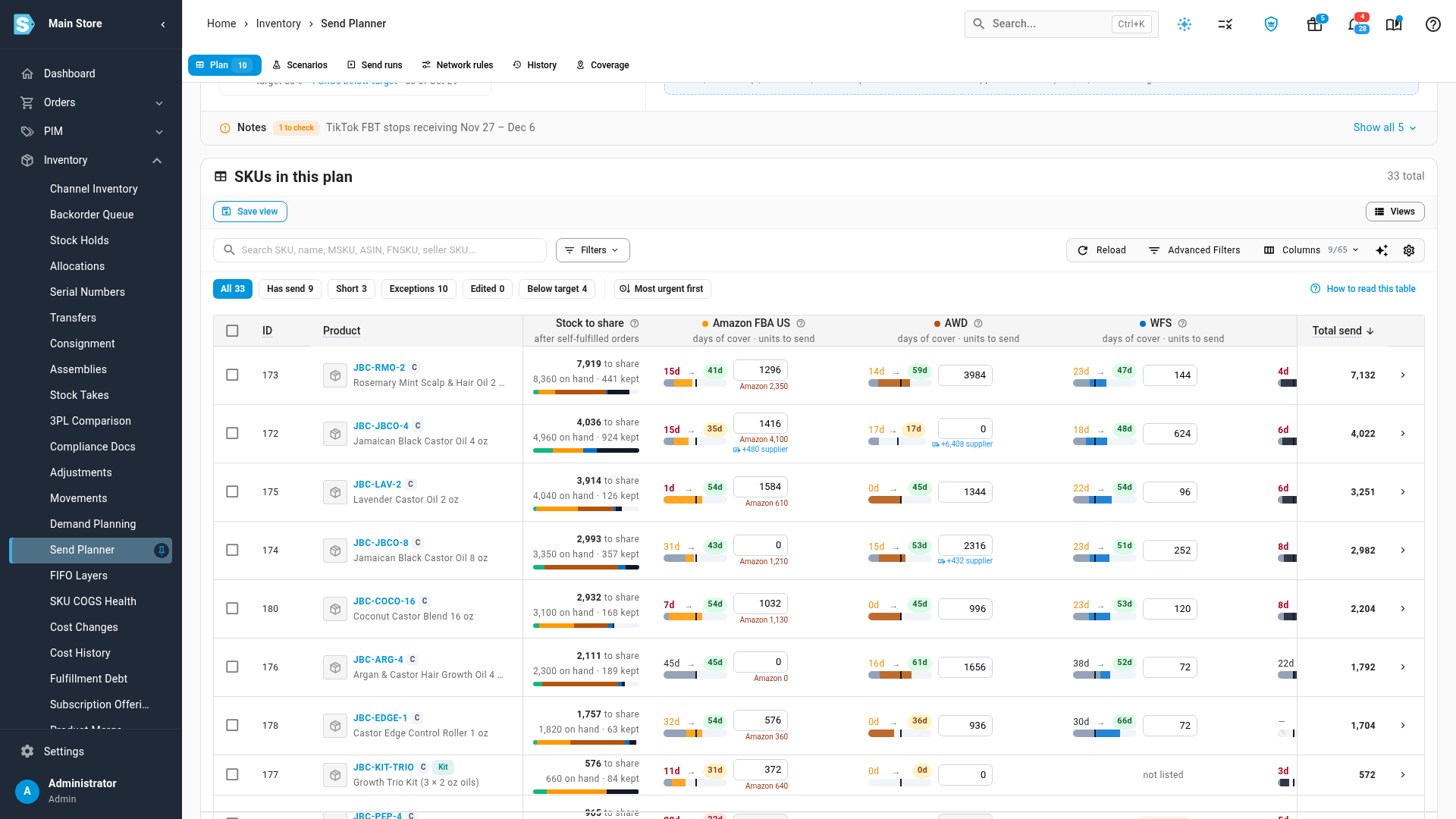
You don't need to open the Coverage tab to spot a problem. The plan summary has a 2-day reach tile per network, before and after the plan, with how many SKUs are below target. The Below target quick filter shows just those SKUs, and the 2-day reach column shows each SKU's reach on every network. Open a SKU and its drawer has a coverage card per network, with the region to send more to.
Pick placements by reach, not just fee
On an Amazon FBA inbound plan, each placement option now shows the 2-day reach it gives once its units land, the points it gains and the fee per point. Best reach for the fee marks the option worth paying for. When you open placement from the Send Planner, that option is preselected, and nothing is confirmed until you click Confirm Placement Option. TikTok Shop FBT delivery options show the reach each one gives too.
Your own warehouses and 3PLs
Choose Your warehouses under Network to measure your own warehouses and 3PLs against the orders you ship yourself. Because sends to the marketplaces leave from these warehouses, the planner warns you when a send would leave a region below target, and names the warehouse the units come from.
Where to find it
Inventory → Send Planner → Coverage, and the 2-day reach tile, column and Below target filter on the Plan tab. Set the target, the reach radius and the minimum units per fulfillment center under Network rules, per network.
Full guide: Check regional coverage